Olivia Harper
ActiveX is a legacy Microsoft technology that was widely used by older websites, business applications, banking portals, government websites, and enterprise systems. However, modern browsers no longer support ActiveX natively due to security concerns and the move toward modern web standards. On Windows 11, Microsoft Edge does not directly support ActiveX controls, but legacy websites that require ActiveX can still work through Internet Explorer (IE) Mode in Microsoft Edge.
If you need to access an older website that requires ActiveX, the recommended solution is to enable Internet Explorer Mode in Microsoft Edge and open the website using the IE rendering engine. IE Mode continues to support ActiveX controls and other legacy Internet Explorer technologies.
This guide explains how to enable ActiveX functionality on Windows 11 and use it with compatible websites.
Method 1: Enable Internet Explorer Mode In Microsoft Edge
Since Internet Explorer is no longer available as a standalone browser in Windows 11, Microsoft recommends using IE Mode inside Edge for websites that require ActiveX.
To enable IE Mode:
Open Microsoft Edge.
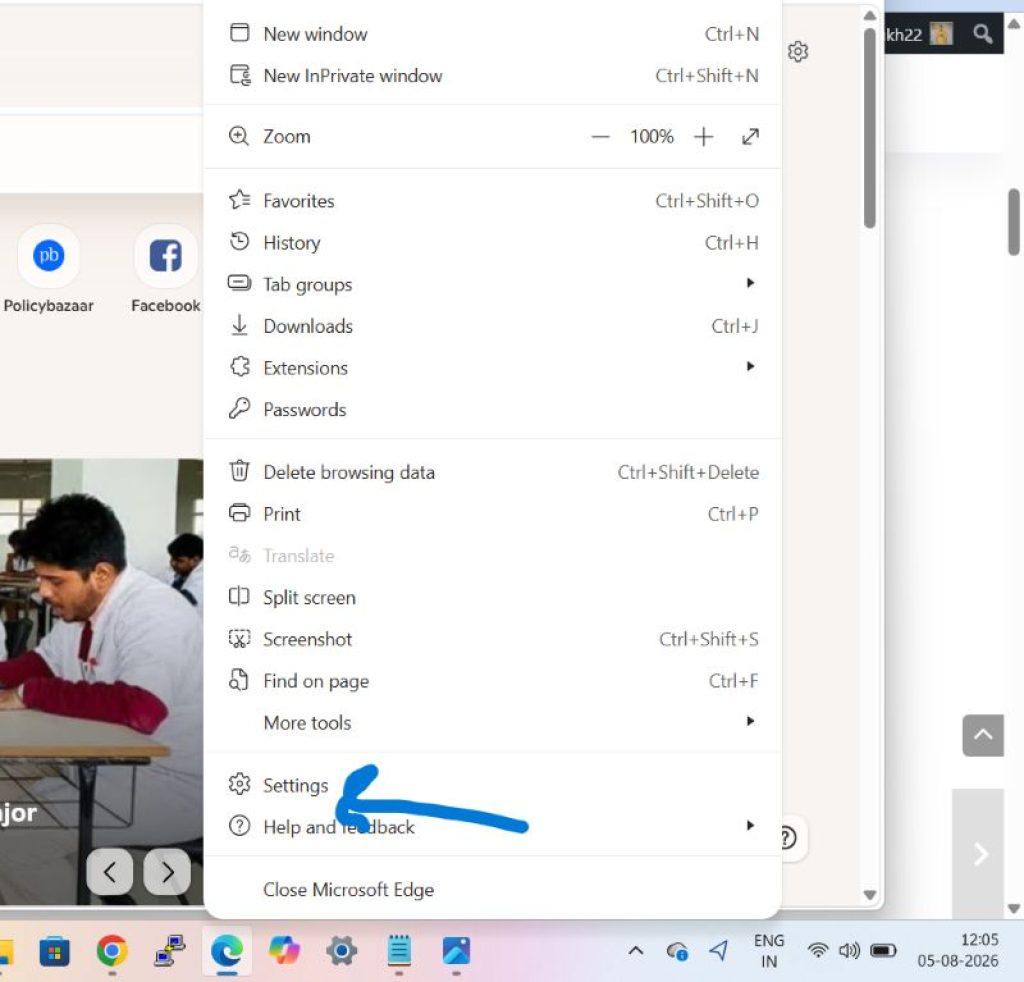
Click the three-dot menu in the upper-right corner.
Select Settings.
Click Default Browser.
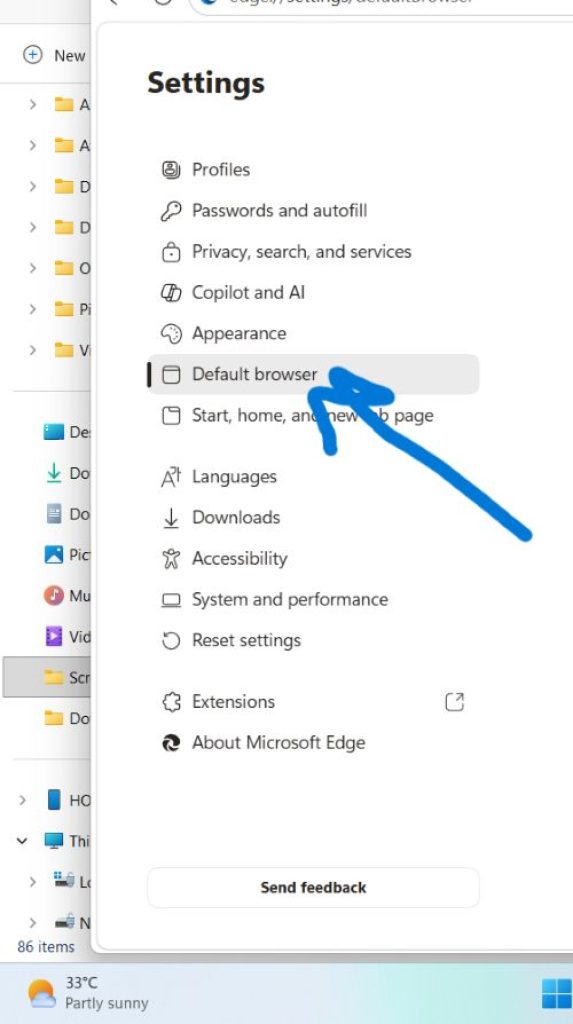
Locate Internet Explorer Compatibility.
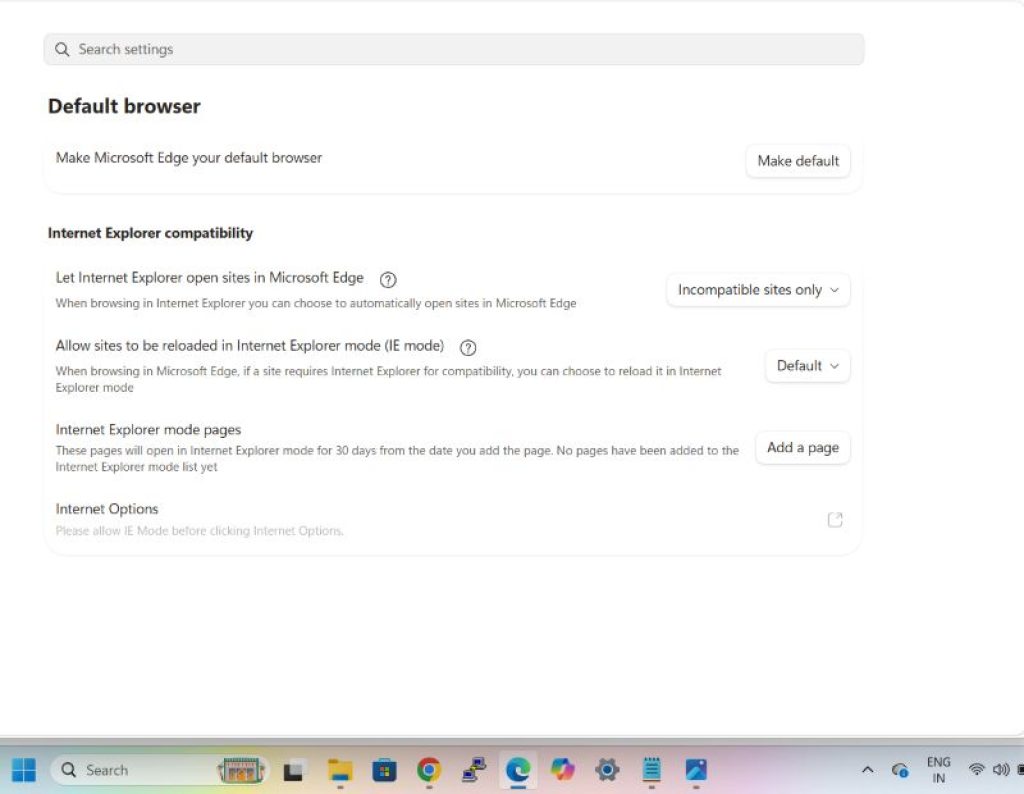
Set Allow Sites To Be Reloaded In Internet Explorer Mode to Allow.
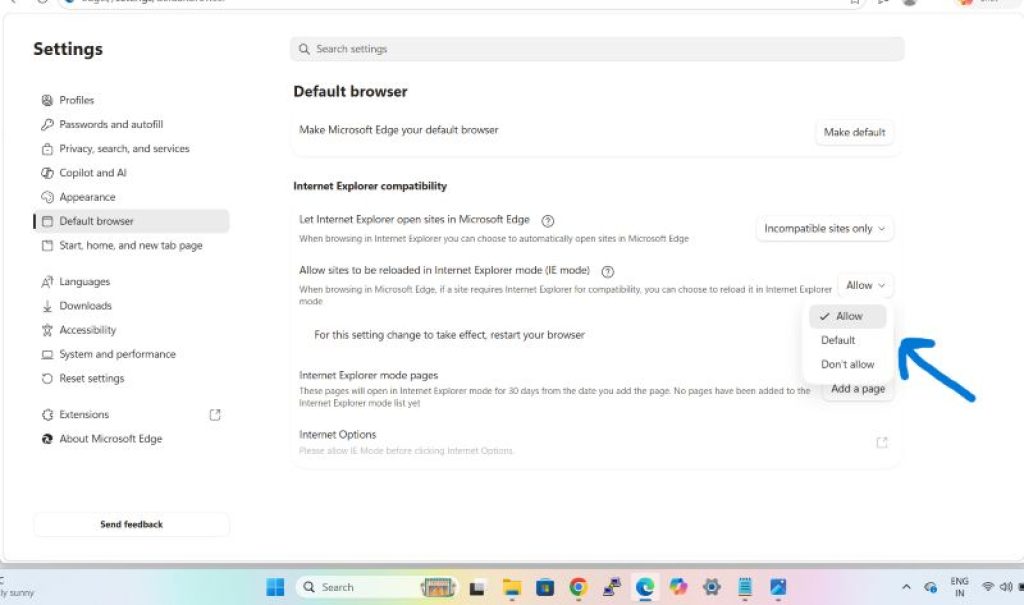
Restart Microsoft Edge.
After restarting, IE Mode becomes available for compatible websites.
Method 2: Open A Website In Internet Explorer Mode
After enabling IE Mode, you can load websites that require ActiveX.
Follow these steps:
- Open the required website in Microsoft Edge.
- Click the three-dot menu.
- Select Reload In Internet Explorer Mode.
- Wait for the page to reload.
An Internet Explorer icon appears in the address bar, indicating that the page is running in IE Mode.
If the website uses ActiveX controls, they can now function through the IE engine provided by IE Mode.
Method 3: Configure The Website To Always Open In IE Mode
If you frequently use a website that requires ActiveX, you can instruct Edge to automatically open it in IE Mode.
To do this:
- Open the website in IE Mode.
- Click the Internet Explorer icon in the address bar.
- Enable Open This Page In Internet Explorer Mode Next Time.
- Confirm the change.
Future visits to the website will automatically use IE Mode without requiring manual activation.
This is useful for:
- Corporate web applications
- Legacy ERP systems
- Government portals
- Banking systems
- Older management software
Method 4: Allow ActiveX Controls Through Internet Options
Some legacy applications rely on Windows Internet Options settings.
To review ActiveX settings:
- Press Windows + R.
- Type:
inetcpl.cpl- Press Enter.
- Open the Security tab.
- Select the desired security zone.
- Click Custom Level.
Under ActiveX Controls And Plug-ins, you can configure options such as:
- Download Signed ActiveX Controls
- Run ActiveX Controls
- Script ActiveX Controls Marked Safe
- Automatic Prompting For ActiveX Controls
Depending on your organization’s requirements, you may set certain options to Prompt or Enable. Historically these settings were configured through Internet Explorer’s security options and are still used by IE Mode.
Important
Only enable ActiveX controls for trusted websites. ActiveX can introduce significant security risks if used on unknown or untrusted websites.
Method 5: Add The Website To Trusted Sites
If ActiveX controls are blocked by security settings, adding the website to the Trusted Sites zone may help.
To add a trusted site:
- Open Internet Options.
- Select the Security tab.
- Click Trusted Sites.
- Select Sites.
- Enter the website address.
- Click Add.
- Close the window.
Trusted Sites receive less restrictive security settings and often work better with legacy ActiveX applications.
Only add websites you completely trust.
Method 6: Enable ActiveX In Microsoft Office Applications
If you need ActiveX controls inside Word, Excel, PowerPoint, Access, or other Office applications, the controls can be enabled through the Trust Center.
To configure ActiveX in Office:
- Open the Office application.
- Click File.
- Select Options.
- Open Trust Center.
- Click Trust Center Settings.
- Select ActiveX Settings.
- Choose the desired security option.
- Click OK.
Office also allows temporary enabling of ActiveX content through security warnings that appear when opening documents containing ActiveX controls.
Method 7: Install Required ActiveX Components
Some legacy websites require specific ActiveX controls to be installed.
When visiting a compatible website in IE Mode:
- Follow any installation prompts.
- Allow installation if the source is trusted.
- Restart Edge if necessary.
- Reload the website.
Many older enterprise applications install custom ActiveX controls during the first visit.
If the website reports that a required ActiveX control is missing, consult the application’s administrator or vendor for the appropriate installation package.
Why ActiveX Doesn’t Work In Modern Browsers
Many users search for ways to enable ActiveX in Chrome, Firefox, or standard Edge mode. Unfortunately, modern browsers do not support ActiveX technology directly. Microsoft confirms that ActiveX controls are not supported natively in modern Edge; instead, legacy sites must be run in Internet Explorer Mode.
Modern browsers focus on technologies such as:
- HTML5
- CSS3
- JavaScript
- WebAssembly
- Modern APIs
These standards provide better security, compatibility, and performance than ActiveX.
Frequently Asked Questions
Does Windows 11 Support ActiveX?
Yes, but primarily through Internet Explorer Mode in Microsoft Edge rather than through a standalone Internet Explorer browser.
Can I Enable ActiveX Directly In Microsoft Edge?
No. Modern Edge does not support ActiveX controls directly. You must use Internet Explorer Mode.
Does Chrome Support ActiveX?
No. Google Chrome does not support ActiveX controls.
Why Does My Website Say ActiveX Is Not Installed?
The required ActiveX control may not be installed, or the site may not be running in Internet Explorer Mode.
Is ActiveX Safe?
ActiveX can present security risks if used on untrusted websites. Only enable or install ActiveX controls from reputable and trusted sources.
Can ActiveX Be Used After Internet Explorer Was Removed?
Yes. Microsoft Edge’s Internet Explorer Mode continues to support ActiveX controls and other legacy Internet Explorer technologies.
Final Thoughts
Although ActiveX is an older technology, many organizations still depend on it for business-critical applications, government services, and legacy web platforms. Since Internet Explorer has been retired, Microsoft recommends using Internet Explorer Mode in Microsoft Edge to access websites that require ActiveX controls.
By enabling IE Mode, configuring Internet Explorer compatibility settings, adjusting ActiveX security options when necessary, and adding trusted websites to the appropriate security zone, most ActiveX-dependent applications can continue functioning on Windows 11. For the best security, only enable ActiveX for trusted websites and keep Windows and Microsoft Edge updated to the latest versions.