 Geeksdigit Team
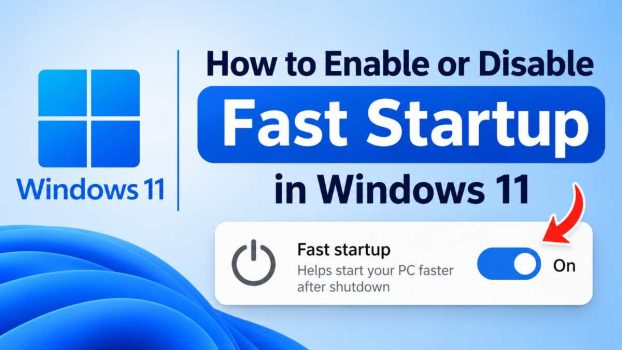
If you have ever shut down your Windows 11 PC and noticed that it boots up in a few seconds the next time you press the power button, you have seen Fast Startup in action. Fast Startup (sometimes labeled “Fast Boot” or “hybrid boot”) is a built-in Windows feature designed to cut down the time your computer takes to start. It is enabled by default on most new Windows 11 installations, especially on systems with a supported hibernation configuration.
For many people, Fast Startup is a quiet convenience that just works. For others, it is the source of puzzling problems: updates that never seem to finish installing, dual-boot setups where Linux cannot access the Windows drive, network adapters that fail to reconnect, or a PC that behaves strangely until you choose Restart instead of Shut down. Knowing how to switch the feature on or off gives you control over both speed and stability.
In this guide, you will learn what Fast Startup actually does, when it helps, when it hurts, and five reliable ways to enable or disable it in Windows 11: through Control Panel, Command Prompt, the Registry Editor, the Local Group Policy Editor, and PowerShell. You will also find troubleshooting tips for when the Fast Startup option is missing or greyed out, followed by a short FAQ.
What Is Fast Startup and How Does It Work?
To understand why Fast Startup can both help and hurt, it helps to know what happens during a normal shutdown versus a Fast Startup shutdown.
During a traditional (cold) shutdown, Windows closes all programs, logs out every user, unloads drivers, stops the kernel, and powers the machine completely off. The next boot has to load everything from scratch: the kernel, drivers, services, and your user session.
With Fast Startup enabled, Windows combines a regular shutdown with hibernation. When you click Shut down, Windows still closes your apps and logs you out. However, instead of terminating the kernel entirely, it saves the kernel session and loaded drivers into a hibernation file called hiberfil.sys. On the next boot, Windows reads that file back into memory rather than reinitializing everything, which dramatically shortens startup time, particularly on systems with traditional hard drives, though the gain is also noticeable on SSDs.
A few important details follow from this design:
- Fast Startup only applies to Shut down. Choosing Restart always performs a full, clean boot.
- Fast Startup depends on hibernation. If hibernation is disabled, Fast Startup is unavailable.
- Because the kernel state is preserved, your PC is never truly “fresh” after a shutdown, which is the root of many Fast Startup related issues.
Should You Enable or Disable Fast Startup?
Reasons to keep Fast Startup enabled
- Faster boot times after shutting down, especially on older hardware or HDDs.
- No extra setup required; it is on by default on most systems.
- Minimal downside for users who restart regularly and do not use dual-boot configurations.
Reasons to disable Fast Startup
- Dual-boot systems: Because Windows leaves the file system in a hibernated state, other operating systems may refuse to mount the Windows partition or may risk data corruption.
- Windows updates and driver installs: Some updates require a full shutdown cycle to complete. Fast Startup can leave pending changes unapplied until you perform a restart.
- Hardware and driver glitches: Because drivers are not reloaded, problems with USB devices, Wi-Fi, Bluetooth, or graphics drivers can persist across shutdowns.
- BIOS/UEFI access and hardware changes: Some motherboards behave inconsistently with hotkeys, and changes like adding RAM or a new drive may not be detected cleanly.
- Disk space: The hibernation file can consume several gigabytes. If you disable hibernation entirely, Windows deletes hiberfil.sys and reclaims that space.
- Wake-on-LAN and scheduled tasks: Certain network wake features can behave differently with hybrid shutdown.
If you are unsure, a practical approach is to leave Fast Startup on and disable it only when you run into one of the issues above.
Before You Begin
A few prerequisites will save you time:
- Administrator rights: Most methods require you to be signed in with an administrator account or to approve a UAC prompt.
- Hibernation must be available: If hibernation is turned off, the Fast Startup checkbox will not appear. Methods below show how to turn it back on.
- Save your work: Changing power settings is low risk, but it is good practice to save open files first.
- Back up the registry if you plan to use the Registry Editor method.
Method 1: Enable or Disable Fast Startup Using Control Panel
This is the most common and beginner-friendly approach. Although Windows 11 has moved many options into the Settings app, the Fast Startup toggle still lives in the classic Control Panel.
- Press Windows + R to open the Run dialog.
- Type powercfg.cpl and press Enter. This opens Power Options in Control Panel. Alternatively, search for “Control Panel” in the Start menu, switch the view to Large icons, and select Power Options.
- In the left pane, click Choose what the power buttons do.
- Click Change settings that are currently unavailable. Approve the UAC prompt if it appears. This unlocks the Shutdown settings section at the bottom of the window.
- Under Shutdown settings, find the checkbox labeled Turn on fast startup (recommended).
- To enable Fast Startup, tick the checkbox.
- To disable Fast Startup, untick the checkbox.
- Click Save changes.
The change takes effect from your next shutdown. There is no need to restart for the setting itself to be saved, although restarting once is a good way to confirm everything is behaving normally.
Tip: If you do not see the Fast Startup checkbox, hibernation is probably disabled. Jump to the troubleshooting section below, or use Method 2 to turn hibernation back on.
Method 2: Use Command Prompt (powercfg)
The Command Prompt method is quick and ideal for administrators and power users. It works through the hibernation setting that Fast Startup depends on.
Disable hibernation (and therefore Fast Startup)
- Click Start, type cmd, right-click Command Prompt, and choose Run as administrator.
- Type the following command and press Enter:
powercfg /hibernate offThis removes hiberfil.sys and turns off both hibernation and Fast Startup. The shorthand powercfg /h off does the same thing.
Enable hibernation (making Fast Startup available)
In the same elevated Command Prompt, run:
powercfg /hibernate onThis recreates the hibernation file. After running it, Fast Startup becomes available in Control Panel, and you can tick the checkbox from Method 1 if it is not already enabled.
Important note
This method is a blunt instrument: it disables hibernation entirely, which also removes the Hibernate option from the power menu. If you want to keep hibernation but turn off only Fast Startup, use Method 1, 3, or 4 instead.
Optionally reduce the hibernation file size
If your goal is saving disk space while keeping Fast Startup, you can switch to a reduced hibernation file:
powercfg /h /type reducedA reduced file supports Fast Startup but not full hibernation. To go back to the full file, use powercfg /h /type full.
Method 3: Use the Registry Editor
The Registry Editor lets you control Fast Startup through a single value named HiberbootEnabled. Use this method carefully, since incorrect registry changes can cause system problems.
- Press Windows + R, type regedit, and press Enter. Click Yes at the UAC prompt.
- Navigate to the following key (you can paste this path into the address bar at the top of the editor):
HKEY_LOCAL_MACHINE\SYSTEM\CurrentControlSet\Control\Session Manager\Power- In the right pane, double-click the HiberbootEnabled DWORD (32-bit) value.
- Set the Value data as follows:
- 1 to enable Fast Startup.
- 0 to disable Fast Startup.
- Click OK, close the Registry Editor, and restart your PC.
If the HiberbootEnabled value does not exist, right-click an empty area in the right pane, choose New > DWORD (32-bit) Value, name it HiberbootEnabled, and set it as described above.
Backup tip: Before editing, choose File > Export in the Registry Editor to save a copy of the key. If something goes wrong, double-click the exported file to restore it.
Method 4: Use the Local Group Policy Editor
Group Policy is useful when you want to enforce the setting, or when you manage several PCs. Note that the Local Group Policy Editor is available in Windows 11 Pro, Enterprise, and Education editions, but not in Home.
- Press Windows + R, type gpedit.msc, and press Enter.
- Navigate to:
Computer Configuration > Administrative Templates > System > Shutdown- Double-click the policy named Require use of fast startup.
- Choose one of the following:
- Enabled to force Fast Startup on.
- Disabled to force it off.
- Not Configured to let users decide through Control Panel (the default).
- Click Apply, then OK.
- Restart your computer, or run
gpupdate /forcein an elevated Command Prompt to refresh policies immediately.
Be aware that when this policy is set to Enabled or Disabled, the checkbox in Control Panel may become locked or ignored, because the policy overrides the user setting.
Method 5: Use PowerShell
If you prefer scripting, PowerShell can change the same registry value used in Method 3 without opening the Registry Editor.
- Right-click the Start button and choose Terminal (Admin), making sure a PowerShell tab is open.
- To disable Fast Startup, run:
Set-ItemProperty -Path "HKLM:\SYSTEM\CurrentControlSet\Control\Session Manager\Power" -Name HiberbootEnabled -Value 0- To enable Fast Startup, run:
Set-ItemProperty -Path "HKLM:\SYSTEM\CurrentControlSet\Control\Session Manager\Power" -Name HiberbootEnabled -Value 1- To check the current state, run:
Get-ItemProperty -Path "HKLM:\SYSTEM\CurrentControlSet\Control\Session Manager\Power" -Name HiberbootEnabledA value of 1 means Fast Startup is on; 0 means it is off. Restart your PC afterward to be safe. This approach is handy for deploying the setting across multiple machines with a script.
Troubleshooting: Fast Startup Option Missing or Greyed Out
Sometimes the Fast Startup checkbox is missing or cannot be changed. Here are the most common causes and fixes.
Hibernation is disabled
Fast Startup requires hibernation. Open an elevated Command Prompt and run powercfg /hibernate on, then revisit Control Panel. The checkbox should now be visible.
You forgot to unlock the settings
The Shutdown settings are greyed out until you click Change settings that are currently unavailable. You need administrator permission for this.
A Group Policy is overriding the setting
On Pro and Enterprise editions, check the “Require use of fast startup” policy in Method 4. If it is set to Enabled or Disabled, change it to Not Configured to regain manual control. On work or school PCs, the policy may be managed by your organization, in which case you will need to contact your IT administrator.
The hardware or firmware does not support it
Some virtual machines, older systems, or computers whose firmware does not support the required sleep states may not offer Fast Startup. Updating the BIOS/UEFI and chipset drivers can sometimes restore support.
Corrupted system files
If nothing else works, run the System File Checker. Open an elevated Command Prompt and execute:
sfc /scannowIf problems are found and not fixed, follow up with:
DISM /Online /Cleanup-Image /RestoreHealthRestart afterward and check again.
How to Check Whether Fast Startup Is Currently Enabled
You can confirm the current status in a few ways:
- Control Panel: Follow Method 1 and look at whether the checkbox is ticked.
- PowerShell: Use the Get-ItemProperty command in Method 5 and read the HiberbootEnabled value.
- Task Manager: Open Task Manager, go to the Performance tab, and look at the CPU view. The Up time counter keeps counting across shutdowns when Fast Startup is on, because the kernel session is preserved. If Up time resets to zero after shutting down and starting again, Fast Startup is effectively off.
The Up time test is a quick, practical way to see Fast Startup at work.
Best Practices for Using Fast Startup
- Restart periodically. Since Restart performs a full boot, doing it once every few days clears lingering driver or memory problems.
- Use Restart after updates. To make sure Windows updates and driver installs complete properly, choose Restart rather than Shut down.
- Disable it for dual-boot setups. If you share drives with Linux or another OS, turning off Fast Startup avoids file system locks and potential data loss.
- Keep firmware and drivers updated. Many Fast Startup related bugs trace back to outdated chipset, storage, or network drivers.
- Balance speed and storage. On small drives, consider a reduced hibernation file or disabling hibernation altogether if you do not need it.
- Use Shift + Shut down for a one-time full shutdown. Holding Shift while clicking Shut down in the Start menu performs a complete shutdown without changing your settings.
Conclusion
Fast Startup is a clever Windows 11 feature that blends shutdown and hibernation to give you quicker boot times. For most everyday users, leaving it enabled is perfectly fine. But if you dual-boot, struggle with stubborn updates, or face odd hardware behavior that disappears after a restart, turning it off can restore predictability and give you a truly clean boot every time.
The easiest way to toggle it is through Control Panel’s Power Options. Command Prompt, the Registry Editor, Group Policy, and PowerShell offer additional routes for administrators, advanced users, and anyone managing multiple computers. Whichever method you choose, remember that Fast Startup depends on hibernation, only affects the Shut down command, and can be switched back at any time.
Take a moment to decide what matters more on your PC: a few seconds saved at boot or the reliability of a fresh start. With the steps above, you can switch either way in under a minute.
Frequently Asked Questions (FAQ)
1. Does disabling Fast Startup slow down my computer?
Disabling Fast Startup only affects how long your PC takes to boot after a full shutdown. Once Windows is running, performance is the same. On a modern SSD, the difference is often just a few seconds, so many users will hardly notice. On an older hard drive, the boot time difference can be more noticeable.
2. Is it safe to disable Fast Startup?
Yes. Disabling Fast Startup is safe and is a commonly recommended troubleshooting step. It does not delete your files or damage your system. The only trade-off is a slightly longer startup. You can re-enable it at any time through Control Panel or any of the other methods described above.
3. Why is the Fast Startup option missing in Windows 11?
The most common reason is that hibernation is turned off. Run powercfg /hibernate on in an elevated Command Prompt, then reopen Power Options and unlock the settings. If the option is still missing, check for a Group Policy override, update your BIOS and drivers, or make sure your hardware supports the required power states. Some virtual machines also do not offer the feature.
4. What is the difference between Fast Startup, Restart, and Hibernate?
Fast Startup applies only when you choose Shut down: it logs you out and saves the Windows kernel state to disk so the next boot is faster. Restart always performs a complete shutdown and a fresh boot, with no saved kernel state. Hibernate saves your entire session, including open apps and documents, and resumes exactly where you left off. In short, Fast Startup saves the system, Hibernate saves the system plus your session, and Restart saves nothing.