
 Geeksdigit Team
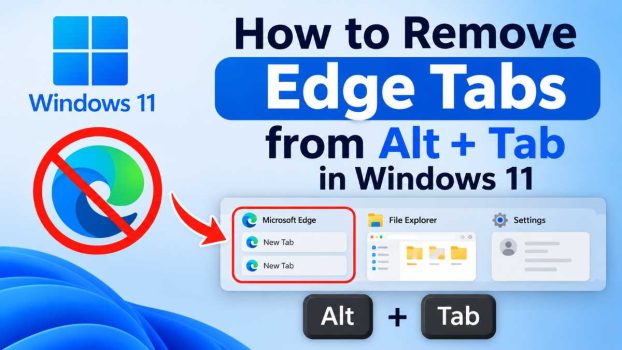
If you have ever pressed Alt + Tab to jump to another program and found the switcher crowded with a dozen Microsoft Edge tabs, you are not alone. Since Windows 10 introduced the feature and Windows 11 kept it, every browser tab you open in Edge can appear as its own thumbnail in the Alt + Tab switcher. The idea is convenient: you can leap straight to a specific tab without first opening the browser and hunting for it. In practice, though, it often backfires. A person with ten tabs open, two File Explorer windows, a spreadsheet and a chat app suddenly faces a wall of thumbnails, and finding the one app they actually want takes longer than it should.
The good news is that Microsoft lets you control this behavior, and you do not need third-party software to do it. You can limit the number of Edge tabs that appear, or remove them altogether so that Alt + Tab shows only your open windows, the way it did in Windows 7 and in the early days of Windows 10.
This guide walks through every reliable way to remove Edge tabs from Alt + Tab on Windows 11 and Windows 10. We cover the built-in Settings method, the Registry method, a one-line command method, and what to do if the option is missing or does not seem to work. We also explain what the setting actually changes, so you know exactly what to expect before you make any adjustment.
Why Edge Tabs Show Up in Alt + Tab in the First Place
By default, Windows treats Microsoft Edge differently from other browsers. When you press Alt + Tab, the switcher normally lists one thumbnail per open window. With the Edge integration enabled, Windows also lists recent tabs from Edge as separate items. Each tab gets its own preview, its own title and its own slot in the list.
This feature is tied to a setting under Multitasking. It is not a bug, and it is not something Edge itself controls. That is why changing settings inside the browser does nothing: the behavior is managed by Windows. The setting also affects Snap Assist, the suggestion panel that appears after you snap a window to one side of the screen, so changing it can tidy up that experience as well.
There are four possible states for the setting:
- Open windows and the 20 most recent tabs in Edge
- Open windows and the 5 most recent tabs in Edge (the usual default on Windows 11)
- Open windows and the 3 most recent tabs in Edge
- Open windows only
To remove Edge tabs completely, you want the last option: open windows only.
Before You Begin
A few quick notes will save you trouble:
- You do not need administrator rights for the methods below, because the setting is stored per user.
- The change takes effect immediately in most cases. With the Registry method, you may need to restart File Explorer or sign out and back in.
- Closing Edge is not required, but it can help if the old behavior seems to linger.
- If you edit the Registry, create a restore point or export the key first. A small mistake in the Registry can cause problems, although the value used here is safe and easy to reverse.
Method 1: Use the Settings App on Windows 11
This is the easiest and safest method, and it is the one most people should use.
- Press Windows + I to open Settings.
- In the left sidebar, select System.
- Scroll down the right side and click Multitasking.
- Look for the entry labeled Show tabs from apps when snapping or pressing Alt + Tab. On some builds, the wording is slightly different, but it always references Alt + Tab.
- Open the drop-down menu next to it.
- Choose Open windows only.
- Close Settings.
Now press Alt + Tab. You should see only your open windows, with no individual Edge tabs mixed in. If Edge is open, it appears as a single thumbnail representing the whole browser window, just like any other program.
If you later decide you want a small number of tabs back, return to the same drop-down and select 3 or 5 recent tabs. There is no downside to experimenting, since the change is instant and reversible.
Method 2: Use the Settings App on Windows 10
Windows 10 uses a similar path, with slightly different wording.
- Press Windows + I to open Settings.
- Click System.
- From the left menu, choose Multitasking.
- Find the section labeled Alt + Tab. It contains a drop-down titled Pressing Alt + Tab shows.
- Click the drop-down and select Open windows only.
- Close Settings and test with Alt + Tab.
On older builds of Windows 10, the option may only offer a choice between showing windows and tabs, or windows only. Selecting windows only is the same outcome. If you do not see this section at all, your system may be running a version of Windows 10 older than the update that introduced the feature, or your build may not have received the Edge integration. In that case there is nothing to remove, since Alt + Tab already shows windows only.
Method 3: Use the Registry Editor
The Registry method is useful when the Settings page is missing, when you manage several machines, or when you simply prefer to see exactly what changes. The value you need is stored under your user profile.
- Press Windows + R, type regedit and press Enter. Approve the User Account Control prompt if one appears.
- Navigate to the following key. You can paste the path into the address bar at the top of the Registry Editor:
HKEY_CURRENT_USER\Software\Microsoft\Windows\CurrentVersion\Explorer\Advanced - In the right pane, look for a DWORD (32-bit) value named MultiTaskingAltTabFilter.
- If it does not exist, right-click an empty area, choose New, then DWORD (32-bit) Value, and name it exactly MultiTaskingAltTabFilter.
- Double-click the value and set its data to 3. Leave the base as Hexadecimal or Decimal; the number 3 is the same either way.
- Click OK and close the Registry Editor.
The numbers map to the Settings options as follows:
- 0: Open windows and the 20 most recent tabs in Edge
- 1: Open windows and the 5 most recent tabs in Edge
- 2: Open windows and the 3 most recent tabs in Edge
- 3: Open windows only
To apply the change, either sign out and sign back in, restart your PC, or restart File Explorer. To restart File Explorer, press Ctrl + Shift + Esc to open Task Manager, find Windows Explorer in the list, right-click it and choose Restart. Your taskbar will flicker briefly, and the new Alt + Tab behavior should be active.
If you ever want to revert, set the value back to 1 (or 0 or 2), or delete the value to return to the system default.
Method 4: Use a Command or PowerShell
If you would rather skip the graphical Registry Editor, you can make the same change with a single command. This is handy for scripts and for setting up multiple computers.
Open Command Prompt or Windows Terminal, then run:
reg add "HKCU\Software\Microsoft\Windows\CurrentVersion\Explorer\Advanced" /v MultiTaskingAltTabFilter /t REG_DWORD /d 3 /f
The command creates or overwrites the value and sets it to 3. You should see a message saying the operation completed successfully.
If you prefer PowerShell, the equivalent is:
Set-ItemProperty -Path "HKCU:\Software\Microsoft\Windows\CurrentVersion\Explorer\Advanced" -Name "MultiTaskingAltTabFilter" -Value 3 -Type DWord
After running either command, restart File Explorer or sign out and back in so the change is picked up. To restore tabs, run the same command with a different number, such as 1 for the five most recent tabs.
Method 5: Deploy the Change Across Several PCs
If you administer a small office or a family of computers, you can distribute the change without touching each machine by hand. Save the Registry command from Method 4 in a batch file and run it at sign-in, or use a logon script through Group Policy or your device management tool. Because the value lives under the current user, it must be applied in each user’s context rather than once for the whole machine. Test on one account first, confirm that Alt + Tab behaves as expected, and then roll it out.
How to Confirm the Change Worked
Open Edge and load at least three or four different tabs. Then open another program, such as Notepad or File Explorer. Press and hold Alt, then tap Tab. Instead of seeing separate thumbnails for each tab, you should see only one thumbnail for the Edge window and one for each of your other programs.
If you still see tabs, check the following:
- Make sure you changed the setting for the correct Windows account.
- Confirm that the Registry value name is spelled exactly right, with no extra spaces.
- Restart File Explorer or sign out and back in.
- Check whether a work or school policy is overriding your choice (see the troubleshooting section below).
Troubleshooting Common Problems
The option is missing from Settings
On some builds, especially older versions of Windows 10 or heavily customized editions, the Multitasking page may not show the Alt + Tab drop-down. Use the Registry or command method instead. The value works even when the menu is hidden, although on very old builds the feature may not exist and the value will have no effect.
The setting keeps changing back
If Windows reverts your choice after a restart or an update, a policy or a management tool may be enforcing a setting. This is common on work or school devices. Contact your IT administrator, or check whether a startup script is rewriting the value. On a personal computer, a feature update occasionally resets Multitasking preferences, so it is worth checking the setting after major updates.
I removed the tabs, but Edge windows still appear separately
This is normal. Alt + Tab lists every open window. If you have two separate Edge windows open, each shows up as its own thumbnail, even with the tab integration turned off. To reduce clutter, merge your tabs into a single window by dragging one tab into the other window’s tab strip.
Snap Assist still shows Edge suggestions
Because the same setting controls both Alt + Tab and Snap Assist, choosing windows only should clean up both. If Snap Assist still shows odd suggestions, restart File Explorer and test again.
I want tabs from other browsers removed too
Chrome, Firefox and other browsers do not show tabs in Alt + Tab by default. The feature is built for Edge only, so no extra step is needed for them.
Alternative Ways to Switch Between Edge Tabs Quickly
Once you remove tabs from Alt + Tab, you may still want fast tab navigation. Edge has plenty of shortcuts that work better for that job:
- Ctrl + Tab moves to the next tab, and Ctrl + Shift + Tab moves to the previous one.
- Ctrl + 1 through 8 jumps to a specific tab by position, while Ctrl + 9 jumps to the last tab.
- Ctrl + Shift + A opens the tab search menu, where you can type to find any open tab.
- Vertical tabs can be enabled in Edge settings if you like to see long tab titles in a side panel.
- Workspaces and tab groups help you separate projects so that you are not wading through dozens of unrelated pages.
Using these keeps Alt + Tab reserved for switching between programs, while Ctrl-based shortcuts handle movement inside the browser. Many people find this split cleaner and quicker once they get used to it.
Conclusion
Edge tabs in Alt + Tab can be useful if you rely on them, but for many people they turn a quick program switcher into a crowded gallery. Fortunately, removing them takes less than a minute. On both Windows 11 and Windows 10, the simplest route is Settings, then System, then Multitasking, where you choose the option to show open windows only. If that menu is missing or gets reset, the Registry value MultiTaskingAltTabFilter set to 3, or the one-line command that writes it, gives you the same result.
Remember that the setting is reversible at any time, that it also affects Snap Assist, and that Edge itself has no control over it. If you still see tabs after making the change, restart File Explorer, check the spelling of the Registry value and rule out any policy that might be enforcing a different choice. With the setting adjusted and a few Edge keyboard shortcuts in your toolkit, switching between programs becomes faster and far less cluttered.
Frequently Asked Questions
1. Will removing Edge tabs from Alt + Tab close or affect my tabs in any way?
No. The setting only changes what the Alt + Tab switcher displays. Your tabs, history, sessions and browser data stay exactly as they were. Edge continues to work normally, and its window still appears in Alt + Tab as one item.
2. Can I show only a few Edge tabs instead of removing them completely?
Yes. Windows offers three tab options besides windows only: the 3 most recent tabs, the 5 most recent tabs or the 20 most recent tabs. Choose one from the same Multitasking drop-down, or set the Registry value MultiTaskingAltTabFilter to 2, 1 or 0 respectively. This is a good compromise if you like quick access to a couple of recent pages without the clutter.
3. Does this setting work on other browsers like Chrome or Firefox?
No, and you do not need it to. Windows only integrates tabs from Microsoft Edge into Alt + Tab. Other browsers appear as ordinary windows, so there are no extra tabs to remove. If you see separate thumbnails for Chrome or Firefox, they are separate browser windows rather than tabs.
4. Why does the option reset or stay greyed out on my computer?
On a work or school device, an administrator may control the setting through policy or a management tool, which can lock or reset it. On a personal computer, a major Windows update can occasionally restore the default. Check the setting after updates, and if it is locked, ask your IT administrator or look for a startup script that rewrites the Registry value.