Geeksdigit Team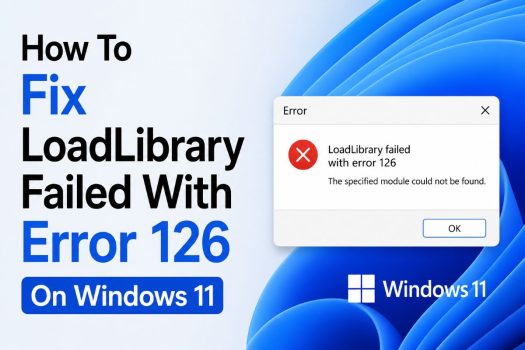
The “LoadLibrary Failed With Error 126” message is a common Windows error that usually appears when launching games, graphics-intensive applications, design software, video editing tools, or programs that depend on graphics drivers and Dynamic Link Library (DLL) files. In most cases, the error occurs because Windows cannot locate or load a required DLL file needed by the application. When this happens, the program may fail to start, crash immediately after launch, display a black screen, or show the error message every time you open it.
On Windows 11, Error 126 is often associated with corrupted graphics drivers, damaged system files, missing Visual C++ components, outdated DirectX files, software conflicts, or incomplete program installations. AMD graphics users may encounter the error more frequently after driver updates, although NVIDIA and Intel users can experience the same issue. Since the error can have several causes, there is no single universal fix. Instead, you should work through a series of troubleshooting methods until the underlying problem is identified and resolved.

Fortunately, most cases of LoadLibrary Error 126 can be fixed without reinstalling Windows. Windows 11 includes built-in repair tools that can restore missing files, repair system corruption, and fix driver-related problems. In this guide, you will learn multiple proven methods to fix LoadLibrary Failed With Error 126 on Windows 11 using simple step-by-step instructions.
Method 1: Restart Your Computer
Before performing advanced troubleshooting, start with a simple restart.
Windows services, drivers, and background processes occasionally fail to load properly. A restart clears temporary memory, reloads drivers, and refreshes system services.
To restart Windows 11:
- Click the Start button.
- Select Power.
- Click Restart.
After the computer restarts:
- Open the affected application again.
- Check whether the error has disappeared.
If the problem continues, proceed to the next method.
Method 2: Run the Application as Administrator
Some applications require elevated permissions to load DLL files and graphics components correctly.
To run a program with administrator privileges:
- Right-click the application shortcut.
- Select Run as administrator.
If the application launches successfully:
- Right-click the shortcut again.
- Select Properties.
- Open the Compatibility tab.
- Check Run this program as an administrator.
- Click Apply.
- Click OK.
This ensures the program always starts with sufficient permissions.
Method 3: Update Your Graphics Driver
Outdated or corrupted graphics drivers are among the most common causes of Error 126.
Updating the graphics driver often resolves missing library and graphics initialization issues.
Update Through Device Manager
- Press Windows + X.
- Select Device Manager.
- Expand Display adapters.
- Right-click your graphics card.
- Select Update driver.
- Click Search automatically for drivers.
Windows will search for available updates and install them if found.
Restart the computer after the update finishes.
Update Through Manufacturer Software
If Windows does not find a newer driver, use the official graphics software:
- NVIDIA App
- AMD Software: Adrenalin Edition
- Intel Graphics Software
Install the latest recommended driver and restart Windows.
Test the affected application again.
Method 4: Reinstall the Graphics Driver
Sometimes driver files become corrupted even when the driver appears up to date.
A clean reinstallation can replace damaged files responsible for Error 126.
Remove the Existing Driver
- Press Windows + X.
- Open Device Manager.
- Expand Display adapters.
- Right-click your graphics card.
- Select Uninstall device.
- Check Attempt to remove the driver for this device if available.
- Click Uninstall.
Restart the computer.
Install the Latest Driver
Download and install the newest driver from your graphics card manufacturer.
After installation:
- Restart Windows.
- Launch the application again.
Many users find that a clean driver installation permanently resolves the problem.
Method 5: Run System File Checker (SFC)
Windows includes the System File Checker tool to repair missing and corrupted system files.
If a damaged DLL file is triggering Error 126, SFC may automatically repair it.
Open Command Prompt as Administrator.
Type:
sfc /scannowPress Enter.
The scan may take several minutes.
When finished:
- Restart the computer.
- Test the affected application.
Possible results include:
- No integrity violations found
- Corrupted files repaired
- Additional repair required
Even if the error remains, continue with the next method.
Method 6: Run the DISM Repair Tool
DISM repairs the Windows component store used by System File Checker.
If Windows repair files themselves are damaged, DISM can restore them.
Open Command Prompt as Administrator.
Run the following commands one at a time:
DISM /Online /Cleanup-Image /CheckHealthDISM /Online /Cleanup-Image /ScanHealthDISM /Online /Cleanup-Image /RestoreHealthWait for each command to complete.
After the process finishes:
- Restart Windows.
- Run the application again.
This method fixes many system-level causes of Error 126.
Method 7: Install Microsoft Visual C++ Redistributables
Many modern applications rely on Microsoft Visual C++ runtime libraries.
If these components are missing or corrupted, Windows may display LoadLibrary Failed With Error 126.
Remove Existing Packages
- Open Settings.
- Select Apps.
- Open Installed Apps.
- Locate Microsoft Visual C++ Redistributables.
- Note the installed versions.
Download and Install Current Versions
Install the latest supported packages from Microsoft.
Both versions should generally be installed:
- x64
- x86
After installation:
- Restart Windows.
- Launch the affected application.
Many gaming and productivity applications require these runtime libraries to function correctly.
Method 8: Update DirectX Components
Applications that use graphics acceleration often depend on DirectX files.
Missing DirectX components may trigger Error 126.
Check DirectX Version
- Press Windows + R.
- Type:
dxdiag- Press Enter.
The DirectX Diagnostic Tool will open.
Verify that DirectX is functioning correctly.
Install Missing Components
Many older applications require legacy DirectX files that are not installed automatically.
Installing DirectX runtime components can restore missing libraries and resolve startup errors.
Restart Windows after installation.
Method 9: Perform a Clean Boot
Background software can interfere with DLL loading and application startup.
A clean boot starts Windows using only essential services.
Disable Startup Applications
- Press Ctrl + Shift + Esc.
- Open Task Manager.
- Select Startup apps.
- Disable unnecessary entries.
Disable Third-Party Services
- Press Windows + R.
- Type:
msconfig- Press Enter.
- Open the Services tab.
- Check Hide all Microsoft services.
- Click Disable all.
- Click Apply.
- Click OK.
Restart Windows.
Test the application.
If the error disappears, one of the disabled services is causing the conflict.
Method 10: Reinstall the Affected Program
The application itself may contain missing or damaged files.
Completely reinstalling the software can restore required libraries.
Remove the Application
- Open Settings.
- Go to Apps > Installed Apps.
- Select the affected application.
- Click Uninstall.
Restart the computer.
Install a Fresh Copy
Download the latest installer from the software developer.
Install the application again.
Launch it after installation.
This fixes many cases involving damaged program files.
Method 11: Check Antivirus and Security Software
Security software occasionally blocks DLL files that applications require.
To test for this possibility:
- Open your antivirus application.
- Review quarantine history.
- Restore any legitimate application files that were blocked.
- Temporarily disable real-time protection for testing purposes.
Launch the application.
If it works:
- Add the application folder to antivirus exclusions.
- Re-enable security protection afterward.
Never permanently disable antivirus software.
Method 12: Install Windows Updates
Microsoft regularly releases updates that improve compatibility and repair system issues.
To update Windows 11:
- Open Settings.
- Select Windows Update.
- Click Check for updates.
- Install all available updates.
- Restart the computer.
After updating:
- Open the affected program.
- Verify whether the error has been resolved.
Method 13: Restore Windows to an Earlier State
If the error began recently after installing software, drivers, or updates, System Restore may help.
Open System Restore
- Press Windows + R.
- Type:
rstrui- Press Enter.
Choose a Restore Point
- Select Choose a different restore point.
- Click Next.
- Select a restore point created before the problem started.
- Follow the prompts.
After restoration:
- Restart the computer.
- Test the application.
System Restore does not remove personal files but may uninstall recently installed software and drivers.
Method 14: Verify Environment Variables
Incorrect environment variable settings can prevent Windows from locating required DLL files.
To inspect environment variables:
- Open Start.
- Search for Advanced system settings.
- Open Environment Variables.
Review the Path variable.
Ensure critical Windows paths remain present.
Accidental modifications can prevent DLL loading and trigger Error 126.
Only make changes if you understand the entries involved.
Method 15: Repair Windows 11 Using an In-Place Upgrade
If system corruption remains after all previous repairs, an in-place upgrade can restore Windows while preserving files and applications.
This process reinstalls Windows system components without removing personal data.
Prepare Installation Media
Download the latest Windows 11 installation media from Microsoft.
Run Setup
- Mount the ISO file or launch the installation media.
- Run Setup.exe.
- Choose Keep personal files and apps.
- Follow the on-screen instructions.
After installation completes:
- Restart Windows.
- Open the affected application.
This method resolves severe system corruption responsible for persistent Error 126 messages.
Common Causes of LoadLibrary Failed With Error 126
Understanding the cause helps prevent the issue from returning.
Common reasons include:
- Corrupted graphics drivers
- Missing DLL files
- Damaged Windows system files
- Broken Visual C++ runtimes
- Missing DirectX components
- Antivirus interference
- Incomplete software installations
- Driver update failures
- Software conflicts
- Corrupted user profiles
- Invalid environment variables
- Faulty application updates
Most cases involve one of these underlying issues.
How to Prevent Error 126 in the Future
You can reduce the likelihood of future DLL loading problems by following a few maintenance practices.
- Keep Windows updated.
- Install graphics driver updates regularly.
- Avoid downloading software from untrusted sources.
- Maintain antivirus protection.
- Create restore points before major changes.
- Install Visual C++ packages when required.
- Avoid deleting DLL files manually.
- Remove software completely before reinstalling.
- Keep sufficient free storage space available.
- Restart Windows periodically after major updates.
These habits help maintain application stability and system reliability.
FAQs
What does LoadLibrary Failed With Error 126 mean?
It means Windows could not locate or load a required DLL file or component needed by the application.
Is Error 126 caused by a virus?
Usually no. The error is most often caused by corrupted drivers, missing runtime libraries, damaged system files, or software conflicts. However, malware can sometimes damage DLL files, so running a security scan is recommended.
Why does Error 126 appear when launching games?
Many games depend on graphics drivers, DirectX components, and Visual C++ libraries. If any of these components are missing or damaged, the game may fail to load and display Error 126.
Can updating graphics drivers fix Error 126?
Yes. Graphics driver problems are one of the most common causes of the error, especially on systems using AMD, NVIDIA, or Intel graphics hardware.
Will reinstalling the application solve the problem?
In many cases, yes. If application files or bundled DLLs are damaged, reinstalling the software often restores the missing components.
Is it safe to run SFC and DISM?
Yes. Both tools are built into Windows and are specifically designed to repair corrupted operating system files safely.
Do I need to reinstall Windows to fix Error 126?
Usually not. Most users can resolve the issue through driver repairs, system file repairs, Visual C++ installation, DirectX updates, or application reinstallation.
Which fix should I try first?
Start with updating or reinstalling the graphics driver, then run SFC and DISM scans. These methods resolve a large percentage of Error 126 cases.
Final Thoughts
The LoadLibrary Failed With Error 126 message on Windows 11 can be frustrating because it prevents applications and games from launching properly, but the issue is usually fixable without drastic measures. In most situations, the error is linked to corrupted graphics drivers, missing DLL files, damaged Visual C++ runtimes, DirectX problems, or Windows system file corruption. Fortunately, Windows provides several built-in tools that can identify and repair these issues.
Begin with the simpler solutions such as restarting the computer, updating graphics drivers, reinstalling the affected application, and installing Windows updates. If the problem persists, use System File Checker and DISM to repair Windows components, then verify that Visual C++ Redistributables and DirectX files are installed correctly. More advanced solutions such as performing a clean boot, restoring Windows, or carrying out an in-place upgrade can address deeper system issues when basic fixes do not work.
By following the methods in this guide step by step, most users can successfully eliminate Error 126 and restore normal operation of their applications and games on Windows 11 without needing a complete system reinstall.