Sukhdev Kamboj
File transfers have become an essential part of daily life—whether you’re backing up precious memories, collaborating with remote teams, or managing business-critical data. Yet nothing tests patience quite like watching a progress bar crawl across your screen at glacial speeds. Slow file transfers don’t just waste time; they disrupt workflows, delay projects, and create unnecessary frustration.
The good news is that transfer speeds aren’t set in stone. By understanding the factors that influence performance and implementing strategic optimizations, you can dramatically accelerate your file transfers. From upgrading hardware to fine-tuning software settings, these ten proven tips will help you move data faster, work more efficiently, and reclaim valuable time in your day.
Why Faster File Transfer is Necessary
Faster file transfer has evolved from a mere convenience into an absolute necessity in today’s digital landscape. Here’s why speed matters across various contexts:
- Professional Productivity and Business Efficiency: In business environments, time literally equals money. When employees spend hours waiting for large files to upload or download, that’s billable time lost. Design agencies transferring massive video projects to clients, architects sharing detailed 3D building models, or software developers deploying applications—all lose productive hours to slow transfers. A file transfer that takes 4 hours instead of 30 minutes could mean missing a critical deadline or losing a client to a more responsive competitor.
- Remote Work and Collaboration: The shift to remote and hybrid work models has made file transfers the backbone of modern collaboration. Teams spread across different cities or countries need to share documents, presentations, code repositories, and multimedia files constantly. Slow transfers create bottlenecks that stall entire projects. When a marketing team can’t access campaign materials quickly, or developers can’t push code updates efficiently, entire workflows grind to a halt.
- Data Backup and Recovery: Regular backups protect against data loss from hardware failures, cyberattacks, or accidental deletion. However, if backing up your system takes 12 hours, you’re less likely to do it regularly. Faster transfers make frequent backups practical and sustainable. In disaster recovery scenarios, speed becomes even more critical—restoring operations quickly can mean the difference between minor disruption and catastrophic business impact.
- Creative and Media Production: Content creators work with increasingly large files. A single 4K video project can consume hundreds of gigabytes. 8K footage, RAW photography, and high-resolution 3D renders push file sizes into terabytes. Photographers need to deliver wedding photos to clients, YouTubers must upload videos to platforms, and film studios transfer footage between editing suites. Slow transfers can turn a one-day project into a week-long ordeal.
- Cloud Computing and Modern Workflows: Cloud storage services like Google Drive, Dropbox, and OneDrive have become essential infrastructure. Synchronizing files between devices, accessing work from anywhere, and collaborating in real-time all depend on fast transfers. When cloud sync is slow, you face version conflicts, can’t access updated files when needed, and experience frustrating delays that defeat the purpose of cloud convenience.
- Scientific Research and Big Data: Research institutions, universities, and laboratories generate enormous datasets. Genomic sequencing produces terabytes of data per experiment. Climate modeling, particle physics, and astronomical observations create datasets measured in petabytes. Researchers collaborating across institutions need to share this data efficiently. Slow transfers delay discoveries and waste research funding on idle time.
- Software Development and IT Operations: Developers constantly transfer code repositories, container images, virtual machine snapshots, and deployment packages. In DevOps environments practicing continuous integration and deployment, every minute of transfer delay multiplies across dozens or hundreds of daily deployments. Faster transfers enable more frequent updates, quicker bug fixes, and more responsive development cycles.
- User Experience and Customer Satisfaction: For businesses delivering digital products—software downloads, game installations, streaming content—transfer speed directly impacts customer satisfaction. Users who wait too long simply abandon downloads and look for alternatives. In competitive markets, transfer speed becomes a differentiator that affects customer retention and brand perception.
- Cost Optimization: Faster transfers reduce cloud computing costs. Many cloud providers charge for data transfer and compute time. A process that completes in 1 hour costs less than the same process taking 10 hours. For businesses transferring data regularly, optimizing speed delivers measurable financial savings that accumulate substantially over time.
- Security and Compliance: Some industries face regulatory requirements for data handling and retention. Faster transfers enable more frequent secure backups, quicker response to security incidents, and more efficient compliance auditing. When security breaches occur, the speed of transferring forensic data or implementing patches can limit damage and exposure.
- Personal Life Quality: On a personal level, faster transfers mean less frustration and more time for what matters. Sharing family photos and videos with relatives, backing up irreplaceable memories, moving files when upgrading devices—these tasks should take minutes, not hours. Life’s too short to watch progress bars.
Here are important steps to speed up file transfer:
1. Upgrade Your Network Hardware
The foundation of fast file transfers begins with quality network hardware. Your router, switches, and network cables all play crucial roles in determining maximum transfer speeds. Many people continue using outdated routers that were purchased years ago, unaware that newer models offer significantly better performance and features.
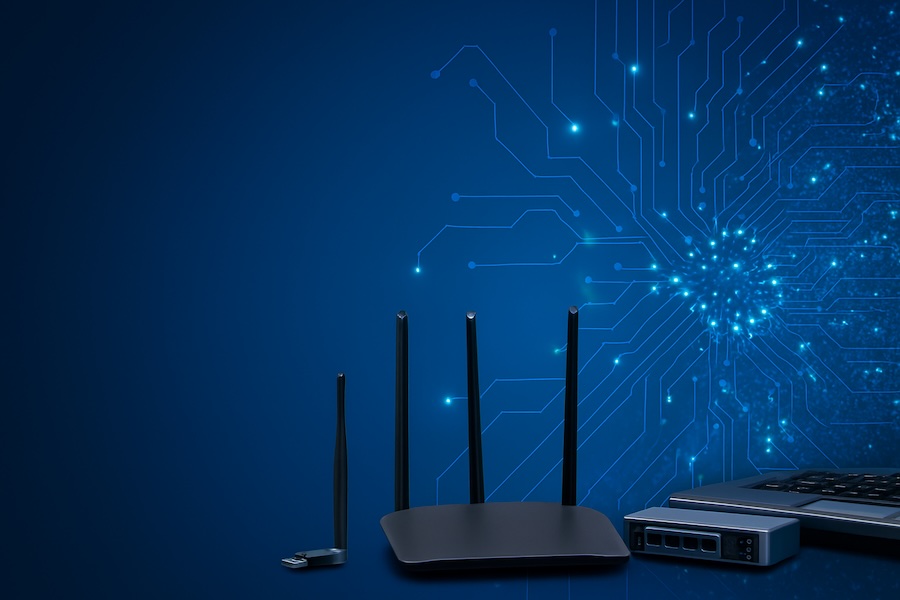
Modern Wi-Fi 6 and Wi-Fi 6E routers provide substantial speed improvements over older Wi-Fi 4 and Wi-Fi 5 standards. These newer routers support faster data rates, handle multiple devices more efficiently, and reduce network congestion through advanced technologies like OFDMA and MU-MIMO. If you’re still using a router from five or more years ago, upgrading could potentially double or triple your wireless transfer speeds.
For wired connections, ensure you’re using at least Cat 5e or Cat 6 Ethernet cables, which support Gigabit speeds. Cat 5 cables, while still functional, are limited to 100 Mbps and create a significant bottleneck. Cat 6a and Cat 7 cables offer even better performance for longer cable runs and can support 10 Gigabit speeds, making them ideal for professional environments or home offices with demanding transfer requirements.
Network switches matter too, especially if you’re transferring files between multiple computers on a local network. A Gigabit switch ensures all connected devices can communicate at full speed, while older 10/100 switches limit every connection to a maximum of 100 Mbps regardless of your other hardware capabilities.
2. Use Wired Connections Whenever Possible
Wireless networks offer unmatched convenience, but they consistently deliver slower and less stable speeds compared to wired Ethernet connections. Wi-Fi signals must travel through air, walls, and furniture, encountering interference from other wireless devices, neighboring networks, and physical obstacles along the way. This results in reduced speeds and increased latency.
A direct Ethernet connection eliminates these variables entirely. You’ll experience more consistent speeds, lower latency, and significantly better performance when transferring large files. For devices that don’t move frequently—desktop computers, network-attached storage devices, gaming consoles, and smart TVs—wired connections should always be the preferred choice.
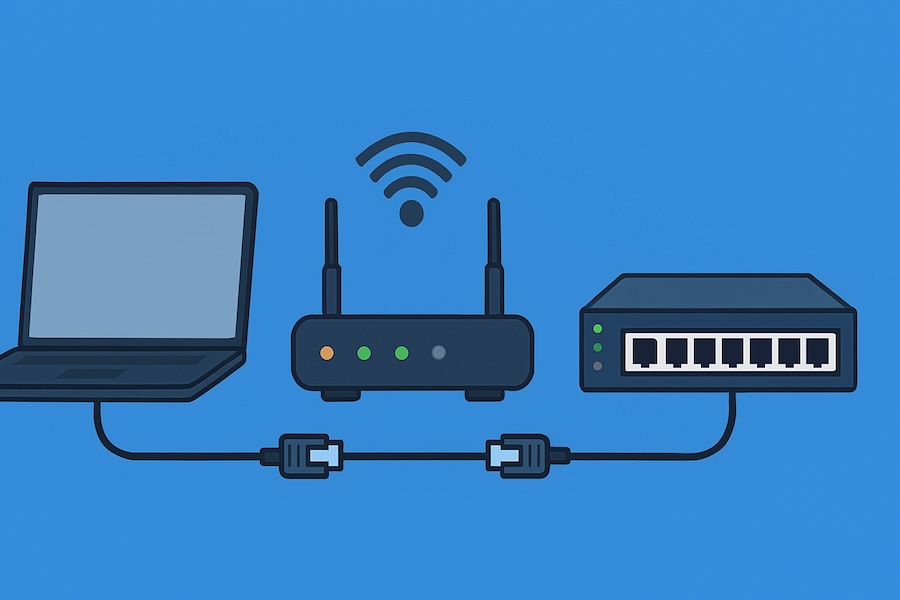
Even if your device is located far from your router, the investment in running an Ethernet cable or using powerline adapters often pays dividends in transfer speed improvements. Modern powerline adapters can achieve speeds of several hundred Mbps by transmitting data through your home’s electrical wiring, offering a middle ground when Wi-Fi is too slow but running new cables isn’t practical.
3. Optimize Your Wi-Fi Configuration
When wired connections aren’t feasible, optimizing your wireless network becomes essential. Start by positioning your router in a central location, elevated off the floor, and away from walls and metal objects that can block signals. The router should be placed in the area where you use your devices most frequently, not hidden away in a closet or basement.
Channel selection significantly impacts Wi-Fi performance. Most routers default to automatic channel selection, but this doesn’t always choose the optimal channel, especially in crowded environments like apartment buildings. Use a Wi-Fi analyzer app to identify which channels have the least interference from neighboring networks, then manually configure your router to use these less congested channels.
The 5 GHz frequency band offers faster speeds and less interference than the 2.4 GHz band, though it has shorter range. For file transfers, connecting to 5 GHz networks when possible provides noticeably better performance. Some routers support band steering, automatically directing compatible devices to the optimal frequency, but manual selection often yields better results.
Updating your router’s firmware ensures you have the latest performance improvements and security patches. Manufacturers regularly release updates that can enhance stability and speeds, yet many users never update their routers after initial setup. Check your router manufacturer’s website or admin interface quarterly for available updates.
4. Upgrade Your Storage Drives
Your storage device’s read and write speeds directly limit file transfer speeds. Traditional hard disk drives, with their mechanical spinning platters, create significant bottlenecks regardless of how fast your network connection operates. HDDs typically max out at 80-160 MB/s for sequential transfers and perform even worse with small files.
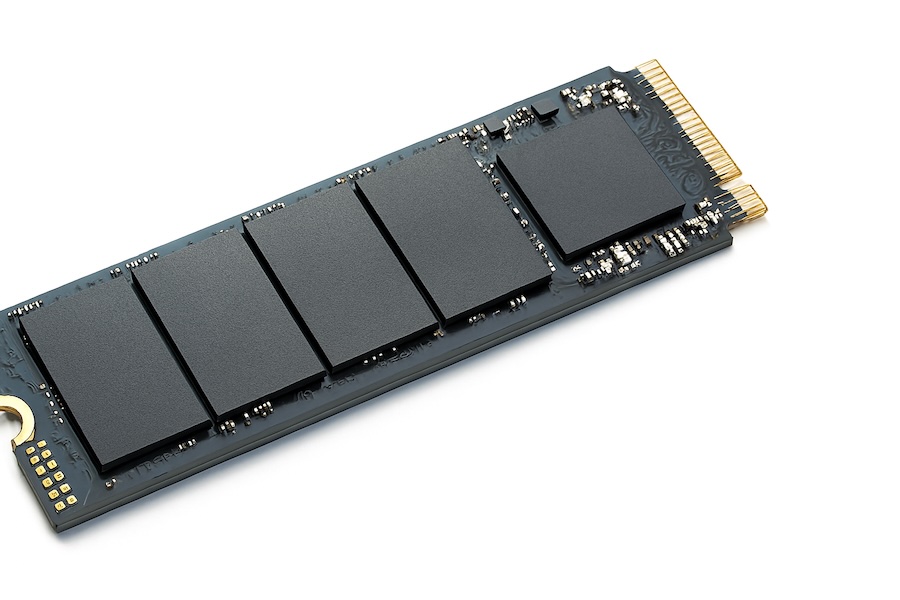
Solid-state drives revolutionize storage performance, offering read and write speeds that easily exceed what most networks can deliver. SATA SSDs provide speeds around 500-550 MB/s, while NVMe SSDs connected via PCIe interfaces can reach 3,500 MB/s or higher with the latest Gen 4 and Gen 5 models. This means the storage drive is no longer the limiting factor for most network transfers.
For external storage used for backups or file transfers, choose USB 3.1 Gen 2 or USB-C drives with SSD technology. These combinations deliver excellent portability without sacrificing speed. Avoid older USB 2.0 drives entirely, as they’re limited to theoretical maximum speeds of 480 Mbps, which translates to roughly 60 MB/s in real-world use—slower than even modest network connections.
5. Close Unnecessary Applications and Background Processes
Modern operating systems run numerous background processes that consume network bandwidth, system memory, and processing power. Cloud storage services constantly sync files, software updates download automatically, browsers maintain active connections to dozens of tabs, and various applications check for updates or send telemetry data. During large file transfers, these background activities compete for the same network resources you need.
Before initiating important transfers, close applications you’re not actively using. Temporarily pause cloud storage synchronization in services like Dropbox, Google Drive, OneDrive, and iCloud. Disable automatic updates for your operating system and applications. Close web browsers or at least reduce the number of open tabs to free up network bandwidth and system resources.
Task Manager on Windows or Activity Monitor on macOS reveals which processes consume the most network bandwidth. Sort by network activity to identify unexpected bandwidth hogs. Some applications continue using network resources even when minimized or running in the background, making this investigation valuable for troubleshooting slow transfers.
Antivirus and security software can also impact transfer speeds by scanning files in real-time as they’re sent or received. While maintaining security remains important, temporarily adjusting real-time scanning settings during large transfers can improve speeds. Remember to re-enable full protection once your transfer completes.
6. Use Dedicated File Transfer Protocols and Software
Not all file transfer methods deliver equal performance. Standard web-based uploads through browser interfaces often provide the slowest speeds because they lack optimization for large file transfers and may not support advanced features like compression or parallel connections.
File Transfer Protocol applications, especially those supporting FTP, SFTP, or FTPS with multiple simultaneous connections, significantly outperform basic methods. Software like FileZilla, WinSCP, or Cyberduck allows configuring multiple concurrent transfers, resuming interrupted transfers, and adjusting transfer parameters for optimal performance. These applications also provide detailed transfer statistics, helping you identify and resolve speed issues.
For peer-to-peer file sharing, protocols like BitTorrent excel at transferring large files efficiently by downloading different pieces simultaneously from multiple sources. This distributed approach often achieves faster speeds than traditional client-server transfers, especially for popular files with many seeders.
Modern cloud storage services increasingly offer dedicated desktop applications that optimize transfer speeds through compression, delta sync, and intelligent chunking. These native applications almost always perform better than uploading through web browsers, particularly for large files or numerous small files.
7. Compress Files Before Transferring
File compression reduces the amount of data that needs to travel across your network, effectively multiplying your transfer speed for compressible content. Text documents, spreadsheets, presentations, and source code often compress to 10-20 percent of their original size, meaning a 1 GB file might become 100-200 MB after compression—a 5-10x improvement in transfer time.
Modern compression formats like 7-Zip and RAR offer excellent compression ratios with reasonable processing speeds. Windows includes built-in ZIP support, while macOS offers both ZIP and compressed DMG formats. For maximum compression, 7-Zip’s LZMA2 algorithm provides outstanding results, though it requires slightly more processing time.

Video files, images in JPEG or PNG format, and already-compressed archives gain little benefit from additional compression. These formats already use compression algorithms, and attempting to compress them further may actually increase file size slightly due to compression overhead. Understanding which file types benefit from compression helps you avoid wasted effort.
When transferring multiple files, combining them into a single compressed archive provides additional benefits beyond size reduction. Network overhead occurs with each individual file transfer—establishing connections, verifying transfers, and handling metadata. A single archive containing hundreds of files transfers faster than those same files sent individually, even without compression.
8. Optimize Network Protocol Settings
Advanced users can enhance transfer speeds by adjusting TCP/IP parameters and protocol settings. These optimizations require some technical knowledge but can yield measurable improvements, particularly for long-distance transfers or high-latency connections.
The TCP window size determines how much data can be in transit before requiring acknowledgment from the receiving end. Larger window sizes improve efficiency on high-bandwidth, high-latency connections by keeping the network pipe full. Modern operating systems adjust this automatically through TCP window scaling, but manual optimization sometimes helps with specific scenarios.
Enabling jumbo frames on Gigabit and faster networks increases the maximum transmission unit from 1,500 bytes to 9,000 bytes, reducing overhead and improving efficiency for large transfers. This requires support from all network hardware between sender and receiver, including switches and routers. While not universally applicable, jumbo frames can improve transfer speeds by 5-20 percent in compatible environments.
Quality of Service settings on routers prioritize file transfer traffic over less time-sensitive activities like web browsing or email. Configuring QoS ensures your important transfers receive maximum bandwidth even when multiple devices share the network. Most modern routers include QoS features in their administration interfaces, though setup complexity varies by manufacturer.
9. Leverage Direct Transfer Methods
The fastest file transfers bypass internet connections and cloud services entirely. Direct computer-to-computer transfers over a local network eliminate external bandwidth limitations, latency, and third-party server processing time.
Setting up a simple file sharing system using SMB on Windows, AFP or SMB on macOS, or NFS on Linux enables direct transfers at full local network speeds. Gigabit Ethernet networks support theoretical speeds up to 125 MB/s, while 10 Gigabit networks reach 1,250 MB/s—far exceeding what internet-based services can deliver.
For one-time transfers between nearby devices, direct ad-hoc connections work excellently. Windows Nearby Sharing, macOS AirDrop, and various third-party solutions like ShareDrop create direct device-to-device connections for quick file transfers without network infrastructure requirements.
USB drives and external storage devices provide another form of direct transfer. For massive data sets measured in terabytes, physically transporting a USB drive or external SSD often proves faster than any network transfer. This approach, sometimes called sneakernet, remains relevant despite advancing network technologies—a USB 3.2 Gen 2×2 drive can transfer 2 TB in under 20 minutes, while uploading that much data might take hours or days depending on your internet connection.
10. Monitor and Troubleshoot Network Performance
Understanding your actual network performance helps identify bottlenecks and verify whether optimizations produce real improvements. Network monitoring tools reveal current speeds, identify intermittent issues, and help diagnose problems that might not be immediately obvious.
Speed test websites like Speedtest.net or Fast.com measure your internet connection’s download and upload speeds. Run these tests regularly to establish baseline performance and detect degradation. Test at different times of day, as many internet service providers experience congestion during peak evening hours that significantly impacts speeds.

Local network performance testing requires different tools. iperf and iperf3 measure bandwidth between two computers on your network, revealing whether your local infrastructure supports the speeds you expect. If local transfers are slow despite quality hardware, this testing helps isolate whether the problem exists in your network, your computer’s network adapter, or your storage devices.
Resource Monitor in Windows and Activity Monitor in macOS display real-time network utilization and identify which applications consume bandwidth. During slow transfers, these tools help determine whether the issue stems from network saturation, insufficient bandwidth, or other system resources like CPU or disk I/O becoming bottlenecks.
Network packet loss and high latency degrade transfer speeds even when bandwidth appears adequate. Ping tests and traceroute commands help diagnose connection quality issues. Consistent packet loss above 1-2 percent or latency spikes indicate network problems requiring investigation—possibly faulty cables, interference, ISP issues, or failing network hardware.
Conclusion
Implementing these ten strategies transforms frustratingly slow file transfers into efficient, predictable operations. Start with the easiest improvements like closing background applications and using wired connections, then progress to more involved upgrades like replacing storage drives or optimizing network protocols.
Each improvement compounds with others, and even modest enhancements to multiple areas often produce dramatically faster overall results. Regular monitoring ensures your optimizations continue delivering benefits and helps you quickly identify and resolve new issues as they arise.