Geeksdigit Team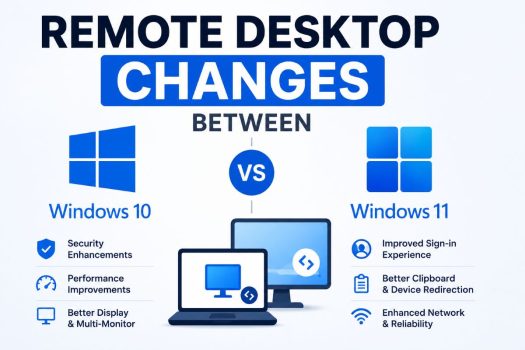
Remote Desktop has been a built-in feature of Windows for many years, allowing users to connect to and control another Windows computer over a local network or the internet. Whether you’re working remotely, accessing your office PC from home, managing multiple computers, or providing technical support, Remote Desktop offers a convenient way to use another computer without being physically present. While the core functionality remains the same in Windows 11, Microsoft has introduced several improvements that enhance usability, security, performance, and overall reliability compared to Windows 10.
Many users upgrading to Windows 11 wonder whether Remote Desktop works differently or if any settings have changed. In most cases, existing Remote Desktop connections continue to work after upgrading, but you’ll notice updates to the Settings app, stronger security requirements, improved display handling, better integration with Microsoft accounts, and enhanced networking features. Some changes are subtle, while others significantly improve the remote access experience, especially on modern hardware.

This guide compares Remote Desktop in Windows 10 and Windows 11, highlighting the most important differences, improvements, and compatibility considerations so you know what to expect after upgrading.
What Is Remote Desktop?
Remote Desktop is Microsoft’s built-in remote access technology that uses the Remote Desktop Protocol (RDP) to connect one Windows computer to another. Once connected, you can view and control the remote computer’s desktop as though you were sitting directly in front of it.
Remote Desktop allows you to:
- Access files and applications remotely.
- Manage work computers from home.
- Provide technical support.
- Run business applications from another location.
- Connect to virtual machines.
- Administer Windows servers.
The feature is available in Windows Pro, Enterprise, and Education editions for hosting incoming Remote Desktop connections. Windows Home editions include the Remote Desktop client but cannot act as Remote Desktop hosts.
1. Redesigned Remote Desktop Settings
One of the first changes Windows 11 users notice is the redesigned Settings app.
In Windows 10, enabling Remote Desktop required navigating through:
Settings > System > Remote Desktop
While Windows 11 retains the same general location, the interface has been modernized to match the new Windows 11 design language. The page now features cleaner typography, improved spacing, updated toggle switches, and a simplified layout that makes it easier to understand the current Remote Desktop status.
Microsoft has also improved the way additional Remote Desktop options are organized. Instead of scattering related settings across multiple windows, Windows 11 provides quicker access to important configuration options directly from the Settings app.
Although the underlying functionality remains largely unchanged, the updated interface feels more consistent with the rest of Windows 11 and reduces the learning curve for new users.
2. Improved Security by Default
Security is one of the areas where Windows 11 introduces the most significant improvements.
Windows 11 places greater emphasis on protecting remote connections by encouraging modern security technologies such as:
- TPM 2.0
- Secure Boot
- Virtualization-based Security (VBS)
- Credential Guard
- Windows Defender enhancements
Although these technologies are not exclusive to Remote Desktop, they help secure remote sessions by making credential theft and malware attacks more difficult.
Windows 11 also promotes stronger authentication practices and better integrates Remote Desktop with modern Windows security features.
Organizations deploying Remote Desktop across many devices benefit from these additional protections without requiring major configuration changes.
3. Better Performance on Modern Hardware
Windows 11 includes several performance optimizations that indirectly improve Remote Desktop sessions.
Microsoft has refined scheduling for modern processors, particularly systems using hybrid CPU architectures with performance and efficiency cores.
As a result, Remote Desktop sessions often feel smoother when running demanding applications, especially on newer Intel and AMD processors.
Graphics handling has also improved in Windows 11, allowing better responsiveness for:
- High-resolution desktops
- Multiple monitors
- Graphics-intensive applications
- Hardware-accelerated workloads
Although network speed remains the biggest factor affecting Remote Desktop performance, users with modern hardware generally experience lower latency and more responsive remote sessions compared to Windows 10.
4. Improved Multi-Monitor Support
Many professionals use multiple displays when working remotely.
Windows 10 already supported multiple monitors, but Windows 11 improves the overall experience.
Display scaling behaves more consistently between local and remote sessions, reducing problems where applications appear blurry after reconnecting.
Windows 11 also better remembers monitor layouts after reconnecting to an existing Remote Desktop session.
Users with 4K, ultrawide, or mixed-resolution monitor setups may notice fewer display-related issues than they experienced under Windows 10.
The updated window management system in Windows 11 also works more smoothly with Remote Desktop, making it easier to organize applications across multiple displays.
5. Stronger Windows Hello Integration
Windows Hello has become a more central part of the Windows 11 sign-in experience, and this extends to Remote Desktop in supported environments.
While Windows 10 supports Windows Hello in certain Remote Desktop scenarios, Windows 11 offers improved integration with modern authentication technologies. Users can benefit from enhanced credential management when connecting to remote devices configured for Windows Hello for Business.
Organizations using Microsoft Entra ID (formerly Azure Active Directory), Active Directory, or hybrid identity environments may experience a smoother authentication process thanks to Microsoft’s ongoing improvements to passwordless sign-in and credential protection.
Although biometric authentication typically occurs on the local device rather than being transmitted during the remote session, Windows 11 provides a more seamless experience for users working within modern enterprise environments.
6. Better Clipboard and Device Redirection
Remote Desktop allows users to redirect local resources such as the clipboard, printers, drives, audio devices, and smart cards to the remote computer.
Windows 11 continues to support these features while improving their overall reliability.
Clipboard synchronization is generally more consistent during long remote sessions, reducing situations where copied text or files stop transferring between the local and remote computers.
Printer and drive redirection also benefit from improved driver compatibility, especially when connecting to modern Windows 11 systems.
Users working with USB devices, external storage, and redirected folders may notice fewer compatibility issues after upgrading from Windows 10.
Although the available redirection options remain largely unchanged, Windows 11 offers a more stable experience in everyday use.
7. Improved Network Connectivity and Reliability
Reliable network communication is essential for a good Remote Desktop experience.
Windows 11 includes numerous networking improvements that indirectly benefit Remote Desktop sessions.
Microsoft has optimized various networking components to improve connection stability, particularly on wireless networks and modern Wi-Fi standards such as Wi-Fi 6 and Wi-Fi 6E.
VPN compatibility has also improved through ongoing updates, helping reduce connection interruptions for users accessing work computers remotely.
Windows 11 generally handles network transitions more gracefully when moving between different networks, such as switching from Wi-Fi to Ethernet or reconnecting after temporary network interruptions.
These improvements help Remote Desktop sessions recover more smoothly when brief connectivity issues occur.
8. Updated Remote Desktop Client Experience
The classic Remote Desktop Connection application (mstsc.exe) continues to be included with Windows 11 and functions much like it did in Windows 10.
However, Microsoft has gradually expanded its remote access ecosystem with newer applications that provide access to Windows PCs, Azure Virtual Desktop, Windows 365 Cloud PCs, and other remote resources through a more modern interface.
Windows 11 users therefore have more flexibility when choosing how they access remote systems, depending on their environment and requirements.
Despite these newer options, the traditional Remote Desktop Connection client remains fully supported and continues to be the preferred tool for many home users and IT professionals because of its simplicity and compatibility.
9. Enhanced Compatibility with Virtualization and Cloud Services
Windows 11 places greater emphasis on virtualization and cloud-based computing.
Remote Desktop works well alongside features such as:
- Hyper-V
- Windows Sandbox
- Windows 365
- Azure Virtual Desktop
- Microsoft Dev Box
Organizations adopting cloud-based desktops and virtual machines benefit from tighter integration between Windows 11 and Microsoft’s cloud services.
For developers and IT administrators managing virtual machines, Remote Desktop continues to provide fast and reliable remote access while benefiting from Windows 11’s improvements in virtualization performance and security.
Although these features are available in Windows 10 as well, Windows 11 is more closely aligned with Microsoft’s current cloud strategy.
10. Compatibility and Upgrade Considerations
For most users, upgrading from Windows 10 to Windows 11 has little impact on existing Remote Desktop functionality.
The same Remote Desktop Protocol (RDP) continues to be used, meaning Windows 10 and Windows 11 computers can connect to each other without special configuration in most environments.
However, there are a few important considerations.
Windows 11 has higher hardware requirements than Windows 10, including support for TPM 2.0 and Secure Boot on supported systems. These requirements improve overall platform security, which also benefits Remote Desktop usage.
Organizations should also verify that Group Policy settings, firewall rules, VPN configurations, and Remote Desktop Services remain properly configured after upgrading client or host computers.
In mixed environments containing both Windows 10 and Windows 11 devices, Remote Desktop generally continues to function normally without requiring protocol changes or compatibility adjustments.
Which Version Is Better for Remote Desktop?
For most users, Windows 11 provides the better overall Remote Desktop experience.
The core functionality remains familiar, making the transition from Windows 10 straightforward, while the operating system introduces improvements in several important areas.
Windows 11 offers:
- A cleaner and more intuitive Settings interface.
- Improved security through modern hardware requirements.
- Better performance on newer processors.
- Enhanced multi-monitor support.
- More reliable clipboard and device redirection.
- Improved networking behavior.
- Better integration with modern authentication and cloud services.
Users with newer hardware are likely to notice the greatest benefits, particularly when working with high-resolution displays or multiple monitors.
If your Windows 10 system already performs well and your hardware doesn’t support Windows 11, Remote Desktop will continue to function reliably. However, users purchasing new computers or upgrading supported devices will generally benefit from Windows 11’s refinements.
Conclusion
Remote Desktop remains one of the most valuable productivity features built into Windows, and while Windows 11 doesn’t fundamentally change how it works, it introduces numerous refinements that improve the overall experience. The updated Settings interface makes Remote Desktop easier to configure, stronger security features help protect remote connections, and improvements to networking, display handling, authentication, and virtualization provide a smoother and more reliable experience than Windows 10, particularly on modern hardware.
The underlying Remote Desktop Protocol remains compatible across Windows 10 and Windows 11, allowing both operating systems to coexist in mixed environments without major configuration changes. Whether you’re a home user remotely accessing your personal computer or an IT professional managing hundreds of devices, Windows 11 builds on the solid foundation established by Windows 10 while delivering better performance, stronger security, and closer integration with Microsoft’s latest technologies.
Frequently Asked Questions
1. Does Remote Desktop work differently in Windows 11?
The core functionality is the same, but Windows 11 includes improvements to the user interface, security, performance, networking, and compatibility with modern hardware.
2. Can Windows 10 and Windows 11 computers connect to each other using Remote Desktop?
Yes. Remote Desktop is fully compatible between Windows 10 and Windows 11 in supported editions, allowing either operating system to connect to the other in most scenarios.
3. Is Remote Desktop faster in Windows 11?
On supported modern hardware, many users experience smoother performance due to improvements in processor scheduling, graphics handling, and networking. Actual performance still depends on your hardware and network connection.
4. Do I need Windows 11 Pro to host Remote Desktop connections?
Yes. Like Windows 10, Windows 11 Home can initiate Remote Desktop connections using the built-in client but cannot accept incoming Remote Desktop connections. Hosting requires Windows Pro, Enterprise, or Education editions.