Olivia Harper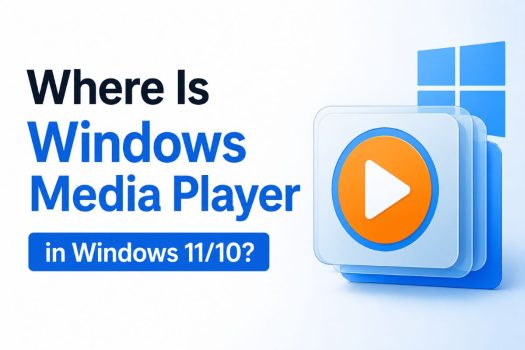
Windows Media Player has been part of Windows for many years, but finding it in Windows 11 or newer installations of Windows 10 can be confusing. Microsoft has changed the way its media apps are included in Windows, and the newer Media Player app is now the preferred application for playing music and videos.
If you are specifically looking for the classic Windows Media Player that was available in older versions of Windows, it may appear as Windows Media Player Legacy. On some Windows 11 and Windows 10 editions, the classic player is installed but hidden as an optional Windows feature. On other editions, you may need to enable or install it before you can use it.

The good news is that you can usually find either the newer Media Player app or the classic Windows Media Player through Windows Search, the Start menu, Optional Features, or Windows Features. The exact location depends on your Windows version and edition.
In this guide, we will show you where Windows Media Player is located in Windows 11 and Windows 10, how to open it, how to install the classic version if it is missing, and how to tell the difference between Windows Media Player Legacy and the newer Media Player app.
Windows Media Player vs. Media Player
Before looking for the application, it is important to understand that Windows 11 and newer Windows 10 installations can have two different Microsoft media players.
The first is the newer Media Player app. This is the modern application Microsoft recommends for current versions of Windows. It has a newer interface and is designed for modern media playback.
The second is Windows Media Player Legacy, which is the classic desktop application familiar to users of Windows 7, Windows 8, and earlier versions of Windows 10. Microsoft still provides Windows Media Player Legacy as an optional feature on supported Windows 10 and Windows 11 editions.
So, if you search for “Windows Media Player” and do not see the old interface, that does not necessarily mean Windows Media Player has been completely removed.
Where Is Windows Media Player in Windows 11?
In Windows 11, the quickest way to check whether the classic player is already installed is through Windows Search.
Open the Start menu and type:
Windows Media Player
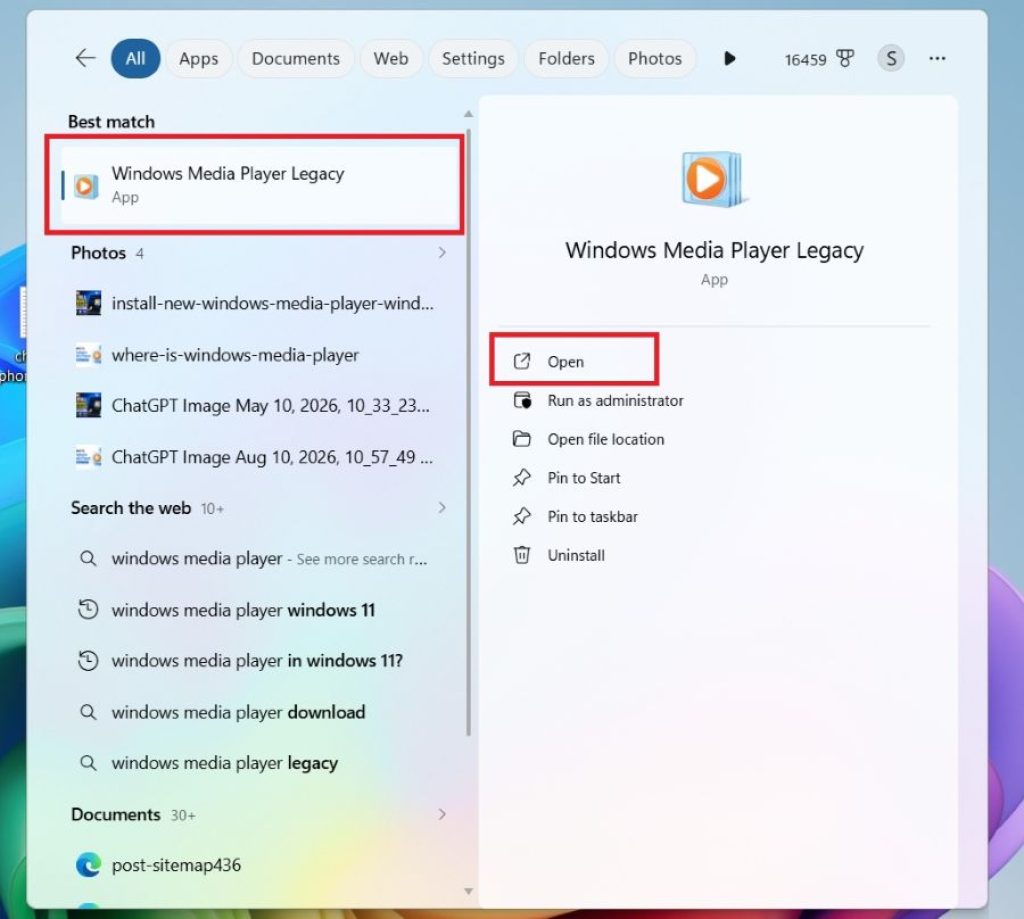
If the classic application is installed, you may see Windows Media Player in the search results.
You can also search for:
Windows Media Player Legacy
Depending on your Windows 11 version, the result may simply appear as Windows Media Player.
If you see the application, select it to launch the classic player.
If Windows Search does not find it, you can check Optional Features. Microsoft currently lists Windows Media Player Legacy as an optional feature on some Windows 11 editions.
Method 1: Search for Windows Media Player
The easiest method is to use Windows Search.
Press the Windows key on your keyboard or click the Start button.
Type:
Windows Media Player
Look through the search results.
If Windows Media Player is installed, select it from the results.
You can also right-click the result and select Open file location if you want to find the shortcut Windows uses to launch the application.
This method is particularly useful if Windows Media Player is installed but does not appear prominently in the Start menu.
Method 2: Look for Media Player in the Start Menu
Windows 11 includes the newer Media Player application.
Click Start and select All to view the installed applications.
Scroll through the list until you find Media Player.
Depending on your Windows version, it may be listed simply as Media Player rather than Windows Media Player.
The newer Media Player app is the modern replacement for several older Microsoft media applications and is the version Microsoft recommends for modern video features such as 4K playback.
If you are only interested in playing common music and video files, this newer application may be all you need.
However, if you specifically want the classic Windows Media Player interface, continue with the methods below.
Method 3: Open Windows Media Player Using the Run Command
You can try launching the classic Windows Media Player directly with the Run dialog.
Press:
Windows + R
The Run dialog will appear.
Type:
wmplayer
Press Enter.
If Windows Media Player is installed, Windows should launch it immediately.
This is one of the quickest ways to open the classic player because you do not need to search through the Start menu.
If Windows displays an error indicating that it cannot find wmplayer, the classic Windows Media Player may not currently be installed or enabled on your system.
Method 4: Install Windows Media Player Legacy in Windows 11
If you cannot find the classic Windows Media Player in Windows 11, you can check Optional Features.
Open Settings.
Select:
System > Optional features
Under Optional Features, select:
View features
A window containing available optional features will appear.
Use the search box and type:
Windows Media Player Legacy
If it appears in the list, select the checkbox next to it.
Select Next and then select Add.
Windows will install the optional feature.
After installation finishes, open Start and search for Windows Media Player.
Microsoft’s current instructions use this path for supported Windows 11 editions:
Settings > System > Optional features > View features > Windows Media Player Legacy.
The exact wording can vary slightly depending on your Windows 11 version.
Method 5: Install Windows Media Player in Windows 10
Windows 10 uses a slightly different Settings layout.
Open Settings.
Select:
Apps > Apps & features
Then select:
Optional features
Select:
Add a feature
Look through the available features or use the search box.
Find:
Windows Media Player
Select it and choose Install.
After the installation finishes, open the Start menu and search for Windows Media Player.
Microsoft lists Windows Media Player Legacy as an optional feature on some Windows 10 editions.
The menu names can vary depending on the specific Windows 10 build, so you may see Manage optional features instead of simply Optional features.
Method 6: Enable Windows Media Player Through Windows Features
Another way to enable the classic player is through the traditional Windows Features dialog.
Open Start and search for:
Turn Windows features on or off
Select the matching result.
The Windows Features window will open.
Expand:
Media Features
Look for:
Windows Media Player
Select the checkbox next to it.
Click OK.
Windows may take a few moments to apply the change. Depending on the system, you may be asked to restart the computer.
After restarting, search for Windows Media Player again.
This method is especially useful when Windows Media Player is available as a Windows component but is not currently enabled.
Microsoft also recommends using the Windows Features dialog to uninstall and reinstall Windows Media Player when troubleshooting certain problems.
Method 7: Check Windows Media Player in Installed Apps
If you believe Windows Media Player is already installed but cannot open it, check the Installed Apps section.
In Windows 11, open:
Settings > Apps > Installed apps
Search for:
Windows Media Player
You may see the application listed there.
If it appears, select the three-dot menu next to it.
Depending on the version of Windows, you may have access to options such as Advanced options, Repair, or Reset.
Microsoft notes that Windows Media Player can be repaired or reset from Installed Apps when supported.
Repair is useful when the application is installed but is not opening correctly.
Reset can restore the application’s settings, although Microsoft notes that resetting Windows Media Player removes its custom settings and preferences rather than your personal media files.
Method 8: Check Whether You Are Using Windows 10 or 11 N
If Windows Media Player is completely missing, your PC may be running a special N edition of Windows.
Windows 10 N and Windows 11 N are editions that do not include certain media-related technologies by default.
Microsoft states that Windows N editions exclude Windows Media Player and related media technologies. These features can be restored by installing the Media Feature Pack.
To check your Windows edition, press:
Windows + R
Type:
winver
Press Enter.
You can also open:
Settings > System > About
Look at the Windows edition information.
If you see an N edition, such as Windows 11 Pro N or Windows 10 Pro N, the absence of Windows Media Player may be expected.
In Windows 11 N, Microsoft provides the Media Feature Pack through Optional Features. The path is:
Settings > Apps > Optional features > View features
Search for:
Media Feature Pack
Select it and install it.
A restart is required after installing the Media Feature Pack.
Method 9: Create a Shortcut to Windows Media Player
If you use Windows Media Player frequently, you can create a shortcut so that you do not have to search for it every time.
First, open Windows Media Player using Windows Search or the Run command.
If the application appears in the Start menu, you can right-click it and look for options to pin it to Start or the taskbar, depending on your Windows version.
You can also create a desktop shortcut if you have access to the application’s executable file.
The classic Windows Media Player executable is commonly launched using:
wmplayer.exe
You can press Windows + R, type:
wmplayer
and press Enter to confirm that the classic player is available.
Once you have confirmed that it works, creating a shortcut makes it much easier to access the player in the future.
Method 10: Find Windows Media Player Through Control Panel
You can also use Control Panel to access Windows Features.
Press:
Windows + R
Type:
control
Press Enter.
Select:
Programs > Programs and Features
Look for:
Turn Windows features on or off
Select it.
Expand Media Features and check whether Windows Media Player is enabled.
This method is available in both Windows 10 and Windows 11, although Microsoft has moved many traditional settings from Control Panel into the newer Settings application.
If Windows Media Player is unchecked, select it and click OK.
Windows will enable the feature and may require a restart.
How to Open Windows Media Player After Installing It
After enabling Windows Media Player Legacy, the easiest way to open it is through Windows Search.
Open Start and type:
Windows Media Player
Select the application from the results.
You can also press Windows + R, type:
wmplayer
and press Enter.
If the classic application opens, Windows Media Player Legacy is installed correctly.
Final Thoughts
Windows Media Player has not simply disappeared from Windows 11 and Windows 10. The confusion mainly comes from Microsoft’s transition from the classic Windows Media Player to the newer Media Player application.
If you are looking for the modern application, open Start and search for Media Player. If you specifically want the classic Windows Media Player, search for Windows Media Player or Windows Media Player Legacy.
On Windows 11, you can normally check Settings > System > Optional features > View features and search for Windows Media Player Legacy. On supported Windows 10 editions, you can check Settings > Apps > Optional features > Add a feature.
If neither version is available, check whether your computer is running Windows 10/11 N and install the Media Feature Pack if necessary.
For most users, the newer Media Player app is sufficient. But if you prefer the traditional Windows Media Player interface, the Legacy version can still be enabled on supported systems.
Frequently Asked Questions
Where is Windows Media Player in Windows 11?
Search for Windows Media Player from the Start menu. If you want the classic version and it is missing, go to Settings > System > Optional features > View features and search for Windows Media Player Legacy.
Is Windows Media Player still available in Windows 11?
Yes. Windows 11 includes the newer Media Player app, while Windows Media Player Legacy remains available as an optional feature on supported editions.
How do I install Windows Media Player on Windows 10?
Go to Settings > Apps > Apps & features > Optional features > Add a feature, find Windows Media Player, and select Install. The exact menu names can vary between Windows 10 versions.
Why does my Windows 11 PC not have Windows Media Player?
You may be looking for the classic version while Windows is showing the newer Media Player app. Alternatively, Windows Media Player Legacy may not be enabled. If you have a Windows N edition, you may need to install the Media Feature Pack first.