sukh22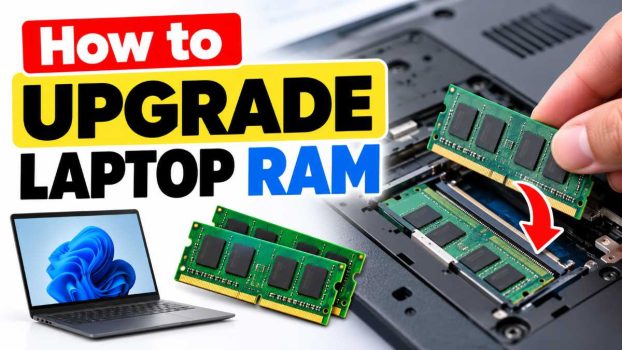
If your laptop takes forever to open apps, freezes when you have too many browser tabs open, or stutters during video calls, the problem may not be the processor or the hard drive. Very often it is the RAM. Random Access Memory is the short-term workspace your laptop uses to keep programs and files readily available. When that workspace is too small, your system starts shuffling data back and forth to the much slower storage drive, and everything feels sluggish.
The good news is that upgrading laptop RAM is one of the cheapest and most effective ways to make an aging computer feel fast again. A new memory kit typically costs a fraction of a new laptop, and for many models the whole job takes less than fifteen minutes. You do not need to be a technician. You need a small screwdriver, a bit of patience, and the right memory module.
This guide walks you through everything a beginner needs to know: how to tell whether your laptop can be upgraded, how to choose compatible RAM, how to install it safely, and how to confirm it worked. We will also cover what to do if your laptop has soldered memory that cannot be changed, and we finish with answers to the most common questions.
Before You Start: Is Your Laptop Upgradeable?
Not every laptop allows a RAM upgrade, so this is the first thing to check. Laptops generally fall into three categories:
- Fully upgradeable: These have one or two memory slots that hold removable modules. Many business laptops, gaming laptops, and older mainstream models fall into this group.
- Partially upgradeable: These have some memory soldered to the motherboard and one empty or replaceable slot. You can add to the total, but you cannot remove the soldered portion.
- Not upgradeable: Most modern ultrathin laptops, many tablets with keyboards, and almost all Apple laptops with Apple silicon have memory built into the chip package or soldered to the board. For these, the only option is buying a new machine with more memory.
The quickest way to find out is to search for your exact model name plus the words “RAM upgrade” or “memory specifications.” Your manufacturer’s support page will usually list the memory type, the number of slots, and the maximum supported capacity. You can also look up your model on a memory retailer’s compatibility tool, which does the matching for you.
What You Need to Know About RAM Before Buying
Buying the wrong RAM is the most common beginner mistake, and it is completely avoidable. Here are the details that matter.
RAM type (DDR generation)
Laptop memory comes in generations such as DDR3, DDR4, and DDR5. They are physically different and not interchangeable. A DDR4 module will not fit in a DDR5 slot, and the notch positions are deliberately different to stop you forcing it. Your laptop supports only one generation, so always match it.
Form factor
Laptops use a compact module called SO-DIMM, which is much shorter than the full-size modules used in desktop computers. When shopping, make sure the listing says SO-DIMM and not DIMM.
Capacity
This is the number of gigabytes on the module. Today, 8 GB is a sensible minimum for everyday use, 16 GB is comfortable for multitasking and light creative work, and 32 GB or more suits video editing, virtual machines, and heavy workloads. Check the maximum your laptop supports so you do not buy more than it can use.
Speed
Speed is measured in megahertz (MHz) or megatransfers per second (MT/s), for example 3200 MHz for DDR4. Your laptop will run memory at the speed its processor and motherboard support. If you buy faster RAM than your system can handle, it simply runs at the lower supported speed, so it is not harmful, just wasted money.
Single versus dual channel
If your laptop has two slots, using two matching modules enables dual-channel mode, which increases memory bandwidth and can noticeably improve performance, especially for integrated graphics. Two 8 GB modules generally perform better than one 16 GB module in a dual-slot laptop.
Finding what you currently have
On Windows, you can check your existing memory without opening anything:
- Press Ctrl + Shift + Esc to open Task Manager.
- Click the Performance tab and select Memory.
- Look at the top right for the total size, and below it for the speed, slots used, and form factor.
This single screen tells you how many slots are occupied, which helps you decide whether to add a module or replace the existing ones. Free tools such as CPU-Z give even more detail, including the memory type and the manufacturer.
Tools and Preparation
You do not need a workshop. Gather these items before you begin:
- A small Phillips-head screwdriver, usually a #0 or #1 size. Some laptops use Torx screws, so check yours.
- A plastic pry tool or old credit card for gently separating the case if needed.
- Your new RAM module or modules.
- A small bowl or magnetic tray to keep screws from rolling away.
- An anti-static wrist strap, which is optional but recommended.
Before touching anything, back up your important files. RAM upgrades rarely cause data loss, but it is always smart to be safe. Then shut the laptop down completely rather than using sleep or hibernate, and unplug the charger.
Method 1: Upgrading RAM Through the Bottom Access Panel
This is the easiest and most common method. Many laptops include a dedicated panel on the underside that exposes the memory slots directly.
Step 1: Power down and disconnect everything
Turn the laptop off, unplug the power adapter, and disconnect any USB devices or external monitors. If your battery is removable, take it out. If it is built in, you can still proceed, but be careful not to short anything.
Step 2: Ground yourself
Static electricity can damage memory chips even if you feel nothing. Touch a bare metal object, such as a radiator or the metal frame of a desk lamp, before you start. If you have an anti-static wrist strap, clip it to a metal surface.
Step 3: Remove the access panel
Turn the laptop upside down on a soft, clean surface. Find the panel with a small RAM or memory icon, or check your manual. Remove the screws and slide or lift the panel off. Keep the screws in your bowl and note which screws came from where, as lengths can differ.
Step 4: Remove the old module if needed
If you are replacing existing memory, look at the metal clips on each side of the module. Gently push them outward at the same time. The module will pop up at an angle of about 30 degrees. Hold it by the edges and slide it out. Never touch the gold contacts.
Step 5: Insert the new module
Line up the notch on the new module with the small ridge in the slot. Insert it at an angle of about 30 degrees, pushing the gold contacts firmly into the slot until only a sliver of them remains visible. Then press the module down flat until the side clips snap into place with a click. If it resists, stop and recheck the alignment instead of forcing it.
Step 6: Repeat for additional modules
If you are installing two modules, repeat the process for the second slot. Make sure both modules match in capacity and speed for best results.
Step 7: Close up and test
Replace the panel and screws, reconnect the power, and turn the laptop on. The first boot may take a little longer than usual while the system recognizes the new memory. Skip ahead to the verification section below to confirm everything is working.
Method 2: Upgrading RAM by Removing the Entire Bottom Cover
Some laptops have no dedicated panel. Instead, you must remove the whole bottom cover to reach the memory. The process is similar, but needs a bit more care.
Step 1: Remove all visible screws
After shutting down and unplugging, flip the laptop over and remove every screw on the bottom. Some screws hide under rubber feet or stickers, so check your model’s service manual or a teardown video if the cover will not budge.
Step 2: Release the clips around the edge
Use a plastic pry tool to gently work around the seam. The cover is held by plastic clips that make popping sounds when released. Go slowly and avoid metal tools, which can scratch the case or break the clips.
Step 3: Disconnect the battery
Once the cover is off, locate the battery connector on the motherboard. Disconnecting it is an important safety step because it cuts power to the board while you work. Carefully pull the connector straight out, or use the plastic tool to lever it free.
Step 4: Replace the memory
Follow the same steps as in Method 1: release the side clips, remove the old module, insert the new one at an angle, and press it down until it clicks.
Step 5: Reconnect and reassemble
Plug the battery connector back in, align the cover, and press the edges until the clips snap into place. Replace all the screws, taking care to put each one back in its original hole.
Method 3: Upgrading RAM Under the Keyboard or Through the Top
A few laptops, mostly older ones and some compact business models, hide their memory beneath the keyboard. This method is more involved and is best attempted only after finding a guide for your exact model.
- After shutting down and disconnecting power, remove any screws marked with a keyboard icon on the bottom of the laptop.
- Flip the laptop over and gently lift the keyboard from the top edge, using a plastic tool to release the clips.
- Do not pull the keyboard away completely. It is attached by a thin ribbon cable. Carefully lift the small latch on the connector and slide the ribbon out.
- Replace the memory module exactly as in the earlier methods.
- Reconnect the ribbon cable, lock the latch, press the keyboard back into place, and replace the screws.
If this feels intimidating, remember that a local repair shop will often do this job for a small fee, and you can still save money by buying the memory yourself.
Method 4: Using a Single Free Slot to Add Memory
Sometimes the simplest upgrade is adding a second module rather than replacing the first. If Task Manager showed you only one slot in use, you can add a module without removing anything. For best results, buy a module identical to your existing one, same capacity, type, and ideally the same speed. Mixing different brands or speeds usually works, but the system will run both at the slower speed and in rare cases may be unstable.
How to Verify the Upgrade Worked
After reassembly, confirm that your laptop recognizes the new memory.
- On Windows: Open Task Manager with Ctrl + Shift + Esc, go to Performance, then Memory, and check the total capacity. You can also press the Windows key and type “About your PC” to see installed RAM.
- On macOS (Intel models): Click the Apple menu, choose About This Mac, and look at the memory entry.
- On Linux: Open a terminal and type
free -hto see your total memory.
To stress test the new memory, run a free tool such as Windows Memory Diagnostic or MemTest86. Let it complete a full pass. If it reports errors, reseat the module and test again, since a poorly seated stick is the most common cause of problems.
Troubleshooting Common Problems
The laptop will not turn on or beeps repeatedly. This usually means the memory is not fully seated. Power down, reopen the panel, remove the module, and reinsert it firmly until both clips click.
Only some of the memory is showing. Check that both modules are seated correctly. Also confirm that your operating system is 64-bit, because 32-bit versions of Windows can only use about 4 GB.
Blue screens or random crashes. Mismatched or faulty memory can cause instability. Try each module on its own to identify the problem, and consider buying a matched kit.
The laptop boots but speed has not improved. If you were not running out of memory before, more RAM will not help much. Check whether your real bottleneck is an old hard drive, in which case upgrading to an SSD may help more.
Safety Tips Worth Remembering
- Never force a module into a slot. If it does not slide in easily at an angle, it is either misaligned or the wrong type.
- Hold memory by the edges only.
- Avoid working on carpet, which builds up static.
- Keep track of your screws and put them back where they belong.
- Check your warranty first. Many manufacturers allow RAM upgrades without penalty, but some void coverage if you open the case.
Conclusion
Upgrading laptop RAM is one of the most rewarding do-it-yourself projects for beginners. It is inexpensive, low-risk when done carefully, and can make an old laptop feel remarkably fresh. The process comes down to a few clear stages: confirm your laptop is upgradeable, identify the right memory type and capacity, open the correct panel, seat the new module until it clicks, and verify the result.
Take your time, work in a clean and well-lit space, and rely on your manufacturer’s documentation for model-specific details. If you hit a snag, a quick online search for your exact laptop model will usually turn up a video or guide that shows every screw. With the right module and a little patience, you can add years of useful life to your laptop for the price of a nice lunch.
Frequently Asked Questions
1. How much RAM do I need in my laptop?
For basic tasks such as web browsing, email, and streaming, 8 GB is enough for most people. If you often keep many tabs and apps open, edit photos, or attend frequent video meetings, 16 GB is a better target. Video editing, programming with virtual machines, and modern gaming benefit from 32 GB or more. Always check your laptop’s maximum supported capacity before buying.
2. Can I mix different brands or sizes of RAM?
Often yes, but it is not ideal. The laptop will usually run all modules at the speed of the slowest one, and mixing capacities can disable dual-channel mode in some systems, reducing performance. For the most reliable results, buy a matched kit or modules with identical specifications.
3. Will upgrading RAM void my warranty?
It depends on the manufacturer and your region. Many companies explicitly allow customers to upgrade memory through an official access panel without voiding the warranty, while others require service by an authorized technician. Check your warranty terms or contact support before opening the laptop, and keep your receipts.
4. What if my laptop’s RAM is soldered and cannot be upgraded?
If the memory is soldered to the motherboard, you cannot increase it yourself, and attempting to do so is not practical for beginners. Your best options are to free up memory by closing unused apps and disabling startup programs, upgrading to a faster SSD if you do not already have one, or buying a new laptop with more memory when you are ready. When shopping, choose a model with at least 16 GB or one that has user-replaceable memory slots.
![How to Upgrade Laptop RAM [For Beginers]](https://www.geeksdigit.com/wp-content/uploads/thumbs_dir/How-to-Uninstall-Graphics-Drivers-ruzlm7uh96p1w7vpdmgfqsoy8mxyix7wq7uykytxdo.jpg)
![How to Upgrade Laptop RAM [For Beginers]](https://www.geeksdigit.com/wp-content/uploads/thumbs_dir/How-to-Enter-BIOS-on-Any-PC-ruzlw515e8a0g1gvfwuo2ak3z21frwlwrbrgy44bp8.jpg)