
 Geeksdigit Team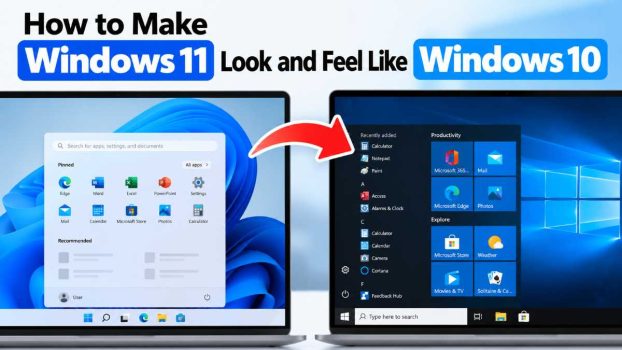
Windows 11 arrived with a fresh coat of paint: rounded corners, a centered taskbar, a simplified Start menu, and a stripped-down right-click menu. For many people, that redesign is a welcome change. For many others, it is a daily irritation. If you spent years building muscle memory around Windows 10, you may find yourself hunting for familiar options, clicking “Show more options” over and over, or wishing your taskbar buttons would simply show their labels again.
The good news is that you do not have to give up Windows 11’s under-the-hood improvements, such as better security, newer hardware support, and ongoing updates, just because you prefer the older look. With a mix of built-in settings, a few small registry tweaks, and optional third-party tools, you can bring back a surprisingly large portion of the Windows 10 experience.
This guide walks through every practical method, starting with the safest and easiest changes and moving toward more advanced ones. Along the way, you will learn what Windows 11 lets you change natively, what it deliberately blocks, and which tools fill the gaps. A quick note before we begin: Microsoft changes Windows 11 regularly, so menu names and options can vary slightly between versions. If something looks a little different on your PC, check for the closest matching setting.
Method 1: Move the Start Button and Icons Back to the Left
The most obvious change in Windows 11 is the centered taskbar. Fortunately, reversing it takes about ten seconds.
- Right-click an empty area of the taskbar and choose Taskbar settings.
- Expand Taskbar behaviors.
- Next to Taskbar alignment, choose Left.
Your Start button and pinned apps now sit in the bottom-left corner, just as they did in Windows 10. This single change does more to restore the old feel than almost anything else, because it fixes the position where your mouse instinctively goes.
Method 2: Clean Up the Taskbar
Windows 11 adds several buttons that Windows 10 users never had or could easily remove. You can hide most of them.
In Settings > Personalization > Taskbar, open the Taskbar items section and switch off the features you do not use:
- Search: You can hide it completely, show only an icon, or choose a search box. Windows 10 users who liked the wide search bar can pick Search box in recent builds.
- Task View: Turn it off if you prefer Alt+Tab or Win+Tab.
- Widgets: The news and weather panel is optional and can be disabled here.
- Copilot or Chat: Depending on your version, you may see a Copilot or Teams chat button. Both can be toggled off.
The result is a taskbar that contains your Start button, your pinned and running apps, the system tray, and the clock, which is exactly what Windows 10 offered by default.
Show Taskbar Labels Again
One feature many people missed in early Windows 11 releases was the ability to show text labels next to taskbar icons and never group windows together. Newer builds have brought it back. Under Taskbar behaviors, look for Combine taskbar buttons and hide labels and set it to Never. If you do not see the option, install the latest Windows updates, since older versions of Windows 11 only offered the grouped, icon-only view.
Small Taskbar Icons and Moving the Taskbar
Windows 10 let you shrink taskbar buttons and place the taskbar on the top or sides of the screen. Windows 11 offers neither natively in a simple way. If those features matter to you, you will need a third-party tool, covered later in this guide.
Method 3: Bring Back the Classic Right-Click Menu
Right-click a file in Windows 11 and you get a compact menu with icons at the top and a “Show more options” entry at the bottom. The old, full menu lives behind that extra click. If it drives you crazy, there are three ways to deal with it.
The Keyboard Shortcut
Hold Shift while right-clicking, or press Shift + F10 with an item selected. Windows opens the classic menu instantly. This requires no changes to your system, but you have to remember to do it every time.
The Registry Tweak
To make the classic menu permanent, you can use a single Command Prompt command.
- Press the Windows key, type cmd, and open Command Prompt.
- Paste the following command and press Enter:
reg add "HKCU\Software\Classes\CLSID\{86ca1aa0-34aa-4e8b-a509-50c905bae2a2}\InprocServer32" /f /ve
- Restart File Explorer by opening Task Manager, finding Windows Explorer, and choosing Restart. You can also simply reboot.
From now on, right-clicking shows the full menu right away. To undo the change, run this command and restart Explorer again:
reg delete "HKCU\Software\Classes\CLSID\{86ca1aa0-34aa-4e8b-a509-50c905bae2a2}" /f
As with any registry edit, type or paste carefully, and consider creating a restore point first.
Third-Party Tools
Programs like StartAllBack and ExplorerPatcher, described below, can also restore the classic context menu through a simple checkbox.
Method 4: Make the Start Menu Feel More Familiar
The Windows 11 Start menu is a different design altogether. It replaces live tiles with a grid of pinned apps and a “Recommended” section. You cannot fully recreate the Windows 10 tile layout with built-in settings, but you can get closer.
Open Settings > Personalization > Start and try these adjustments:
- Layout: Choose More pins to give your pinned apps most of the space and shrink the recommended list.
- Show recently added apps / most used apps / recently opened items: Turn these off to empty the Recommended section of clutter.
- Folders: Add shortcuts such as Settings, File Explorer, Documents, and Downloads next to the power button for quick access, similar to the left-hand strip in Windows 10.
You can also unpin everything you do not use and pin your most important apps in a deliberate order. Windows 11 will not give you resizable live tiles, but a clean, well-organized pinned list is the closest native equivalent.
If you want the true Windows 10 Start menu, with tiles, an all-apps list on the left, and no Recommended section, you will need a replacement such as Open-Shell, StartAllBack, or Start11.
Method 5: Restore the Windows 10 File Explorer Look
File Explorer in Windows 11 swaps the classic ribbon for a streamlined command bar with icons for cut, copy, paste, rename, and share. It looks cleaner, but some people miss the tabs and labeled ribbon sections.
Without extra software, you can make a few improvements:
- Compact view: Open File Explorer, select View > Show, and enable Compact view. This reduces the spacing between items, so the file list looks denser and closer to Windows 10.
- Show file extensions and hidden items: In the View menu, turn on File name extensions and Hidden items if you were used to seeing them.
- Open to This PC: Click the three-dot menu, choose Options, and set Open File Explorer to to This PC instead of Home.
To bring back the actual ribbon interface, you will need a third-party tool. ExplorerPatcher and StartAllBack both offer an option to use the classic Windows 10 File Explorer layout.
Method 6: Adjust Colors, Wallpaper, and Visual Effects
A lot of what makes Windows 10 feel like Windows 10 is its color scheme and wallpaper. These are easy to restore.
Use the Windows 10 Wallpaper
The classic blue “hero” wallpaper with the glowing Windows logo is not included with Windows 11, but it is widely available online. Download a copy, then go to Settings > Personalization > Background and select it as your picture. Doing so alone changes the mood of the desktop considerably.
Accent Colors
Windows 10 used a dark taskbar with a blue accent by default. To mimic it:
- Open Settings > Personalization > Colors.
- Set Choose your mode to Dark (or Custom to use a dark Windows mode and a light app mode, which was the Windows 10 default).
- Turn on Show accent color on Start and taskbar and pick a blue accent.
- Decide whether to keep Transparency effects on. Windows 10 used acrylic transparency in some places, so leaving it on is closer to the original.
Rounded Corners
Windows 11’s rounded window corners cannot be turned off through normal settings. Some third-party tweaking tools claim to do so, but they are less reliable and can break after updates, so most people simply learn to ignore them.
Icons
Windows 11 introduced new system icons for folders and drives. Icon packs and tools like StartAllBack can swap in the older style. Always download these from reputable sources, because themed packs from random websites are a common way to spread unwanted software.
Method 7: Use Third-Party Tools for Deeper Changes
If you want an almost exact copy of Windows 10, built-in settings will not be enough. Several well-known tools exist for this purpose, and each takes a slightly different approach.
ExplorerPatcher
ExplorerPatcher is a free, open-source utility that lets you choose a Windows 10-style taskbar, move the taskbar to the top or sides, restore the classic Start menu, bring back the old system tray flyouts, and switch File Explorer to its older look. It is powerful but also the most fragile option, because it modifies how Explorer behaves. A major Windows update can occasionally break it until the developer releases a fix. Download it only from its official GitHub page.
StartAllBack
StartAllBack is a paid tool, generally priced as an inexpensive one-time purchase after a free trial. It is known for being polished and stable. It restores the Windows 10 or even Windows 7-style Start menu, brings back the classic taskbar with small icons and labels, returns the full context menu, and can restore the ribbon in File Explorer. If you want a reliable result with minimal fiddling, many users find this is the best value.
Start11
Start11, from Stardock, focuses mainly on the Start menu and taskbar. It offers multiple Start menu styles, including a very faithful Windows 10 look, plus controls for taskbar position and size. It is also a paid product, with a trial available.
Open-Shell
Open-Shell is a free, community-maintained Start menu replacement and the spiritual successor to Classic Shell. It handles the Start menu well but does not change the taskbar or File Explorer, so it is often paired with other tools.
Staying Safe With Third-Party Tools
Because these programs hook into core parts of Windows, a few precautions are wise:
- Download only from official websites or official repositories.
- Create a system restore point before installing.
- After a large Windows update, check whether your tool has a compatible version before updating, if you can pause updates temporarily.
- Keep in mind that these tools are not supported by Microsoft, so there is always a small risk of glitches.
Method 8: Other Small Tweaks That Help
A few smaller changes can finish the job.
- Use the Control Panel: Windows 11 still includes it. Search for “Control Panel” and pin it to Start or the taskbar if you prefer it to the Settings app for certain tasks.
- Restore Alt+Tab behavior: In Settings > System > Multitasking, you can adjust whether Alt+Tab shows browser tabs from Edge, which was not a feature of the original Windows 10 layout.
- Change the default browser and search provider: If Windows 11 nudges you toward Edge and Bing, you can change your defaults in Settings > Apps > Default apps.
- Turn off suggestions and ads: In Settings > System > Notifications and Settings > Personalization > Start, disable tips, suggestions, and promotional content to get a cleaner, quieter desktop.
- Disable snap layout pop-ups: Under Settings > System > Multitasking, you can turn off the snap layout flyout that appears when hovering over the maximize button.
Conclusion
Making Windows 11 feel like Windows 10 is not a single switch but a layered process. The easiest and most effective steps, moving the taskbar to the left, trimming the extra buttons, using the classic right-click menu, tidying the Start menu, and choosing a familiar wallpaper and colors, are all free and can be done in a few minutes. Together they get you perhaps seventy or eighty percent of the way to the old experience.
If you want the rest, including the tile-based Start menu, a movable taskbar, and the old File Explorer ribbon, a tool like StartAllBack, Start11, or ExplorerPatcher can take you almost all the way there. Just remember to back up your system, download from trusted sources, and be ready to adjust when Windows updates change things.
Ultimately, the goal is a computer that works the way you do. Whether you stay with a lightly customized Windows 11 or rebuild the Windows 10 look in full, the choice is yours, and none of these changes are permanent. You can always undo them and try something different.
Frequently Asked Questions (FAQ)
1. Can I make Windows 11 look exactly like Windows 10?
Not using built-in settings alone. Windows 11 lets you move the taskbar to the left, hide extra buttons, and adjust colors, but it does not support live tiles, a movable taskbar, or the full ribbon in File Explorer. With third-party tools such as StartAllBack or ExplorerPatcher, you can come very close, though a few details such as the rounded window corners may still differ.
2. Are tools like StartAllBack and ExplorerPatcher safe to use?
They are widely used and generally considered safe when downloaded from their official websites or repositories. However, they modify how Windows Explorer works and are not supported by Microsoft. Occasionally a Windows update can cause them to stop working or behave strangely until a new version is released. Creating a restore point before installing is a sensible precaution.
3. Will the registry tweak for the classic right-click menu break after a Windows update?
In most cases it keeps working across normal updates, but Microsoft could change how the menu works in a future version. If that happens, the registry entry will simply stop having an effect, and Windows will go back to the compact menu. You can also remove the tweak at any time using the delete command shown in this guide. The Shift + right-click shortcut remains a reliable fallback.
4. Is it easier to just go back to Windows 10?
It depends on your situation. If you are within the rollback window after upgrading, Windows lets you return to the previous version through Settings > System > Recovery. After that period, you would need to reinstall. Keep in mind that Microsoft has ended mainstream support for Windows 10, so staying on Windows 11 and customizing its appearance is usually the safer long-term choice for security updates.





