
 Geeksdigit Team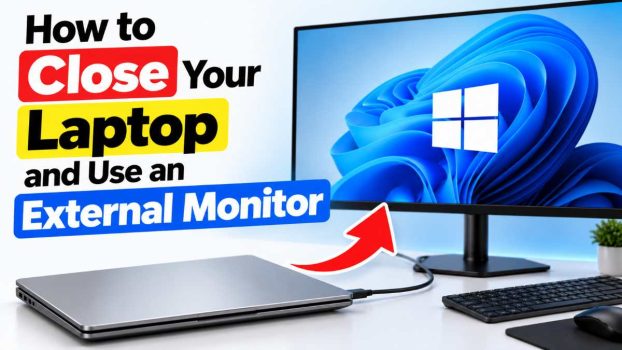
If you use your laptop at a desk, there is a good chance you have wished you could simply shut the lid, tuck the machine out of the way, and work entirely on a bigger external monitor. A closed laptop frees up desk space, removes the awkward double-screen glare, keeps your webcam and keyboard from getting in your way, and can even help the machine run cooler when it is raised on a stand or placed vertically in a dock.
The problem is that most laptops are set up to go to sleep the moment you close the lid. You plug in a monitor, shut the lid, and the external screen goes dark along with everything else. The fix is not complicated, but the exact steps depend on your operating system, your hardware, and how you plan to control the computer once the lid is down.
This guide explains what “clamshell mode” actually means, what you need before you start, and the step-by-step methods for Windows 10 and 11, macOS, Linux and ChromeOS. It also covers heat, battery health, and the most common problems people run into, so you can build a setup that is comfortable and safe for the long term.
What You Need Before You Start
Running a laptop with the lid closed is often called clamshell mode. Before changing any settings, make sure you have the basics in place.
An external monitor and a working connection. Most modern laptops connect through HDMI, DisplayPort, USB-C (with DisplayPort Alt Mode) or Thunderbolt. Check that your monitor shows the laptop’s picture while the lid is still open. If the monitor does not work with the lid open, it will not work with the lid closed.
An external keyboard and mouse. With the lid shut, the built-in keyboard and trackpad are unreachable. Wired USB devices are the safest choice, because they work immediately when the computer wakes. Bluetooth devices also work, but on some machines they need to be paired beforehand and may not wake the computer from sleep as reliably.
Power. Running with the lid closed is best done while plugged in. The screen is on, the processor is working, and a closed lid reduces airflow, so a battery drains quickly and the machine can run warm. Some laptops, especially Macs, are designed to be in clamshell mode only while connected to power.
A plan for ventilation. Many laptops exhaust hot air through the keyboard deck or the hinge area. Closing the lid can block some of that airflow. A laptop stand or vertical dock that leaves the vents exposed makes a big difference, and it is worth checking your manufacturer’s guidance if you plan to run demanding workloads.
Method 1: Windows 11
Windows is the simplest platform to configure, because it exposes the lid behavior directly in the settings.
Step 1: Connect your monitor. Plug in the external display and confirm that Windows detects it. Press Windows + P to open the projection menu. You will see four choices: PC screen only, Duplicate, Extend and Second screen only.
Step 2: Choose how the displays behave. If you want the external monitor to be your only display, choose Second screen only. This turns off the laptop’s built-in panel and sends everything to the monitor. If you prefer to keep both screens active while the lid is open for now, choose Extend; the built-in display will simply switch off once the lid is closed.
Step 3: Change what closing the lid does.
- Open Settings and go to System, then Power & battery.
- Scroll down and expand Lid, power & sleep button controls.
- Next to Closing the lid will make my PC, open the dropdown for Plugged in and choose Do nothing.
- If you also want this to apply on battery, set the On battery option to Do nothing as well, but keep the heat and battery warnings above in mind.
Step 4: Test it. Close the lid. The external monitor should stay on and the computer should keep running. If you use a wireless keyboard and mouse, move them to confirm they still respond.
Step 5: Check your sleep timers. Doing nothing on lid close does not stop the computer from sleeping on its own. In the same Power settings menu, review Screen and sleep and set the timers to values you are comfortable with so the machine does not go to sleep while you are reading or watching something.
Method 2: Windows 10
The idea is the same in Windows 10, but the menus are in a slightly different place.
- Right-click the battery icon in the taskbar and choose Power Options, or open the Start menu and search for “Power Options.”
- In the left-hand panel, click Choose what closing the lid does.
- Under When I close the lid, set the Plugged in column to Do nothing. Set the On battery column too if you want the same behavior unplugged.
- Click Save changes.
- Press Windows + P and choose either Second screen only or Extend, depending on how you want your displays to behave.
If you cannot find the setting, you may be on a managed work or school laptop where an administrator has locked the power options. In that case, you will need to ask your IT department.
Method 3: macOS (Clamshell Mode)
Apple’s laptops handle this a little differently. Rather than offering a setting for what the lid does, macOS switches into clamshell mode automatically when the right conditions are met.
The conditions. Your MacBook should be connected to power, connected to an external display, and paired with an external keyboard and mouse or trackpad. Apple’s guidance recommends keeping the Mac plugged in while using clamshell mode, so treat power as part of the requirement.
Step 1: Connect power and the display. Plug in the charger first, then connect the external monitor using HDMI, USB-C or Thunderbolt.
Step 2: Make sure the desktop appears on the external display. With the lid still open, confirm that your desktop shows up on the monitor. Go to System Settings, then Displays, and check the arrangement. If you want the external screen to be your main one, drag the white menu bar icon to that display in the arrangement view.
Step 3: Connect your keyboard and mouse. If you are using Bluetooth accessories, pair them first. If you are using wired accessories, plug them in directly or through your monitor’s USB hub.
Step 4: Close the lid. The Mac may briefly blink the external display, but it should continue running. If the screen goes dark, wait a few seconds and then press a key on the external keyboard or click the mouse to wake it.
Step 5: Wake from sleep when needed. If the Mac does go to sleep, press a key or click the mouse. With the lid closed, you do not need to open it to wake the machine.
If you want the Mac to stay awake longer, open System Settings, go to Lock Screen and Battery (or Energy on some versions) and adjust the display and sleep timers. Some people also use a free utility that keeps the Mac awake. That is fine for convenience, but the built-in settings are usually enough.
Method 4: Linux
On most Linux desktops, lid behavior is handled by the system power manager, and the details vary by distribution.
GNOME and KDE users. Many modern desktop environments already ignore the lid when an external monitor is connected, a state often called “docked.” Try it first: connect your monitor, close the lid, and see what happens. If the machine stays awake, you are done.
If it still suspends. Open your power settings and look for an option labeled something like When the lid is closed. Set it to Do nothing or Nothing. On GNOME, some of these options are hidden by default and can be exposed through the GNOME Tweaks tool.
Using systemd. If your system uses systemd, you can edit the login manager configuration. Open /etc/systemd/logind.conf as an administrator and set the following values:
HandleLidSwitch=suspend(what happens on battery)HandleLidSwitchExternalPower=ignore(what happens when plugged in)HandleLidSwitchDocked=ignore(what happens when an external display is connected)
After saving, restart the login service or reboot the machine. Be careful editing system files; make a backup copy first.
Method 5: Chromebook
ChromeOS makes this one of the easiest platforms to set up. By default, a Chromebook that is connected to an external display will usually keep running when you close the lid.
- Connect the external monitor and make sure the display is working.
- Open Settings, then Device, then Power.
- Look for Sleep when cover is closed and make sure it is turned off.
- Close the lid and use an external keyboard and mouse, either wired or Bluetooth.
If your Chromebook still suspends, check that the monitor is being detected as an extended or mirrored display and that your account is not under a policy set by a school or employer.
Method 6: Using a Docking Station or Hub
A docking station can make the whole arrangement far more convenient. A single USB-C or Thunderbolt cable can carry power, video, network, and connections for your keyboard and mouse. You plug in one cable, and the entire desk wakes up.
Many docks also keep the laptop awake when the lid is closed, because the laptop sees the connected display and power as a docked state. Pair a dock with a vertical laptop stand, and you get a tidy setup that keeps the vents clear.
When buying a dock, check that it supports the resolution and refresh rate your monitor needs, and that it can deliver enough wattage to charge your laptop. A dock that is underpowered can leave the laptop slowly draining even while plugged in.
Heat, Battery and Longevity
Closing the lid is generally safe, but a few habits keep your laptop healthy.
Watch the temperature. If your laptop has a fan, listen to it. If it is running loudly all the time with the lid closed, the vents are probably blocked. Raise the laptop on a stand, or stand it vertically so air can flow.
Protect the battery. Lithium-ion batteries age faster when they are kept hot and fully charged. Many laptops include a battery care or charge limit feature in the manufacturer’s software, which stops charging at 80 percent. If your laptop spends most of its life plugged in at a desk, turning this on is a good idea.
Mind the screen. With the lid closed, the built-in display is off, so there is no risk of screen burn-in or wear. But if you keep the lid open and extended, consider dimming or turning off the internal panel when you do not need it.
Do not cover the laptop. Avoid placing papers, cloth, or other objects on top of a closed laptop that is running. Soft surfaces can trap heat.
Troubleshooting Common Problems
The external monitor goes dark when you close the lid. Revisit the lid settings first. On Windows, confirm that Do nothing is selected for the correct power state, plugged in or on battery. On a Mac, check that power, display and an external input device are all connected.
The computer sleeps after a few minutes. The lid behavior and the idle sleep timers are separate settings. Review the sleep timers in your power settings.
The wireless keyboard or mouse will not wake the computer. Try a wired keyboard or a USB receiver plugged in directly. On Windows, open Device Manager, find the keyboard or mouse, and enable the option that allows the device to wake the computer.
The screen resolution looks wrong. Open your display settings and select the monitor’s native resolution. Also check the refresh rate, because a cable or adapter that is not up to the task can limit it.
Windows keeps moving windows between displays. When the lid closes, Windows may rearrange your open windows. Reconnecting the display or using the extended mode before closing the lid can reduce this.
Conclusion
Using a laptop with the lid closed and an external monitor is a simple way to get a cleaner, more comfortable desk and a bigger screen without buying a separate computer. On Windows, the key is changing what closing the lid does in the Power settings. On a Mac, clamshell mode kicks in automatically once power, a display and external input devices are connected. Linux and ChromeOS both offer straightforward settings, and a good docking station can turn the whole process into a one-cable routine.
Take a few minutes to set up proper airflow, check your sleep timers, and consider your battery’s long-term health, and you will have a setup that works smoothly every day. Once you have made the switch, you may find you never want to work hunched over a laptop screen again.
Frequently Asked Questions
1. Is it bad for my laptop to run with the lid closed?
It is not harmful in itself, and laptops are designed to support docked use. The main concern is heat. Some models vent warm air through the keyboard area, so a closed lid can restrict airflow. If the fan runs constantly or the laptop feels very hot, raise it on a stand or place it vertically so the vents are clear. Keeping the laptop plugged in and avoiding heavy workloads in a poorly ventilated spot will also help.
2. Why does my external monitor turn off when I close the laptop lid?
By default, most laptops go to sleep when the lid closes, which also turns off any connected display. On Windows, change the Closing the lid option to Do nothing in the Power settings. On a Mac, make sure the charger, the external display and an external keyboard or mouse are all connected before you close the lid. If it still sleeps, check your sleep timers and any manager policy on work devices.
3. Can I use clamshell mode on battery power?
On Windows, yes, as long as you set the lid option for battery to Do nothing, though the battery will drain faster and the laptop may run warmer. On a Mac, Apple recommends connecting power for clamshell mode, so you should plan on keeping it plugged in. In general, using a closed laptop on battery for long sessions is not ideal.
4. Do I need an external keyboard and mouse?
Yes, in practice. When the lid is closed, the built-in keyboard and trackpad are covered and unusable. A wired keyboard and mouse are the most reliable, because they work immediately and can wake the computer without extra pairing. Bluetooth devices also work well on most systems, provided they are paired beforehand and allowed to wake the computer from sleep.





