Geeksdigit Team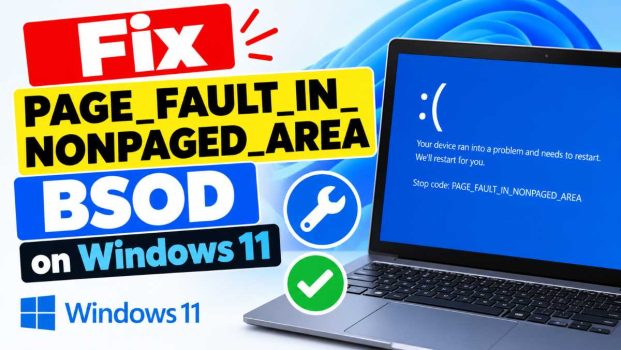
Few things are as frustrating as a PC that suddenly freezes, flashes a blue screen, and restarts. If the message on that screen reads PAGE_FAULT_IN_NONPAGED_AREA, you are dealing with one of the most common stop errors on Windows 11. It carries the bug check code 0x00000050, and it can appear during startup, while gaming, after installing a program, or seemingly at random.
The good news is that this error is almost always fixable without reinstalling Windows or buying new hardware. It usually comes down to a bad driver, faulty memory, a corrupted system file, or a misbehaving piece of software. This guide explains what the error means, then walks you through proven fixes in a sensible order, starting with the quickest and least invasive. Work through them one at a time and restart after each, so you know exactly which step solved the problem.
What Does PAGE_FAULT_IN_NONPAGED_AREA Mean?
Windows stores data in two kinds of memory. Paged memory can be moved out to the page file on your drive when RAM runs low. Nonpaged memory must always stay in physical RAM, because the system needs instant access to it. Critical drivers and core operating system components live there.
The error appears when Windows tries to read or write a memory address that it expects to be valid in nonpaged memory, but the address is invalid or missing. Since the kernel cannot recover from that, it halts the system to protect your data, which is the blue screen you see.
Common causes include:
- Faulty or incompatible device drivers
- Failing or poorly seated RAM modules
- Corrupted system files or a damaged file system
- Problems with the page file configuration
- Aggressive antivirus or security software
- Recently installed hardware or software
- Unstable BIOS settings, such as overclocking or XMP profiles
- A failing hard drive or SSD
Before You Start
A few preparations make troubleshooting smoother:
- Back up important files. If the PC boots at all, copy your key data to an external drive or cloud storage.
- Note when the crash happens. Does it occur at startup, under load, or after a specific action? That clue narrows the culprit.
- Check for a stop code detail. Some blue screens name a file, such as
ntfs.sys,win32kfull.sys, or a graphics driver file. Write it down, since it points to the failing component. - Get into Safe Mode if needed. If Windows will not stay up long enough to work, interrupt the boot process three times by holding the power button during startup. Windows will enter the recovery environment. Choose Troubleshoot > Advanced options > Startup Settings > Restart, then press 4 or 5 to enter Safe Mode.
Method 1: Remove Recently Added Hardware and Software
If the blue screens began right after you installed something new, that is your first suspect.
Hardware: Shut down the PC and unplug any new devices, such as external drives, USB adapters, capture cards, or a newly installed RAM stick or graphics card. Boot the PC and see if the error disappears. If it does, reconnect devices one at a time to find the culprit.
Software: Open Settings > Apps > Installed apps, sort by install date, and uninstall anything recent, especially system utilities, VPN clients, virtualization tools, overclocking software, and third-party antivirus programs. Restart and test.
Method 2: Install Pending Windows Updates
Microsoft regularly ships fixes for stability bugs, including ones that trigger this stop code.
- Press Win + I to open Settings.
- Go to Windows Update and click Check for updates.
- Install everything available, including optional updates listed under Advanced options > Optional updates, which often include driver updates.
- Restart the PC.
If the problem started right after an update, you can instead go to Windows Update > Update history > Uninstall updates and remove the most recent one to test whether it was responsible.
Method 3: Update, Roll Back, or Reinstall Drivers
Drivers are the number one cause of this error. A driver that touches memory incorrectly can trigger the fault instantly.
Update drivers:
- Right-click the Start button and choose Device Manager.
- Look for devices with a yellow warning icon.
- Right-click a device and select Update driver > Search automatically for drivers.
For the best results, download drivers directly from the manufacturer rather than relying only on Windows Update. Prioritize your graphics card (NVIDIA, AMD, or Intel), chipset, network adapter, and storage controller drivers.
Roll back a driver: If the crashes began after a driver update, open the device’s properties in Device Manager, switch to the Driver tab, and click Roll Back Driver if it is available.
Clean reinstall for graphics drivers: Use the free Display Driver Uninstaller (DDU) tool in Safe Mode to wipe the old graphics driver completely, then install a fresh copy from the manufacturer’s website.
Method 4: Test Your RAM for Errors
Because this error concerns memory access, faulty RAM is a prime suspect.
Reseat the memory: Power off the PC, unplug it, and open the case (or the access panel on a laptop). Remove each RAM stick, gently clean the contacts, and firmly reinsert them until the clips click. If you have multiple sticks, try running with one at a time to see whether a specific module is bad.
Run Windows Memory Diagnostic:
- Press Win + R, type
mdsched.exe, and press Enter. - Choose Restart now and check for problems.
- Let the test finish. Windows will boot and display the result.
For a more thorough check, create a bootable USB drive with MemTest86 and run it for several full passes. Any reported error means a RAM module is faulty and should be replaced.
Method 5: Repair Corrupted System Files with SFC and DISM
Damaged system files can corrupt memory handling. Windows has two built-in tools to repair them.
- Click Start, type cmd, right-click Command Prompt, and choose Run as administrator.
- Run the System File Checker:
sfc /scannow
Wait until it reaches 100 percent. - Then run the Deployment Image Servicing and Management tool, one command at a time:
DISM /Online /Cleanup-Image /CheckHealthDISM /Online /Cleanup-Image /ScanHealthDISM /Online /Cleanup-Image /RestoreHealth - Restart your PC and run
sfc /scannowonce more to confirm everything is clean.
Method 6: Check Your Drive for Errors
A failing drive or a damaged file system can cause the same blue screen, particularly if the stop code mentions ntfs.sys.
- Open an elevated Command Prompt.
- Type
chkdsk C: /f /rand press Enter. - Type Y to schedule the scan for the next restart, then reboot.
The scan can take a long time on large drives, so let it complete. Also check the drive’s health using the manufacturer’s utility or a tool such as CrystalDiskInfo. If the drive reports a caution or bad status, back up your data immediately and plan a replacement.
Method 7: Reset the Page File (Virtual Memory) Settings
Windows manages the page file automatically, but a corrupted or restricted configuration can contribute to this error.
- Press Win + R, type
sysdm.cpl, and press Enter. - Open the Advanced tab and click Settings under Performance.
- Go to the Advanced tab and click Change under Virtual memory.
- Tick Automatically manage paging file size for all drives if it is unchecked.
- Click OK and restart.
If automatic management was already on, try the opposite: temporarily set a custom size on your system drive, for example an initial size of 1.5 times your RAM and a maximum of 3 times your RAM, then restart and observe stability.
Method 8: Temporarily Disable or Replace Third-Party Antivirus
Security suites hook deeply into the kernel, and a buggy version can trigger memory faults. Temporarily uninstall your third-party antivirus using the vendor’s official removal tool, and rely on the built-in Microsoft Defender while you test. If the blue screens stop, update to the latest version of the antivirus or switch to a different product.
Method 9: Analyze the Crash Dump
If the problem persists, the crash dump files can name the guilty driver.
- Download BlueScreenView (a free tool from NirSoft) or WinDbg Preview from the Microsoft Store.
- Open the latest minidump from
C:\Windows\Minidump. - Look at the highlighted driver or module that caused the crash.
Once you know the file name, search which device or program it belongs to, then update, roll back, or remove it as described earlier.
Method 10: Reset BIOS Settings and Update the BIOS
Unstable firmware or overclocked settings can corrupt memory operations.
- Restore defaults: Enter the BIOS or UEFI setup (usually by pressing Del, F2, or F10 at startup) and choose Load Optimized Defaults. Disable XMP, EXPO, or any CPU overclock, and test whether the crashes stop. If they do, your memory or processor may not be stable at the higher speeds, so try a lower frequency or slightly higher voltage within safe limits.
- Update the BIOS: Check your motherboard or laptop maker’s support page for a newer BIOS version, and follow their instructions carefully. Never interrupt a BIOS update.
Method 11: Use System Restore or Startup Repair
If the error began recently and you have a restore point, roll the system back.
- Press Win + R, type
rstrui.exe, and press Enter. - Choose a restore point dated before the problems started.
- Follow the prompts and let the PC restart.
If Windows will not boot, use the recovery environment (Troubleshoot > Advanced options) and select System Restore or Startup Repair.
Method 12: Reset Windows 11 as a Last Resort
When nothing else works and your hardware tests clean, a corrupted Windows installation is likely.
- Open Settings > System > Recovery.
- Click Reset PC.
- Choose Keep my files to preserve personal data while reinstalling Windows, or Remove everything for a fully clean start.
After the reset, install Windows updates and drivers first, before reinstalling your other software, so you can spot any program that brings the error back. If the blue screen still appears on a freshly reset system, the cause is almost certainly hardware, most often RAM, a storage drive, or the motherboard.
Preventing the Error in the Future
A few habits will reduce the odds of seeing this blue screen again:
- Keep Windows, drivers, and BIOS updated, but avoid beta drivers on a machine you rely on.
- Download drivers only from official manufacturer sites.
- Avoid unstable overclocks, and test memory after any change.
- Use a reputable antivirus and avoid running several security tools at once.
- Keep at least 15 percent of your system drive free.
- Shut down properly and use a surge protector or UPS to avoid file system damage from power loss.
- Create restore points before major changes.
Conclusion
The PAGE_FAULT_IN_NONPAGED_AREA blue screen looks alarming, but it is rarely a sign that your PC is beyond saving. In most cases, one of a handful of culprits is responsible: a faulty driver, bad RAM, corrupted system files, or conflicting software. By starting with the simple steps, such as removing new hardware, installing updates, and refreshing drivers, and then moving on to memory tests, system file repair, disk checks, and BIOS adjustments, you can pinpoint and fix the cause methodically. Keep notes on what you change, restart after each fix, and use crash dump analysis if the problem lingers. If even a clean Windows reset does not help, replace or professionally service the failing hardware component, most likely the RAM or storage drive.
Frequently Asked Questions
1. Is the PAGE_FAULT_IN_NONPAGED_AREA error dangerous for my computer?
The error itself is a protective measure, not damage. Windows stops the system to prevent corrupted memory from harming your data. However, repeated crashes can corrupt files or signal failing hardware such as RAM or a drive, so you should not ignore it. Back up your important files and work through the fixes above.
2. Can a faulty graphics card or driver cause this error?
Yes. Graphics drivers run in kernel mode and handle large amounts of memory, so a buggy or corrupted version is a very common trigger, especially during gaming or video playback. A clean reinstall of the latest driver from NVIDIA, AMD, or Intel usually fixes it. If the problem persists, test the card in another PC or check it for overheating.
3. How do I fix this error if my PC will not boot into Windows?
Force the PC to shut down three times in a row during startup to open the Windows Recovery Environment. From there you can boot into Safe Mode, run Startup Repair, use System Restore, uninstall recent updates, or open Command Prompt to run sfc /scannow and chkdsk. If you cannot reach recovery, create a Windows 11 installation USB on another computer and boot from it to access the same repair tools.
4. Will resetting Windows 11 delete my files?
Not necessarily. The Keep my files option reinstalls Windows while preserving your personal documents, though it removes installed apps and custom settings. Even so, always back up important data first, since any major system operation carries some risk. Choose Remove everything only if you want a completely clean installation.