Olivia Harper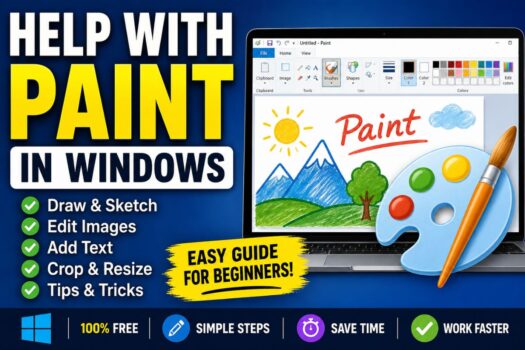
Microsoft Paint has been a staple of the Windows operating system for decades, and it remains one of the simplest tools for quick image editing, sketching, and basic graphic design. Whether you want to crop a screenshot, draw a simple diagram, resize an image, or just have fun doodling, Paint in Windows 11/10 gets the job done without the steep learning curve of professional software like Photoshop or GIMP.
Over the years, Microsoft has modernized Paint significantly. The Windows 11 version now includes layers, transparency support, and even AI-powered features like Cocreator, while still keeping the familiar, lightweight interface that made it a go-to tool for millions of users. Many people, however, aren’t aware of the different ways to open and use this app efficiently on their PC.
In this guide, we’ll walk you through 4 simple methods to open and use Paint in Windows 11/10, along with tips to make the most of the app. We’ll also answer some frequently asked questions to help you troubleshoot common issues. By the end of this article, you’ll be equipped with everything you need to start using Microsoft Paint like a pro.
What Is Microsoft Paint?
Microsoft Paint (often called MS Paint) is a built-in raster graphics editor that has shipped with every version of Windows since Windows 1.0 in 1985. It allows users to create, edit, and save images in formats such as PNG, JPEG, BMP, and GIF. Common use cases include:
- Cropping and resizing screenshots
- Creating simple illustrations or sketches
- Adding text or annotations to images
- Basic photo editing (rotating, flipping, adjusting colors)
- Creating pixel art
Because it’s pre-installed on every Windows machine, there’s no need to download or purchase anything extra — making it one of the most accessible image editors available.
4 Methods to Open and Use Paint in Windows 11/10
Below are four reliable methods to access Microsoft Paint on your Windows 11 or Windows 10 computer, ranging from the most common to lesser-known shortcuts.
Method 1: Open Paint Using the Start Menu
The most straightforward way to access Paint is through the Start Menu.
Steps:
- Click on the Start button (Windows icon) located on your taskbar.
- Type “Paint” into the search bar.
- Click on the Paint app icon that appears in the search results.
- The application will launch, and you can begin creating or editing images immediately.
This method works identically on both Windows 10 and Windows 11, making it the easiest option for beginners. If you use Paint frequently, you can right-click on the app icon in the search results and select “Pin to Start” or “Pin to taskbar” for quicker access in the future.
Method 2: Open Paint Using the Run Command
For users who prefer keyboard shortcuts over mouse clicks, the Run dialog box offers a fast way to launch Paint.
Steps:
- Press Windows + R on your keyboard to open the Run dialog box.
- Type mspaint into the text field.
- Press Enter or click OK.
Paint will open instantly. This method is particularly useful for power users, IT professionals, or anyone who wants to bypass the Start Menu entirely. It’s also handy when the Start Menu is glitching or slow to respond, which can occasionally happen after a Windows update.
Method 3: Open Paint via File Explorer (Right-Click Context Menu)
If you already have an image saved on your computer and want to edit it directly, you can open Paint through File Explorer without launching the app separately first.
Steps:
- Open File Explorer and navigate to the image file you want to edit.
- Right-click on the image file.
- Select “Open with” from the context menu.
- Choose Paint from the list of available applications.
If Paint isn’t listed, click “Choose another app,” find Paint in the list, and check the box that says “Always use this app to open .jpg/.png files” if you want it to be your default image editor. This method saves time because it opens the image directly in Paint, skipping the extra step of using File > Open within the app.
Method 4: Open Paint Using Command Prompt or PowerShell
For advanced users, developers, or those working in scripting environments, Paint can also be launched via Command Prompt or PowerShell.
Steps:
- Press Windows + S and search for “Command Prompt” or “PowerShell.”
- Right-click and select “Run as administrator” (optional, but recommended for full functionality).
- Type the command: mspaint
- Press Enter.
This method is especially useful if you’re automating tasks, creating batch scripts, or troubleshooting issues where the graphical interface isn’t responding properly. You can even use this command within a .bat file to open Paint automatically alongside other applications.
Tips for Using Paint Effectively in Windows 11/10
Once you’ve opened Paint using any of the methods above, here are a few tips to help you get the most out of the app:
- Use keyboard shortcuts: Ctrl+Z (undo), Ctrl+Y (redo), Ctrl+S (save), and Ctrl+N (new file) can significantly speed up your workflow.
- Resize images precisely: Go to the “Resize” option in the Home tab to adjust image dimensions by percentage or exact pixel values.
- Use layers (Windows 11 only): The newer version of Paint supports layers, allowing you to edit different elements of an image independently.
- Try the Magic Select tool: This AI-powered feature (available in newer Windows 11 builds) helps you automatically select and remove backgrounds.
- Save in the right format: Use PNG for transparency and higher quality, or JPEG for smaller file sizes when sharing images online.
Frequently Asked Questions (FAQs)
1. Is Microsoft Paint free on Windows 11 and Windows 10?
Yes, Microsoft Paint comes pre-installed and completely free with both Windows 11 and Windows 10. There’s no need to purchase or download it separately unless it has been uninstalled, in which case you can reinstall it for free through the Microsoft Store.
2. Why can’t I find Paint on my Windows 11 computer?
If Paint isn’t showing up in your Start Menu search, it may have been accidentally uninstalled. You can reinstall it by opening the Microsoft Store, searching for “Paint,” and clicking “Install.” Alternatively, you can use PowerShell with the command winget install Microsoft.Paint to reinstall it via command line.
3. What’s the difference between Paint and Paint 3D?
Paint is a traditional 2D raster image editor focused on simple drawing, cropping, and editing tasks. Paint 3D, on the other hand, allows users to create and manipulate 3D models and objects. Microsoft has been phasing out Paint 3D in favor of enhancing the classic Paint app with modern features like layers and AI tools, so most users are now encouraged to stick with the standard Paint application.
4. Can I use Paint to edit screenshots directly?
Yes. After taking a screenshot using the Windows + Shift + S shortcut (Snipping Tool) or the Print Screen key, you can paste the image directly into Paint using Ctrl+V. From there, you can crop, annotate, highlight, or resize the screenshot before saving it in your preferred format.
Conclusion
Microsoft Paint continues to be one of the most practical and accessible tools built into Windows 11 and Windows 10. Whether you’re a student needing to annotate a document, a professional creating quick visual references, or just someone who enjoys sketching for fun, knowing how to access Paint in Windows 11/10 efficiently can save you valuable time.
We covered four reliable methods to open Paint — through the Start Menu, the Run command, File Explorer’s right-click menu, and Command Prompt/PowerShell — each suited to different user preferences and technical comfort levels. Combined with a few practical tips and answers to common questions, you now have a solid foundation for using this classic yet continually evolving application.
As Microsoft keeps updating Paint with modern features like layers, transparency, and AI-powered tools, it’s clear this humble app isn’t going anywhere anytime soon. So the next time you need to make a quick edit or unleash your creativity, you’ll know exactly how to get Paint up and running on your Windows PC.