 sukh22

Your laptop shows four bars, the router sits one room away, and video calls still stutter. You’ve already restarted the router, updated the Intel or Realtek wireless driver, maybe toggled the 802.11n/ac mode in Device Manager. Nothing changes, because nothing on the laptop is broken.
The problem is usually outside your apartment. In a building with a dozen access points, 2.4 GHz is a shouting match over three usable channels, and Windows gives you almost no visibility into it. The built-in Wi-Fi panel tells you the network name and a bar count. It won’t tell you that five neighbors are parked on channel 6 alongside you.
That’s the gap WiFiman fills.
It’s a free Tools app published under the name Ubiquiti Networks, with no ads, built to scan nearby Wi-Fi networks, list Bluetooth LE devices, discover everything on your subnet, and run a speedtest. For someone troubleshooting a flaky Windows connection, the channel view alone is worth the detour.
Channel congestion is the thing Windows hides from you
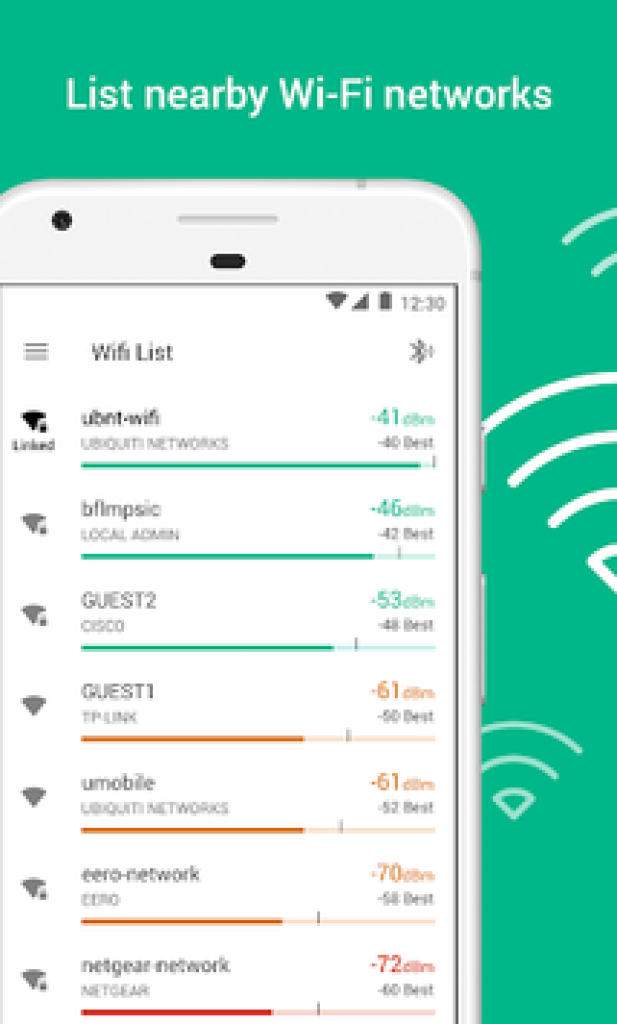
WiFiman’s scanner lists the networks it can hear and shows the details that matter: channel, signal strength, band, and how those networks stack up against each other. Once you see the spread visually, the diagnosis tends to make itself. If your access point and four others are all sitting on the same 2.4 GHz channel, your throughput problem has a name.
The fix then moves to the router’s admin page, not to Windows. Pick a channel with fewer occupants, or move devices that support it onto 5 GHz where there’s far more room. WiFiman’s role is telling you which channel is less crowded instead of guessing between 1, 6, and 11.
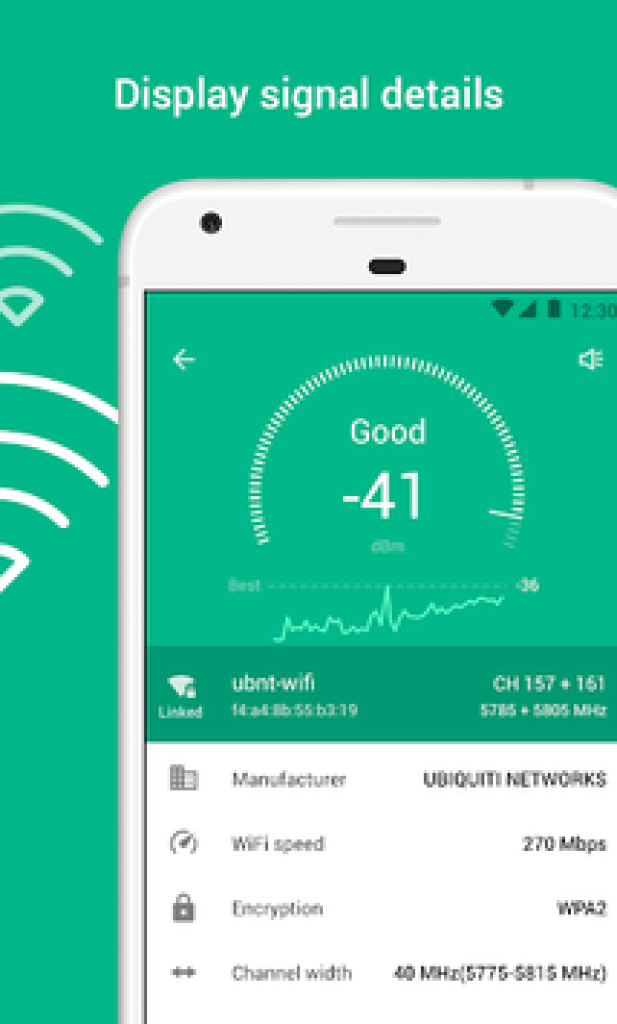
Signal strength readings are the other half of this. Walking the apartment with the scanner open shows you where the signal collapses, which is how you learn that the dead spot near the kitchen is a thick wall and not a driver fault. Dead spots and congestion produce similar symptoms on a laptop, and separating the two saves hours.
An inventory of what’s on your network
The device discovery side scans your whole subnet and lists what responds. WiFiman uses Bonjour, SNMP, NetBIOS, and Ubiquiti’s own discovery protocol, so it picks up printers, smart plugs, TVs, phones, and whatever else has quietly joined over the years.
A network full of chatty IoT devices behaves differently from a clean one, and an unexpected entry in the list sometimes explains traffic you can’t otherwise account for. It’s also the fastest way to find the IP address of a printer that stopped answering.
The Bluetooth LE listing is a smaller feature with a specific use. If a wireless mouse or headset keeps dropping on a laptop, seeing the BLE devices in range helps you work out whether something nearby is competing for the same 2.4 GHz space your Wi-Fi is using.
Speedtests round it out. Running one from the same app that just showed you the channel layout means you can change a setting, retest, and see whether the change did anything, rather than trusting a vague impression that things feel snappier.
Running WiFiman on a Windows machine
WiFiman is an Android app, so on a PC it runs through an Android emulator. Running it that way takes maybe fifteen minutes end to end, and the setup notes collected under WiFiman desktop cover the part that trips people up, which is how the emulator reports the host machine’s network.
Two things decide whether this works well on a PC, and both are specific to WiFiman rather than generic emulator advice. First, the emulator’s network adapter mode decides what WiFiman can see. In the default NAT configuration the app sits behind a virtual network and your subnet scan will come back thin or empty; switching the emulator’s adapter to bridged mode puts it on the same LAN as your laptop, which is what makes device discovery return real results.
Second, the Wi-Fi scanner reads radio data from the Android layer, and a virtual machine has no radio. Expect the device discovery, speedtest, and subnet views to work on a desktop, while the live channel scan is the piece that depends on the emulator exposing the host’s wireless adapter, which not all of them do.
That split is less limiting than it first appears. Channel surveys are something you do while walking around with a device in hand anyway, and the PC is where you’d rather be when you’re cross-referencing discovered devices against router DHCP leases on a second monitor.
Where it fits in a normal troubleshooting pass
When Wi-Fi misbehaves on Windows 10 or 11, a sensible order keeps you from chasing the wrong thing:
- Confirm the problem follows the laptop or stays with the location by testing a second device.
- Scan the area to see channel occupancy and where your network sits in the crowd.
- Check signal strength in the room where the drops happen, not next to the router.
- List the devices on the subnet and look for anything you don’t recognize.
- Run a speedtest before and after changing the router channel or band.
Only after that does it make sense to start reinstalling network drivers, resetting the TCP/IP stack, or disabling power management on the wireless adapter. Those steps fix real problems, but they fix the minority of them.
The free, ad-free part matters too: the Wi-Fi analyzer category is full of apps that bury readings under banners. WiFiman’s interface stays out of the way, which is the right behavior for a tool you open, read, and close.
Next time four bars and a stuttering call don’t add up, the channel list is where to look first. Five access points on channel 6 is a finding, and it takes about thirty seconds to confirm.