Sukhdev Kamboj
File Explorer is an essential part of the Windows 11 operating system. It allows users to navigate files, manage folders, access drives, and interact with the desktop environment. However, like any other software component, File Explorer can sometimes become unresponsive, laggy, or glitchy. If you notice that your desktop icons aren’t loading properly, the taskbar is frozen, or right-click menus are delayed, there’s no need to restart your entire system. Instead, you can simply restart File Explorer to refresh the Windows interface quickly and effectively.
You might notice File Explorer becoming unresponsive, freezing when you try to open folders, or displaying files incorrectly. Sometimes the navigation pane stops working, thumbnails fail to load, or the entire interface becomes sluggish. These frustrating problems can significantly impact your productivity and workflow.
Fortunately, restarting File Explorer is often a quick and effective solution that can resolve many of these common issues without requiring a full system restart, which can be time-consuming and disruptive to your work.
Why Restart File Explorer?
File Explorer, also known as Windows Explorer, is responsible for managing and displaying the user interface elements in Windows 11 — including the taskbar, Start menu, desktop icons, and file browsing windows. When any of these elements start behaving abnormally, restarting File Explorer can be a quick and effective solution.
Here are several common reasons why you might need to restart File Explorer:
- Taskbar Becomes Unresponsive: If the taskbar freezes, doesn’t respond to clicks, or fails to load properly after logging in, restarting Explorer can resolve the issue.
- Desktop Icons Not Loading or Freezing: Sometimes your desktop may go blank, or the icons won’t respond. Restarting Explorer often brings them back without rebooting.
- File Explorer Windows Are Laggy: If you’re experiencing delays, crashes, or errors while navigating folders, a restart can refresh the process.
- After Installing Software or Updates: Some changes don’t take effect until Explorer is restarted.
- Customizations or Registry Tweaks: UI changes (like themes or icon packs) often require an Explorer restart to apply.
- Explorer.exe Crashed: If File Explorer crashes and doesn’t restart automatically, manually relaunching it is the only way to restore the desktop environment.
In all these scenarios, restarting File Explorer helps restore functionality without affecting your open applications or unsaved work.
How to Restart File Explorer Using in Windows 11
One of the easiest and most commonly used ways to restart File Explorer in Windows 11 is by using the Task Manager. This method requires no advanced knowledge and works well for most users experiencing performance issues or frozen desktop environments.
Step 1: Open Task Manager
There are several ways to open Task Manager in Windows 11:
- Press Ctrl + Shift + Esc on your keyboard.
- Or right-click the Start button on the taskbar and choose Task Manager from the context menu.
- Alternatively, press Ctrl + Alt + Delete and then click on Task Manager.
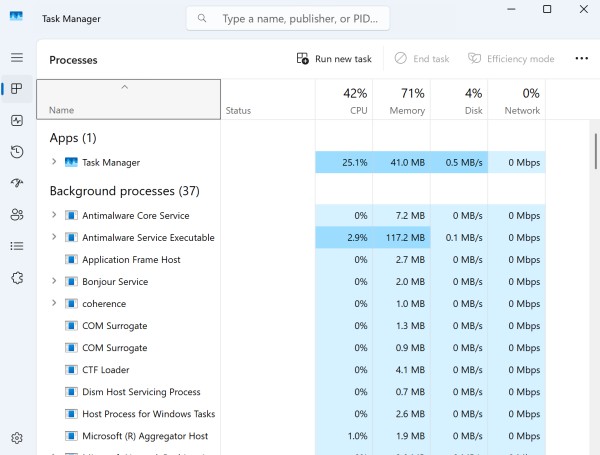
This will launch the Task Manager window, showing a list of active processes.
Step 2: Locate “Windows Explorer”
- Inside Task Manager, ensure you’re on the Processes tab.
- Scroll through the list under the Apps section to find Windows Explorer.
- This is the process responsible for your desktop, taskbar, and file browsing experience.
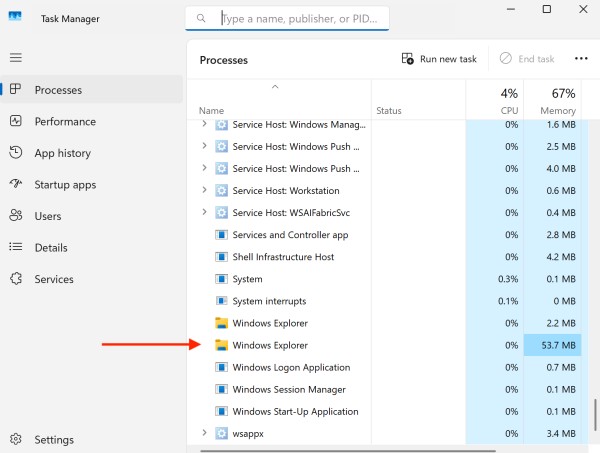
Step 3: Restart File Explorer
Once you’ve selected Windows Explorer:
- Click the Restart button in the bottom-right corner of the Task Manager window.
- Alternatively, right-click on Windows Explorer and select Restart from the context menu.
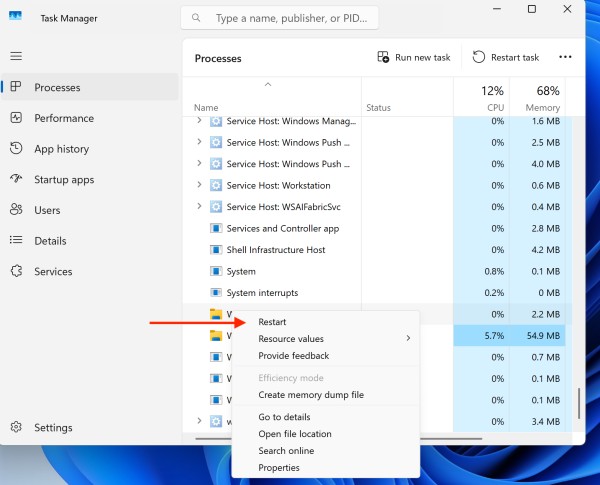
As soon as you restart the process:
- Your taskbar and desktop icons may temporarily disappear for a second or two.
- Then, they will automatically reappear as the Explorer process reloads.
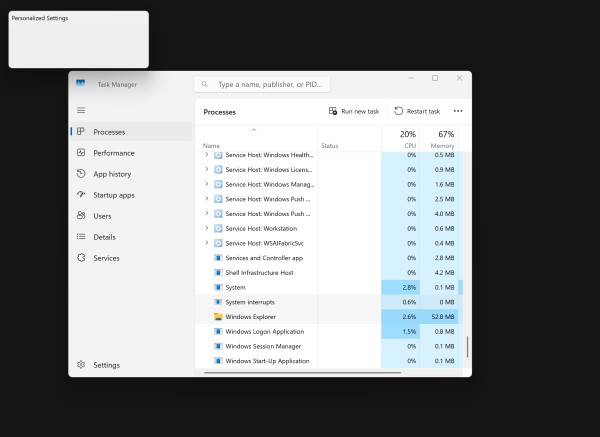
This effectively refreshes the entire Windows interface without requiring a full system reboot.
Method 2: Using Command Prompt
For users comfortable with command-line interfaces, Command Prompt offers a powerful way to restart File Explorer.
Instructions:
- Open Command Prompt by pressing Win + X and selecting “Terminal” or “Command Prompt” from the menu.
- Type the following command to end the File Explorer process:
taskkill /f /im explorer.exe- Press Enter to execute the command. The taskbar and File Explorer windows will close.
- Start File Explorer again by typing:
start explorer.exe- Press Enter to launch File Explorer.
The /f parameter forces the termination of the process, while /im specifies the image name (process name).
Method 3: Using PowerShell
PowerShell provides another command-line option with more advanced scripting capabilities.
Steps to Follow:
- Open PowerShell by pressing Win + X and selecting “Windows PowerShell” or “Terminal (Admin).”
- Enter the following command to stop File Explorer:
Stop-Process -Name explorer- Press Enter to execute the command.
- Restart File Explorer with this command:
Start-Process explorer- Press Enter to complete the restart.
PowerShell commands are more readable and integrate well with other system administration scripts.
Creating a Batch File for Quick Restart
If you frequently need to restart File Explorer, creating a batch file can save time and effort.
How to Create the Batch File:
- Open Notepad by searching for it in the Start menu.
- Type the following commands:
   taskkill /f /im explorer.exe
start explorer.exe- Save the file by clicking File > Save As.
- Choose a location like your Desktop.
- Name the file something like “RestartExplorer.bat” and make sure to select “All Files” from the “Save as type” dropdown.
- Click Save to create your batch file.
Now you can simply double-click this file whenever you need to restart File Explorer quickly.
Tips for Restarting File Explorer Efficiently
While restarting File Explorer in Windows 11 is generally safe and quick, applying a few best practices can make the process smoother and help avoid potential issues. Whether you’re restarting Explorer due to a system glitch or as part of a customization process, these tips will ensure everything goes as planned.
Close Open Explorer Windows First
Before restarting, close all active File Explorer windows. This helps prevent accidental data loss during file transfers or unsaved navigation paths.
Save Your Work
Although restarting File Explorer doesn’t directly close documents or apps, it can temporarily affect open dialog boxes and system interactions. To stay safe, save your work in any open programs before restarting.
Use the Task Manager for Simplicity
If you’re not comfortable with command-line tools, the Task Manager method is the easiest and safest way to restart File Explorer. It’s beginner-friendly and doesn’t require administrator privileges.
Create a Batch File for Repeated Use
If you frequently customize Windows or troubleshoot problems, you can create a batch file to automate the restart process. This allows you to double-click and restart Explorer instantly.
Use Administrator Mode for Command Line Tools
When using Command Prompt or PowerShell to restart File Explorer, always run these tools as Administrator. This ensures proper permissions and prevents errors while executing commands.
Be Patient During the Restart
After stopping explorer.exe, your desktop and taskbar may disappear for a few seconds. This is normal. Wait patiently — forcing another restart too soon can cause multiple instances or further issues.
Avoid Restarting During System Updates or File Transfers
If File Explorer is handling large file transfers or if your system is undergoing updates, avoid restarting it until the process is complete. Interruptions could cause errors or data corruption.
Bookmark Commands for Quick Access
For tech-savvy users, keeping handy shortcuts or command-line strings (taskkill /f /im explorer.exe && start explorer.exe) in a note or text file can make restarts much faster.
When Should You Avoid Restarting File Explorer?
Although restarting File Explorer is generally safe, avoid doing it:
- During critical file transfers or installations.
- When performing disk cleanup or updates in the background.
- If system settings are applying or changes are being made.
In those cases, it’s better to wait or restart your system completely.
Preventing Future File Explorer Problems
Taking proactive steps can minimize the need for frequent restarts:
- Keep Windows updated to ensure you have the latest bug fixes and improvements
- Avoid overloading File Explorer with too many open windows simultaneously
- Regularly restart your computer to clear memory and refresh system processes
- Be cautious with third-party software that integrates with File Explorer
- Monitor system resources to ensure your computer isn’t running low on memory
- Keep your hard drive organized and avoid excessively large folders that take time to load
Frequently Asked Questions (FAQs)
Will restarting File Explorer delete any files?
No. Restarting File Explorer only resets the interface. It doesn’t delete or affect your files.
Why does my taskbar disappear after restarting File Explorer?
It’s part of the restart process. It will reappear automatically once explorer.exe restarts.
Can restarting File Explorer fix a frozen desktop?
Yes. If your desktop is unresponsive, restarting Explorer can often restore its functionality.
How often should I restart File Explorer?
Only when necessary — during troubleshooting, performance issues, or after tweaking shell settings.
Bottom Line
Restarting File Explorer in Windows 11 is a simple yet powerful way to fix common system glitches without needing a full reboot. Whether your taskbar has frozen, desktop icons aren’t responding, or File Explorer windows are lagging, a quick restart of the explorer.exe process can restore normal functionality in seconds. From beginner-friendly options like Task Manager to advanced methods using Command Prompt or PowerShell, you have multiple ways to carry out this task based on your comfort level.
For those who regularly make system tweaks, creating a batch file can streamline the process. Just remember to save your work before restarting, and avoid doing it during updates or critical file transfers. It’s a safe and effective trick every Windows user should know. Once you understand how it works, you’ll be better equipped to troubleshoot and maintain a smoother Windows experience with minimal downtime.