Sukhdev Kamboj
Windows 11 is sleek, modern, and feature-packed, but like any operating system, it can sometimes take longer than expected to boot up. A slow boot time is frustrating, especially when you need to get straight to work, attend an online meeting, or simply enjoy your PC without waiting around. While the latest laptops and desktops often come with SSDs that make startup almost instantaneous, many users still face delays due to background programs, unnecessary services, outdated drivers, or misconfigured settings.
If your computer takes ages to start, don’t worry—there are plenty of ways to fix it. In this guide, we’ll cover practical tips and proven methods to reduce boot time in Windows 11. From optimizing startup programs to tweaking system settings and ensuring your hardware is in top shape, these steps will help you achieve a faster, smoother boot experience. By the end of this article, you’ll know exactly what to do to speed things up and get your Windows 11 machine running at its full potential.
Why Does Windows 11 Boot Slowly?

Windows 11 is designed to be fast and responsive, but over time, you may notice that your PC takes longer to boot. This happens due to a combination of software, hardware, and configuration issues. Here are the most common reasons:
- Too Many Startup Programs: When dozens of apps are set to launch at startup—like chat apps, music players, cloud sync tools—they compete for system resources (CPU, RAM, and disk). This causes Windows to load slower before you even see the desktop.
- Outdated or Corrupt Drivers: If your storage, graphics, or chipset drivers are outdated, Windows may spend extra time loading them, leading to a delay. Corrupt drivers can also cause conflicts during startup.
- Slow Storage Drive (HDD): If you’re still running Windows 11 on an HDD instead of an SSD, boot times will naturally be much longer. HDDs read data sequentially, while SSDs access data instantly.
- Background Services and Processes: Some services (like third-party updaters, printer software, or unnecessary vendor services) load in the background when Windows starts. Even if you don’t use them, they consume resources and slow boot.
- Insufficient Hardware (RAM/CPU): If your system has only 4GB or less, Windows uses virtual memory heavily, slowing down startup. Older processors take longer to handle system instructions during boot.
- Windows Updates Pending: When updates are downloading or installing in the background, your system may experience delayed startup times until the process is complete.
- Security Scans and Malware: Antivirus tools sometimes scan system files during startup, delaying boot. Malware infections can also run processes in the background, increasing load times.
- Startup Delay by Windows: By default, Windows applies a startup delay to stagger app launches. This prevents overload, but it also makes boot feel slower.
- Fragmented or Overloaded Boot Drive: On HDDs, fragmented files make Windows take longer to read startup data. A nearly full C: drive slows boot time because Windows struggles to load system files efficiently.
1. Disable Unnecessary Startup Programs
One of the most common reasons behind a slow Windows 11 boot is the large number of apps that automatically load as soon as you power on your computer. While some programs like antivirus software or cloud storage clients (OneDrive, Google Drive, Dropbox) are useful at startup, many others are unnecessary and only consume system resources before you even start working.
Why Disabling Startup Programs Helps
Every app that launches during startup takes up a slice of your CPU power, RAM, and disk usage. For example, if you have applications like Spotify, Steam, Skype, Microsoft Teams, or Adobe Creative Cloud set to launch immediately, your computer has to load them before the desktop becomes fully usable. This creates a noticeable delay, especially on older systems or PCs running an HDD instead of an SSD.
By disabling non-essential startup programs, you can reduce boot time significantly and make your system ready to use almost instantly.
How to Disable Startup Programs in Windows 11
Windows 11 makes it simple to manage startup apps using the Task Manager.
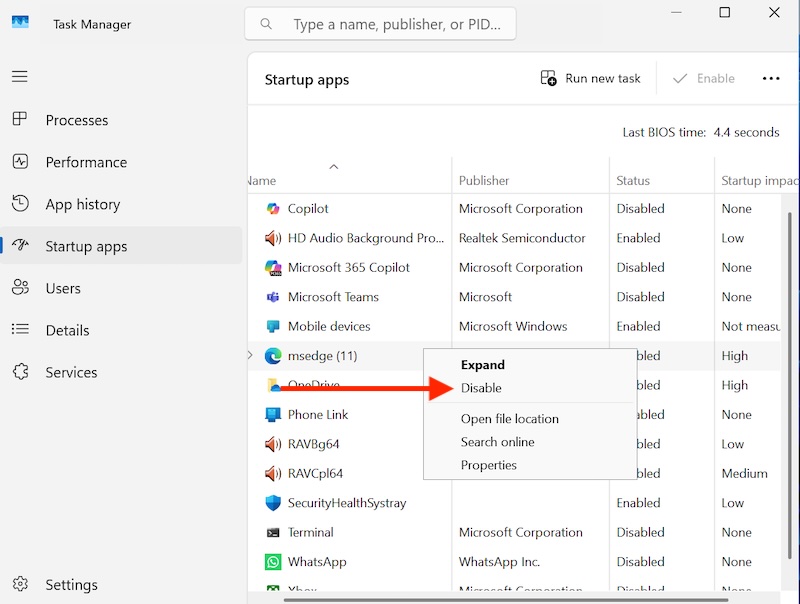
- Press
Ctrl + Shift + Escto open Task Manager. - From the left-hand menu, click on Startup apps.
- You’ll see a list of programs with their Startup impact (Low, Medium, or High).
- Right-click an unnecessary app (e.g., Skype, Spotify, Adobe Updater) and select Disable.
Once you disable unnecessary startup programs, you’ll notice your Windows 11 PC boots up faster and reaches the desktop with fewer delays. For many users, this single step can cut boot time by 30–50%, especially if multiple heavy apps were running at startup.
2. Enable Fast Startup
Windows 11 includes a feature called Fast Startup that combines elements of shutdown and hibernation to speed up the boot process. Instead of fully shutting down, Windows saves a snapshot of essential system files and drivers into a hibernation file. When you start your computer, it loads that file rather than starting everything from scratch.
Steps to Enable Fast Startup
- Press
Win + Sand type Control Panel, then open it. - Navigate to Hardware and Sound > Power Options.
- On the left panel, click Choose what the power buttons do.
- Click Change settings that are currently unavailable.
- Under Shutdown settings, check Turn on fast startup (recommended).
- Click Save changes.
This feature can reduce boot time by several seconds, especially on HDD-based systems. However, note that if you use dual-boot systems (Windows + Linux), Fast Startup may cause issues with file access.
3. Keep Windows Updated
Outdated Windows builds can be buggy and cause performance issues, including slow startup. Microsoft regularly releases patches that improve boot performance, fix driver compatibility issues, and optimize system startup processes.
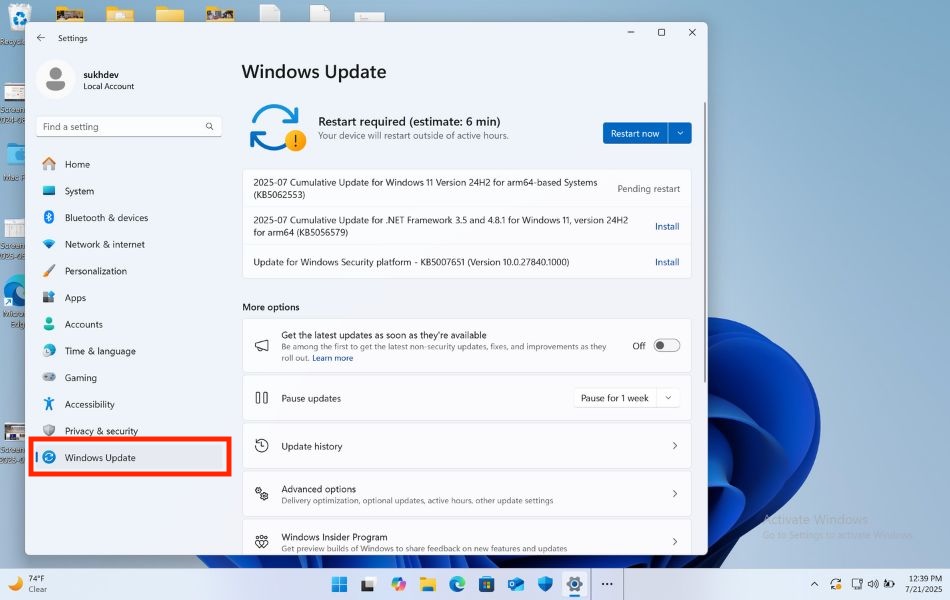
- Press
Win + Ito open Settings. - Navigate to Windows Update.
- Click Check for updates.
- Install all pending updates and restart your system.
Make sure to install optional updates too, especially driver-related ones, since they often contain boot performance improvements.
4. Update Drivers and Firmware
Drivers are the “bridge” between your hardware and Windows. Outdated drivers can slow boot or even cause Windows to hang during startup.
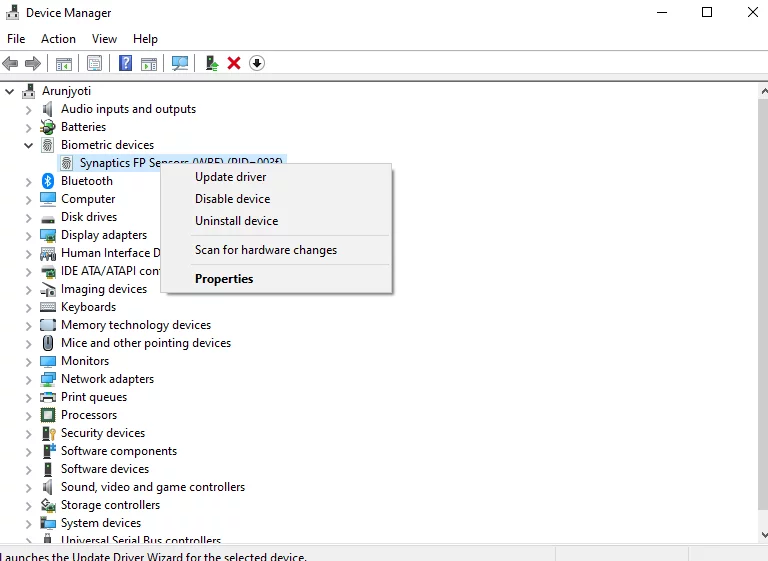
- Press
Win + Xand select Device Manager. - Expand categories such as Disk drives, Display adapters, Network adapters.
- Right-click a device and select Update driver > Search automatically for drivers.
You can also visit your PC manufacturer’s website to download the latest drivers and firmware (BIOS/UEFI updates often improve boot times).
5. Optimize Your Storage Drive
If your computer still runs on an HDD, startup will always be slower compared to SSDs. Still, you can optimize performance by defragmenting HDDs or trimming SSDs.
- Press
Win + Sand search Defragment and Optimize Drives. - Select your main drive (usually C:).
- If it’s an HDD, click Optimize to defragment.
- If it’s an SSD, click Optimize to run TRIM, which keeps it efficient.
If possible, upgrade to an SSD. Boot times on SSDs can be as low as 10–15 seconds, compared to 1–2 minutes on HDDs.
6. Disable Unnecessary Services
Windows and third-party applications often install background services that load at startup—even if you don’t actively use them. These services consume memory and CPU power, slowing down boot.
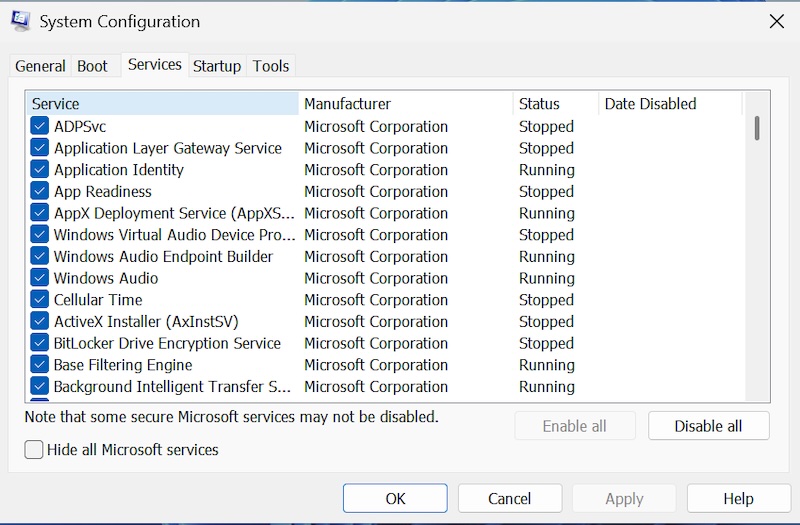
- Press
Win + R, type msconfig, and press Enter. - Go to the Services tab.
- Check Hide all Microsoft services (to avoid disabling critical system services).
- Uncheck unnecessary services like printer support (if you don’t use a printer), updater services, or unused vendor software.
- Click Apply and restart.
7. Free Up Startup Disk Space
A nearly full C: drive (where Windows is installed) can drastically slow down startup. When system files don’t have enough free space, Windows struggles to load critical boot data efficiently.
Ways to Free Up Space
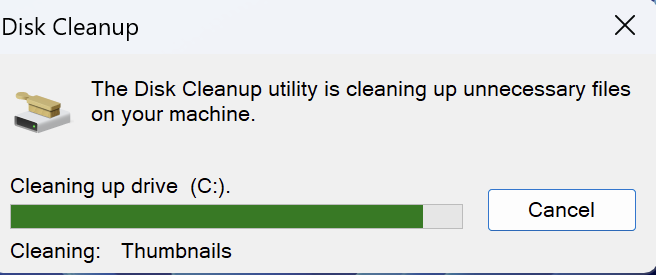
Use Disk Cleanup
- Press
Win + Sand search Disk Cleanup. - Select the C: drive.
- Check temporary files, Windows Update cache, and Recycle Bin.
- Click OK to delete them.
Clear Temporary Files
- Go to Settings > System > Storage.
- Click Temporary files and remove unnecessary ones.
Move Personal Files
- Shift photos, videos, and large files to another drive or cloud storage.
Always keep 15–20% of your C: drive free for optimal boot performance.
8. Adjust Virtual Memory Settings
If your computer has limited RAM, Windows uses virtual memory (paging file) on your disk. Poorly configured virtual memory can slow startup.
- Press
Win + Sand search Advanced system settings. - In the System Properties window, go to the Advanced tab.
- Under Performance, click Settings.
- Open the Advanced tab and click Change under Virtual Memory.
- Check Automatically manage paging file size for all drives.
- Or set a custom size (Initial = same as RAM, Maximum = 1.5x RAM).
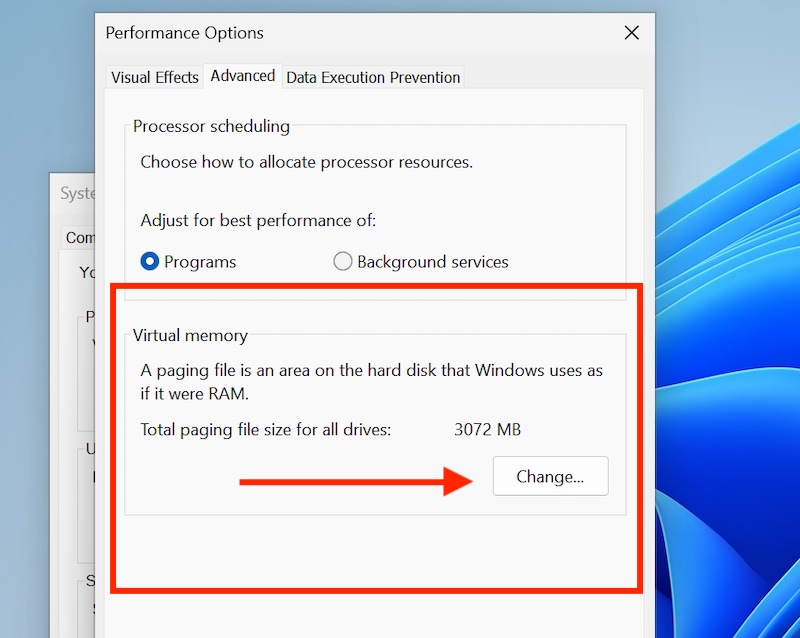
Example: For 8GB RAM, set Initial Size = 8192 MB, Maximum Size = 12288 MB.
This ensures Windows has enough memory during boot, reducing delays.
9. Disable Animations and Visual Effects
Windows 11 looks modern thanks to animations and transparency effects, but these eye-candy features can slow boot on older PCs or low-RAM systems.
- Press
Win + Sand search Adjust the appearance and performance of Windows. - In Performance Options, select Adjust for best performance.
- Or manually uncheck features like Animate windows when minimizing/maximizing and Transparency effects.
You’ll lose some visual polish, but startup and overall system responsiveness will improve.
10. Upgrade Hardware (SSD, RAM, CPU)
Sometimes, software tweaks aren’t enough—hardware upgrades provide the biggest performance boost.
- SSD Upgrade: Replacing an HDD with an SSD is the single most effective way to cut boot time. HDDs may take 1–2 minutes, while SSDs often load Windows in 10–15 seconds.
- RAM Upgrade: If your PC has less than 8GB RAM, upgrading helps Windows run background processes faster, reducing startup delays.
- CPU/Motherboard Upgrade: Older CPUs may bottleneck boot speed. If your system is more than 6–7 years old, consider a full upgrade.
Hardware upgrades may cost money, but they guarantee the biggest speed improvements.
11. Use Hibernation Instead of Shut Down
If you want even faster boot times, try using Hibernate instead of a full shutdown. Hibernate saves your system’s current state (open apps, files, settings) to the hard drive and powers off. When you power on again, it loads everything back quickly.
- Open Control Panel > Hardware and Sound > Power Options.
- Click Choose what the power buttons do.
- Click Change settings that are currently unavailable.
- Under Shutdown settings, check Hibernate.
- Save changes.
Hibernate uses more disk space than Shutdown but allows you to boot much faster while resuming work exactly where you left off.
12. Disable Startup Delay via Registry Editor
Windows introduces a small delay to stagger app launches. You can disable it.:
- Press
Win + R, typeregedit, and press Enter. - Navigate to:
HKEY_CURRENT_USER\Software\Microsoft\Windows\CurrentVersion\Explorer\Serialize - Right-click > New > DWORD (32-bit) value.
- Name it StartupDelayInMSec and set its value to 0.
- Restart your PC.
13. Check for Malware and Viruses
Malware can slow down boot times.
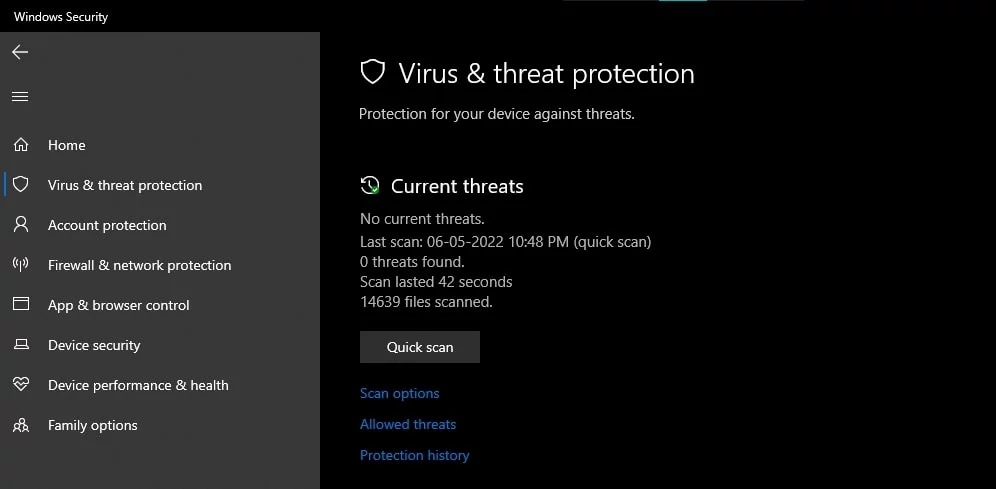
- Run Windows Security scan:
- Go to Settings > Privacy & Security > Windows Security > Virus & Threat Protection.
- Click Quick Scan.
- Use a trusted third-party antivirus if needed.
14. Reset or Reinstall Windows (Last Resort)
If nothing helps, consider resetting Windows.
- Go to Settings > System > Recovery.
- Under Reset this PC, choose Keep my files or Remove everything.
- Follow on-screen instructions.
A fresh install often restores boot speed.
Best Practices for Maintaining Fast Boot Times (Quick Checklist)
- Control Startup Apps – Disable unnecessary apps in Task Manager or Settings.
- Keep Windows & Drivers Updated – Install system updates and latest hardware drivers.
- Use an SSD for Windows – Ensure your OS is installed on an SSD for fastest boot times.
- Perform Regular Cleanups – Clear temporary files, uninstall unused apps, and keep C: drive 20% free.
- Scan for Malware Regularly – Use Windows Security or trusted antivirus to prevent slowdowns.
- Avoid Heavy Customization Tools – Skip third-party “optimizers” that may cause instability.
- Restart Occasionally – Reboot fully every few days instead of always using Sleep mode.
Conclusion
A slow-booting computer can feel like a productivity killer, but the good news is that Windows 11 offers plenty of ways to fix it. From disabling unnecessary startup programs to enabling Fast Startup and updating drivers, most solutions are straightforward and don’t require advanced technical skills. Hardware upgrades like switching to an SSD or adding more RAM can make an even bigger difference, especially for older systems.
The key takeaway is that boot speed depends on both software optimization and hardware capability. While simple tweaks can make a noticeable impact, pairing them with modern hardware will ensure your system always starts quickly and runs smoothly. By following the steps in this guide, you can cut down startup times, extend your computer’s lifespan, and enjoy a seamless Windows 11 experience every day.
FAQs
1. Why is my Windows 11 laptop taking forever to start?
It’s usually due to too many startup programs, outdated drivers, or using an HDD instead of an SSD. Disabling unnecessary apps and enabling Fast Startup can help.
2. Is Fast Startup safe to use in Windows 11?
Yes, it’s generally safe and recommended. However, if you dual-boot with Linux, it may cause issues with file access.
3. Does upgrading RAM speed up boot times?
Indirectly, yes. More RAM helps Windows load background processes faster, especially on older PCs with 4GB or less.
4. How fast should a Windows 11 PC boot?
With an SSD, most modern PCs should boot in 10–20 seconds. With HDDs, it may take 1–2 minutes.
![How to Boot Your Computer Faster [Windows 11]](https://www.geeksdigit.com/wp-content/uploads/thumbs_dir/FIX-SOUND-CRACKLING-windows-11-qx58xu8c9w49b6sd4xtce06czfynwmot75pinuphrw.jpg)
![How to Boot Your Computer Faster [Windows 11]](https://www.geeksdigit.com/wp-content/uploads/thumbs_dir/disable-startup-programs-windows-11-rhi45ujp9791nn3bjhmfwagf8cbvwf08oxg9a2p54s.jpg)