Sukhdev Kamboj
Laptop battery life is one of the most critical factors for productivity, whether you are working, gaming, or browsing. Modern Windows laptops come with powerful processors, high-resolution displays, and numerous background apps, all of which can quickly drain battery life.
Many users face the frustration of their laptops running out of power when they need them the most, especially while traveling or during long work sessions. While there is no magic solution to make a laptop battery last forever, there are several strategies and tweaks you can use to significantly extend battery life.
Understanding Your Battery’s Health
Before diving into optimization techniques, it’s crucial to understand your battery’s current condition and capabilities. Windows provides built-in tools that help you assess battery health and identify applications that drain power excessively.
Generate a Battery Report
- Open Command Prompt as an administrator by right-clicking the Start button and selecting Command Prompt (Admin) or Windows PowerShell (Admin)
- Type the command powercfg /batteryreport and press Enter to execute it
- Navigate to the location displayed on screen, typically C:\Windows\System32\battery-report.html, and open this file in your web browser
- Review the report carefully to examine your battery’s design capacity versus its current full charge capacity, which reveals how much your battery has degraded over time
- Check the battery usage patterns over the past three days to identify when your laptop consumes the most power
- Look at the battery life estimates to understand how your usage patterns affect overall battery duration
- Compare your battery’s design capacity with its current capacity to determine if it’s time to consider a battery replacement
This guide will explore the best tips and tricks to help you maximize the battery life of your Windows laptop. From adjusting system settings, managing apps, and optimizing hardware usage, to following best charging practices, these methods will help you get the most out of your laptop battery.
1. Enable Windows Battery Saver Mode
Windows laptops have a built-in Battery Saver Mode designed to reduce power consumption when your battery is running low. This feature automatically limits background activity and adjusts display brightness to save power.
Steps to enable Battery Saver:
- Click on the battery icon in the taskbar.
- Select Battery settings.
- Toggle Battery Saver to On.
- Optionally, set Battery Saver activation level (e.g., 20% or 30%).
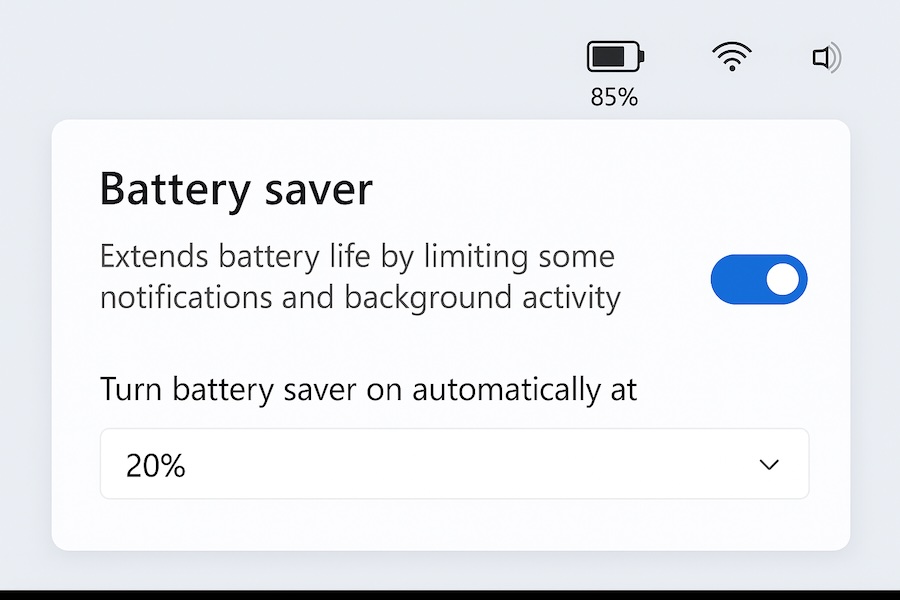
Battery Saver is especially useful during long commutes or when you are away from a power source. Keep in mind that while it extends battery life, it may slightly reduce performance and delay notifications.
2. Adjust Screen Brightness and Timeout Settings
The laptop screen is one of the most power-hungry components. High brightness levels can drain the battery quickly. Adjusting your display settings can make a noticeable difference.
Steps:
- Adjust brightness: Press Windows + A to open the Action Center and adjust brightness or use function keys on your laptop.
- Enable adaptive brightness: Go to Settings > System > Display, then turn on Change brightness automatically when lighting changes.
- Set screen timeout: Go to Settings > System > Power & battery > Screen and sleep, then reduce the time before your screen turns off.
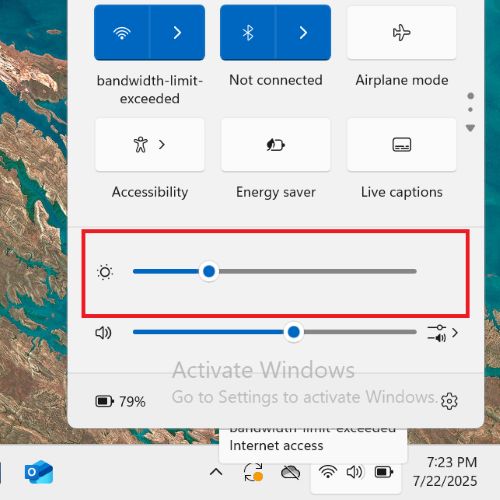
Reducing brightness and shortening screen timeout conserves energy without affecting your workflow significantly.
3. Manage Power & Sleep Settings
Windows offers detailed power plan settings that control performance versus battery life. Choosing the right power plan can extend battery life considerably.
Steps:
- Open Control Panel > Power Options.
- Select Balanced or Power Saver plan.
- Customize advanced settings for processor power management, wireless adapter settings, and display.
- Processor power management: Reduce maximum processor state to 80–90% to save power without major performance loss.
- Wireless adapter settings: Set to Maximum Power Saving.
- Sleep mode: Configure your laptop to sleep after 5–10 minutes of inactivity when on battery.
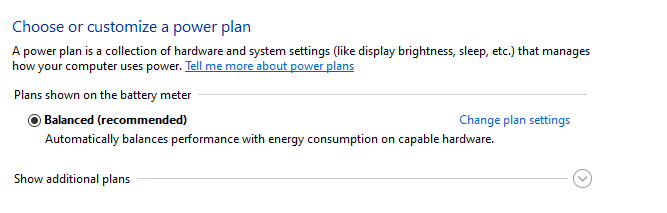
Using a combination of these settings balances performance and battery longevity.
4. Close Unnecessary Background Apps
Background apps and processes continuously consume CPU and memory resources, which reduces battery life.
Steps to manage background apps:
- Open Settings > Apps > Apps & features.
- Click on Background apps or select Advanced app settings.
- Turn off apps you don’t need running in the background.
Additionally, you can use Task Manager (Ctrl + Shift + Esc) to identify high CPU or memory usage apps and close unnecessary programs manually. Browser tabs, messaging apps, and cloud sync tools are common battery drainers.
5. Optimize Startup Programs
Many programs launch automatically when your laptop boots, which consumes battery life even if you’re not using them.
Steps:
- Open Task Manager (Ctrl + Shift + Esc).
- Go to the Startup tab.
- Disable programs with High Impact that aren’t essential at startup.
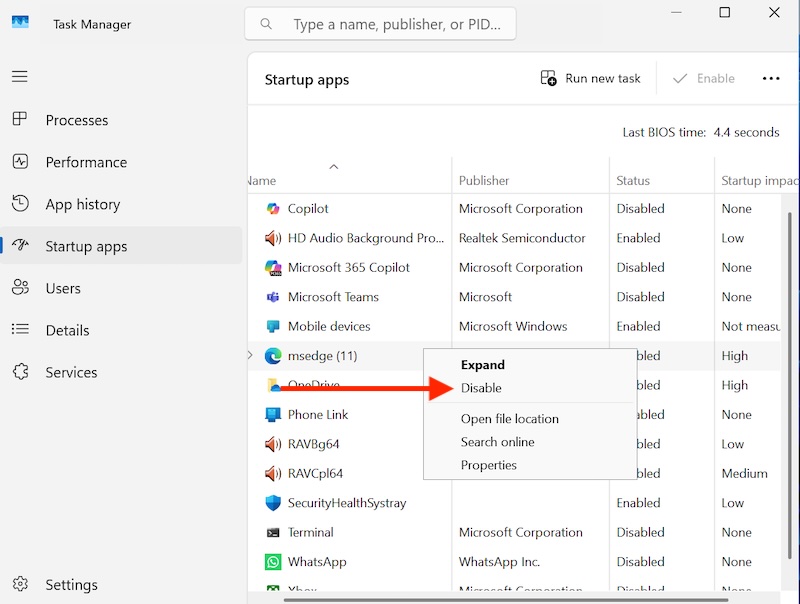
This reduces unnecessary background processes and speeds up boot time while conserving battery.
6. Use Dark Mode and Reduce Animations
Windows laptops with OLED or AMOLED screens benefit significantly from using dark mode, as black pixels use less energy than white ones.
Steps:
- Go to Settings > Personalization > Colors.
- Choose Dark Mode for apps and system interface.
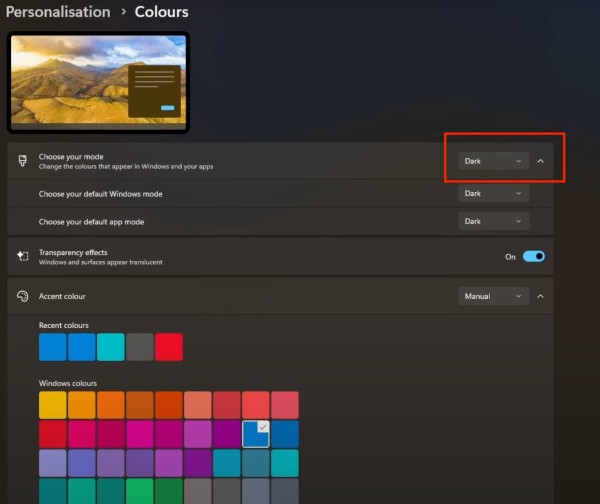
Additionally, disabling unnecessary animations and visual effects can reduce CPU and GPU usage:
- Go to Settings > Accessibility > Visual Effects.
- Turn off animations and transparency effects.
These small adjustments help save battery without affecting usability.
7. Manage Wireless Connectivity
Wi-Fi, Bluetooth, and cellular connections can drain battery even when not actively used.
Tips:
- Turn off Bluetooth when not in use: Settings > Devices > Bluetooth & other devices.
- Turn off Wi-Fi if you don’t need internet access.
- Use Airplane mode during long battery-saving sessions, especially on flights.
Limiting wireless connectivity reduces background scanning for networks and connected devices.
8. Keep Your Laptop Cool
Heat is a silent battery killer. Excessive heat can reduce battery efficiency and shorten overall lifespan.
Tips to prevent overheating:
- Use a cooling pad or elevate your laptop for better airflow.
- Clean the ventilation grills and fans regularly.
- Avoid using laptops on soft surfaces like beds or couches that trap heat.
Maintaining optimal temperature improves both battery life and system performance.
9. Update Windows and Drivers Regularly
Outdated software can lead to inefficiencies that drain battery life. Windows updates and driver updates often include performance and power management improvements.
Steps:
- Go to Settings > Windows Update and install the latest updates.
- Update device drivers via Device Manager > right-click > Update driver.
- For graphics cards and chipsets, visit the manufacturer’s website for optimized drivers.
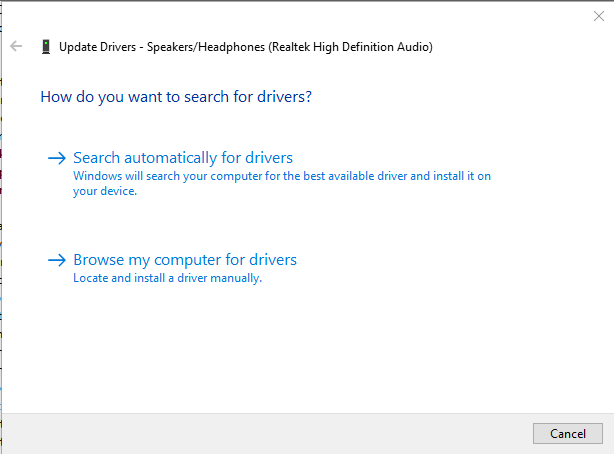
Keeping your system up-to-date ensures better battery management and fewer background glitches.
10. Adjust Graphics Settings for Better Efficiency
Laptops with dedicated graphics cards consume more power. Using integrated graphics instead of dedicated GPU for non-intensive tasks saves energy.
Steps:
- Open Settings > System > Display > Graphics settings.
- Choose apps and set them to Power saving (Integrated GPU).
- Limit the use of high-performance GPU for gaming or graphic-intensive applications only.
This reduces GPU power consumption significantly during everyday tasks like browsing and office work.
11. Manage Storage and Drive Activity
Active storage devices, particularly HDDs, consume power when frequently accessed.
Tips:
- Enable Storage Sense: Settings > System > Storage > Storage Sense.
- Move large files to external drives to reduce internal drive activity.
- Use SSDs instead of HDDs, as SSDs consume less power and are faster.
Keeping drives optimized reduces CPU and disk activity, improving battery life.
12. Limit Browser and Tab Usage
Web browsers, especially with multiple open tabs, can be major battery drainers. Each tab consumes CPU, RAM, and network resources.
Tips:
- Close unnecessary tabs.
- Use browser extensions like The Great Suspender (for Chrome) or built-in tab sleep modes.
- Use lightweight browsers like Microsoft Edge, which are optimized for Windows laptops.
Reducing browser load can extend battery life by hours, especially during research or streaming sessions.
13. Proper Battery Charging Practices
How you charge your laptop affects long-term battery health. Modern lithium-ion batteries degrade faster if frequently charged to 100% or completely drained.
Tips:
- Avoid keeping the laptop plugged in all the time.
- Use 50–80% charge cycles for better longevity.
- Enable battery health settings if available: Lenovo Vantage, Dell Power Manager, or HP Battery Health Manager.
- Avoid using cheap or incompatible chargers.
Following these practices helps maintain the battery’s capacity over several years.
14. Disable Unnecessary Notifications and Background Sync
Apps that constantly send notifications or sync data consume CPU and battery.
Steps:
- Go to Settings > System > Notifications & actions.
- Turn off notifications for non-essential apps.
- Disable automatic syncing for OneDrive, Google Drive, or email clients unless necessary.
This reduces background activity and conserves power, especially during long battery use.
15. Use Hibernate Instead of Sleep
Sleep mode keeps the RAM powered on, consuming battery over time. Hibernate mode saves your work to disk and completely powers off the laptop.
Steps:
- Go to Control Panel > Power Options > Choose what closing the lid does.
- Select Hibernate instead of Sleep when closing the lid or pressing power buttons.
Hibernate is particularly useful during long periods without access to a power source.
16. Reduce Peripheral Usage
Connected peripherals like external hard drives, webcams, USB devices, and even mice can drain battery.
Tips:
- Disconnect USB drives and external devices when not needed.
- Use wireless peripherals with low power consumption.
- Disable unused devices in Device Manager.
Peripheral management can save power, especially when you are away from an outlet.
17. Monitor Battery Health and Usage
Windows provides detailed battery usage stats to help identify power-hungry apps.
Steps:
- Go to Settings > System > Power & battery > Battery usage by app.
- Identify apps with high battery consumption and limit or uninstall them.
- Consider using third-party apps like BatteryInfoView or HWMonitor for detailed battery health analysis.
Monitoring usage helps make informed decisions for better battery management.
Conclusion
Extending the battery life of a Windows laptop is a combination of smart system settings, efficient usage habits, and proper maintenance. By enabling Battery Saver, managing background apps, reducing screen brightness, optimizing power plans, and following proper charging practices, you can significantly increase both daily battery life and the overall lifespan of your laptop battery.
In addition, keeping your laptop cool, updating software regularly, and managing peripherals also contributes to more efficient power consumption. Every small adjustment, from using dark mode to choosing the right graphics settings, adds up over time. Following these strategies not only ensures your laptop lasts through long workdays but also preserves battery health for years.
By adopting these tips and tricks, you can enjoy a more reliable, efficient, and long-lasting Windows laptop experience, whether for work, study, or entertainment.
FAQs
Q1: How can I quickly extend my battery life in an emergency?
A: Enable Battery Saver, reduce brightness, close background apps, and turn off Wi-Fi/Bluetooth to conserve power immediately.
Q2: Does updating Windows really improve battery life?
A: Yes, updates often include power management improvements and driver optimizations that enhance battery efficiency.
Q3: Is it better to use Sleep or Hibernate?
A: Hibernate saves more battery since it completely powers off your laptop, while Sleep keeps RAM powered.
Q4: How can I check which apps are draining my battery?
A: Go to Settings > System > Power & battery > Battery usage by app to view and manage high-consumption apps.
Q5: Should I charge my laptop to 100% every time?
A: No. Charging to 80% and avoiding complete discharges prolongs battery lifespan and reduces wear.