Windows 11 users frequently encounter Bluetooth connectivity problems that can disrupt daily workflows and device usage. Whether your wireless headphones won’t connect, your mouse keeps disconnecting, or Bluetooth has completely vanished from your system settings, driver issues are often the root cause of these frustrating experiences.
Bluetooth drivers act as translators between Windows 11 and your hardware, enabling proper communication and functionality. When these drivers become corrupted, outdated, or conflict with system updates, you’ll experience poor performance or complete failure of Bluetooth services. Simple restarts rarely fix these underlying driver problems.
What Is a Bluetooth Driver?

A Bluetooth driver is a small piece of software that enables your operating system (Windows 11) to communicate with Bluetooth hardware. It acts as a translator between your computer’s Bluetooth adapter and the connected devices.
If the driver is missing, outdated, or corrupted, Bluetooth functions such as pairing, file sharing, and audio streaming may not work properly.
Common symptoms of a faulty Bluetooth driver include:
- Bluetooth icon missing from the taskbar.
- Bluetooth toggle is greyed out in Settings.
- “Bluetooth not available” or “Driver not found” errors.
- Devices fail to pair or connect.
- Audio lag or disconnections with Bluetooth headphones.
If you encounter these issues, reinstalling the Bluetooth driver often resolves them.
Why You May Need to Reinstall Bluetooth Driver
Before you proceed, it’s important to understand why Bluetooth drivers might stop working. Some common causes include:
- Windows Update Issues: Sometimes, a Windows update may overwrite or break the existing driver.
- Corrupted Files: Damaged system or driver files can lead to malfunction.
- Uninstalled Drivers: Accidentally uninstalling the Bluetooth driver while cleaning up your system.
- Hardware Changes: Upgrading or replacing your network adapter may cause conflicts.
- Malware or System Errors: Viruses or registry problems can corrupt driver data.
By reinstalling the driver, you replace the old or damaged one with a fresh version that can restore functionality.
This detailed guide offers different approaches to reinstalling Bluetooth drivers in Windows 11, from simple Device Manager methods suitable for beginners to advanced PowerShell commands for technical users, ensuring everyone can restore their Bluetooth functionality successfully.
Before You Begin: Important Preparations
Create a System Restore Point

Before making any driver changes, create a restore point to safely revert if issues arise:
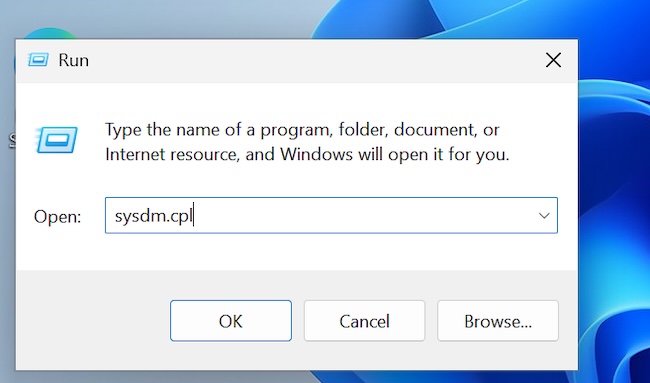
Press Windows + R, type sysdm.cpl, and press Enter
Click the System Protection tab
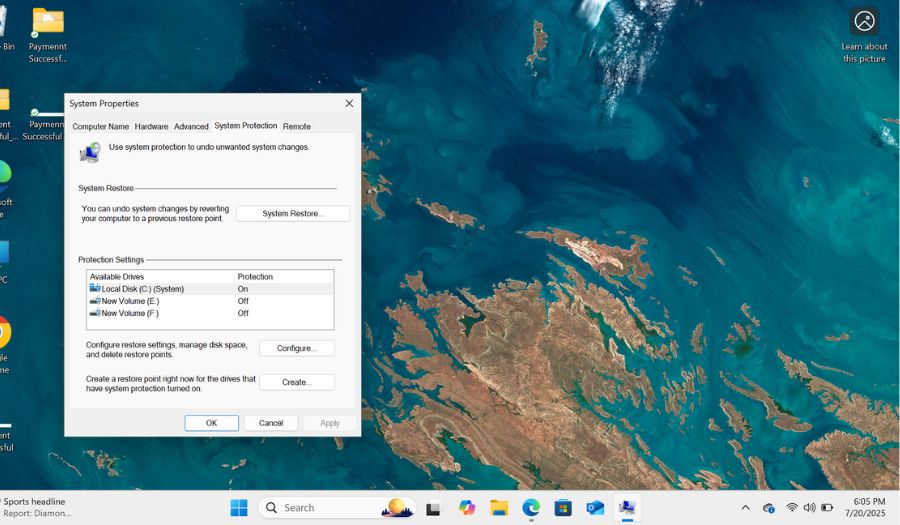
Select your system drive and click Create
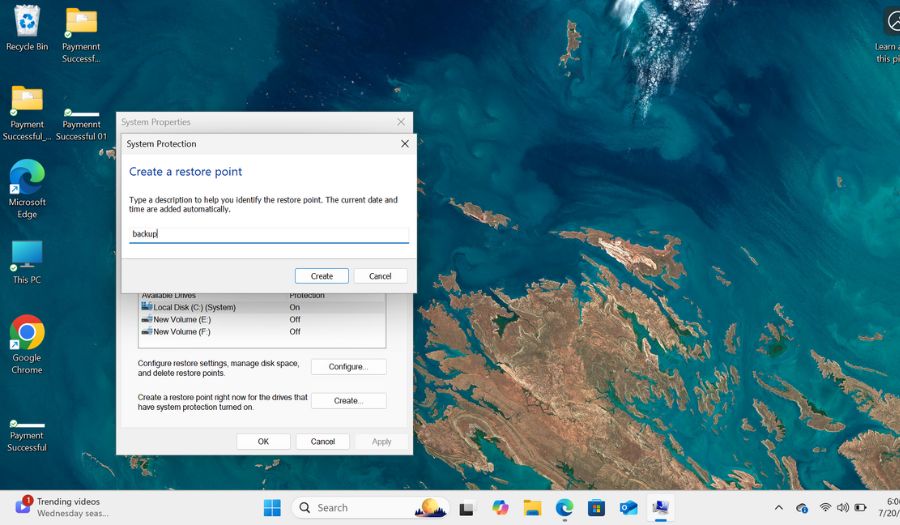
Name your restore point (e.g., “Before Bluetooth Driver Reinstall”)
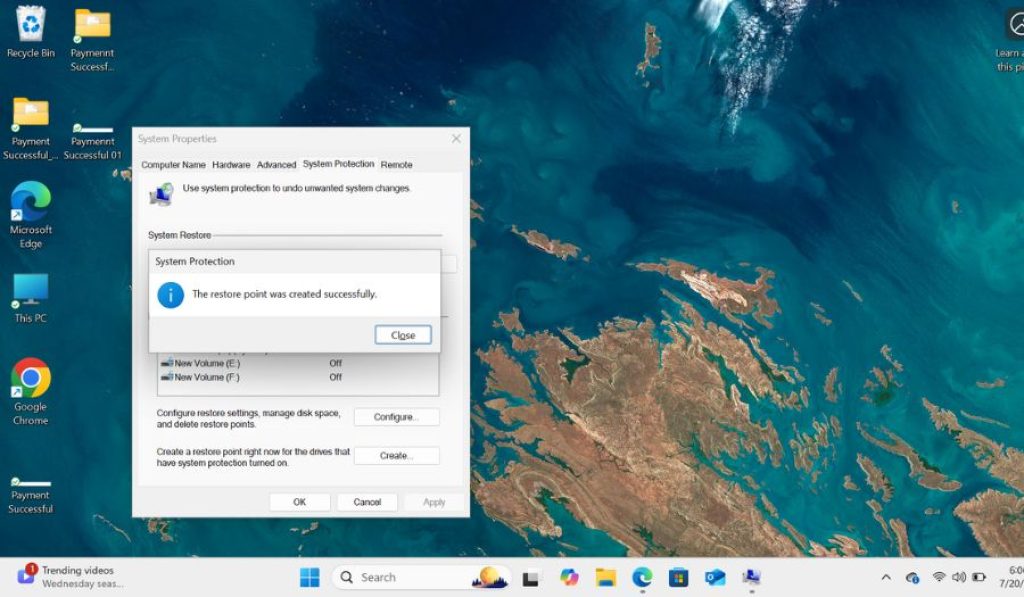
Click Create and wait for completion
Identify Your Bluetooth Hardware
Knowing your specific Bluetooth adapter helps ensure you install the correct drivers:
Press Windows + X and select Device Manager
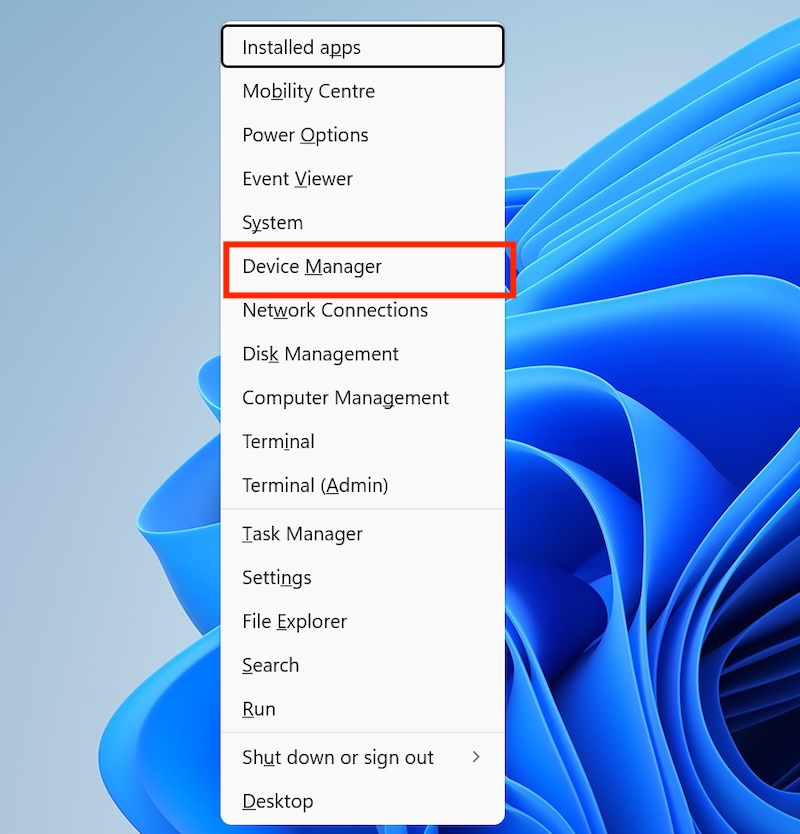
Expand the Bluetooth section
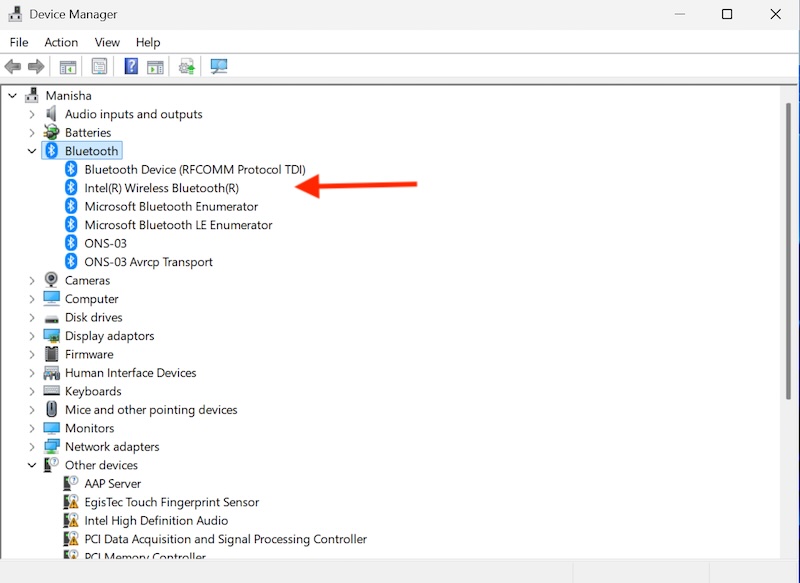
Note the exact model name of your Bluetooth adapter
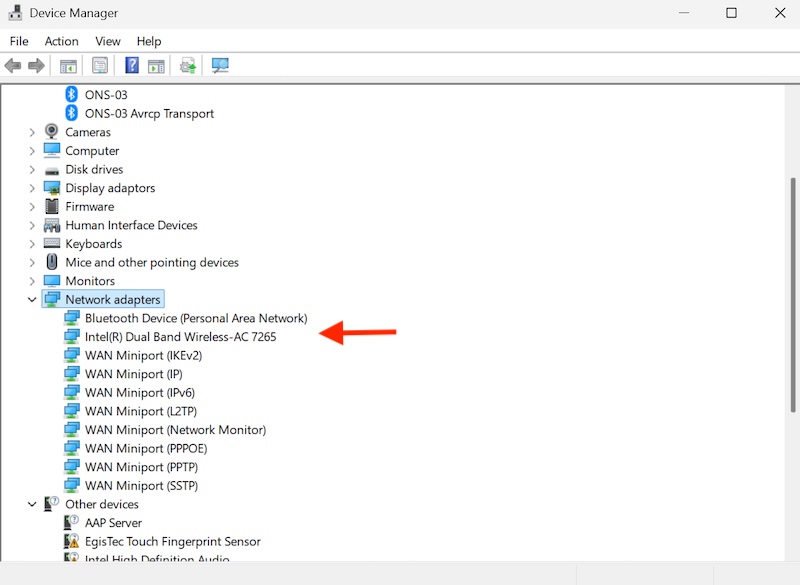
You can also check under Network adapters for Bluetooth devices
Method 1: Using Device Manager (Primary Method)
Device Manager is the most straightforward approach for reinstalling Bluetooth drivers.
Step 1: Access Device Manager
- Right-click the Start button or press Windows + X
- Select Device Manager from the context menu
- If prompted by User Account Control, click Yes
Step 2: Locate Bluetooth Devices
- In Device Manager, look for the Bluetooth category
- Click the arrow to expand it and view all Bluetooth devices
- You may also find Bluetooth adapters under Network adapters
Step 3: Uninstall Current Drivers
Right-click on your primary Bluetooth adapter
Select Uninstall device from the context menu

In the confirmation dialog, check “Attempt to remove the driver software for this device”
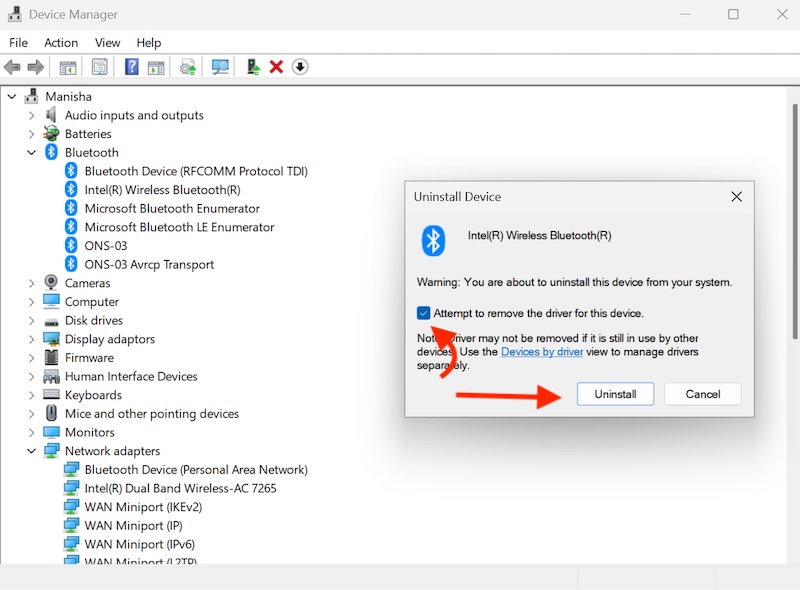
Click Uninstall to proceed
Repeat this process for all Bluetooth-related devices listed
Step 4: Restart Your Computer
- Close Device Manager
- Restart your computer completely
- Windows will attempt to automatically reinstall drivers upon restart
Step 5: Verify Installation
- After restart, open Device Manager again
- Check if Bluetooth devices appear without warning icons
- Test Bluetooth functionality by attempting to pair a device
Method 2: Windows Update Driver Installation
Windows Update often contains the latest drivers for hardware components.
Step 1: Access Windows Update
- Press Windows + I to open Settings
- Click Windows Update in the left sidebar
- Click Check for updates
Step 2: Install Available Updates
- Allow Windows to search for and download updates
- Install any available system and driver updates
- Restart when prompted
Step 3: Manual Driver Search
If automatic updates don’t include Bluetooth drivers:
- In Device Manager, right-click your Bluetooth adapter
- Select Update driver
- Choose Search automatically for drivers
- Allow Windows to search online for the best driver
- Follow installation prompts
Method 3: Manufacturer Website Download
For optimal compatibility and the latest features, download drivers directly from your computer or Bluetooth adapter manufacturer.
Step 1: Identify Your System
- Press Windows + Pause/Break to view system information
- Note your computer model and manufacturer
- For desktop PCs, identify your motherboard model using system information tools
Step 2: Visit the Manufacturer Website
Navigate to the support section of your manufacturer’s website:
- Dell: support.dell.com
- HP: support.hp.com
- Lenovo: support.lenovo.com
- ASUS: support.asus.com
- MSI: msi.com/support
- Acer: acer.com/support
Step 3: Download Correct Drivers
- Enter your computer model or use automatic detection tools
- Navigate to the drivers/downloads section
- Find Bluetooth or wireless drivers compatible with Windows 11
- Download the latest version available
Step 4: Install Downloaded Drivers
- Locate the downloaded driver file
- Right-click and select “Run as administrator”
- Follow the installation wizard prompts
- Restart your computer when installation completes
Method 4: Using Windows PowerShell (Advanced)
PowerShell commands can force driver reinstallation through the command-line interface.
Step 1: Open PowerShell as Administrator
- Press Windows + X
- Select “Windows PowerShell (Admin)” or “Terminal (Admin)”
- Click Yes if prompted by User Account Control
Step 2: List Current Bluetooth Devices
powershell
Get-PnpDevice -Class BluetoothThis command displays all Bluetooth devices and their status.
Step 3: Remove Bluetooth Drivers
powershell
Get-PnpDevice -Class Bluetooth | Disable-PnpDevice -Confirm:$false
Get-PnpDevice -Class Bluetooth | Enable-PnpDevice -Confirm:$false
Step 4: Force Driver Reinstallation
powershell
pnputil /scan-devicesThis command triggers Windows to scan for hardware changes and reinstall drivers.
Method 5: Troubleshoot Using Windows Built-in Tools
Windows 11 includes dedicated troubleshooting tools for Bluetooth issues.
Step 1: Access Troubleshooters
- Press Windows + I to open Settings
- Click System in the left panel
- Select Troubleshoot → Other troubleshooters
Step 2: Run Bluetooth Troubleshooter
- Find Bluetooth in the troubleshooter list
- Click the Run button next to it
- Follow the on-screen instructions
- Apply any recommended fixes
Step 3: Hardware and Devices Troubleshooter
- Press Windows + R, type
msdt.exe -id DeviceDiagnostic - Press Enter to launch the hardware troubleshooter
- Follow prompts to detect and fix hardware issues
Method 6: Reset Bluetooth Stack
Sometimes the entire Bluetooth stack needs resetting rather than just driver reinstallation.
Step 1: Stop Bluetooth Services
- Press Windows + R, type
services.msc, press Enter - Find Bluetooth Support Service
- Right-click and select Stop
Step 2: Clear Bluetooth Cache
- Press Windows + R, type
%LocalAppData%, press Enter - Navigate to Microsoft → Windows → Bluetooth
- Delete all files in this folder
- Empty the Recycle Bin
Step 3: Restart Bluetooth Services
- Return to Services window
- Right-click Bluetooth Support Service
- Select Start
- Restart your computer
Troubleshooting Common Issues
Issue: Bluetooth Option Missing from Settings
- Ensure Bluetooth hardware is properly connected (for external adapters)
- Check BIOS/UEFI settings to ensure Bluetooth is enabled
- Run hardware troubleshooter to detect missing devices
Issue: Driver Installation Fails
- Disable antivirus temporarily during installation
- Run Windows in Safe Mode and attempt installation
- Use compatibility mode for older drivers
Issue: Bluetooth Works but Devices Won’t Pair
- Clear Bluetooth cache as described in Method 6
- Reset network settings: Settings → Network & Internet → Advanced network settings → Network reset
- Remove previously paired devices and re-pair them
Final Verification Steps
After completing driver reinstallation:
- Check Device Manager: Ensure no warning icons appear next to Bluetooth devices
- Test Connectivity: Attempt to pair and connect a known working Bluetooth device
- Verify Settings: Confirm Bluetooth appears in Windows Settings under Bluetooth & devices
- Test Range and Stability: Ensure connections remain stable at reasonable distances
Maintenance Recommendations
To prevent future Bluetooth driver issues:
- Keep Windows 11 updated through Windows Update
- Regularly check manufacturer websites for driver updates
- Avoid installing third-party driver update utilities
- Create system restore points before making hardware changes
- Monitor Device Manager for any warning indicators
Conclusion
Reinstalling Bluetooth drivers in Windows 11 can be accomplished through multiple methods, from simple Device Manager operations to advanced PowerShell commands. Start with Method 1 (Device Manager) as it resolves most common issues. If problems persist, progress through the additional methods systematically.
Remember to create restore points before making changes, and don’t hesitate to contact manufacturer support if issues continue after trying these solutions.
The key to successful Bluetooth driver reinstallation is patience and systematic troubleshooting. Most connectivity issues resolve with proper driver management and occasional system maintenance.