Sukhdev Kamboj
Safari is Apple’s default web browser, widely known for its sleek design, fast performance, and smooth integration within the macOS and iOS ecosystem. While it’s a top choice for Mac and iPhone users, Windows users often wonder if they can also use Safari on their PCs—especially those running Windows 11. Whether it’s for web development testing, personal curiosity, or preference for its user interface, many seek ways to install Safari on a Windows system.
However, Apple discontinued Safari support for Windows years ago, making it unavailable through official channels. Despite this, it is still possible to install an older version of Safari on Windows 11 using third-party sources. This guide will walk you through every step of downloading, installing, and using Safari on your Windows 11 PC. We’ll also cover the limitations, safety concerns, alternatives, and frequently asked questions to help you make an informed decision.
Why Would You Use Safari on Windows?
Before diving into the process, it’s essential to understand why someone might want Safari on Windows. Some reasons include:
- Web Development Testing: Developers want to see how their websites perform on Safari.
- Curiosity: Some Windows users want to see what Safari looks and feels like.
- Apple Ecosystem Experience: Users who switch between Windows and Mac may prefer Safari for syncing bookmarks or passwords (although this is limited on Windows).
- Low Resource Usage: Safari is known for its efficient performance and battery saving, though this is mainly optimized for macOS.
Is Safari Available for Windows 11?
Unfortunately, Apple discontinued support for Safari on Windows in 2012. The last officially available version is Safari 5.1.7, which is outdated and lacks modern web standards, features, and security patches. That said, it’s still possible to download this older version and install it on your Windows 11 PC.
While this can be done, we strongly caution against using Safari for regular browsing on Windows, as it is no longer secure. However, for basic testing or exploration, it’s usable.
Step-by-Step: How to Download and Install Safari on Windows 11
Here’s a detailed breakdown of how to get Safari up and running on your Windows 11 device.
Step 1: Download Safari for Windows
Since Apple no longer hosts Safari for Windows, you’ll need to download it from a trusted third-party source.
- Open your browser (e.g., Edge, Chrome, or Firefox).
- Search for Safari 5.1.7 for Windows download. (Click Here to Download)
- Visit a reputable software website like FileHippo, TechSpot, or Softonic.
- Click on the download button for Safari 5.1.7.
- The installer file (usually named something like
SafariSetup.exe) will begin downloading.
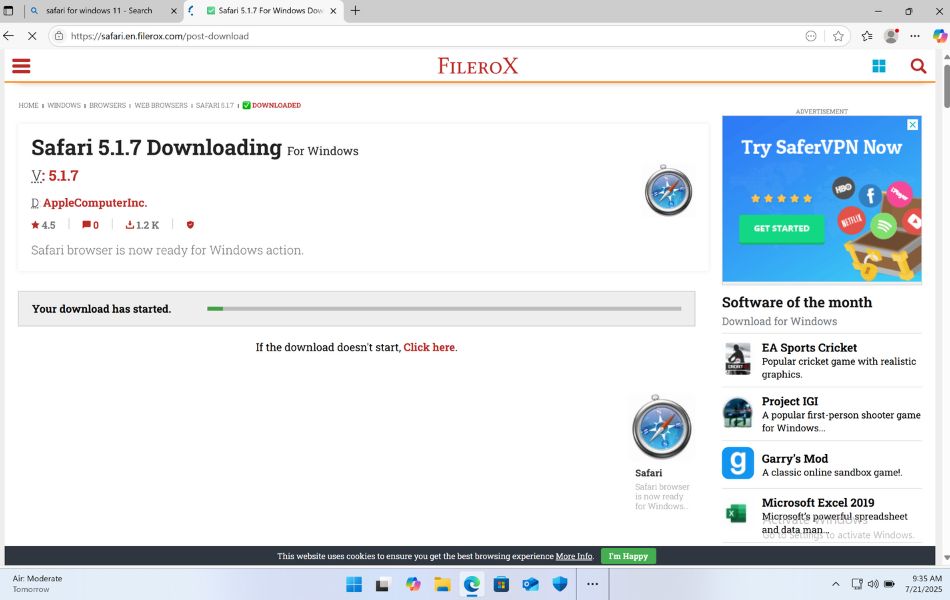
Important Note: Always be cautious when downloading software from third-party sites. Scan the file with antivirus software before running it.
Step 2: Run the Installer
Once you have downloaded the installer:
- Navigate to your Downloads folder.
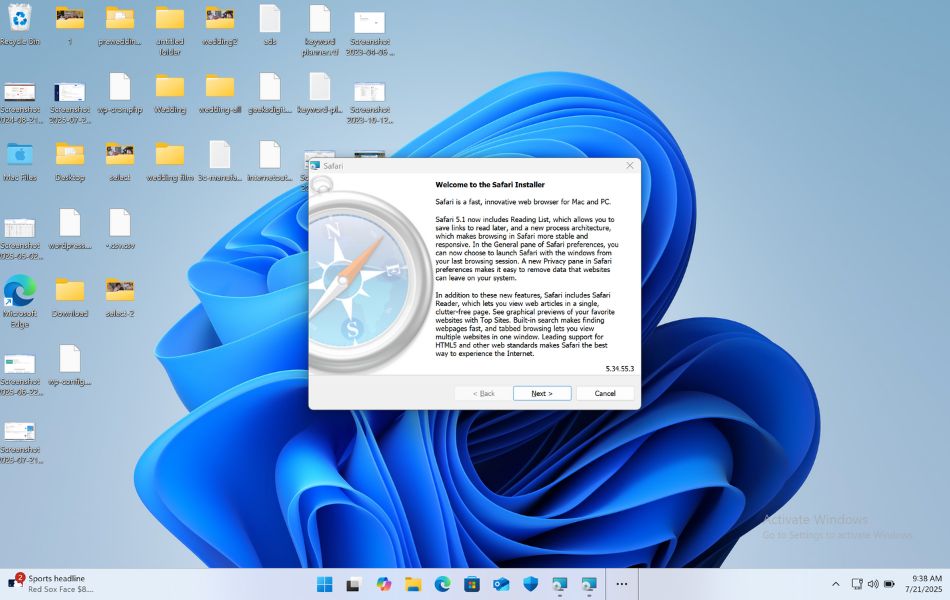
- Double-click the
SafariSetup.exefile. - If Windows prompts you with a User Account Control (UAC) popup, click Yes to allow changes.
- The Safari installer will launch. Click Next to proceed.
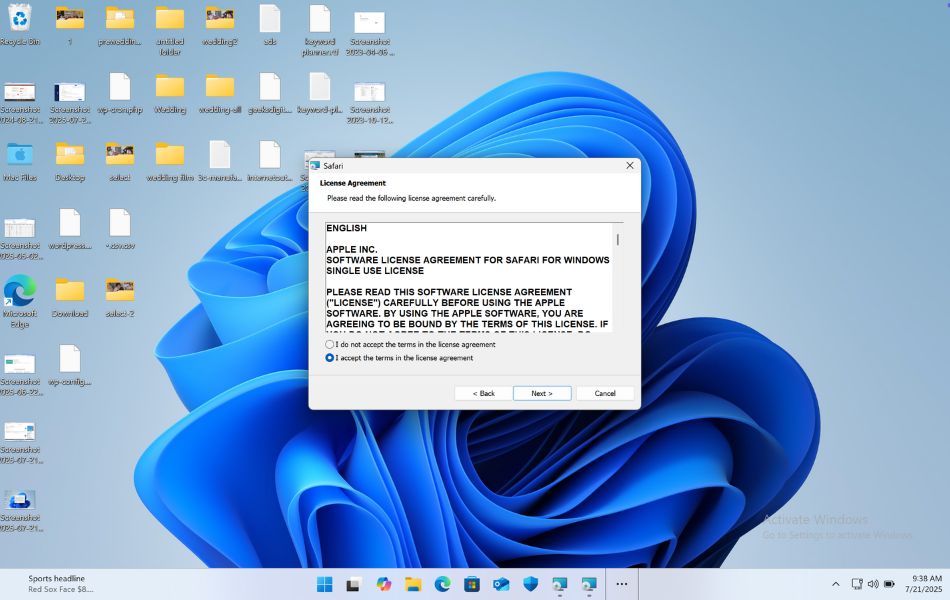
Step 3: Accept the License Agreement
- Read through Apple’s Software License Agreement.
- Click I accept the terms and then Next.
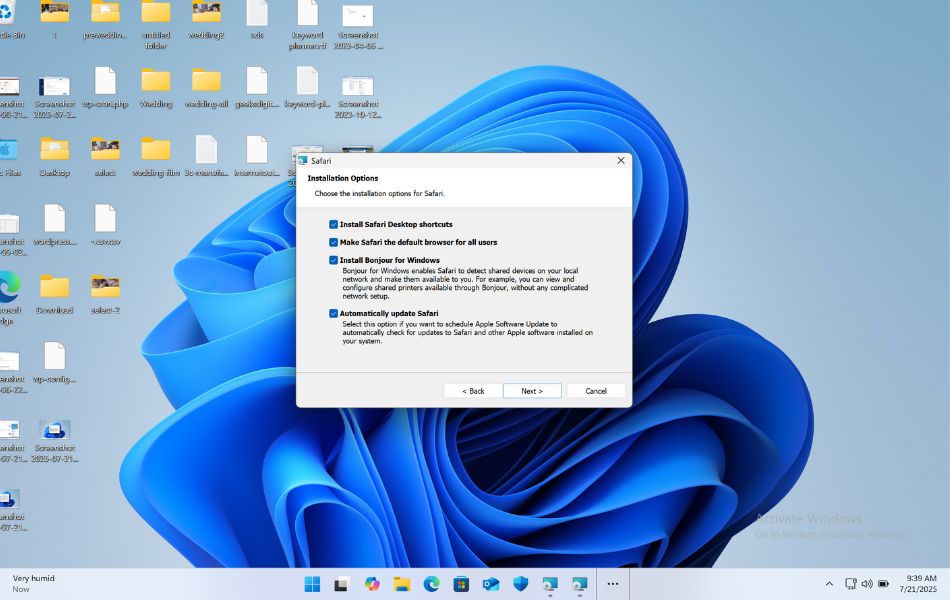
Step 4: Choose the Installation Options
- You’ll be given the option to choose installation features like:
- Safari browser
- Bonjour (Apple’s networking service)
- Automatic updates (no longer functional on Windows)
- Uncheck Bonjour and updates if you don’t need them.
- Click Next.
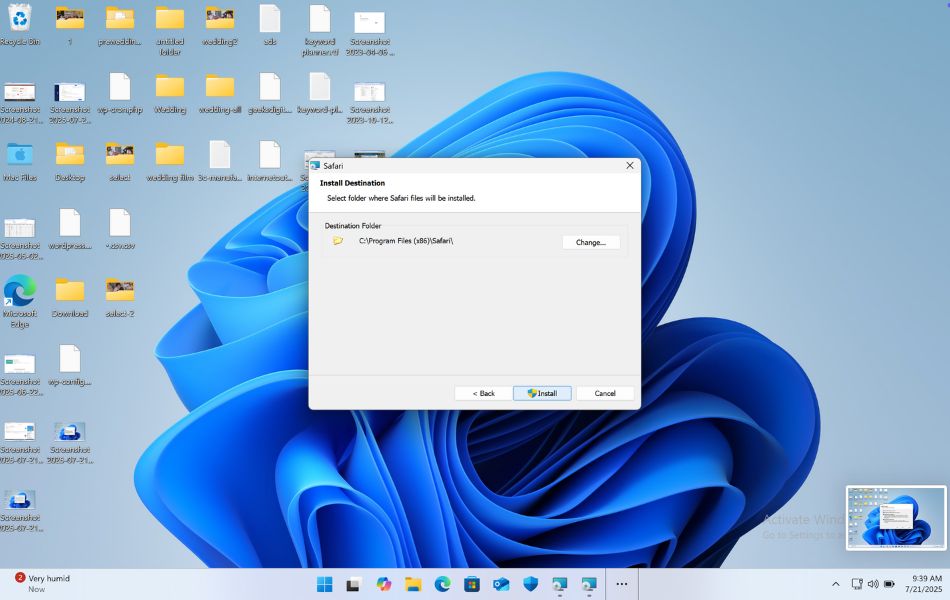
Step 5: Choose Installation Location
You can stick with the default folder (C:\Program Files (x86)\Safari\) or choose another one.
Click Install to begin the installation process.
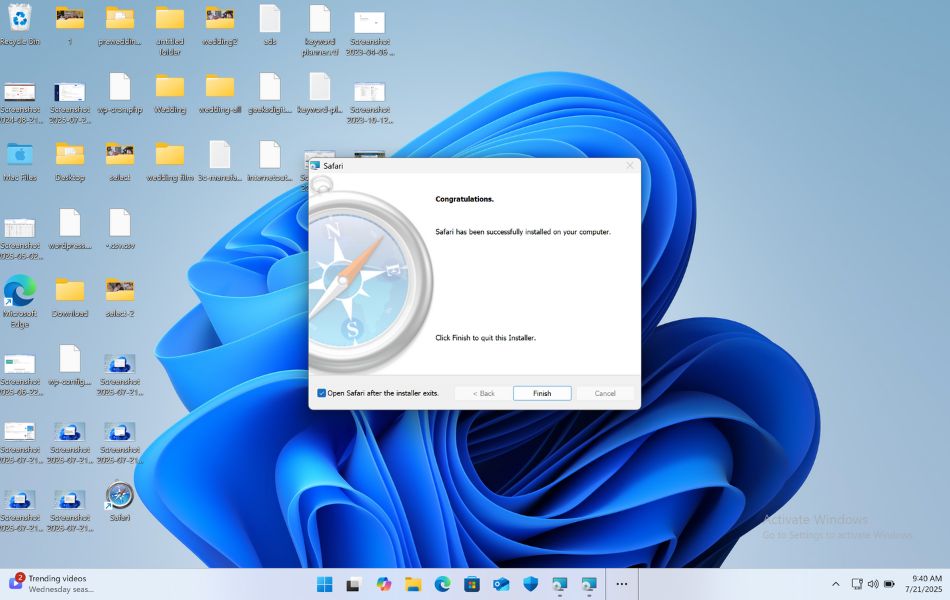
Step 6: Complete Installation
After a few minutes:

- The installation will complete.
- Click Finish to close the setup wizard.
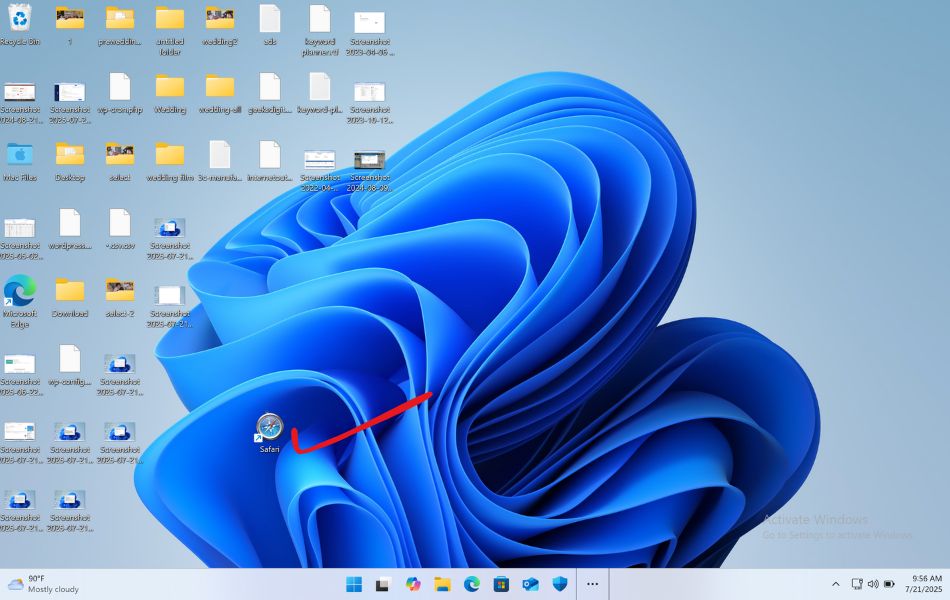
- You may now see a Safari icon on your desktop or in the Start menu.
Step 7: Launch Safari on Windows 11
- Double-click the Safari icon to open the browser.
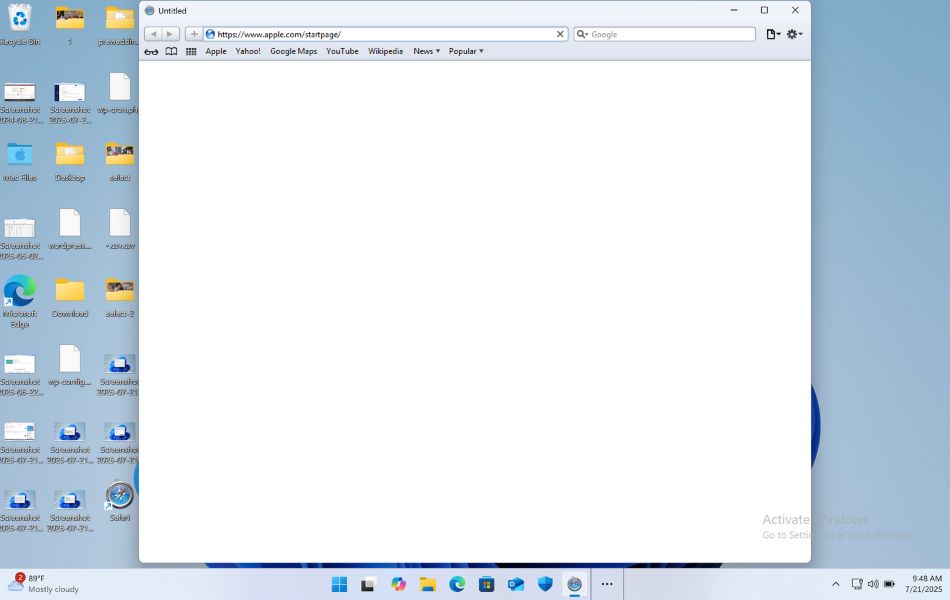
- The browser will launch with its standard welcome page.
- You can now begin browsing or testing.
How to Use Safari on Windows 11
Once you’ve installed Safari 5.1.7 on your Windows 11 PC, you can start using it just like any other web browser. Although this version is old and no longer supported, it still includes the basic functions that let you browse websites, use bookmarks, and manage your settings. Here’s a detailed look at how to use Safari on Windows 11.
1. Launching Safari
To get started, you need to open Safari:
- Click the Start menu and type “Safari” in the search bar.
- Click the Safari icon to open the browser.
- You can also create a shortcut on your desktop or pin it to your taskbar for easy access.
Once it opens, you’ll see the traditional Safari interface, including the address bar, navigation buttons, bookmarks bar, and tabs.
2. Browsing the Web
Using Safari to browse the web is simple:
- Type a website address (like
www.google.com) into the address bar at the top and press Enter. - The page will load in the main window.
- You can use the Back and Forward buttons to move between pages you’ve visited.
- The Refresh button reloads the current page if needed.
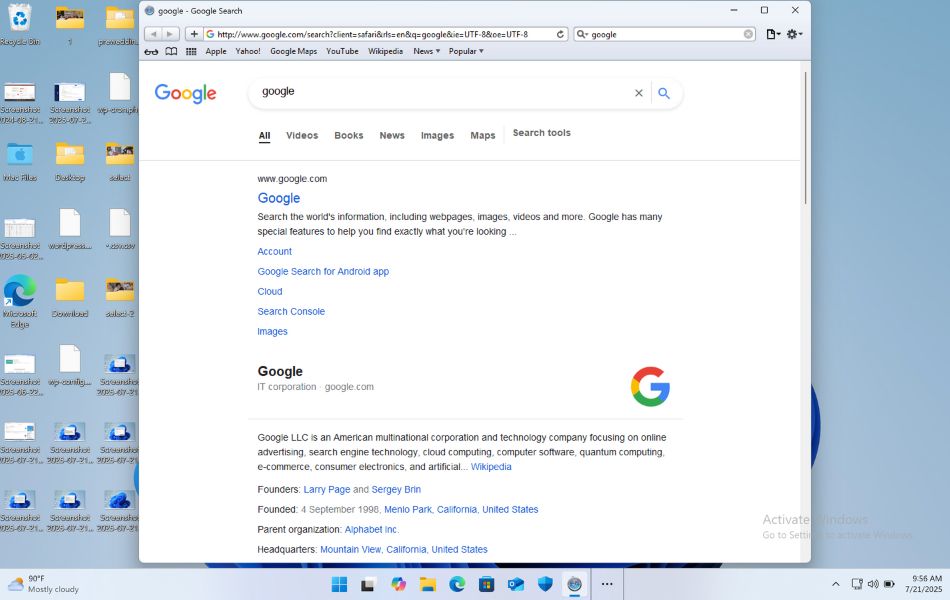
However, because this version is old, some modern websites may not display properly or may show warning messages. It’s best to visit only simple, non-secure websites or use it for viewing old content.
3. Opening New Tabs
Safari supports tabbed browsing, which means you can open multiple web pages in one window:
- Click the plus (+) icon next to the last open tab to create a new tab.
- You can then enter a new website address in the new tab.
- To close a tab, click the X on the tab itself.
Tabs help you keep different websites open at once, which is useful for research, comparing information, or testing layouts.
4. Using Bookmarks
Bookmarks allow you to save your favorite or frequently visited websites:
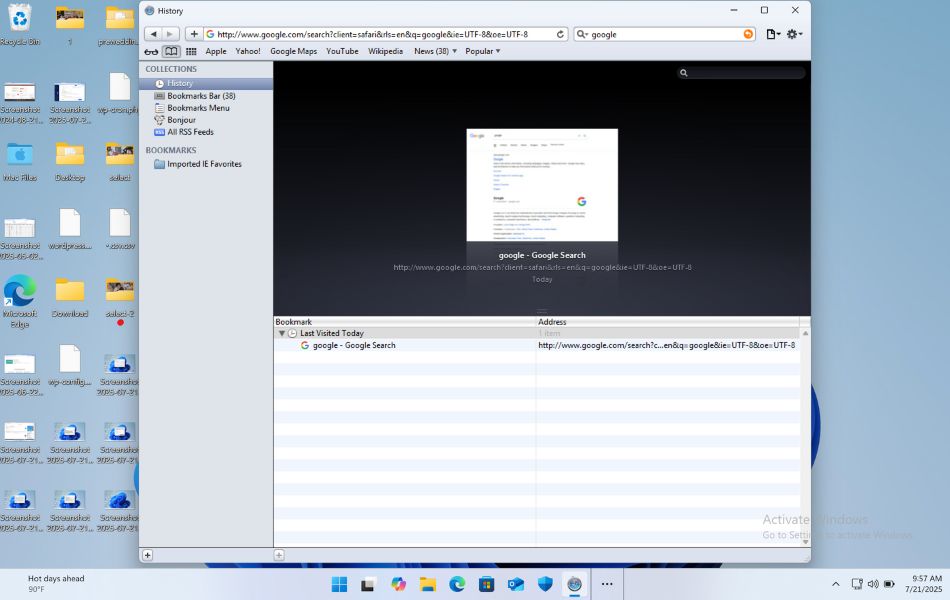
- To bookmark a page, click Bookmarks > Add Bookmark from the top menu.
- Choose a name and folder for the bookmark.
- Click Add, and it will be saved.
You can view your bookmarks anytime by clicking Bookmarks from the menu bar. Bookmark folders help you stay organized.
5. Changing Safari Settings
Safari’s settings can be accessed easily:
- Go to Edit > Preferences from the top menu.
- You’ll see tabs like:
- General – set homepage, default search engine, etc.
- Appearance – change font style or size.
- Security – manage pop-up blocking and cookies.
- Privacy – control website tracking.
Although limited, these settings allow you to customize Safari to match your basic preferences.
6. Keyboard Shortcuts (Optional)
Here are a few useful shortcuts:
- Ctrl + T – Open a new tab
- Ctrl + W – Close the current tab
- Ctrl + D – Add a bookmark
- Ctrl + L – Highlight the address bar
While Safari on Windows 11 is not ideal for everyday use, it’s still functional for light browsing and web design testing. Just remember that many modern features like extensions, dark mode, and iCloud syncing aren’t available. Stick to basic browsing, and avoid entering personal information or logging into accounts for safety.
What Can You Do with Safari on Windows 11?
Here are some things you can do with Safari on your Windows PC:
- Visit websites (though some may not load properly).
- View older HTML or CSS versions of sites.
- Explore Safari’s layout, tab management, and preferences.
- Test website designs for basic compatibility (not recommended for modern testing).
Limitations of Using Safari on Windows
Though it’s functional, Safari 5.1.7 has several limitations on Windows:
- No Security Updates: It hasn’t been patched since 2012.
- No Support for Modern Web Standards: CSS3, HTML5, and modern JavaScript may not work.
- Buggy Performance: It may crash or display errors.
- No iCloud Sync: Apple removed iCloud syncing for Safari on Windows.
- No Extensions: You cannot install Safari extensions like you can on Mac or iOS.
Is It Safe to Use Safari on Windows 11?
No, not for regular browsing.
Safari for Windows is outdated and potentially vulnerable to malware or attacks. Only use it for basic tasks like testing website layouts or exploring the user interface. Always avoid entering sensitive data like passwords or credit card info.
If you must use Safari features, consider alternative methods like:
- Using a macOS virtual machine.
- Remote access to a Mac using tools like Chrome Remote Desktop.
- Using BrowserStack or CrossBrowserTesting platforms for real Safari testing.
Safari for Developers: Web Testing on Windows
If you’re a web developer, you might want to test how your website performs in Safari. Since the native version on Windows is outdated, consider these better options:
- BrowserStack: Offers real-time Safari testing on macOS devices from any system.
- LambdaTest: Another cross-browser testing tool.
- Virtual Machines: Apple provides macOS images for testing, but only legally on Apple hardware.
- Remote Desktop: Use a Mac via remote desktop software to access the latest Safari.
Final Thoughts
Safari is a fantastic browser within the Apple ecosystem, offering speed, efficiency, and a clean user interface. However, its utility on Windows—especially Windows 11—is extremely limited. With no updates or official support since 2012, Safari for Windows remains largely obsolete and should not be used for daily browsing or sensitive tasks. That said, if you’re curious or simply need it for basic testing purposes, installing Safari 5.1.7 is still possible by following this guide.
For a safer and more reliable experience, you’re better off using modern browsers like Microsoft Edge, Chrome, or Firefox, which are optimized for Windows 11 and offer robust features. Developers needing Safari support should consider using testing platforms or macOS devices. In the end, while Safari on Windows might be an interesting trip down memory lane, it’s not practical for serious web usage in today’s fast-evolving internet landscape.
Frequently Asked Questions (FAQs)
Is Safari on Windows secure?
Not really. Since it hasn’t received updates since 2012, it lacks modern security features and may be vulnerable to attacks. Use it with caution and only for testing.
What is the latest Safari version available for Windows?
The latest (and last) version is Safari 5.1.7, released in May 2012.
Are there any Safari emulators for Windows?
No exact emulators, but platforms like BrowserStack and LambdaTest allow you to test Safari from the cloud using real macOS machines.
Can I sync Safari bookmarks or passwords from my iPhone to Windows?
Not with Safari on Windows. Apple’s iCloud for Windows app lets you sync bookmarks with Chrome, Edge, or Firefox, but not with Safari on Windows.
![Use Safari Web Browser on Windows 11: Download & Install [2026 Guide]](https://www.geeksdigit.com/wp-content/uploads/thumbs_dir/vhd-windows-11-rhhxmndj5la4k8qcxtn3zn485flhuxa5osue9jfi2k.jpg)
![Use Safari Web Browser on Windows 11: Download & Install [2026 Guide]](https://www.geeksdigit.com/wp-content/uploads/thumbs_dir/change-taskbar-text-color-windows-11-rf4849hduxcf16a9p2vmpdw5pgtm8msfhu3v9ugkzg.jpg)