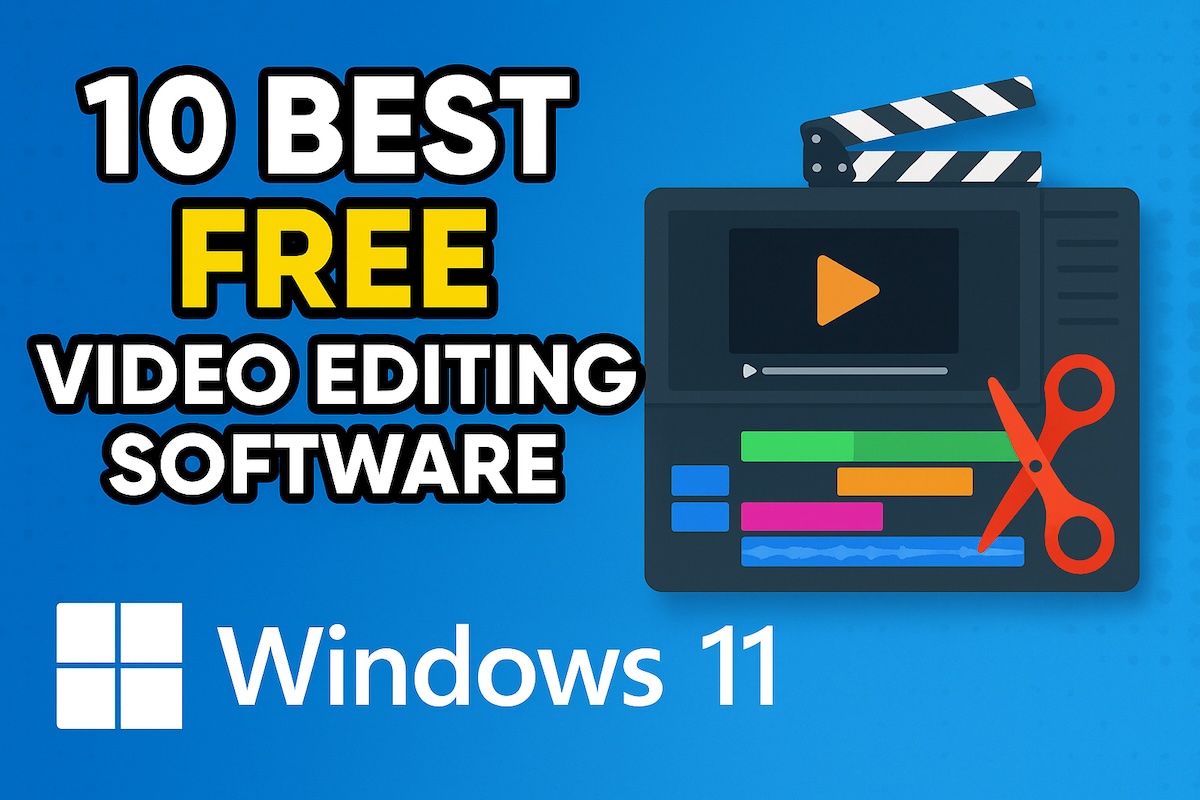
Video editing has become an essential skill for creators, professionals, students, and businesses alike. With the growing popularity of YouTube, TikTok, Instagram Reels, and online learning platforms, having the right editing software can make the difference between an average clip and a polished, professional-looking video. Windows 11, with its improved performance, modern GPU support, and sleek interface, offers an excellent platform for video editing.
But with so many tools available—from beginner-friendly apps packed with templates to industry-standard professional suites—the challenge is choosing the best one for your needs and budget. Some editors focus on quick and easy social media content, while others offer advanced color grading, audio engineering, and VFX integration for cinematic projects.

This guide will list out the 10 best video editing software for Windows 11, covering their features, pricing, pros and cons, and what makes each one stand out.
Comparison Table: Best Video Editing Software for Windows 11
| Software | Approx. Cost (USD) | Key Features (Highlights) | Best For |
|---|---|---|---|
| Adobe Premiere Pro | $22.99/mo (annual) or $34.49/mo | AI editing, multicam, pro color, Adobe app integration | Professionals, teams, filmmakers |
| DaVinci Resolve | Free / $295 lifetime | Elite color, VFX, audio suite, HDR, collaboration | Colorists, studios, advanced users |
| CyberLink PowerDirector | $69.99/yr or ~$129 one-time | AI effects, templates, fast exports, social tools | YouTubers, marketers, hobbyists |
| Wondershare Filmora | $39.99/yr or $79–99 lifetime | Templates, AI captions, easy UI, motion tracking | Beginners, vloggers, educators |
| VEGAS Pro | $19.99/mo or $399–$599 lifetime | Fast timeline, scripting, AI upscaling, audio tools | Editors who value speed, events |
| Premiere Elements | ~$99.99 | Guided edits, templates, auto fixes, easy exports | Families, casual editors, students |
| Movavi Video Editor | $39.95/yr or $59–79 lifetime | AI captions, silence removal, easy effects | Beginners, small businesses |
| CapCut (Desktop) | $0 | Social templates, auto captions, vertical video tools | TikTok, Reels, Shorts creators |
| VSDC Free Editor | Free / $19.99–29.99 Pro | No watermark, motion tracking (Pro), low system needs | Budget users, older PCs, students |
| Shotcut | $0 | Wide format support, proxy editing, open source | Open-source fans, classrooms |
1. Adobe Premiere Pro
Adobe Premiere Pro remains the industry workhorse for everything from YouTube to broadcast and film. On Windows 11, it takes advantage of modern GPUs for smooth timeline scrubbing, high-res color workflows, and lightning-fast exports. Editors love its deep toolset—multicam, advanced color tools, essential graphics and captions, robust audio with Adobe Speech to Text, plus a thriving ecosystem of effects and templates.
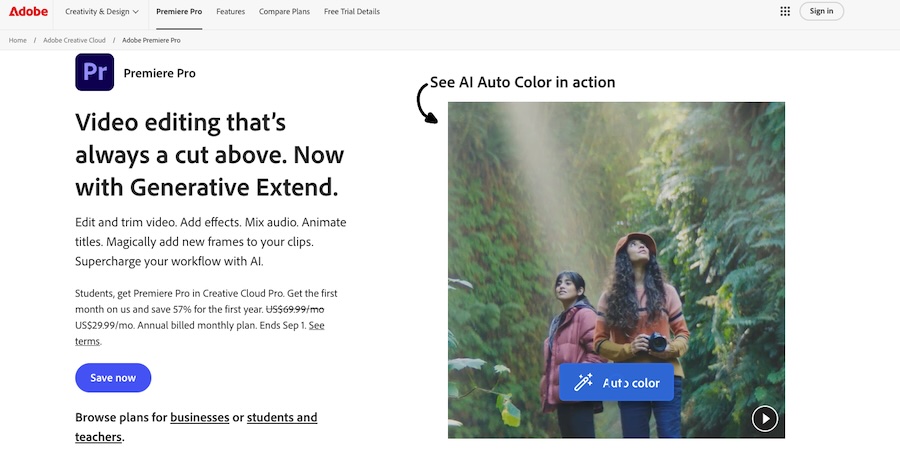
Where Premiere really shines is workflow: round-tripping with After Effects, Audition, Photoshop, Illustrator, and the Creative Cloud Libraries keeps teams moving. The learning curve is there, but it’s well supported by tutorials and a huge community. Pricing is subscription-based, which can add up long-term, but you’re always on the latest version with frequent AI-assisted improvements. If you need maximum flexibility, collaborative features, broadcast-ready formats, and tight integration with Creative Cloud, Premiere Pro is still the default choice for many professionals on Windows 11.
Key features of Adobe Premiere Pro
- AI-assisted tools (e.g., Text-Based Editing, Speech to Text)
- Multicam editing & powerful color/grading
- Essential Graphics & captions workflows
- Deep integration with After Effects & Audition
- Broad codec/format support & hardware acceleration
- Team Projects / cloud-friendly collaboration
Pros
- Industry standard; tons of learning resources
- Excellent interoperability with Adobe apps
- Strong performance on modern Windows 11 hardware
Cons
- Subscription cost
- Hefty learning curve for newcomers
- Occasional stability issues in complex projects
If you collaborate, hand off to motion designers, and need broadcast-grade output, Premiere Pro remains a top pick. The subscription stings, but the time saved by integrations and AI features often repays the fee quickly. For solo editors on a budget, it may be overkill; for teams, it’s a productivity engine.
Pricing:
- Single-app plan (annual commitment, billed monthly): $22.99/month (~$275.88/year)
- Month-to-month plan: $34.49/month
- Creative Cloud All Apps (includes Premiere, After Effects, Photoshop, etc.): $59.99/month (annual commitment) or $89.99/month month-to-month
- Occasionally available student discount or promotional deals (e.g. 40 % off for limited periods)
2. Wondershare Filmora

Filmora targets beginners and intermediates who want fun effects and a friendly UI. On Windows 11, it runs smoothly even on modest hardware and offers loads of modern templates, motion elements, and transitions. The learning curve is gentle: drag-and-drop titles, easy audio tools, auto beat detection, and quick color presets get you moving in minutes. Recent versions add AI features like audio stretch, silence detection, and reframing to accelerate common tasks.
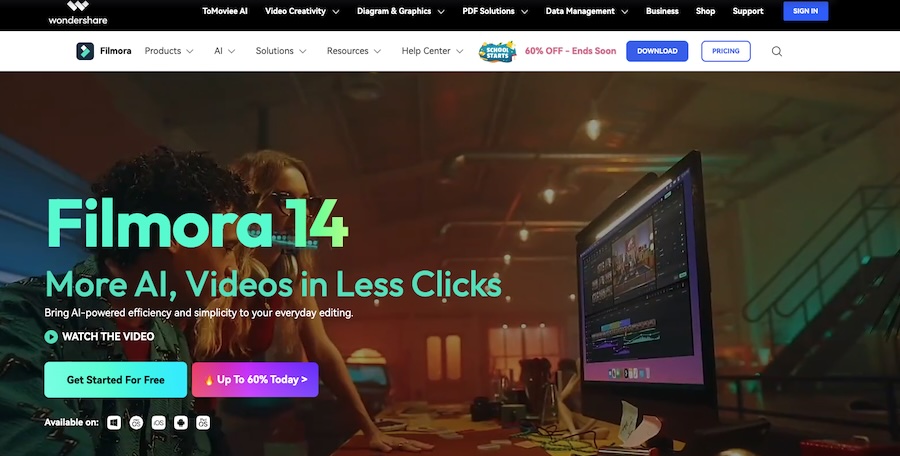
It’s great for social media creators who value speed and style. Power users will eventually bump into limits compared to Resolve/Premiere (fewer deep color tools, compositing options, or collaborative features), and some effects packs require extra purchases. But for day-to-day content, vlogs, tutorials, and promos, Filmora’s balance of simplicity and polish is excellent—and its free trial is handy to test your workflow on Windows 11.
Key Features of Wondershare Filmora
- Friendly, template-rich interface
- AI tools (silence detection, captions, reframing)
- Audio beat sync and sound tools
- Motion tracking and keyframing
- Stock effects/templates marketplace
- Screen recording & quick social exports
Pros
- Very easy to learn
- Tons of built-in effects and titles
- Good performance on typical PCs
Cons
- Fewer pro-grade finishing tools
- Some content locked behind paid packs
- Subscription options can be confusing
If you want to go from idea to shareable video quickly, Filmora delivers. It’s not a finishing suite, but it’s ideal for creators who prefer “get it done” editing over deep technical tweaking. Try it if Premiere/Resolve feel heavy—you might be surprised how far Filmora can take you.
Pricing:
- Annual subscription: around $39.99/year
- One-time perpetual license: around $79.99–$99.99
- Bundles or lifetime deals sometimes available
3. DaVinci Resolve
DaVinci Resolve is an all-in-one suite that merges editing, color grading, VFX (Fusion), audio post (Fairlight), and delivery in a single app. On Windows 11, Resolve’s GPU acceleration and caching deliver responsive timelines, even with color nodes and effects stacked high. The free version is genuinely powerful—no watermark, true 4K/60 exports, pro color tools, and multicam—making it the best zero-cost starting point for many.
Resolve Studio (paid) adds advanced noise reduction, more AI tools (auto reframe, magic mask), stereoscopic 3D, and higher frame-rate/bit-depth/HDR workflows. The interface is organized into “Pages”(Cut, Edit, Fusion, Color, Fairlight, Deliver), so beginners can start simple and grow into advanced areas. Colorists swear by its grading tools; editors appreciate how much is included out of the box. The trade-off: Fusion’s node-based VFX and deep color panels require learning time. Still, as a pro-grade platform with a free tier, Resolve is unmatched.
Key Features of DaVinci Resolve
- Unified edit, color, VFX, audio in one app
- Best-in-class color and HDR grading
- Powerful free version; Studio adds advanced AI
- Multicam, collaboration, media management
- Fairlight pro audio tools
- GPU acceleration and smart caching
Pros
- Exceptional value (free version is robust)
- Elite color tools and audio suite
- Scales from beginner to studio workflows
Cons
- Learning curve, especially Fusion
- Can be resource-intensive on older PCs
- Some advanced features are Studio-only
Resolve is the best all-rounder on Windows 11, especially if your projects need serious color and audio. Start free; upgrade when your workflows demand it. Expect a learning curve, but the payoff is enormous. For creators eyeing cinematic color and end-to-end finishing, this is hard to beat at any price.
Pricing:
- Free version: completely free, no watermark, full editing, color, VFX, and audio features (4K/60fps exports)
- Studio version: one-time purchase of $295 (lifetime license)—includes 8K, HDR, AI tools, noise reduction, collaboration features
4. CyberLink PowerDirector
PowerDirector is a “practical-but-powerful” editor that’s perfect for Windows 11 users who want speed, modern effects, and straightforward tools without a steep learning curve. It covers all essentials—multi-track timelines, motion graphics, masking, color, and keyframing—while layering in AI niceties like sky replacement, object selection, and background removal. Its template-driven approach helps beginners produce polished results quickly, and the 365 subscription includes a large library of effects, music, and stock content.
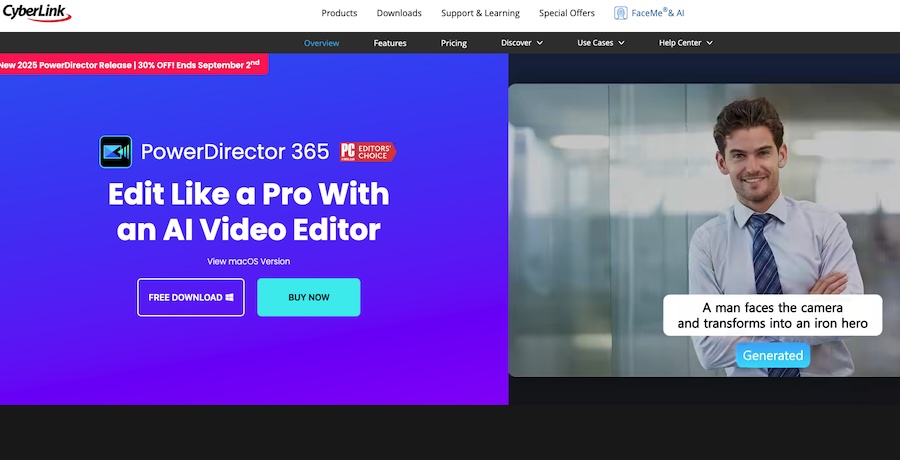
Exports are fast, and hardware acceleration support is solid. While purists may find certain effects “template-ish,” the flip side is rapid turnaround and great value. It’s also friendly for social content with vertical/aspect tools and quick output presets. If you’re a power user, Premiere/Resolve still go deeper; if you’re a creator who wants speed, convenience, and good-looking results without wrestling with manuals, PowerDirector is a very compelling middle ground on Windows 11.
Key Features of CyberLink PowerDirector
- Fast timeline with robust keyframing
- AI tools (background/sky/object selection)
- Template- and effect-rich libraries (365 plan)
- Vertical video & social presets
- Screen capture and mask tools
- Broad format support with hardware acceleration
Pros
- Beginner-friendly with pro-leaning depth
- Fast export performance
- Good value with content bundles
Cons
- Some effects feel templated
- Subscription upsell for full libraries
- Fewer advanced color/VFX tools than pro suites
For many Windows 11 creators, PowerDirector is the perfect “speed-to-polish” tool. It won’t replace a Hollywood finishing suite, but it will help you produce impressive videos fast. If you value time saved and easy wins—especially for YouTube, reels, and marketing clips—this is a smart pick.
Pricing:
- Typically offers a subscription plan (PowerDirector 365) around $69.99/year or $19.99–$29.99/month, depending on deals or region (exact figures vary)
- Also available as a one-time purchase for a perpetual license, usually in the $129–$149 range (varies by version/year)
5. VEGAS Pro
VEGAS Pro has a loyal Windows user base thanks to its fast, timeline-centric workflow and strong audio tools. Editors who prefer a “just cut” environment appreciate VEGAS’s responsive UI, flexible trimming, and powerful compositing modes. Modern versions add AI-powered features like text-based editing, scene detection, and upscaling while maintaining the classic feel long-time users love. Color correction has improved, and scripting/extensions help advanced users automate tasks.
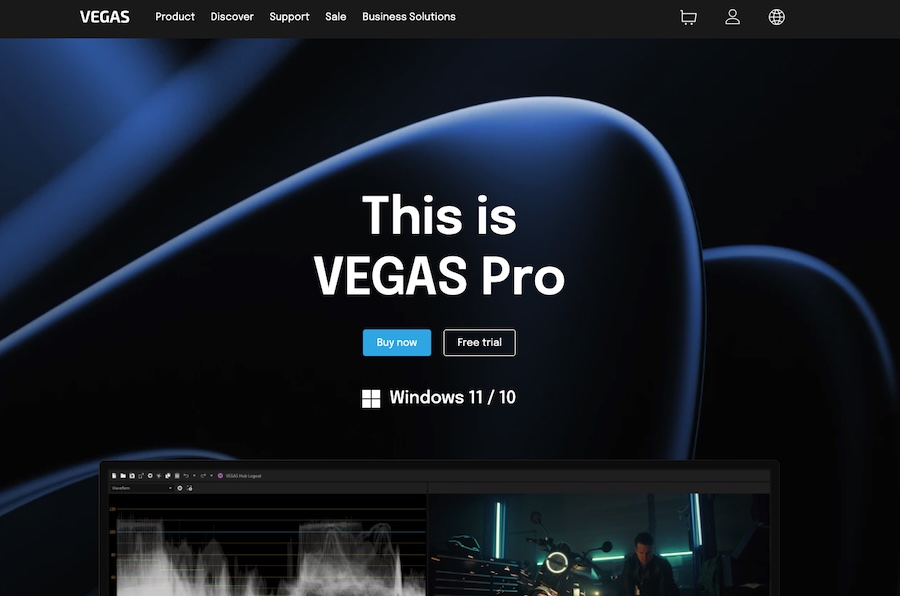
Pricing now includes perpetual and subscription options. Downsides: the interface feels dated to some, and color/VFX pipelines aren’t as deep as Resolve. Still, for event shooters, YouTubers, and documentary editors who prioritize rapid cutting and intuitive timeline operations on Windows 11, VEGAS Pro remains a strong, productivity-focused choice with just enough modern AI to keep pace.
Key features of VEGAS Pro
- Fast, flexible timeline editing
- AI text-based editing & upscaling
- Solid color correction & compositing modes
- Great audio workflow and integration
- Scripting support and extensions
- Perpetual or subscription licensing
Pros
- Speedy, editor-first timeline design
- Stable on Windows with good GPU support
- Flexible licensing options
Cons
- Interface can feel dated
- Fewer advanced color/VFX features than Resolve
- Smaller ecosystem of third-party motion templates
VEGAS Pro is a “get cuts done” machine that rewards editors who live on the timeline. If Premiere feels heavy and Resolve too node-centric, VEGAS offers a nimble middle path. It’s not the most glamorous suite, but for quick turnaround storytelling, it’s dependable and fast.
Pricing:
- Offers both subscription and perpetual license.
- Subscription: approximately $19.99/month or $149/year
- Perpetual (VEGAS Pro Edit or Suite): around $399–$599 depending on bundle (Edit, Pro, or Post Edition)
6. Adobe Premiere Elements
Premiere Elements is Adobe’s beginner-friendly editor for home videos, social posts, and simple projects. It runs beautifully on Windows 11 and focuses on guided edits, templates, and quick tools that simplify common tasks—think auto reframing, automatic color/lighting fixes, LUT-based looks, and straightforward titles. Unlike Premiere Pro, Elements is sold as a one-time purchase (with periodic paid upgrades), making budgeting easier for casual creators.
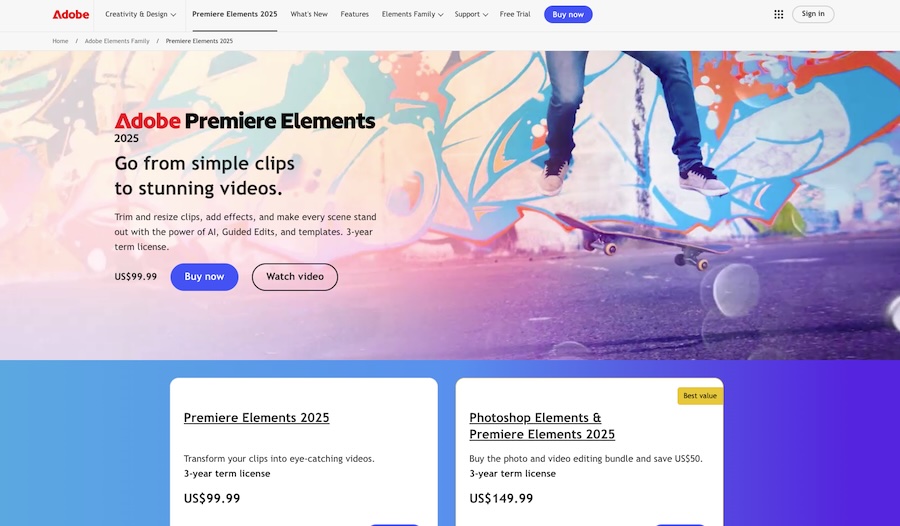
You won’t find pro collaboration or deep grading, but you will get reliable tools, friendly tutorials, and a clean workflow that produces polished results quickly. It’s particularly good for family videos, school projects, and small business promos where speed matters more than technical nuance. If you outgrow it, your Adobe familiarity can ease the jump to Premiere Pro.
Key features Premiere Elements
- Guided Edits & templates
- One-time purchase (non-subscription)
- Auto color/lighting and quick LUTs
- Simple titles, transitions, and effects
- Easy social exports & aspect tools
- Organizer for photos/videos
Pros
- Very approachable; great tutorials
- Predictable cost model
- Reliable performance on modest PCs
Cons
- Limited pro-grade tools
- Fewer advanced formats/options
- Smaller ecosystem than Creative Cloud
For beginners and casual editors, Elements gets out of the way and helps you finish. It won’t handle big-studio workflows, but it’s perfect for family creators and small businesses that want attractive results fast without subscriptions. If your needs grow, Adobe’s ecosystem gives you a clear upgrade path.
Pricing:
- One-time purchase: around $99.99 for the latest version (2025)
- Occasionally bundled with Photoshop Elements for $149–$169
- No subscription required
7. Movavi Video Editor
Movavi Video Editor aims squarely at creators who want simplicity with a bit of flair. On Windows 11 it installs quickly, runs snappily on everyday hardware, and balances essentials (multi-track editing, keyframing, color tweaks) with time-saving AI helpers like auto-captions and silence removal. Movavi’s interface is beginner-friendly, with hover previews for effects and a tidy media panel.
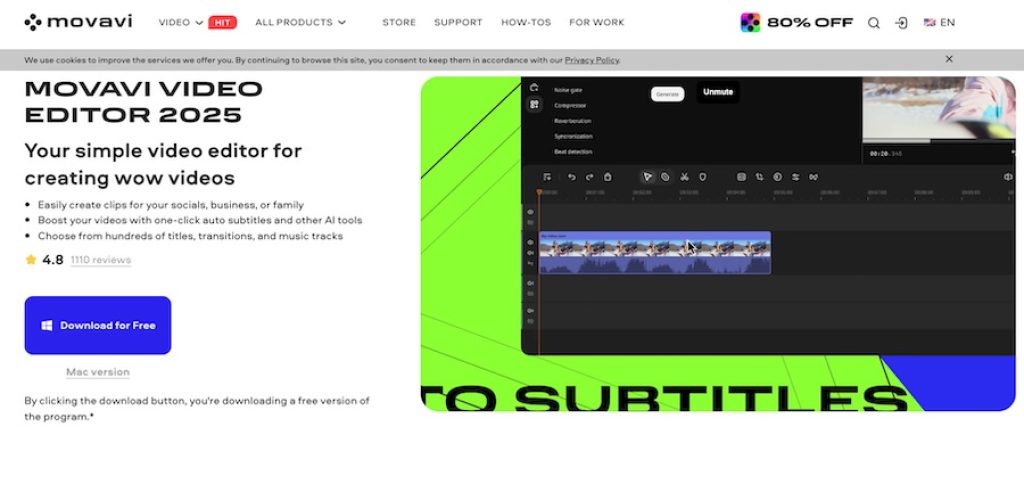
The built-in store of transitions, stickers, overlays, and music is handy for social content, though advanced packs can add cost. It’s a great tool for vlogs, product demos, school projects, and quick promos. You won’t get pro-level grading, VFX, or collaboration—so it’s not a replacement for Resolve/Premiere—but Movavi’s “fast to finished” philosophy makes it ideal for non-technical editors who want clean results without climbing a steep learning curve.
Key Features of Movavi Video Editor
- Drag-and-drop timeline with keyframing
- AI captions, silence removal, background removal
- Hover preview for effects and media
- Template/effects library for quick polish
- Social-ready export presets
- Screen recording (via Suite) and easy audio tools
Pros
- Extremely easy to learn
- Fast, lightweight, Windows-friendly
- Good value for everyday creators
Cons
- Limited advanced color/VFX
- Some effects behind add-ons
- Watermark/trial limitations until purchase
Movavi is ideal for beginners and small teams who need good-looking edits fast. The AI conveniences and simple UI reduce friction, and exports look clean. If you never plan to tackle complex compositing or HDR finishing, Movavi may be all you need for social, marketing, and educational videos.
Pricing:
- Annual subscription: approx $39.95/year
- One-time license: approx $59.95–$79.95 depending on deluxe or plus versions
- Bundles with other Movavi tools (e.g. screen recorder) may cost more
8. CapCut (Desktop for Windows)
CapCut Desktop brings the wildly popular mobile editor to Windows 11 with a clean UI and rapid workflows for short-form content. It’s free to download and excels at social formats—vertical timelines, trendy transitions, captions, and speech-to-text. Templates help you recreate viral styles quickly, while built-in assets (music, stickers) accelerate assembly. It’s especially good for TikTok, Reels, and YouTube Shorts creators who want a fast turnaround without a complex technical setup.
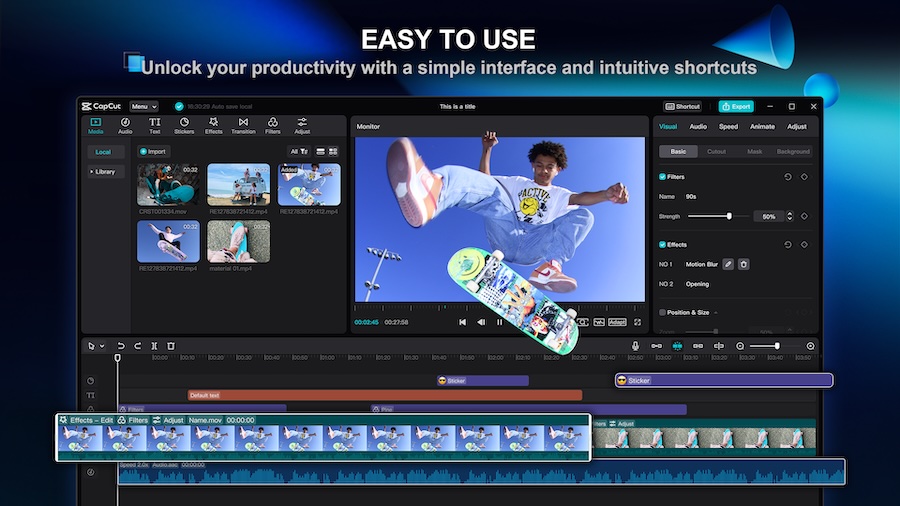
Power users will miss deep color and advanced finishing tools; export controls are simpler than pro suites, and some assets/features may require sign-in. But if your output is primarily social, CapCut’s convenience is tough to beat on Windows. It’s also a handy companion editor even for pros—perfect for cutting alt versions, teasers, or quick social promos derived from bigger projects.
Key Features of CapCut
- Vertical/short-form friendly timelines
- Auto-captions and quick subtitles
- Trend templates and built-in assets
- Speed ramping and basic color tools
- Green screen and motion track basics
- Cross-device workflow with mobile
Pros
- Free to download; fast to learn
- Tailor-made for social content
- Great built-in templates and captions
Cons
- Limited advanced finishing tools
- Some features require sign-in
- Asset licensing varies by use
If your goal is to ship short-form content quickly, CapCut Desktop is a no-brainer. It won’t replace a pro editor for complex films, but it crushes the idea-to-post pipeline. Even pros should consider it as a companion for cut-downs and teasers.
Pricing:
- Free to use, no purchase required
- Some premium templates or assets may require in-app purchases or an account, but core functionality is free
9. VSDC Free Video Editor
VSDC is a surprisingly capable free (watermark-free) Windows editor aimed at budget-minded creators. It runs well on modest PCs, supports a wide range of formats, and offers non-linear editing with masking, motion tracking (Pro), color correction, and a pile of effects. The interface isn’t as polished as mainstream rivals, and some advanced tools live in the inexpensive Pro tier, but the free version handles everyday editing without watermarks—rare and valuable.
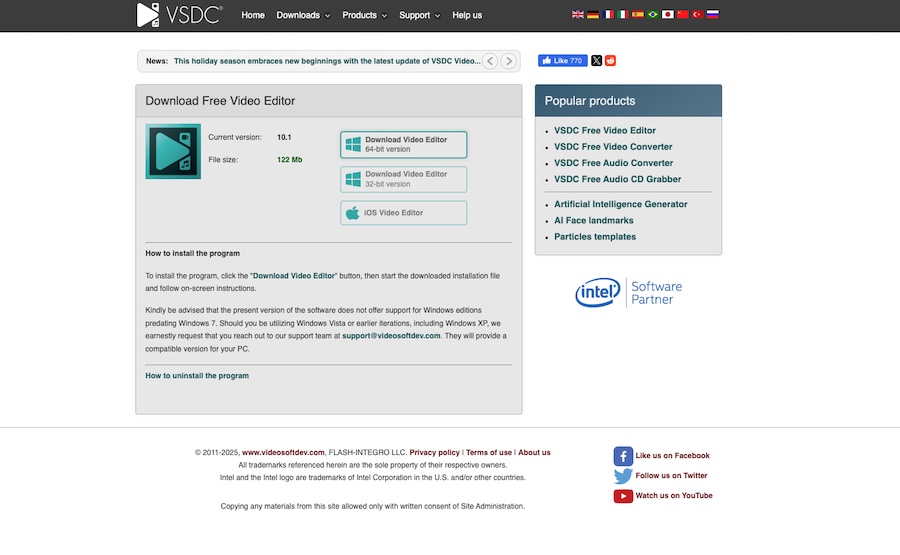
VSDC also bundles a converter, screen recorder, and basic audio tools, making it a solid “toolbox” for Windows. If you’re comfortable with a slightly more utilitarian UI and want to avoid subscriptions, VSDC is a practical choice. It’s great for hobbyists, students, and anyone who needs an offline, lightweight editor that still scales to more complex timelines.
Key features of VSDC
- Free, watermark-free editing on Windows
- Multi-track timelines with effects & masks
- Motion tracking, color tools (Pro upgrades available)
- Screen recording & media converter
- Low system requirements
- Broad format support
Pros
- No watermark in the free version
- Runs on lower-end hardware
- Handy extras (recorder, converter)
Cons
- Interface feels dated
- Some advanced features require Pro
- Fewer templates and assets
On a tight budget or older hardware? Start here. VSDC won’t wow with design, but it’s competent and genuinely free without watermarks—which counts for a lot. If you later need motion tracking or advanced masking, the Pro upgrade is inexpensive and keeps you fully on Windows.
Pricing:
- Free version: completely free with no watermark
- Pro upgrade (adds motion tracking, hardware acceleration): around $19.99–$29.99/year or $59.99 one-time
10. Shotcut
Shotcut is a free, open-source editor with a devoted community and frequent updates. On Windows 11, it provides multi-track timelines, keyframing, filters, color tools, and proxy editing for handling heavier footage. Because it’s built on FFmpeg, it supports a wide range of formats without heavy transcoding. The interface is modular—you can pop out scopes, filters, and panels you need—so it scales from simple cutting to technical grading.
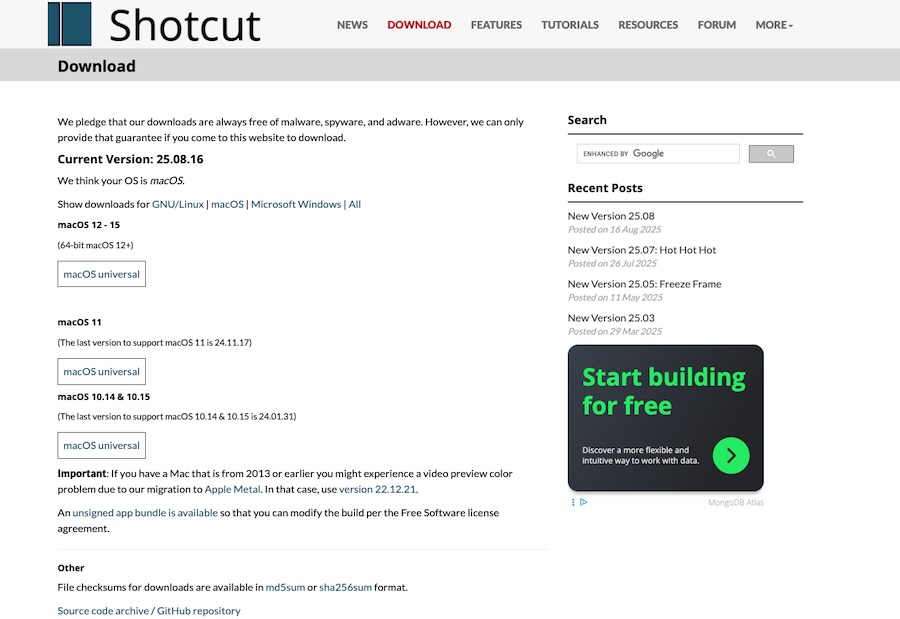
Open source means no subscriptions, and improvements arrive steadily. The trade-off: fewer glossy templates and a UX that’s more engineer than entertainer. Still, for creators who value control, transparency, and long-term access without licensing worries, Shotcut is a powerful option—especially on budget builds or as a teaching tool where students can install it freely at home.
Key features of Shotcut
- Free, open source, no watermark
- Wide format support via FFmpeg
- Keyframing, filters, scopes, and LUTs
- Proxy editing for 4K workflows
- GPU acceleration on supported hardware
- Active community, frequent updates
Pros
- Completely free with no limitations
- Strong format support and stability
- Educational/community-friendly
Cons
- Fewer built-in templates/effects
- UI can feel utilitarian
- Smaller one-click asset ecosystem
If you prefer open tools and want a no-cost editor that still handles serious work, Shotcut is excellent. It’s not as “guided” as consumer editors, but once you learn the panels and filters, it’s fast and capable. An especially good fit for classrooms and budget-conscious creators.
Pricing:
- Entirely free, open-source, no watermark, completely unrestricted — no paid version
How to choose the right editor
- Absolute beginner, no budget: Shotcut or VSDC (both free, no watermark).
- Beginner who wants polished templates fast: Filmora or PowerDirector.
- Short-form/social first: CapCut Desktop (free) or PowerDirector (fast templates).
- Pro workflows and color/audio finishing: DaVinci Resolve (free/Studio) or Premiere Pro.
- Editor-first, fast timelines, Windows veterans: VEGAS Pro.
- Casual editors who dislike subscriptions: Adobe Premiere Elements or VSDC Pro/Movavi.
Conclusion
Choosing the best video editing software for Windows 11 depends largely on your goals, skill level, and budget. If you’re a beginner who just wants to edit family videos or create quick social media content, options like Filmora, PowerDirector, or even free tools like CapCut and VSDC offer everything you need without overwhelming complexity. For those seeking professional results, Adobe Premiere Pro, DaVinci Resolve Studio, or VEGAS Pro provide industry-grade features, advanced workflows, and scalability for large projects.
Meanwhile, tools like Premiere Elements and Movavi strike a balance between simplicity and creative control. The good news is that Windows 11 supports them all, leveraging modern hardware to deliver smooth editing experiences. Ultimately, whether you prioritize cost, ease of use, or advanced features, there’s a perfect solution for everyone on this list. Start with a free trial or free version, explore its workflow, and grow into the software that fits you best.
![10 Best Video Editing Software For Windows 11 [Free & Paid]](https://www.geeksdigit.com/wp-content/uploads/2025/07/clean-registry-windows-11.jpg)
![10 Best Video Editing Software For Windows 11 [Free & Paid]](https://www.geeksdigit.com/wp-content/uploads/2025/11/Photo-Organizers-Windows-11.jpg)