Random Access Memory (RAM) is one of the most essential components of your computer. It temporarily stores data that your system needs to access quickly, such as files for active programs, web browsers, or even background services. While your storage drive (SSD or HDD) holds permanent data, RAM is what helps your computer multitask and run smoothly in real-time.
If your computer doesn’t have enough RAM, you will notice frequent slowdowns, crashes, and performance bottlenecks. This happens because your system constantly struggles to juggle tasks, offloading data to slower storage drives when RAM runs out. While modern applications, games, and operating systems like Windows 11 require more memory than ever before, many users still underestimate how much RAM they actually need.
Understanding RAM and Its Role

RAM functions as a temporary workspace for your computer’s active processes. Unlike your hard drive or solid-state drive, which stores data permanently, RAM holds information only while your computer remains powered on. When you open an application, your system loads the necessary files from storage into RAM, allowing the processor to access them rapidly.
Modern operating systems and applications demand increasingly larger amounts of RAM. What sufficed five years ago may barely meet today’s requirements. Windows 11, macOS, and modern Linux distributions all consume significant memory just for basic operations. Add web browsers with multiple tabs, productivity software, and background applications, and memory demands multiply quickly.
Determining Your Current RAM Configuration
Before deciding whether you need more RAM, determine your current configuration. On Windows, right-click “This PC” or “My Computer” and select Properties. The installed RAM amount appears under System specifications.
Mac users can click the Apple menu, select “About This Mac,” and view memory information on the Overview tab. The Memory section shows installed RAM and type.
Understanding not just the amount but also the type and speed of your RAM helps when considering upgrades. DDR3, DDR4, and DDR5 represent different generations with varying performance characteristics. Your motherboard supports only specific RAM types, so this information proves crucial for upgrades.
This article will cover 10 clear signs that your computer doesn’t have enough RAM. By recognizing these indicators, you’ll know when it’s time to upgrade your memory and enjoy a smoother, faster, and more reliable computing experience.
1. Frequent System Slowdowns and Lag
One of the most common indicators of insufficient RAM manifests as general system sluggishness. You might notice your computer taking longer to respond to commands, experiencing delays when switching between applications, or displaying a spinning cursor frequently.
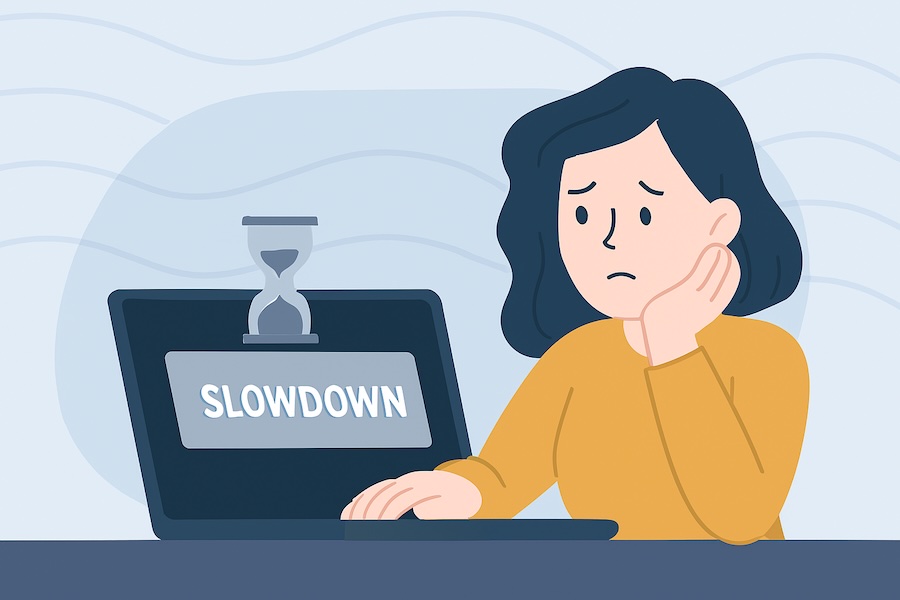

These slowdowns occur because when RAM fills up, your operating system resorts to using virtual memory. Virtual memory involves writing data to your hard drive or SSD, which operates much slower than RAM. Even with fast solid-state drives, this swap process creates noticeable lag. Your system essentially juggles data between RAM and storage, causing delays in everyday tasks.
The lag becomes particularly evident when multitasking. Opening a new application while others run in the background might cause everything to freeze momentarily. Simple actions like scrolling through documents or clicking menu options may exhibit hesitation before executing.
2. Applications Take Forever to Launch
When you double-click an application icon and wait an unusually long time for it to open, insufficient RAM often bears responsibility. Applications require memory to load their components and initialize properly. With limited RAM available, your system struggles to allocate the necessary resources.

Large applications like photo editors, video editing software, or development environments prove especially problematic. Programs such as Adobe Photoshop, Premiere Pro, or Visual Studio require substantial memory to function properly. Without adequate RAM, these applications may take minutes to launch instead of seconds.
Even lightweight applications can suffer launch delays when RAM runs low. Your email client, word processor, or media player might stutter and hang during startup, creating frustration with routine tasks.
3. Web Browser Performance Degrades Significantly
Modern web browsers rank among the most memory-hungry applications on your computer. Each browser tab runs as a separate process, consuming its own portion of RAM. Websites have become increasingly complex, incorporating videos, animations, scripts, and interactive elements that demand memory.
Chrome, Edge, and Firefox typically use hundreds of megabytes per tab. With insufficient RAM, browsing the web becomes painful. Pages load slowly, scrolling becomes choppy, and switching between tabs introduces delays. You might notice tabs reloading when you return to them, indicating your browser cleared them from memory due to space constraints.
Video streaming presents particular challenges. Buffering issues, playback stuttering, and quality degradation often result from memory limitations rather than internet speed problems. Your browser struggles to cache video data properly when RAM runs short.
4. Constant Hard Drive or SSD Activity
Pay attention to your storage drive activity indicator or listen for hard drive sounds. Excessive disk activity while performing simple tasks suggests your system relies heavily on virtual memory. The drive light might remain constantly illuminated, or you might hear continuous clicking and whirring from a mechanical hard drive.
This constant storage activity indicates your operating system continuously swaps data between RAM and disk. The page file or swap partition works overtime, trying to compensate for insufficient physical memory. This not only slows your system but also increases wear on your storage drive, particularly on traditional hard drives with mechanical components.
Solid-state drives handle virtual memory better than hard drives, but they still operate significantly slower than RAM. The constant read-write cycles can also contribute to SSD wear over time, though modern SSDs handle this reasonably well.
5. System Freezes and Crashes
Severe RAM shortages can cause complete system freezes. Your computer becomes unresponsive, the cursor won’t move, and you cannot interact with any applications. These freezes occur when the operating system exhausts all available memory and struggles to allocate resources to critical processes.
In extreme cases, insufficient RAM leads to crashes and blue screens on Windows or kernel panics on Mac and Linux systems. While crashes have multiple potential causes, memory-related issues rank among the most common. Your system might display error messages mentioning memory management, paging files, or virtual memory.
Applications themselves may crash individually when they cannot secure enough memory to operate. You might see error messages stating the program ran out of memory or cannot allocate resources. Unsaved work disappears, and you must restart the application.
6. Background Programs Cause Severe Performance Impact
Operating systems run numerous background processes and services continuously. Updates, antivirus scans, cloud synchronization, and system maintenance tasks all consume memory. With adequate RAM, these processes run invisibly without affecting performance.
When memory runs low, background activities severely impact usability. Windows Update downloading and installing patches might render your computer nearly unusable. Antivirus scans can bring your system to a crawl. Cloud storage services syncing files create noticeable slowdowns.
You might find yourself closing applications just to perform basic tasks, which defeats the purpose of multitasking. The inability to run multiple programs simultaneously without performance degradation clearly indicates insufficient memory.
7. Task Manager or Activity Monitor Shows High Memory Usage
Checking your system’s memory usage provides concrete evidence of RAM shortages. On Windows, open Task Manager by pressing Ctrl+Shift+Esc and navigate to the Performance tab. The Memory section displays current usage as both a percentage and absolute amount.
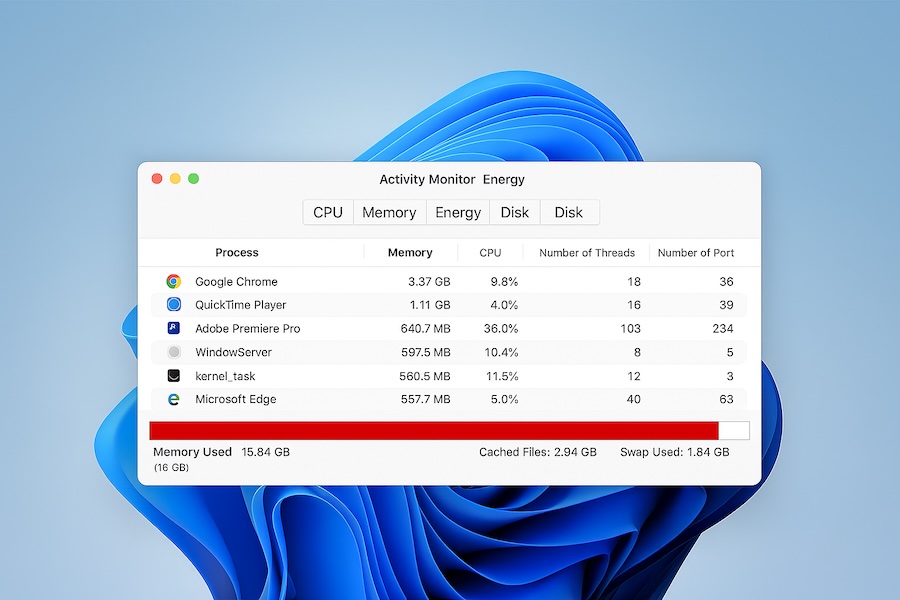
Consistently seeing memory usage above 80-90% indicates your system operates near capacity. When usage approaches 100%, performance problems become inevitable. The Committed memory value showing significantly higher than physical memory means heavy virtual memory use.
Mac users can open Activity Monitor from Applications > Utilities. The Memory tab shows memory pressure, displayed as a color-coded graph. Yellow or red pressure indicates insufficient RAM. The Memory Used figure compared to Physical Memory reveals how much RAM your system actively uses.
Linux users can check memory with the free command in terminal or use graphical system monitors. High buffer and swap usage relative to available memory signals RAM limitations.
8. Inability to Run Modern Software
Software developers design applications expecting certain minimum hardware specifications. New programs and updates often increase memory requirements. If you find yourself unable to install or run current software versions, insufficient RAM may be the culprit.
Video conferencing applications like Zoom, Microsoft Teams, or Google Meet demand substantial memory, especially during video calls with screen sharing. Running these applications alongside other programs might prove impossible with limited RAM.
Modern games have particularly high memory requirements. Minimum specifications for recent titles often list 8GB RAM as a baseline, with 16GB recommended. Attempting to play current games on a system with 4GB or less RAM results in poor performance, frequent crashes, or inability to launch.
Professional creative software continues pushing memory boundaries. 4K video editing, 3D modeling, large-scale photo editing, and music production with numerous tracks all require significant RAM. These workflows become impractical or impossible without adequate memory.
9. Windows Shows Low Memory Warnings
Windows occasionally displays notifications warning about low memory conditions. These messages might say “Your computer is low on memory” or “To free up memory, close programs.” These explicit warnings confirm your system has exhausted available RAM.
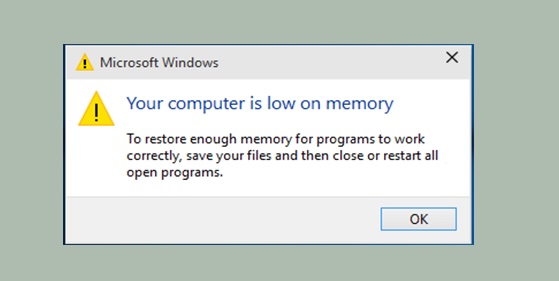
Windows attempts to compensate by closing background applications automatically or suggesting you close programs yourself. However, these measures provide only temporary relief. Once you resume normal computer use, memory fills up again quickly.
Some older Windows versions created virtual memory warnings suggesting you increase your page file size. While increasing virtual memory can help temporarily, it doesn’t solve the fundamental problem of insufficient physical RAM.
10. Virtual Machines or Containers Run Poorly
Running virtual machines through VMware, VirtualBox, or Hyper-V requires substantial memory. Each virtual machine needs its own RAM allocation separate from your host operating system. A Windows 10 virtual machine might require 4GB RAM minimum, plus whatever your host system needs.
With insufficient total RAM, virtual machines run extremely slowly or fail to start altogether. You might see error messages about inability to allocate memory or insufficient resources. Docker containers and other containerization technologies face similar limitations.
Development environments that rely on virtualization become unusable. Testing software across multiple operating systems, running database servers locally, or creating development environments all demand generous memory allocations.
How Much RAM Do You Actually Need?
The right amount of RAM depends entirely on how you use your computer. More RAM doesn’t always mean better performance if your tasks are light, but too little RAM can cripple even a powerful PC. Here’s a breakdown:
4GB RAM – Very Basic Use (Not Recommended in 2025)
- Suitable for: Only very light tasks like checking emails, browsing with 1–3 tabs, and running old software.
- Limitations: Windows 11 itself often consumes 3–4GB just to run. This leaves almost no room for apps. You’ll see constant freezing, slowdowns, and “low memory” warnings.
- Verdict: Only acceptable on old or budget laptops running lightweight Linux. Not good for modern Windows.
8GB RAM – Minimum for Everyday Use
- Suitable for: Light multitasking, streaming, casual office work, and some gaming.
- Example usage: Word + Excel + 10 browser tabs + Spotify = manageable.
- Limitations: Struggles with heavy gaming, video editing, and multiple apps running simultaneously.
- Verdict: Good starting point, but might feel restrictive within a year or two.
16GB RAM – The Sweet Spot for Most Users
- Suitable for: Multitasking, moderate gaming, content creation, and productivity.
- Example usage: Dozens of browser tabs + Zoom calls + Photoshop + light video editing = smooth performance.
- Benefits: Handles modern Windows 11 requirements comfortably, reduces stuttering in games, and allows better performance with background apps.
- Verdict: Best balance of price and performance for students, professionals, and gamers.
32GB RAM – Power Users and Professionals
- Suitable for: Heavy multitasking, virtual machines, large video editing projects, and professional creative work.
- Example usage: Running Adobe Premiere Pro, After Effects, Photoshop, and multiple Chrome tabs at the same time.
- Benefits: Provides headroom for resource-hungry apps and prevents slowdowns.
- Verdict: Recommended if you’re a professional content creator, developer, or hardcore gamer who streams.
64GB+ RAM – Specialized Needs
- Suitable for: 3D modeling, CAD, scientific computing, server hosting, and high-end workstations.
- Example usage: Engineers, researchers, and professionals running multiple virtual machines or massive data sets.
- Benefits: Ensures absolutely no bottlenecks for advanced workloads.
- Verdict: Overkill for the average user, but necessary in professional and enterprise setups.
Quick Recommendation:
- Everyday casual users → 8GB minimum, 16GB preferred
- Gamers & multitaskers → 16GB is the sweet spot
- Creators, developers, engineers → 32GB or more
Steps to Take When RAM Is Insufficient
If your computer constantly shows signs of running low on RAM, you don’t always have to rush out and buy new memory immediately. There are several adjustments you can make to ease the load on your system. Let’s go step by step:
1. Check Current RAM Usage
Before taking action, confirm if RAM is indeed the bottleneck.
- Press Ctrl + Shift + Esc to open Task Manager.
- Go to the Performance > Memory tab.
- If usage is consistently near 80–100%, you’re short on RAM.
2. Close Unnecessary Background Apps
Many apps run silently in the background and consume RAM.
- Right-click the Taskbar > Task Manager > Startup tab.
- Disable apps that don’t need to launch at boot.
- Close unused apps like Discord, OneDrive, or Spotify when gaming or editing.
3. Use Lighter Alternatives for Apps
Heavy software consumes more RAM than necessary.
- Use Microsoft Edge instead of Chrome if you open dozens of tabs.
- Try LibreOffice instead of Microsoft Office for lighter performance.
- Use VLC Player instead of bulky media players.
4. Limit Browser Tabs & Extensions
Web browsers are memory hogs.
- Keep fewer tabs open at once.
- Use tab management extensions like OneTab to suspend unused tabs.
- Disable unnecessary extensions and plugins.
5. Increase Virtual Memory (Page File)
Windows uses storage as “virtual RAM” when memory runs out.
- Go to Control Panel > System > Advanced System Settings.
- Under Performance > Settings > Advanced, click Virtual Memory.
- Set the paging file size to about 1.5 to 2 times your RAM.
Note: This is a temporary fix, since storage (even SSDs) is much slower than RAM.
6. Scan for Malware or Memory Leaks
Malware and poorly coded apps can eat up RAM.
- Run a Windows Security Scan or use a tool like Malwarebytes.
- Check in Task Manager for apps with unusually high RAM usage.
- Update or uninstall misbehaving programs.
7. Restart Your Computer Regularly
Restarting clears RAM and memory leaks. If you keep your PC running for days without rebooting, apps may hog memory even when they’re not active.
8. Disable Visual Effects in Windows
Fancy animations consume RAM and CPU power.
- Go to Control Panel > System > Advanced System Settings.
- Under Performance Settings, select Adjust for best performance.
- This disables animations and saves memory.
9. Upgrade RAM (Best Long-Term Solution)
Ultimately, if your tasks are heavy and you’ve tried the above steps, upgrading is the most effective solution.
- Check your motherboard manual to see maximum RAM capacity.
- Buy RAM with matching speed and type (e.g., DDR4, DDR5).
- Install it carefully or get help from a technician.
10. Consider Alternative Hardware Upgrades
If adding RAM isn’t an option:
- Upgrade to an SSD (faster than HDD, improves paging performance).
- Switch to a lightweight Linux distribution on older hardware.
- Use cloud-based apps (like Google Docs) instead of heavy local software.
Conclusion
Recognizing the signs of insufficient RAM empowers you to take corrective action before frustration peaks. Slowdowns, crashes, excessive disk activity, and inability to multitask all point toward memory shortages. Modern computing demands continue increasing, making adequate RAM essential for smooth operation.
Whether you choose to upgrade your RAM, optimize your current system, or adjust your usage patterns, understanding these warning signs helps you maintain a functional computing experience. Memory remains one of the most impactful upgrades you can perform, often providing dramatic performance improvements for relatively modest cost.