Dark Mode has become a popular feature across various platforms, offering a more visually comfortable experience—especially in low-light environments. Windows 11, Microsoft’s sleek and modern operating system, embraces Dark Mode fully by allowing users to switch between Light and Dark themes or even create a custom blend of both. Whether you’re looking to reduce eye strain, save battery on OLED displays, or simply prefer a darker aesthetic, enabling Dark Mode on Windows 11 can enhance your user experience.
On the flip side, some users prefer the brighter look of the Light theme, particularly during daytime usage or for professional work environments. Thankfully, switching between Dark and Light modes is quick and easy in Windows 11. In this guide, we’ll walk you through several ways to enable or disable Dark Mode in Windows 11, discuss its benefits and drawbacks, and provide helpful customization tips for tailoring your appearance settings to your liking.
What Is Dark Mode in Windows 11?

Dark Mode changes the overall color scheme of Windows 11 from bright, white backgrounds to dark, muted shades. This theme affects system elements like the Taskbar, Start menu, File Explorer, Settings, and apps that support dark color modes.
It’s especially useful in low-light environments, helping to minimize glare and reduce eye fatigue. Besides, it adds a modern touch that many users find visually appealing.
You can switch between:
- Light Mode – Uses bright backgrounds and dark text.
- Dark Mode – Uses dark backgrounds and light text.
- Custom Mode – Lets you apply dark mode to system elements while keeping apps in light mode, or vice versa.
Understanding Dark Mode in Windows 11
Before moving further, it’s important to understand what dark mode actually does. When you enable dark mode in Windows 11, the operating system switches the color scheme of system elements, including the taskbar, Start menu, Settings app, File Explorer, and many built-in applications. The dark theme replaces bright whites and light grays with deep blacks and dark grays, creating a more comfortable viewing experience in low-light environments.
Windows 11 offers more flexibility than previous versions, allowing you to apply dark mode system-wide or customize individual elements. You can choose to have your Windows interface in dark mode while keeping apps in light mode, or vice versa. This granular control ensures you can tailor your experience exactly how you want it.
Benefits of Using Dark Mode in Windows 11
Before diving into the steps, it’s worth understanding why Dark Mode is so popular:
- Reduces Eye Strain – Helps your eyes relax, especially in dimly lit environments.
- Improves Readability at Night – Text appears softer on dark backgrounds, ideal for late-night work.
- Looks Modern and Elegant – Provides a sleek and contemporary user interface.
- Saves Battery Power – OLED screens consume less power displaying dark pixels.
What Is Dark Mode?
Dark Mode changes the appearance of the Windows interface by applying darker colors to system elements such as the Start menu, taskbar, settings panels, and apps that support the feature. Instead of a bright white background with black text (Light Mode), Dark Mode uses black or dark gray backgrounds with light-colored text, reducing overall screen brightness.

This not only provides a modern aesthetic but also helps users who work at night or in dimly lit environments avoid eye strain.
Enable Dark Mode in Windows 11 (Easiest Methiod)
You can enable Dark Mode in just a few clicks through the Personalization settings.
Step 1: Open the Settings App
- Press
Windows + Ion your keyboard.
This shortcut opens the Settings app instantly. - Alternatively, click the Start menu and select the gear icon (Settings).

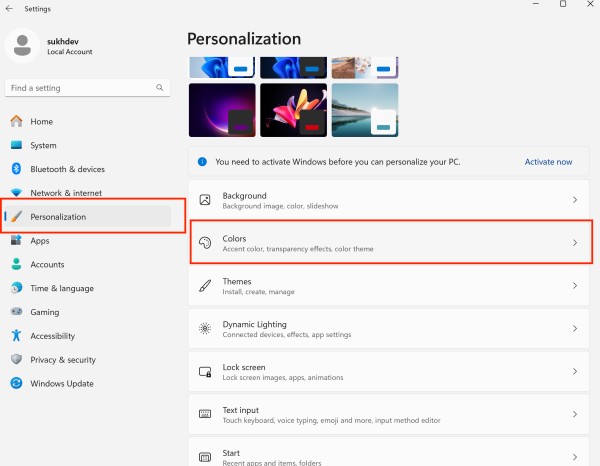
Step 2: Go to Personalization
- In the Settings window, look at the left-hand side panel.
- Click on Personalization (paintbrush icon).
Step 3: Select “Colors”
- Under the Personalization menu on the right, click on Colors.
This section controls your system’s appearance settings like themes and color modes.
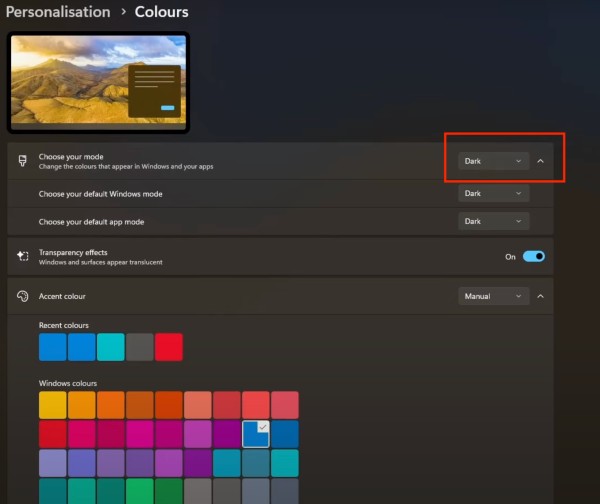
Step 4: Choose Your Mode
- Find the setting labeled “Choose your mode.”
- Click the drop-down menu under it. You’ll see three options:
- Light
- Dark
- Custom
Step 5: Enable Dark Mode
- From the dropdown, select Dark.
The system will immediately switch to Dark Mode: - File Explorer, Settings, Start Menu, Taskbar, and compatible apps will appear dark.
- Text will turn light to contrast the dark background.
Step 6 (Optional): Use Custom Mode
- If you select Custom, two new options appear:
- Choose your default Windows mode
- Choose your default app mode
You can mix and match:
- Set Windows mode to Light and app mode to Dark — this keeps the taskbar and Start menu bright but apps dark.
- Or vice versa, depending on your preference.
How to Disable Dark Mode in Windows 11
If you’ve enabled Dark Mode and want to return to the default Light appearance, follow these steps:
Step 1: Open the Settings App
- Press
Windows + Ion your keyboard.
This opens the Settings app directly. - Or click the Start Menu and select the gear icon labeled Settings.
Step 2: Go to Personalization
- On the left sidebar, click on “Personalization.”
(It has a paintbrush icon.)
Step 3: Click on “Colors”
- Under the Personalization section on the right, select Colors.
This is where you can manage color themes and modes.
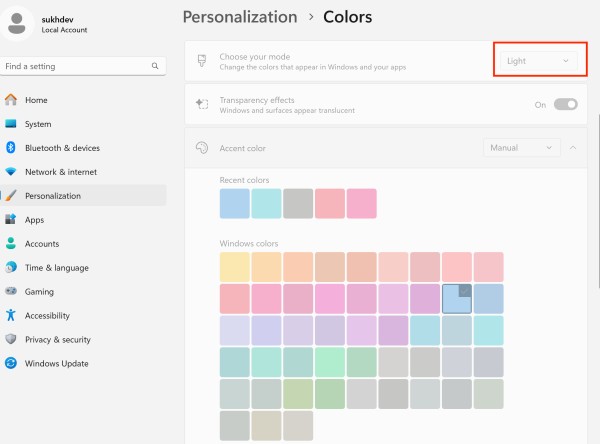
Step 4: Choose Your Mode
- Find the dropdown menu labeled Choose your mode.
- Click it and select Light.
Step 5: Dark Mode Is Now Disabled
As soon as you select Light:
- Your background, Settings, File Explorer, Start menu, and taskbar will switch back to the Light theme.
- Text will now be dark on a white background—just like the default Windows 11 look.
You’ve now successfully disabled Dark Mode and restored the default Light appearance in Windows 11.
✅ Benefits of Using Dark Mode
Here are the benefits of using Dark Mode:
- Reduced Eye Strain – Easier on the eyes in low-light or nighttime environments.
- Improved Battery Life – Saves power on OLED and AMOLED screens by turning off black pixels.
- Better Sleep Quality – Minimizes blue light exposure, helping maintain natural sleep patterns.
- Modern Aesthetic – Offers a sleek, professional, and visually appealing interface.
- Enhanced Focus – Dark backgrounds reduce distractions and improve content readability.
- Less Glare – Reduces glare from bright backgrounds, especially in dark rooms.
- Customization Flexibility – Allows mixing dark and light themes for apps and system UI.
❌ Drawbacks of Dark Mode
- Harder to Read in Bright Light – Can reduce visibility in well-lit conditions or daylight.
- Inconsistent App Support – Not all apps or websites fully support dark themes.
- Color Distortion – Some colors may not appear accurate or vibrant.
- Lower Readability for Long Texts – Reading long documents or web pages can be harder for some users.
- Initial Adjustment Period – May take time for new users to get used to it.
Frequently Asked Questions (FAQs)
Does Dark Mode save battery on laptops?
Yes, especially on laptops with OLED/AMOLED displays, where black pixels are turned off completely.
Can I schedule Dark Mode on Windows 11 natively?
No, but you can use third-party apps like Auto Dark Mode to enable scheduling.
Will enabling Dark Mode affect all apps?
Not always. Some apps have their own theme settings and must be adjusted separately.
Conclusion
Dark Mode in Windows 11 is more than just a visual preference—it’s a thoughtful accessibility feature that benefits comfort, health, and even battery life. Whether you prefer a darker look for nighttime use or a lighter theme during the day, Windows 11 offers flexible customization through its intuitive Settings app and more advanced tools like the Registry Editor. From partial Dark Modes to scheduled automatic switching, the OS ensures every user can tailor their visual environment to match their workflow and lifestyle.
Still, Dark Mode isn’t without limitations. Some users may find it harder to read under certain lighting conditions, and support across third-party apps is not always consistent. However, with a little tweaking, Dark Mode can offer a more pleasant and efficient Windows experience. Whether you’re a fan of dark aesthetics or just need a break from eye strain, enabling or disabling Dark Mode in Windows 11 is just a few clicks away.