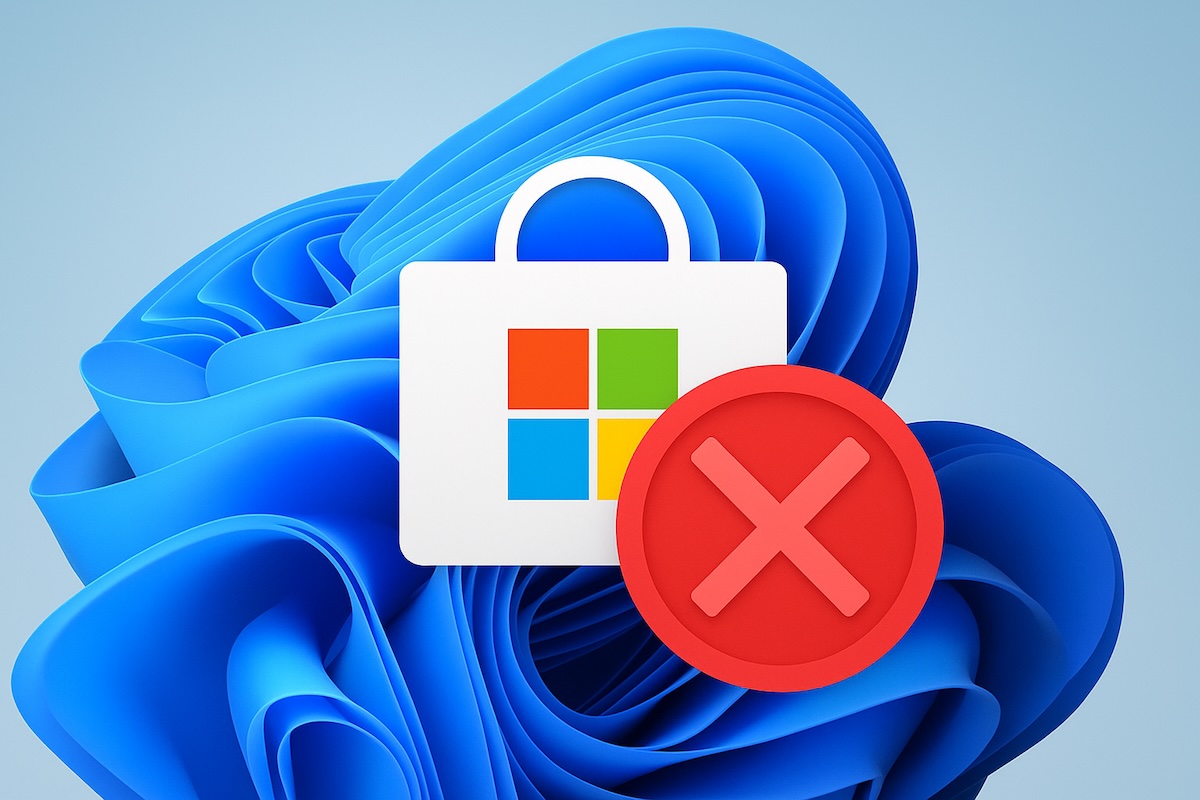
The Microsoft Store stands as Windows 11’s central hub for applications, games, and system updates, making it an indispensable part of your computing experience. When this crucial component fails to launch, it can leave you unable to download new software, update existing applications, or access essential Windows features. Microsoft Store issues affect millions of users worldwide, ranging from simple cache corruption to complex system file problems.
This frustrating situation often occurs without warning, leaving users clicking repeatedly on an unresponsive icon or watching the app crash immediately after opening. Whether you’re experiencing a completely non-functional store, endless loading screens, or error messages, the inability to access Microsoft Store can significantly hamper your productivity and entertainment.

Fortunately, Microsoft Store problems are highly solvable with the right approach. This comprehensive guide presents ten proven troubleshooting methods, arranged from simple quick fixes to advanced system repairs, ensuring you can restore full functionality regardless of the underlying cause.
Understanding the Problem
Microsoft Store failures present themselves through various symptoms that can help identify the underlying cause. The most common manifestation is complete non-responsiveness, where clicking the store icon produces no visible result. Other users experience brief loading attempts followed by immediate crashes, blank white or black screens that persist indefinitely, or specific error codes like 0x80073CFB or 0x80070005.
These issues typically stem from several root causes. Corrupted cache files represent the most frequent culprit, accumulating over time and eventually preventing proper store initialization. Outdated system components can create compatibility conflicts, while network connectivity problems may block essential server communications during startup. Windows service failures, particularly those handling app installations and updates, can completely disable store functionality.
User account corruption, damaged system files, or interference from security software can also trigger store problems. Additionally, incorrect system time settings may prevent secure connections to Microsoft servers, while insufficient disk space can halt critical operations. Understanding these potential causes helps determine which troubleshooting approach will be most effective for your specific situation.
Method 1: Reset Microsoft Store Cache
The most common cause of Microsoft Store issues is corrupted cache data. Windows includes a built-in utility specifically designed to clear this cache and restore normal functionality.
- Press Windows key + R to open the Run dialog box
- Type wsreset.exe in the text field
- Press Enter or click OK
- Wait for the Command Prompt window to appear and close automatically
- The Microsoft Store should open automatically after the process completes
- If prompted, sign in with your Microsoft account
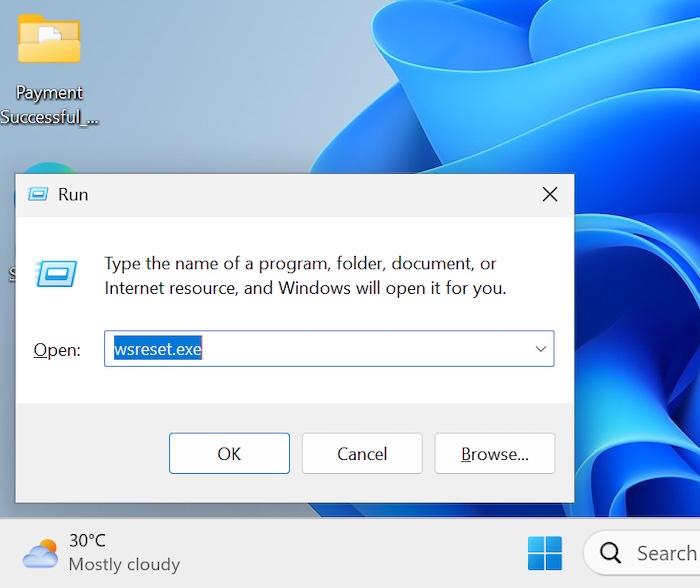
The wsreset command specifically targets Microsoft Store cache files without affecting other system components. This process typically takes 30-60 seconds to complete and should be your first troubleshooting attempt.
Method 2: Run Windows Store Apps Troubleshooter
Windows 11 includes built-in troubleshooters that can automatically detect and resolve common application issues without manual intervention.
- Press Windows key + I to open Settings
- Click System from the left sidebar menu
- Select Troubleshoot from the options
- Click Other troubleshooters
- Locate Windows Store Apps in the list
- Click the Run button next to it
- Follow any on-screen instructions that appear
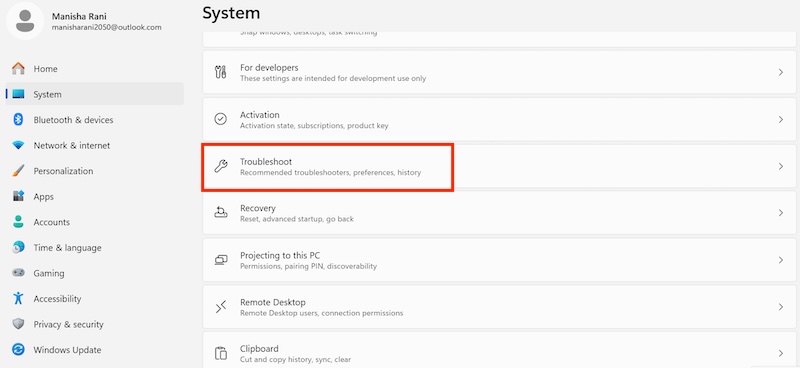

The Windows Store Apps troubleshooter can detect issues ranging from corrupted files to incorrect permissions, making it an excellent second-line defense when cache clearing fails.
Method 3: Check Date and Time Settings
An incorrect system date and time can prevent the Microsoft Store from connecting to Microsoft servers, causing authentication failures and startup problems.
- Right-click on the time display in the taskbar
- Select Adjust date and time from the context menu
- Ensure Set time automatically toggle is ON
- Ensure Set time zone automatically toggle is ON
- If already enabled, toggle both settings OFF, then ON again
- Click Sync now under Additional settings
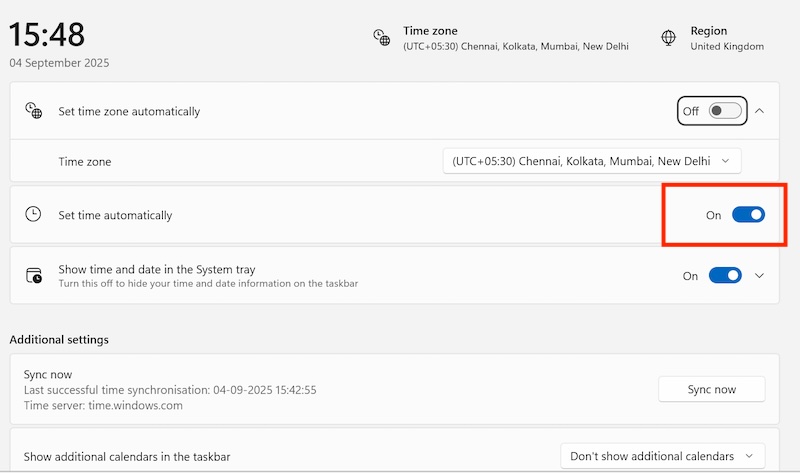
Time synchronization issues are often overlooked but can cause significant problems with cloud-connected applications like the Microsoft Store.
Method 4: Reset Microsoft Store Application
If cache clearing doesn’t resolve the issue, completely resetting the Microsoft Store application can restore it to factory defaults.
- Press Windows key + I to open Settings
- Click Apps from the left sidebar
- Select Apps & features
- Type Microsoft Store in the search box
- Click on Microsoft Store in the search results
- Click Advanced options
- Scroll down to the Reset section
- Click the Reset button
Resetting the application is more thorough than cache clearing and often resolves persistent issues that survive simple troubleshooting methods.
Method 5: Re-register Microsoft Store Using PowerShell
PowerShell commands can re-register the Microsoft Store application with the Windows system, often resolving deep-seated installation issues.
- Right-click the Start button
- Select Windows Terminal (Admin) or PowerShell (Admin)
- Click Yes in the User Account Control prompt
- Type the following command and press Enter:
Get-AppxPackage *windowsstore* | Remove-AppxPackage - Wait for the command to complete
- Type the second command and press Enter:
Get-AppxPackage -allusers Microsoft.WindowsStore | Foreach {Add-AppxPackage -DisableDevelopmentMode -Register "$($_.InstallLocation)\AppXManifest.xml"} - Wait for the registration process to finish
PowerShell commands provide access to Windows’ underlying app management system, making this method particularly effective for severe Microsoft Store problems.
Method 6: Check Windows Update
Outdated system components can cause compatibility issues with the Microsoft Store, making regular updates essential for proper functionality.
- Press Windows key + I to open Settings
- Click Windows Update from the left sidebar
- Click Check for updates
- Allow Windows to search for available updates
- Click Download & install for any found updates
- Check Advanced options > Optional updates
- Install any Microsoft Store-related updates
- Restart your computer when prompted
Keeping Windows updated is crucial for Microsoft Store stability, as the store integrates deeply with many system components that receive regular updates.
Method 7: Reset Network Components
Network connectivity issues can prevent the Microsoft Store from launching properly, especially if it cannot establish connections to Microsoft’s servers during startup.
- Press Windows key + R to open the Run dialog
- Type cmd and press Ctrl + Shift + Enter (opens as administrator)
- Click Yes in the User Account Control prompt
- Type the following commands one by one, pressing Enter after each:
netsh winsock reset netsh int ip reset ipconfig /release ipconfig /renew ipconfig /flushdns - Wait for each command to complete before entering the next
- Close Command Prompt
- Restart your computer
- Test internet connectivity
- Open Microsoft Store
Method 8: Check Microsoft Store Services
Several Windows services must be running for the Microsoft Store to function properly. Verifying these services are active and properly configured can resolve startup issues.
- Press Windows key + R to open the Run dialog
- Type services.msc and press Enter
- In the Services window, locate these services:
- Windows Update
- Background Intelligent Transfer Service
- Cryptographic Services
- Microsoft Store Install Service
- For each service, right-click and select Properties
- Set Startup type to Automatic
- If the service status shows Stopped, click Start
- Click Apply then OK
- Repeat for all four services
Windows services provide the foundation for Microsoft Store operations, and ensuring they run properly is essential for consistent functionality.
Method 9: Create New User Account
If all previous methods fail, the issue might be related to user profile corruption. Creating a new user account can help determine if this is the case.
- Press Windows key + I to open Settings
- Click Accounts from the left sidebar
- Select Family & other users
- Click Add someone else to this PC
- Click I don’t have this person’s sign-in information
- Click Add a user without a Microsoft account
- Enter a username and password for the new account
- Click Next to create the account
- Click on the new account name
- Click Change account type
- Select Administrator and click OK
- Sign out of your current account
- Sign into the new account
- Test Microsoft Store functionality
Creating a test user account is an excellent diagnostic method that can quickly identify whether Microsoft Store problems are related to your specific user profile.
Method 10: System File Checker and DISM
Corrupted system files can interfere with Microsoft Store functionality. Windows includes powerful tools to scan for and repair these files automatically.
- Press Windows key + R to open Run dialog
- Type cmd and press Ctrl + Shift + Enter
- Click Yes in the User Account Control prompt
- Type the following command and press Enter:
sfc /scannow - Wait for the scan to complete (this may take 30-60 minutes)
- After SFC completes, type this command and press Enter:
DISM /Online /Cleanup-Image /RestoreHealth - Wait for DISM to complete (this may take 30-60 minutes)
- Review any messages about found and repaired issues
System File Checker and DISM represent the most thorough approach to repairing Windows corruption that might affect Microsoft Store operation.
Prevention and Maintenance
To prevent future Microsoft Store issues, consider implementing these maintenance practices:
Regular Maintenance Tasks:
- Weekly updates: Check for Windows updates regularly
- Monthly cache clearing: Run wsreset.exe monthly as preventive maintenance
- Antivirus configuration: Ensure antivirus software isn’t blocking Microsoft Store
- Disk space management: Maintain at least 15% free space on your system drive
- Registry protection: Avoid using registry cleaners that might damage Windows components
Conclusion
Microsoft Store issues in Windows 11 can be frustrating, but they’re almost always solvable with the right approach. This guide provides a systematic progression from simple cache clearing to advanced system repairs, ensuring you can resolve problems regardless of their complexity. Start with Method 1 (cache reset) as it solves the most common issues quickly. If that fails, work through each method sequentially until the problem is resolved.
Remember that prevention is better than a cure. Regular Windows updates, periodic cache clearing, and maintaining adequate disk space will significantly reduce the likelihood of future Microsoft Store problems. Most users will find success within the first three methods, but the advanced techniques provide solutions for even the most stubborn issues.
If all methods fail, consider performing a Windows reset while preserving personal files, or contact Microsoft Support for specialized assistance with your specific system configuration.