Runtime errors are among the most common issues Windows 11 users encounter. They usually appear when running a program or application and can disrupt your workflow, cause frustration, and even lead to data loss if not handled properly. Unlike startup errors that occur during boot, runtime errors occur while the operating system or software is already running.
This guide will explore what runtime errors are, why they happen, and step-by-step methods to fix runtime errors on Windows 11. By the end, you’ll have a clear idea of how to troubleshoot and prevent these errors effectively. Without any further delay, let’s get started!
What Are Runtime Errors?

A runtime error happens when a program is running and encounters a problem that prevents it from continuing normal execution. Unlike compilation errors that occur before a program runs, runtime errors manifest during program execution and can be caused by various factors including corrupted files, incompatible software, hardware issues, or system configuration problems.
They may be accompanied by messages like:
- “Runtime Error 429: ActiveX Component Can’t Create Object”
- “Runtime Error 13: Type Mismatch”
- “Microsoft Visual C++ Runtime Library Error”
These messages typically indicate issues with software, missing libraries, or misconfigured system files.
Common Causes of Runtime Errors in Windows 11
Understanding the root cause makes fixing runtime errors much easier. Here are some of the most common triggers:
- Corrupted or Missing System Files – Damaged DLLs or missing Windows components can stop applications from running.
- Faulty Updates – Sometimes, a Windows or application update conflicts with existing software.
- Outdated or Corrupt Drivers – Graphics, audio, or other hardware drivers can cause errors if not updated.
- Malware or Virus Infection – Malicious software may corrupt system files, triggering runtime errors.
- Conflicts Between Programs – Two or more apps running simultaneously may clash.
- Low Memory or Storage – Insufficient RAM or disk space may prevent applications from functioning correctly.
- Outdated Microsoft Visual C++ Redistributables – Many programs rely on these libraries, and missing or corrupted ones cause runtime errors.
How to Fix Runtime Errors on Windows 11
Here is a step-by-step troubleshooting guide to help you resolve runtime errors. Follow the methods in order, starting from the simplest fixes.
1. Restart Your Computer
Sometimes, runtime errors are temporary glitches. Restarting your PC clears background processes, refreshes memory, and may resolve the issue instantly.
2. Update Windows 11
Outdated system files often trigger runtime errors. Keeping Windows 11 updated ensures bug fixes and security patches are installed.

Steps:
- Press Win + I to open Settings.
- Navigate to Windows Update.
- Click Check for updates.
- Download and install any pending updates.

3. Update or Reinstall Problematic Applications
If runtime errors occur in a specific app, updating or reinstalling it may fix the issue.
To update apps from the Microsoft Store:
- Open Microsoft Store.
- Click on your profile icon → App settings → App updates.
- Select Get updates.
To reinstall:
- Open Settings → Apps → Installed apps.
- Find the app, click Uninstall.
- Reinstall it from the official source.
4. Check for Malware and Viruses
Malware can corrupt system files, leading to runtime errors. Perform a full scan to rule out infections.
Steps:
- Open Windows Security (type it in search).
- Select Virus & threat protection.
- Click Quick scan or choose Full scan for thorough results.
- Quarantine or remove detected threats.
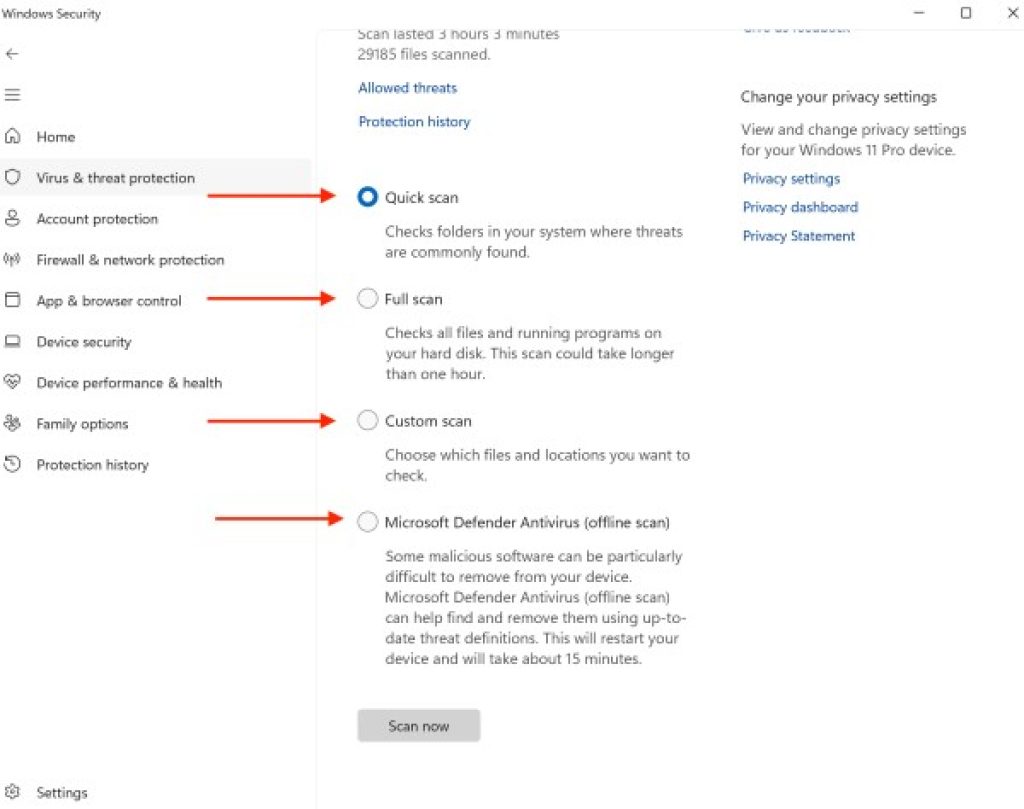
For better protection, consider using a trusted third-party antivirus in addition to Windows Defender.
5. Run System File Checker (SFC) and DISM
Corrupted system files are a common cause of runtime errors. Windows has built-in tools to fix them.
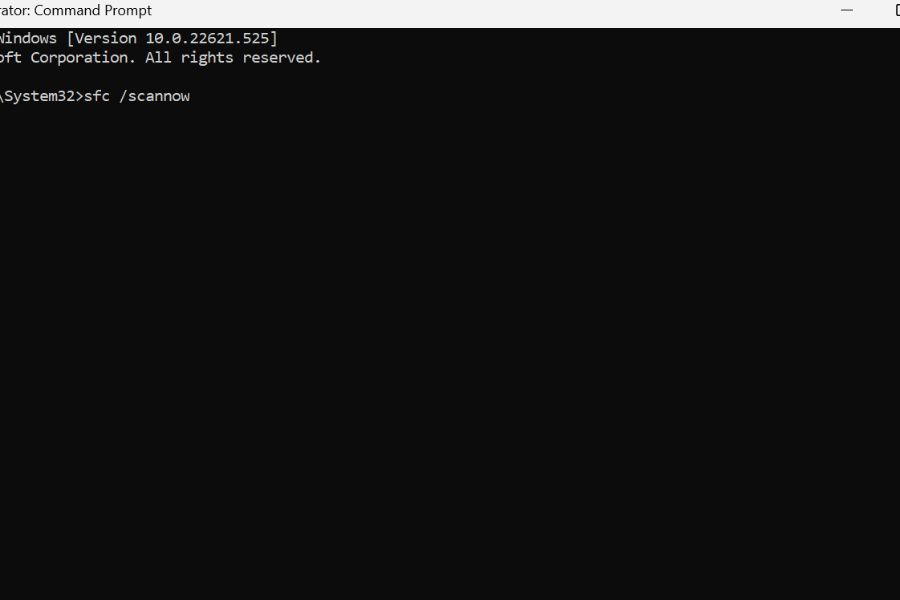
Steps to run SFC:
- Type cmd in the search bar.
- Right-click Command Prompt → Run as administrator.
- Type:
sfc /scannow - Press Enter and wait for the scan to finish.
Steps to run DISM:
If SFC doesn’t resolve the issue, run Deployment Image Servicing and Management (DISM).
- In the same command prompt, type:
DISM /Online /Cleanup-Image /RestoreHealth - Press Enter and let it repair corrupted files.
6. Reinstall Microsoft Visual C++ Redistributables
Many apps depend on Visual C++ runtime libraries. If they’re missing or corrupted, runtime errors appear.
Steps:
- Open Settings → Apps → Installed apps.
- Search for Microsoft Visual C++ Redistributable packages.
- Uninstall all of them.
- Visit Microsoft’s official website and download the latest versions (both x86 and x64).
- Install and restart your PC.
7. Update Device Drivers
Outdated or corrupted drivers may conflict with applications.
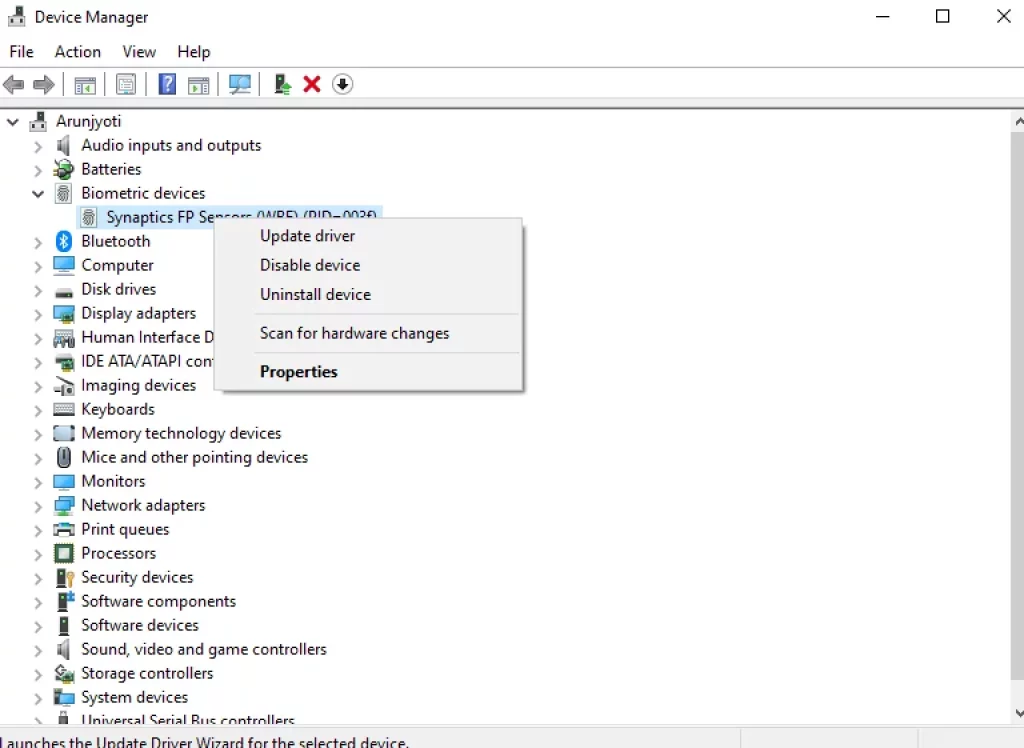
Steps:
- Right-click Start → Device Manager.
- Expand categories (e.g., Display adapters).
- Right-click the driver → Update driver.
- Choose Search automatically for drivers.
For critical drivers (graphics, network, chipset), consider downloading the latest versions from the manufacturer’s website.
8. Adjust Compatibility Mode
If runtime errors occur in older programs, running them in compatibility mode might help.
Steps:
- Right-click the program shortcut.
- Select Properties → Compatibility.
- Check Run this program in compatibility mode for and choose an older Windows version.
- Click Apply → OK.
9. Free Up System Resources
Low memory or disk space can trigger runtime errors. Optimize your PC’s performance:
- Close background apps – Open Task Manager (Ctrl + Shift + Esc) and end unnecessary tasks.
- Clear temporary files – Use Disk Cleanup or type
%temp%in Run (Win + R) and delete temporary files. - Increase Virtual Memory:
- Search Advanced system settings.
- Under Performance → Settings → Advanced tab, click Virtual memory → Change.
- Set a custom size (recommended: 1.5x your RAM).
10. Perform a Clean Boot
A clean boot helps identify if background services or startup apps cause runtime errors.
Steps:
- Press Win + R, type
msconfig, and press Enter. - Go to the Services tab, check Hide all Microsoft services, then click Disable all.
- In the Startup tab, open Task Manager and disable unnecessary apps.
- Restart your computer.
If the runtime error disappears, re-enable services one by one to find the culprit.
11. Uninstall Recent Updates
Sometimes, Windows updates introduce bugs. Rolling back the update may resolve runtime errors.
Steps:
- Open Settings → Windows Update → Update history.
- Scroll down to Uninstall updates.
- Select the most recent update and uninstall it.
12. Perform System Restore
If runtime errors started recently, restoring your PC to an earlier state may help.
Steps:
- Search Create a restore point in the Start menu.
- Click System Restore.
- Choose a restore point before the issue began.
- Follow the on-screen instructions to revert.
13. Reset or Reinstall Windows 11
If nothing works, you may need to reset your PC.
Steps:
- Open Settings → System → Recovery.
- Under Reset this PC, click Get started.
- Choose between Keep my files or Remove everything.
- Follow prompts to reset Windows.
Preventing Runtime Errors in the Future
Prevention is always better than cure. Here are tips to avoid runtime errors on Windows 11:
- Keep Windows and applications updated regularly.
- Install the latest drivers from official sources.
- Use a reliable antivirus and perform scans often.
- Avoid downloading software from unknown or untrusted sites.
- Clean your PC regularly (remove junk files and unnecessary startup apps).
- Perform regular backups to protect important data.
Frequently Asked Questions (FAQs)
What is the most common cause of runtime errors?
Most runtime errors are caused by corrupted or missing system files, outdated Visual C++ Redistributables, or software conflicts.
Can runtime errors damage my PC?
Generally, runtime errors don’t damage hardware but can cause data loss if they crash applications mid-task.
Do I need third-party tools to fix runtime errors?
Not necessarily. Windows has built-in tools like SFC, DISM, and System Restore that fix most issues. However, third-party tools can sometimes speed up troubleshooting.
Should I reset Windows 11 to fix runtime errors?
Resetting should be your last option if all other fixes fail. It will reinstall Windows and resolve persistent software issues.
Conclusion
Runtime errors on Windows 11 can be frustrating, but they’re usually fixable with the right approach. From simple fixes like restarting your PC to advanced solutions like reinstalling Visual C++ Redistributables or resetting Windows, this guide covers every method to troubleshoot runtime errors.
By following these steps systematically, you can restore your system’s stability and prevent future issues. If errors persist even after trying all methods, it may point to a deeper hardware problem, and consulting a professional technician would be the best course of action.