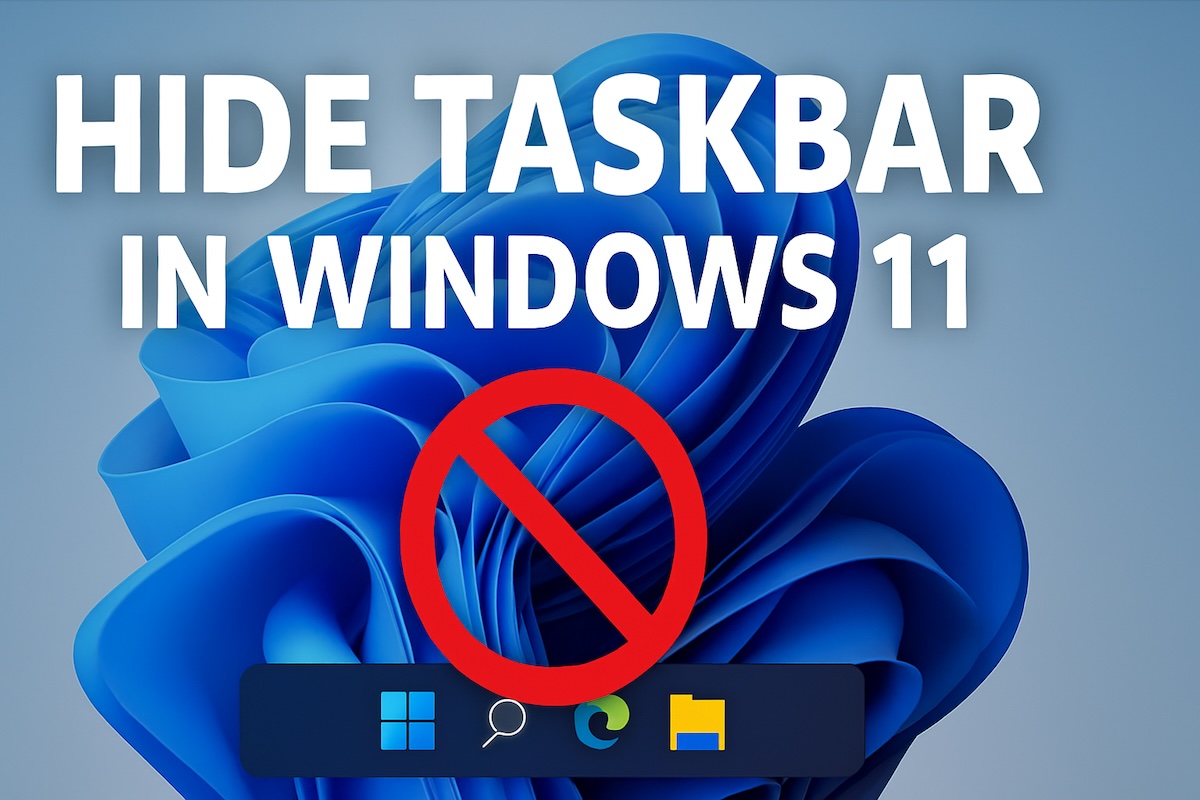
If you are using Windows 11, you may have noticed that the taskbar plays a central role in your daily workflow. It provides quick access to apps, system notifications, and essential controls like the Start menu, search, and system tray. However, many users prefer a cleaner, distraction-free desktop experience. That’s where hiding the taskbar becomes useful.
Whether you want more screen space, a minimalist look, or fewer distractions while working or gaming, hiding the taskbar in Windows 11 is a simple yet powerful customization. In this guide, you will learn multiple methods to hide the taskbar, along with tips, troubleshooting, and advanced customization techniques.
What is the Taskbar in Windows 11?

The taskbar in Windows 11 is redesigned compared to earlier versions. It is centered by default and includes modern icons, animations, and a cleaner interface. While it looks elegant, some users may find it takes up unnecessary space—especially on smaller screens.
Hiding the taskbar allows you to:
- Maximize screen space
- Improve focus and productivity
- Create a minimalist desktop
- Enhance gaming or video viewing experience
The good news is that Windows 11 includes a built-in option to automatically hide the taskbar when it’s not in use.
Method 1: Using Windows Settings (Automatic Hide Feature)
The most straightforward way to hide the taskbar in Windows 11 is through the built-in automatic hide feature in Windows Settings. This method allows the taskbar to disappear when not in use while still remaining accessible when needed.
Steps to enable automatic hiding through Settings:
Right-click on any empty area of the taskbar to open the context menu
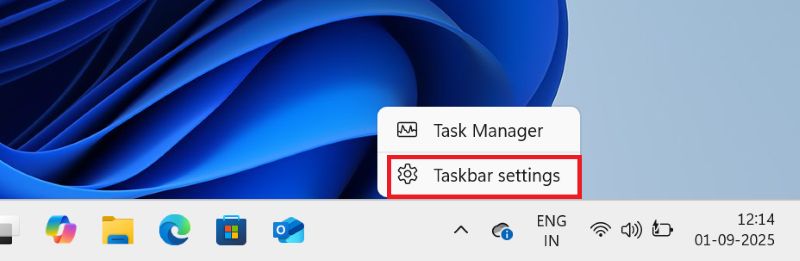
Select Taskbar settings from the menu options
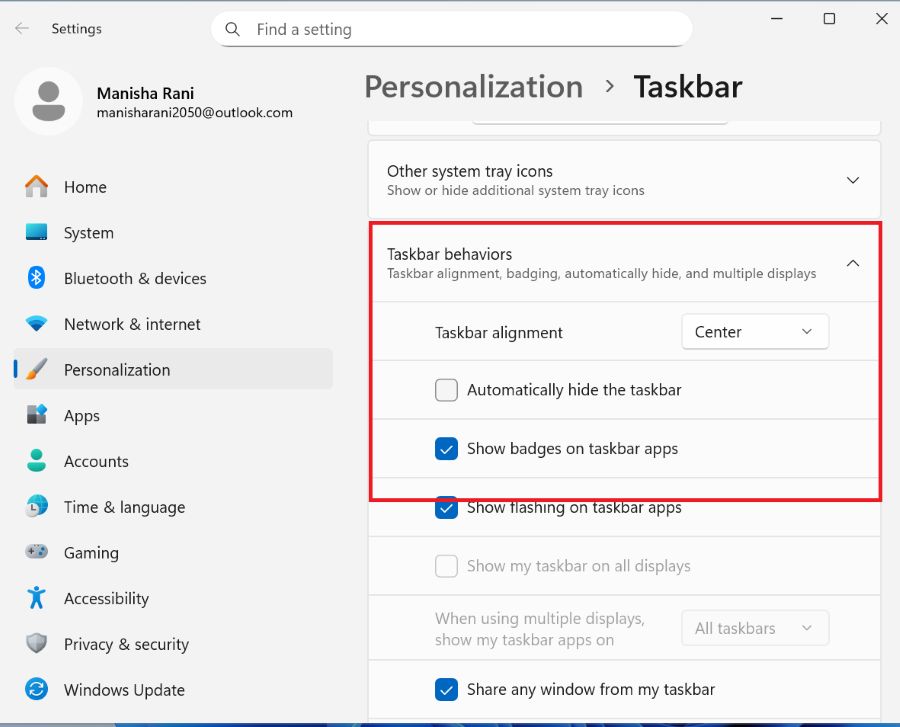

Locate the Taskbar behaviors section in the Personalization settings
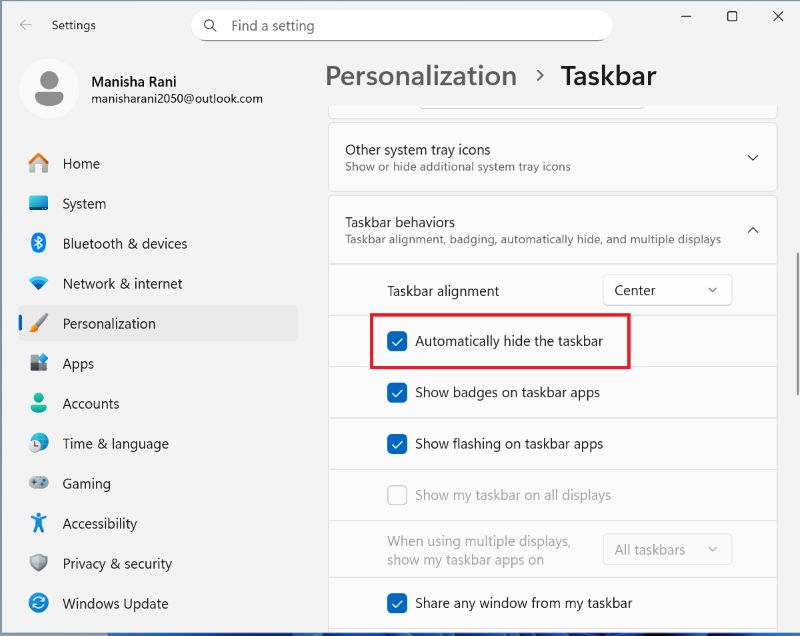
Find the option labeled Automatically hide the taskbar
Toggle the switch to the On position
Once enabled, this setting causes the taskbar to slide down and become invisible when you’re not actively hovering over its location or when no taskbar-related interactions are occurring.
When the automatic hide feature is active, you can reveal the taskbar by moving your mouse cursor to the bottom edge of the screen. The taskbar will smoothly slide up into view, allowing you to access your pinned applications, running programs, and system tray. When you move the cursor away from the taskbar area, it will automatically hide again after a brief delay.
This method is ideal for users who want the convenience of easy taskbar access while maximizing their available screen space. The automatic hide feature works seamlessly with most applications and doesn’t interfere with normal system operations.
Method 2: Using Registry Editor (Advanced Users)
For users comfortable with editing the Windows Registry, there’s a more advanced method to hide the taskbar that provides additional control over its behavior. This method should only be attempted by experienced users, as incorrect registry modifications can cause system issues.
Registry editing steps:
- Press Windows + R to open the Run dialog
- Type regedit and press Enter
- Navigate to: HKEY_CURRENT_USER\SOFTWARE\Microsoft\Windows\CurrentVersion\Explorer\StuckRects3
- Create a backup by right-clicking on StuckRects3 and selecting Export
- Locate the binary value that controls taskbar properties
- Modify the appropriate values (specific bytes vary)
- Restart Windows Explorer or reboot your computer
The registry method offers more granular control over taskbar behavior but requires careful attention to detail and should be approached with caution. After making registry changes, you’ll typically need to restart Windows Explorer or reboot your computer for the changes to take effect.
Method 3: Hide Taskbar Using Settings App
You can also hide the taskbar directly from the Settings app.
Steps
- Press Windows + I to open Settings
- Click on Personalization
- Select Taskbar
- Click on Taskbar behaviors
- Enable Automatically hide the taskbar
This method is useful if you prefer navigating through system settings instead of right-clicking.
Method 4: Hide Taskbar in Tablet Mode
If you are using a touchscreen device or 2-in-1 laptop, Windows 11 adjusts taskbar behavior automatically.
Steps
- Open Settings
- Go to Personalization > Taskbar
- Expand Taskbar behaviors
- Enable options related to touch optimization (if available)
In tablet mode, the taskbar often hides automatically to provide a full-screen experience.
Method 5: Using Third-Party Software
Several third-party applications offer enhanced taskbar management capabilities beyond what Windows 11 provides natively. These tools often include additional features such as multiple monitor support, custom hiding animations, and more sophisticated trigger mechanisms.
Popular third-party solutions include TaskbarX, which centers taskbar icons and provides hiding options, and AutoHideDesktopIcons, which can manage both taskbar and desktop icon visibility. These applications typically offer more customization options but require installing additional software on your system.
When considering third-party solutions, research the software thoroughly, ensure it comes from reputable developers, and verify compatibility with your Windows 11 version. Some third-party tools may conflict with system updates or other software.
Popular third-party solutions include:
- TaskbarX – Centers taskbar icons and provides hiding options
- AutoHideDesktopIcons – Manages both taskbar and desktop icon visibility
- 7+ Taskbar Tweaker – Offers extensive taskbar customization options
- StartIsBack – Provides classic Windows taskbar functionality
Considerations when using third-party tools:
- Research software thoroughly before installation
- Ensure compatibility with your Windows 11 version
- Verify the developer’s reputation and security practices
- Check for potential conflicts with system updates
- Consider the impact on system resources and performance
Considerations for Multiple Monitor Setups
Windows 11 handles taskbar hiding differently in multi-monitor configurations. By default, the taskbar appears on all connected displays, and the automatic hide setting affects all taskbars simultaneously. However, you can configure the system to show the taskbar on specific monitors only.
In the taskbar settings, look for options related to multiple displays. You can choose to show the taskbar on all displays or only on the primary monitor. When using automatic hide with multiple monitors, consider how this affects your workflow and whether you need taskbar access on secondary displays.
Troubleshooting Common Issues
Sometimes the automatic hide feature may not work as expected. Common issues include the taskbar not hiding properly, failing to appear when needed, or becoming stuck in one position. These problems can often be resolved by restarting Windows Explorer through the Task Manager or temporarily disabling and re-enabling the automatic hide feature.
If the taskbar becomes permanently hidden and won’t respond to mouse movements, try pressing the Windows key to open the Start menu, which should force the taskbar to appear. You can then access the taskbar settings to adjust the automatic hide behavior.
Impact on Productivity and User Experience
Hiding the taskbar can significantly impact your computing experience, both positively and negatively.
Benefits of hiding the taskbar:
- Increased screen real estate, especially valuable on smaller displays
- Reduced visual distractions during focused work
- Cleaner appearance for presentations or demonstrations
- More immersive experience for gaming or media consumption
- Better utilization of vertical space for creative applications
Potential drawbacks:
- Reduced convenience for frequent app switching
- Less immediate visibility of system notifications
- Potential learning curve for accessing hidden functionality
- May slow down workflow for users who rely heavily on taskbar shortcuts
- Can interfere with muscle memory for certain operations
The automatic hide feature represents a compromise between these considerations, providing additional space when needed while maintaining easy access to taskbar functionality. Experiment with different approaches to find the configuration that best suits your specific needs and working style.
Final Thoughts
Hiding the taskbar in Windows 11 is a simple yet effective way to improve your desktop experience. Whether you want a distraction-free workspace, more screen space, or a cleaner look, this feature is highly useful.
The built-in automatic hide option is the best choice for most users, as it balances convenience and functionality. Advanced users can explore registry edits or third-party tools for deeper customization.
Ultimately, whether you choose to hide the taskbar depends on your workflow and personal preference. Try it out and see if it enhances your productivity and overall experience.
![How to Hide the Taskbar in Windows 11 [Top 3 Methods]](https://www.geeksdigit.com/wp-content/uploads/2026/03/open-display-settings-for-windows-11.jpg)
![How to Hide the Taskbar in Windows 11 [Top 3 Methods]](https://www.geeksdigit.com/wp-content/themes/rehub-theme/images/default/noimage_70_70.png)