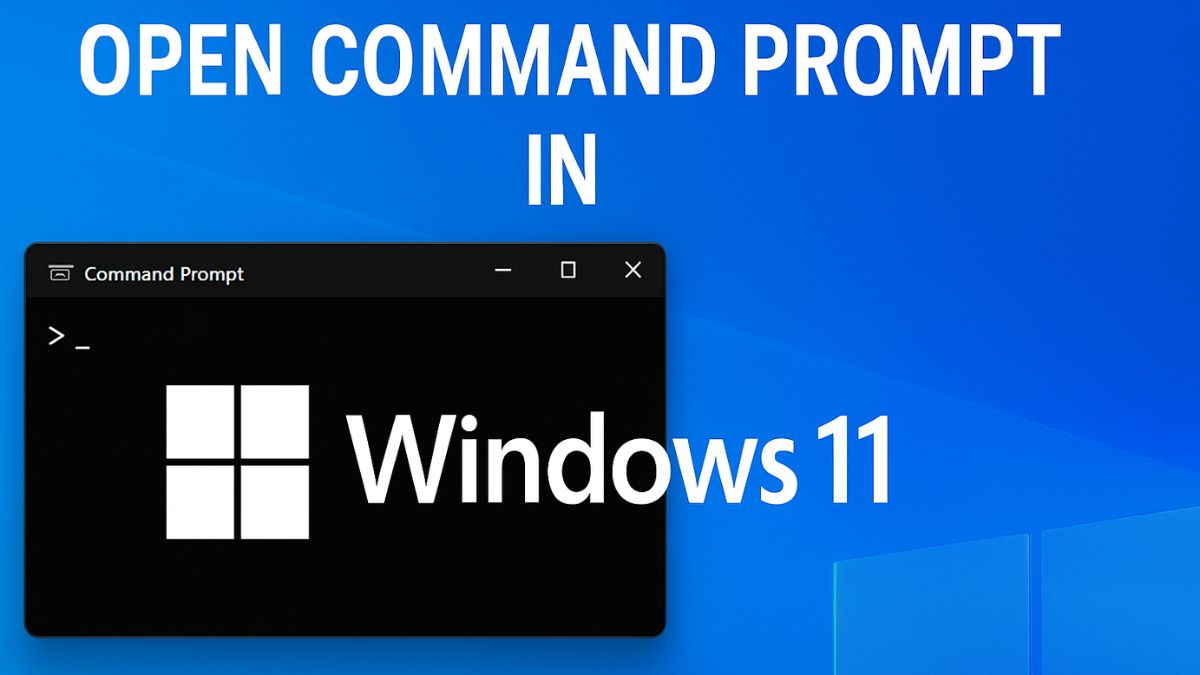
The Command Prompt—often referred to as CMD—is a core component of the Windows operating system that allows users to run commands, troubleshoot issues, and perform advanced administrative tasks. Whether you’re a beginner trying to open CMD for the first time or a tech enthusiast who frequently uses command-line tools, knowing the quickest and easiest methods to launch it is essential.
Windows 11 offers several convenient ways to access the Command Prompt, ranging from simple keyboard shortcuts to right-click menus and system utilities. Some methods are optimized for speed, while others are better suited for situations where the system is unresponsive or you need administrator privileges. Let’s get into details!
What is Command Prompt?

Command Prompt, often referred to as CMD, is a command-line interpreter built into Windows operating systems. It allows users to communicate directly with the system by typing text-based commands. CMD can execute programs, modify files, manage system settings, and perform advanced troubleshooting tasks.
While most users rely on the Windows graphical interface, advanced users and IT professionals often use CMD for its efficiency and control. Many administrative tasks that require multiple clicks can be performed with a single command in Command Prompt.
Why Use Command Prompt in Windows 11?
Command Prompt is useful for a variety of tasks, including:
- Running administrative commands (e.g., checking disk health with
chkdsk) - Network troubleshooting using commands like
ipconfigandping - Managing files and folders quickly without the need for File Explorer
- Accessing advanced system tools such as Diskpart or System File Checker
- Automating repetitive tasks with batch files
In short, it’s an essential utility for both beginners and advanced users who want more control over their Windows 11 PC.
Quickest Way: Use the Search Box (Start Menu Search)
This is the fastest and easiest method to open Command Prompt in Windows 11.
Steps to Open CMD:
Click on the Start Menu
- Click the Start button (Windows logo) at the bottom-left corner of your screen.
- Or simply press the Windows key on your keyboard.
Type cmd or Command Prompt

As soon as the Start Menu opens, start typing: cmd or bashCopyEditcommand prompt
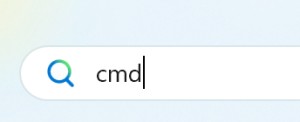
View Search Results
- The Command Prompt app will appear under Best match.
Click to Open CMD
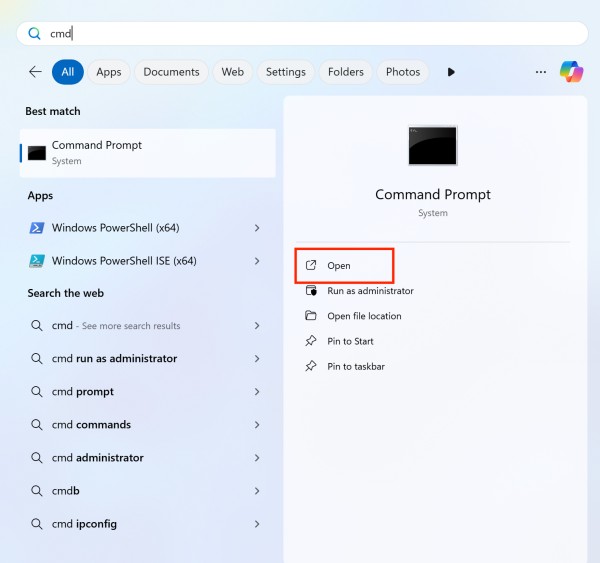
- Click on the Command Prompt result to launch it in normal mode.
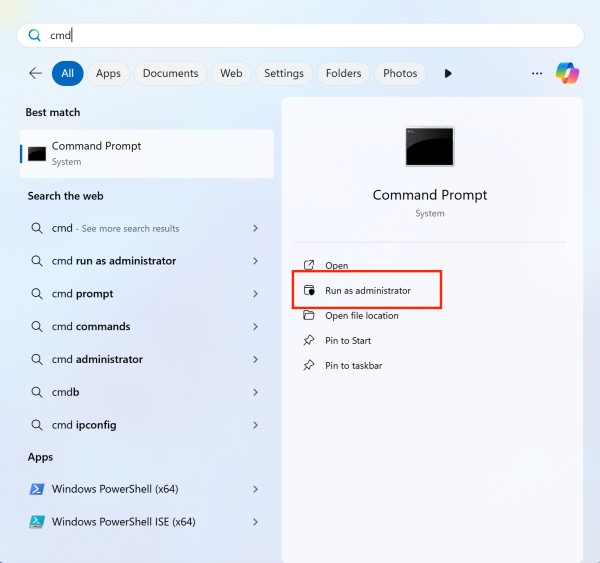
To Open as Administrator:
- After it appears in search results, right-click on Command Prompt.
- Choose Run as administrator from the menu.
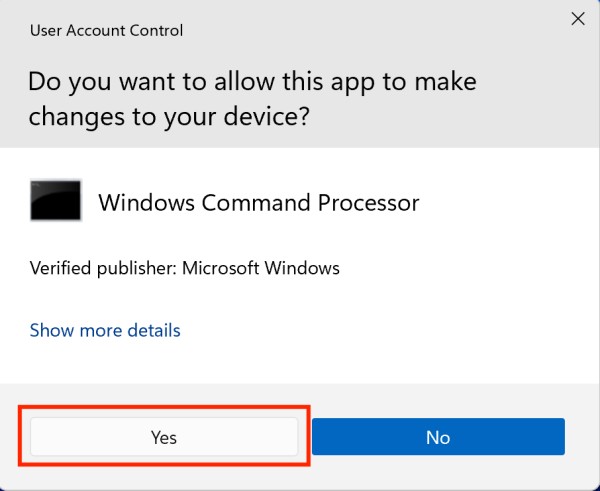
- If prompted by User Account Control (UAC), click Yes.
This method is ideal for quick access, and it works in all user accounts. Let me know if you’d like this turned into a visual thumbnail or a printable PDF step-by-step card!
Use the Run Dialog Box (Quick Method)
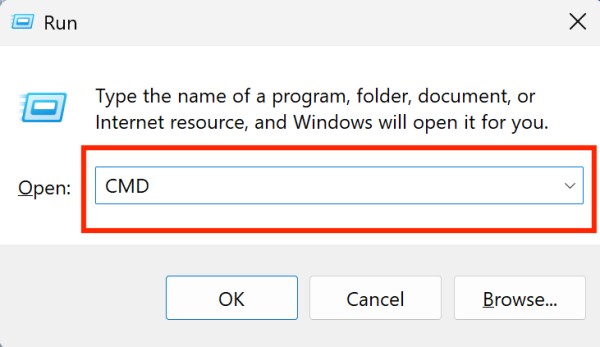
The Run dialog is one of the fastest ways to open Command Prompt—perfect for users who prefer keyboard shortcuts.
Steps to Open CMD Using Run:
- Press Windows + R
- Hold down the Windows key and press the R key.
- This opens the Run dialog box in the bottom-left corner of your screen.
- Type
cmd- In the text box that appears, type: nginxCopyEdit
cmd
- In the text box that appears, type: nginxCopyEdit
- Press Enter or Click OK
- Hit Enter on your keyboard or click the OK button.
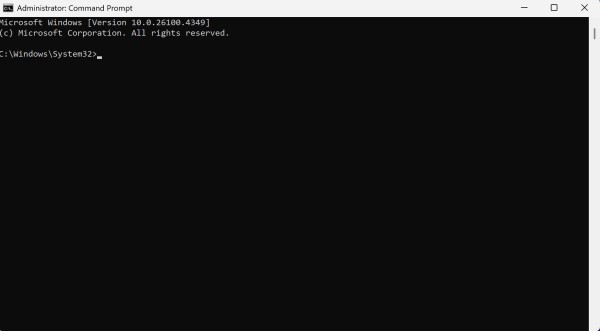
- The Command Prompt window will open in normal mode.
To Open CMD as Administrator via Run:
- Open the Run dialog (
Windows + R). - Type: nginxCopyEdit
cmd - Instead of pressing Enter, press Ctrl + Shift + Enter.
- This opens CMD in administrator mode.
- If prompted by the User Account Control (UAC), click Yes.
This method is ideal for power users and anyone who prefers keyboard-based navigation. It’s lightning fast and doesn’t require navigating any menus or search boxes.
Right-Click Start Button (Power User Menu)
- Right-click the Start button or press Windows + X.
- In the menu, select Terminal or Windows Terminal.
- By default, it opens Windows PowerShell, but you can set Command Prompt as default (explained below).
Bonus: Switch Windows Terminal to CMD
If it opens PowerShell or Windows Terminal instead of CMD:
- Open Windows Terminal.
- Click the dropdown arrow (top bar) and select Command Prompt.
You can also make CMD the default shell:
- Open Windows Terminal → Settings → Default Profile → Choose “Command Prompt”.
Use Windows Terminal (Choose CMD Profile)
Windows Terminal is a new tool in Windows 11 that supports multiple tabs for PowerShell, CMD, and WSL.
- Press Windows + X, then click Terminal.
- Click the dropdown arrow at the top tab.
- Select Command Prompt.
This lets you open CMD inside a modern interface with more functionality.
Create a Desktop Shortcut for CMD
If you frequently use Command Prompt, a desktop shortcut is a smart solution.
- Right-click an empty space on your desktop.
- Select New > Shortcut.
- In the location field, type:
cmd.exe - Click Next, name it “Command Prompt”.
- Click Finish.
Optional:
- Right-click → Properties → Shortcut tab → click Advanced… → check Run as administrator to always launch as admin.
Pin CMD to Start Menu or Taskbar
Pin to Start:
- Open CMD from Search.
- Right-click it in the results.
- Select Pin to Start.
Pin to Taskbar:
- Right-click the running CMD window from the taskbar.
- Select Pin to Taskbar.
Now, you can launch it with just one click anytime.
Command Prompt (Admin) vs. Regular Command Prompt
There are two types of Command Prompt sessions in Windows 11:
- Regular Command Prompt:
Runs with normal permissions. You can view and modify files in your user directory but can’t change system-level settings. - Command Prompt (Administrator):
Runs with elevated privileges, allowing you to execute powerful system commands likesfc /scannowordiskpart.
If a command fails with an “Access Denied” or “Permission Denied” message, reopen CMD as administrator.
Common Commands to Try in Command Prompt
Once you’ve opened CMD, here are some useful commands you can test:
| Command | Description |
|---|---|
ipconfig | Displays your IP address and network information |
ping google.com | Tests internet connection |
dir | Lists all files and folders in the current directory |
cd [foldername] | Changes directory |
chkdsk | Checks your disk for errors |
sfc /scannow | Scans and repairs corrupted system files |
shutdown /r /t 0 | Restarts your computer immediately |
cls | Clears the CMD screen |
exit | Closes the Command Prompt window |
Tips for Using Command Prompt Efficiently
- Use Tab key for auto-completion: When typing file or folder names, press Tab to auto-complete paths.
- Use the up and down arrows: Scroll through your command history.
- Resize the window: Right-click the title bar → Properties → Layout to adjust size.
- Copy and paste easily: Right-click to paste copied text.
- Customize appearance: You can change font color, size, and background in Properties.
Troubleshooting: Command Prompt Not Opening?
If Command Prompt doesn’t open or closes immediately, try these fixes:
- Run as administrator: Right-click and choose “Run as administrator.”
- Disable antivirus temporarily: Some security tools block CMD.
- Create a new user account: Your profile might be corrupted.
- Use Windows Terminal: You can run CMD from there as an alternative.
- Repair system files: Use PowerShell to run
sfc /scannow.
Frequently Asked Questions (FAQs)
What is the fastest way to open CMD in Windows 11?
The fastest way is using the Run dialog by pressing Windows + R, typing cmd, and hitting Enter.
Is Command Prompt different from Windows Terminal?
Yes. Command Prompt is an older command-line tool, while Windows Terminal is a newer, modern interface that can host CMD, PowerShell, and WSL tabs.
Can I replace PowerShell with CMD in Windows Terminal?
Yes. Go to Windows Terminal > Settings, then change the Default profile to Command Prompt.
Final Thoughts
Opening the Command Prompt in Windows 11 is a simple task once you know the available methods. From lightning-fast shortcuts like the Run dialog or search bar to more advanced ways like recovery mode or custom batch files, there’s a method for every need. Whether you’re troubleshooting, automating tasks, or just exploring your system, CMD is a powerful tool worth mastering.
Windows 11 also integrates CMD into modern tools like Windows Terminal, offering even greater flexibility. By learning how to access CMD through different routes, you can ensure you’re always prepared—whether you need administrative privileges, quick access, or are navigating from a non-functional desktop. We hope this guide made things easier for you. Try out the methods above and choose the one that fits your workflow best. Happy computing!