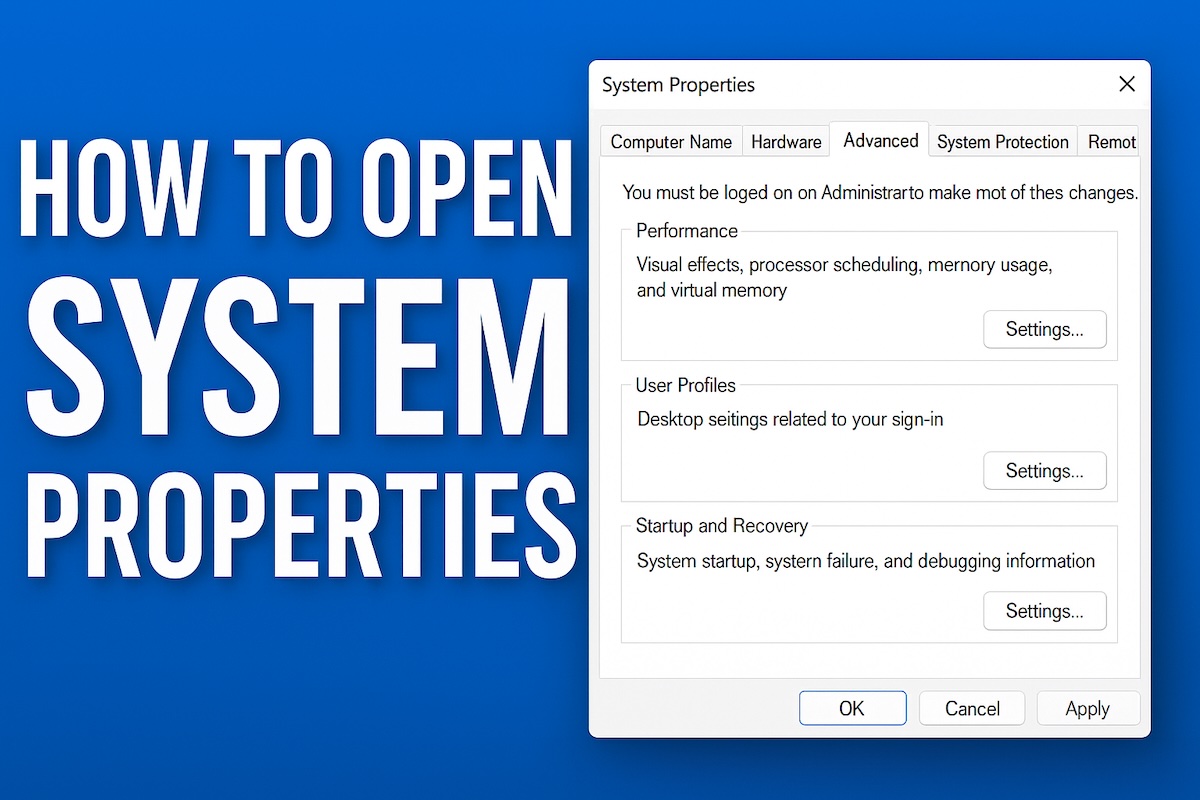
System Properties is a crucial Windows utility that provides detailed information about your computer’s hardware, operating system, and allows you to configure important system settings. In Windows 11, Microsoft has made some changes to how you access this feature compared to previous versions, but there are still multiple ways to reach it.
This guide will walk you through all the methods available to open System Properties in Windows 11.
What is System Properties?

System Properties is a control panel that displays essential information about your Windows 11 computer, including your processor, installed RAM, system type (32-bit or 64-bit), computer name, workgroup or domain membership, and Windows activation status. It also provides access to advanced system settings like virtual memory configuration, startup and recovery options, environment variables, and hardware profiles.
Method 1: Using the Start Menu Search
The quickest and most straightforward way to access System Properties in Windows 11 is through the Start menu search functionality.
Steps:
- Click on the Start button or press the Windows key on your keyboard
- Type “System Properties” in the search box
- Look for “System Properties” in the search results and click on it
- Alternatively, you can type “sysdm.cpl” which is the direct command for System Properties
This method is particularly useful because Windows 11’s search function is highly responsive and will typically show System Properties as one of the top results as soon as you start typing.
Method 2: Through Settings App
Windows 11 emphasizes the modern Settings app over the traditional Control Panel, and you can access system information through this route, though it requires a few additional steps to reach the classic System Properties dialog.
Steps:
Press Windows key + I to open Settings, or click Start and select Settings
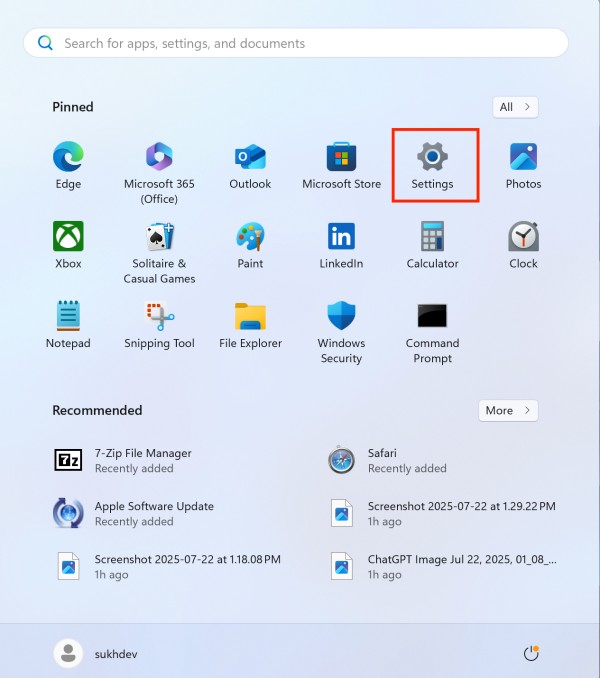

Navigate to System in the left sidebar
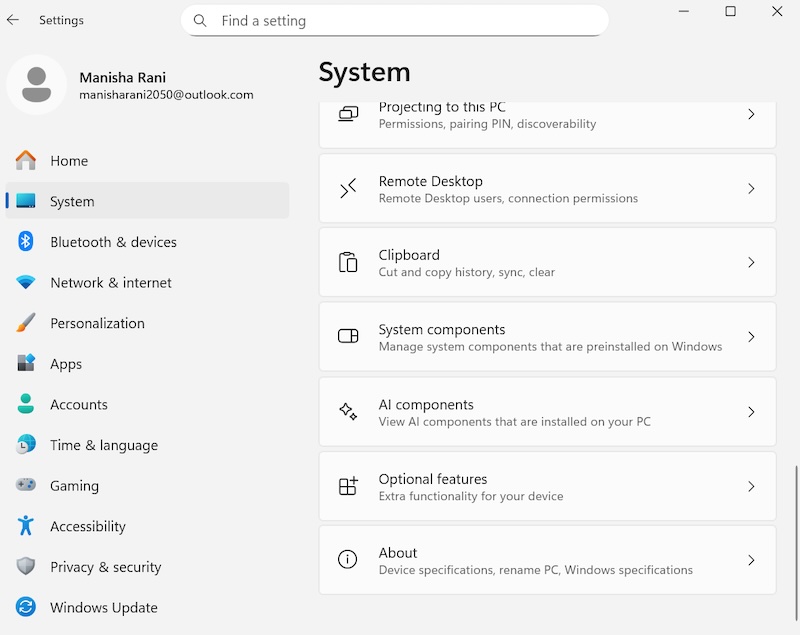
Scroll down and click on About at the bottom of the System page
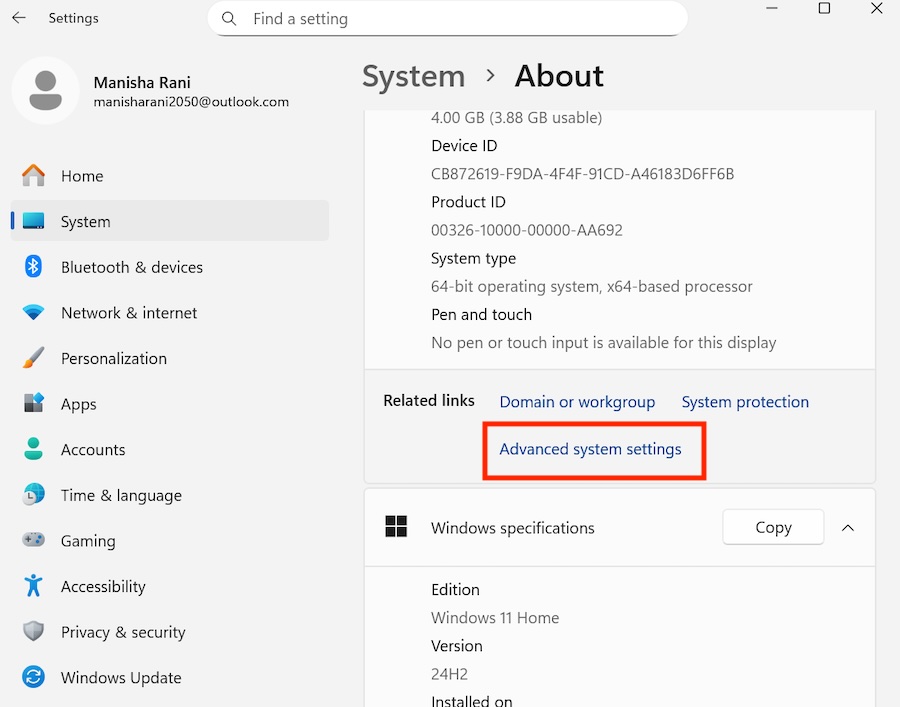
In the About section, look for Advanced system settings link
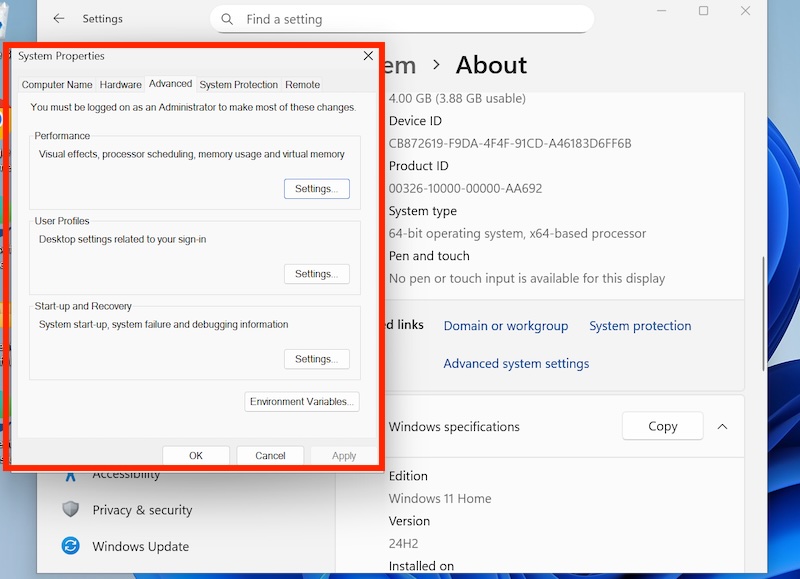
Click on Advanced system settings to open the System Properties dialog
This method integrates well with Windows 11’s design philosophy while still providing access to the traditional System Properties interface when needed.
Method 3: Using Run Dialog
The Run dialog remains one of the most efficient ways to access Windows utilities, and System Properties is no exception.
Steps:
- Press Windows key + R to open the Run dialog
- Type “sysdm.cpl” in the text field
- Press Enter or click OK
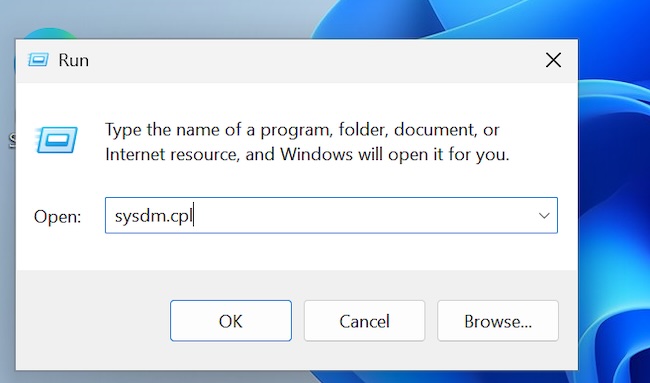
The “sysdm.cpl” command directly launches the System Properties dialog, bypassing any intermediate screens. This method is favored by power users and IT professionals for its speed and reliability.
Method 4: Through Control Panel
Although Windows 11 de-emphasizes the Control Panel in favor of the Settings app, it’s still accessible and provides a familiar path to System Properties for users upgrading from older Windows versions.
Steps:
- Open the Start menu and type “Control Panel”
- Click on Control Panel when it appears in search results
- If you’re in Category view, click on “System and Security”
- Click on “System”
- In the System window, click on “Advanced system settings” in the left panel
Alternatively, if you’re in Large icons or Small icons view in Control Panel, you can directly click on “System” and then proceed to step 5.
Method 5: Right-Click Context Menu on This PC
Windows 11 maintains the traditional right-click context menu functionality for system objects, providing another pathway to System Properties.
Steps:
Open File Explorer (Windows key + E)
Look for This PC in the left navigation panel
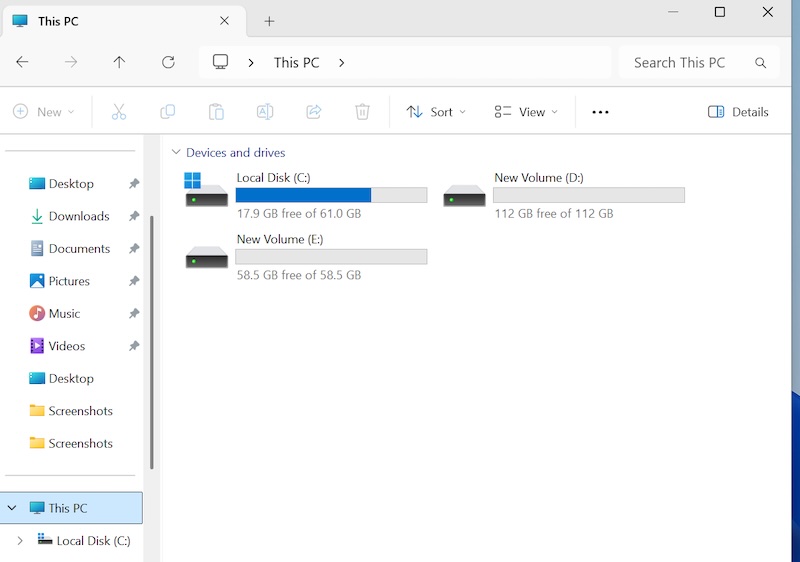
Right-click on This PC
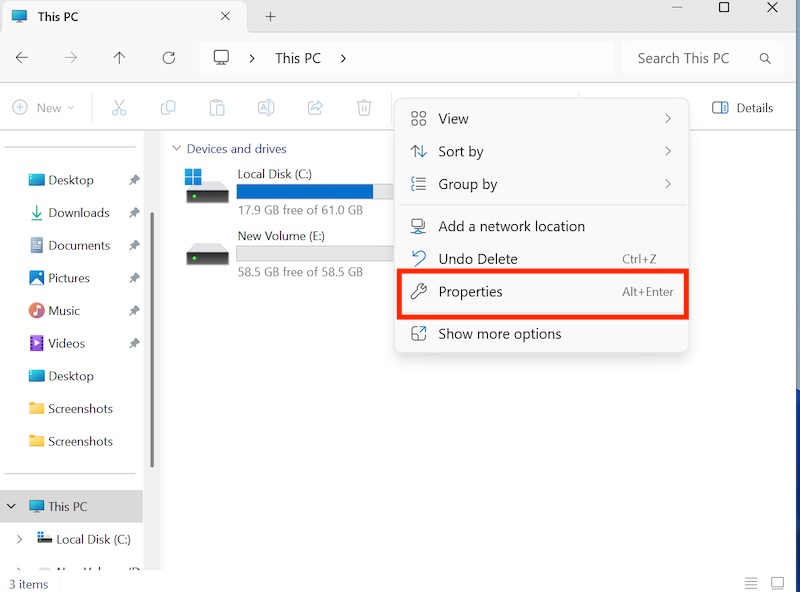
Select Properties from the context menu
In the resulting window, click on Advanced system settings
This method is intuitive for users who frequently work with File Explorer and prefer visual navigation over typing commands.
Method 6: Command Prompt or PowerShell
For users comfortable with command-line interfaces, both Command Prompt and PowerShell can launch System Properties.
Steps for Command Prompt:
- Press Windows key + R to open Run dialog
- Type “cmd” and press Enter
- In the Command Prompt window, type “sysdm.cpl” and press Enter
Steps for PowerShell:
- Right-click on the Start button
- Select “Windows PowerShell” or “Windows Terminal”
- Type “sysdm.cpl” and press Enter
Both methods will directly open the System Properties dialog.
Method 7: Desktop Shortcut
You can create a desktop shortcut for quick access to System Properties, which is particularly useful if you frequently need to access these settings.
Steps:
- Right-click on an empty area of your desktop
- Select “New” > “Shortcut”
- In the location field, type “sysdm.cpl”
- Click “Next”
- Name your shortcut (e.g., “System Properties”)
- Click “Finish”
Now you can double-click this shortcut anytime to open System Properties directly.
Understanding the System Properties Tabs
Once you have System Properties open, you’ll see several tabs, each serving different purposes:
Computer Name Tab: Allows you to view and change your computer’s name, workgroup, or domain membership. This is essential for network identification and management.
Hardware Tab: Provides access to Device Manager and hardware installation settings. Device Manager is crucial for troubleshooting hardware issues and updating drivers.
Advanced Tab: Contains performance settings, user profiles, and startup/recovery options. This is where you can adjust virtual memory, visual effects, and configure how Windows handles system failures.
System Protection Tab: Manages System Restore points and allows you to configure system protection settings for your drives.
Remote Tab: Controls Remote Desktop and Remote Assistance settings, important for remote access and support scenarios.
Troubleshooting Common Issues
If you encounter problems accessing System Properties, try running Windows as an administrator, as some system modifications require elevated privileges. Additionally, ensure that Windows services are running properly, as corrupted system files can sometimes interfere with accessing system utilities.
Conclusion
Windows 11 provides multiple pathways to access System Properties, ensuring that users with different preferences and technical comfort levels can reach this important utility.
Whether you prefer the modern Settings app approach, traditional Control Panel navigation, or direct command execution, these methods will help you access the system configuration tools you need. Regular familiarity with System Properties is valuable for system maintenance, troubleshooting, and optimization tasks.