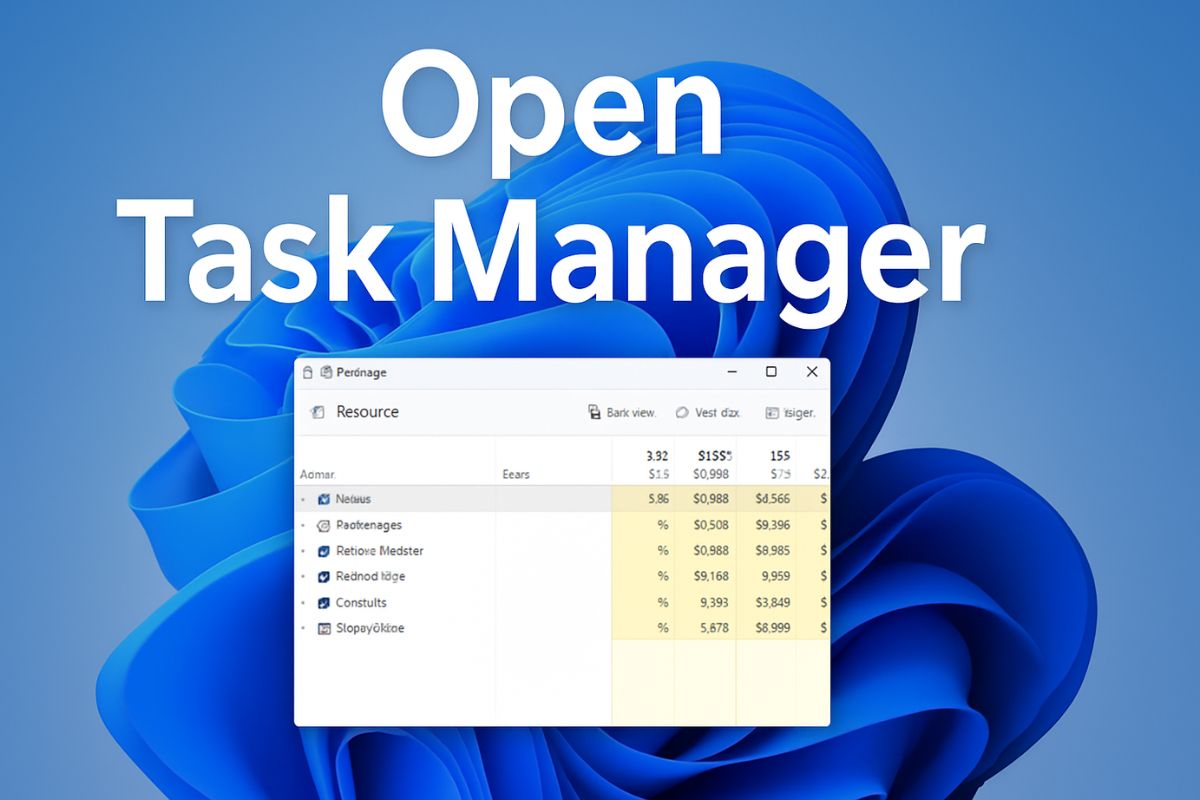
Task Manager is one of the most vital system utilities in any Windows operating system, including Windows 11. It’s a powerful tool that allows users to monitor and manage running processes, applications, services, performance stats, user accounts, and even startup behavior. Whether your computer is running slow, freezing up, or acting suspiciously, the Task Manager is usually the first place to go for insight and resolution.
In Windows 11, although the core functionalities of Task Manager remain similar to its predecessors, the interface has been updated to align with the new aesthetic. Understanding how to quickly access the Task Manager is crucial—not just for tech enthusiasts but for any user who wants better control over their system.

This guide will walk you through every possible method to open Task Manager in Windows 11, from keyboard shortcuts to command-line options, covering traditional and advanced methods alike. No matter your technical skill level, you’ll find the right way here.
1. Using Keyboard Shortcuts
Keyboard shortcuts are one of the most efficient and time-saving ways to interact with Windows 11, especially when you need to access vital tools like Task Manager quickly. Whether you’re dealing with a frozen application, diagnosing system performance issues, or simply trying to close unresponsive software, keyboard shortcuts can give you near-instant access to Task Manager without needing to fumble through the Start menu or mouse navigation.
In Windows 11, two major keyboard shortcuts are used to open Task Manager, and each serves slightly different use cases. Let’s explore both of them in detail.
Ctrl + Shift + Esc
One of the quickest and most reliable ways to open Task Manager is using this classic keyboard shortcut:
- Press Ctrl + Shift + Esc
- Task Manager will instantly launch, no intermediate screens
This shortcut bypasses any menus and opens the utility directly. It’s particularly helpful when your system becomes unresponsive or you’re unable to use the Start Menu or Taskbar.
Ctrl + Alt + Delete
Another common method is the well-known Ctrl + Alt + Delete combination:
- Press Ctrl + Alt + Delete
- You’ll be taken to a blue full-screen menu with several options
- Click on Task Manager from the list
This method is helpful when the screen is frozen, but the keyboard still works. It also provides access to other essential functions like locking the computer or switching users.
2. Using the Start Menu

For many users—especially those less familiar with keyboard shortcuts—the Start Menu remains the most intuitive and familiar way to access features like Task Manager. Microsoft has refined the Start Menu experience in Windows 11 to be cleaner and more centralized, and using it to open Task Manager is as straightforward as ever. Whether you’re a casual user or someone who just prefers mouse navigation, this method will always be accessible as long as your system interface is functioning properly.
Here’s how to open Task Manager via the Start Menu, step by step:
Step 1: Click the Start Button
- Locate the Start button in the center (or left-aligned, depending on your settings) of your taskbar.
- It appears as a Windows icon—click it once to bring up the Start Menu.
Alternatively, you can press the Windows key on your keyboard to achieve the same effect.
Step 2: Type “Task Manager”
- As soon as the Start Menu opens, start typing Task Manager.
- There’s no need to click on any text box—Windows 11 automatically puts you into search mode once you begin typing.
You’ll see a list of matching results appear instantly in the Best match section of the menu. Doble click on Task Mager Icon to open it.
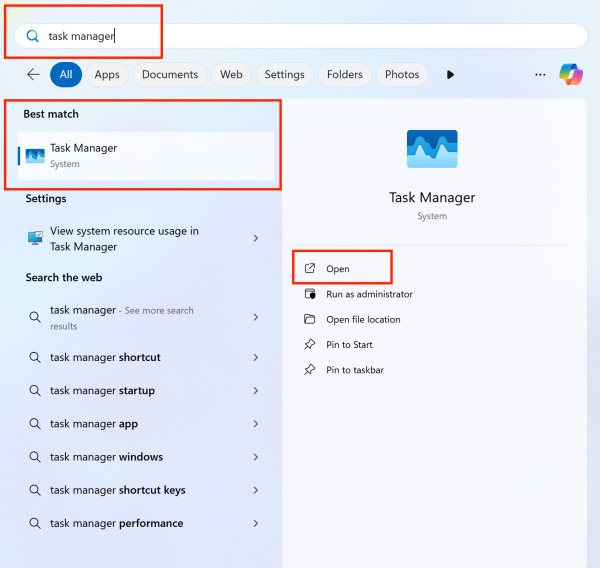
Step 3: Select Task Manager
- Click on Task Manager from the search results. It should appear at the top under Best match.
- You can also press Enter if it’s already highlighted, to launch it directly without using your mouse.
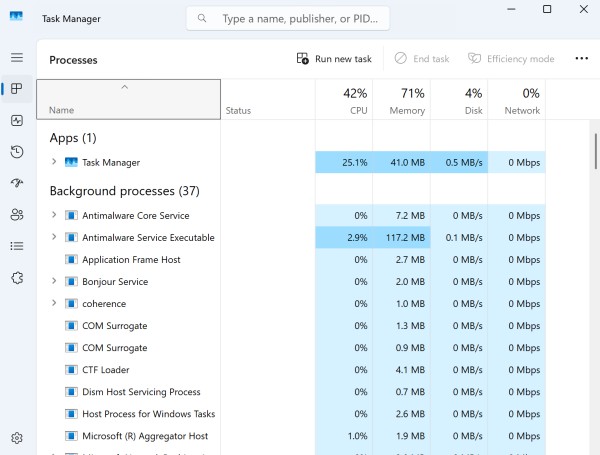
Step 4 (Optional): Pin Task Manager for Quick Access
If you find yourself using Task Manager frequently, consider pinning it to the taskbar or Start Menu for faster future access.
Here’s how:
- Right-click on the Task Manager result in the Start Menu.
- From the context menu, choose:
- Pin to Start to add it to your Start tiles.
- Pin to the taskbar to have it always available at the bottom of your screen.

3. Using the Taskbar Context Menu
In previous Windows versions, you could open Task Manager by right-clicking on the taskbar. In Windows 11, Microsoft changed this:
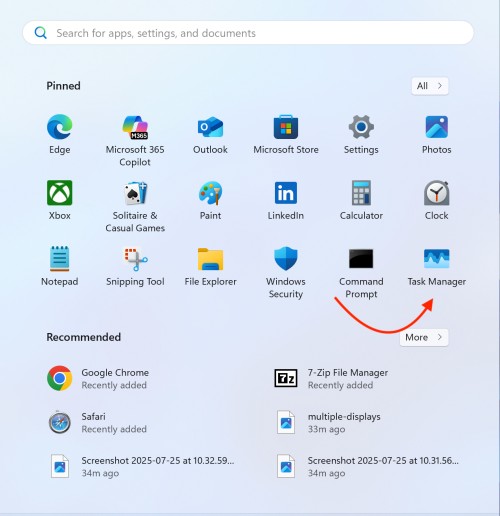
- Right-click the Start button (or press Windows + X)
- From the context menu, select Task Manager
This menu is known as the Power User Menu and offers shortcuts to various system tools like Device Manager, Disk Management, and Settings. Including Task Manager here makes it easier to access for power users.
4. Using Run Dialog Box
The Run command is a fast way to launch various tools and apps.
- Press Windows + R to open the Run dialog
- Type taskmgr and press Enter
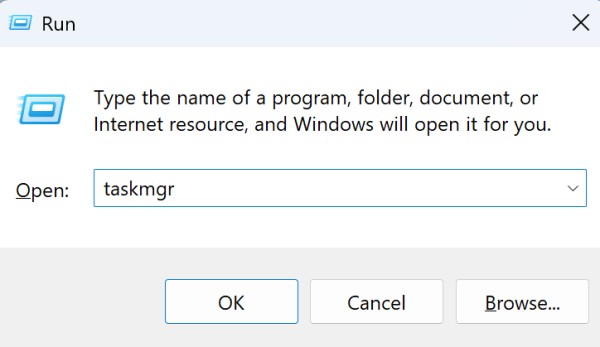
This is especially useful if you’re familiar with command names and need quick access.
5. Using Command Prompt
If you’re already working in the Command Prompt, launching Task Manager is easy:
- Open Command Prompt (you can search for it in Start)
- Type
taskmgrand hit Enter
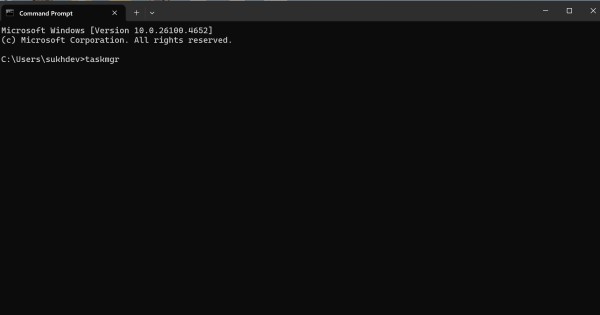
This launches Task Manager with standard permissions. For more advanced users, this method is often used while troubleshooting or scripting.
6. Using Windows PowerShell or Terminal
Windows 11 often defaults to the new Windows Terminal, which can run PowerShell or Command Prompt tabs:
- Open Windows Terminal, PowerShell, or Command Prompt
- Type
taskmgrand hit Enter
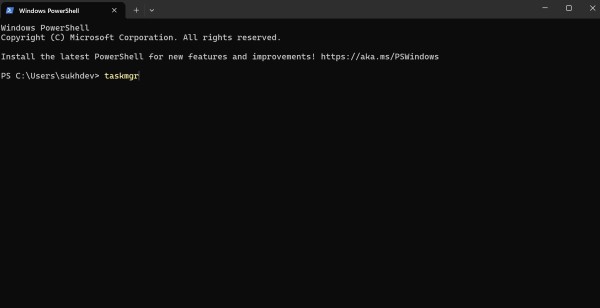
It behaves the same way as the Command Prompt method but from a modern command-line interface.
7. Using File Explorer
File Explorer is another method for launching Task Manager, especially if you’re already navigating through system folders:
- Open File Explorer (Windows + E)
- Navigate to this path:
C:\Windows\System32 - Scroll down or search for Taskmgr.exe
- Double-click on the file to launch it
You can also create a desktop shortcut from this location for quick access in the future.
8. Creating a Desktop Shortcut for Task Manager
For those who frequently access Task Manager, a desktop shortcut is handy:
Right-click on the desktop
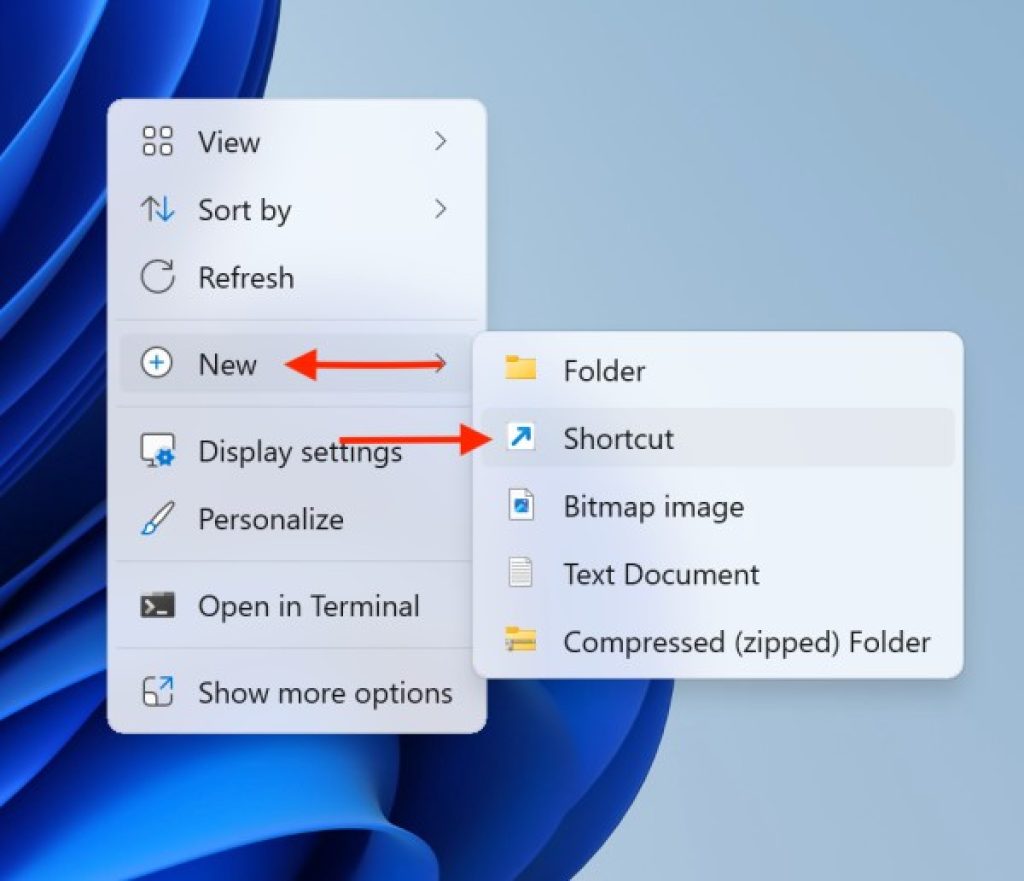
Select New > Shortcut
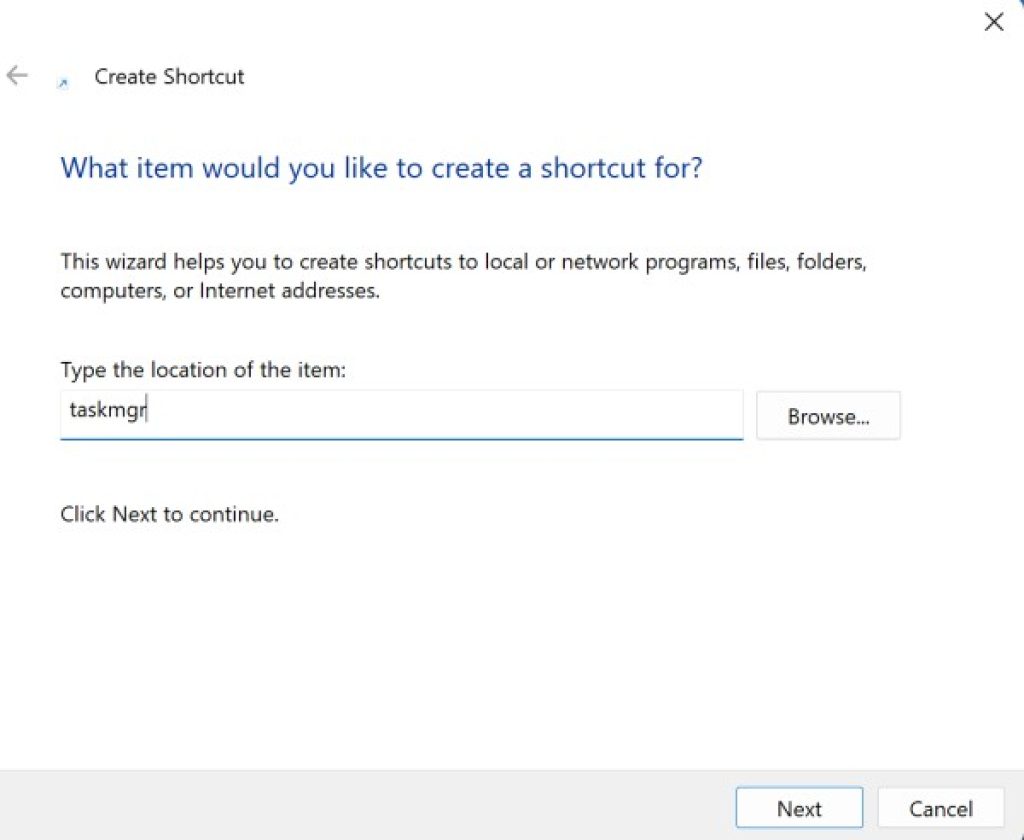
In the location field, type taskmgr
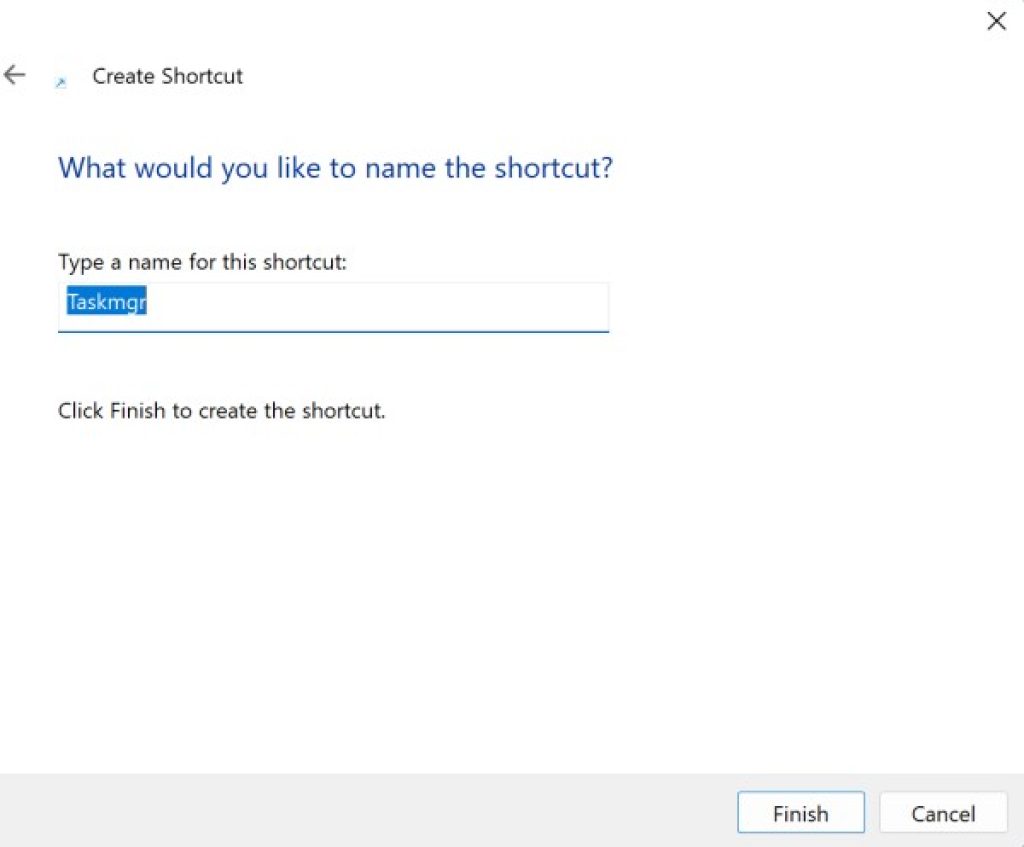
Click Next, name the shortcut “Task Manager”

Click Finish
Now, you can double-click the shortcut anytime to launch the utility instantly.
Bottom Line
The Task Manager in Windows 11 is not just a simple process killer—it’s a robust utility for monitoring system performance, ending unresponsive applications, controlling startup processes, and investigating system resource usage. Knowing how to open Task Manager in various ways is crucial for everyday troubleshooting and system management.
Whether you’re a casual user needing to shut down a frozen app or an IT professional tracking memory usage, there’s a method that fits your workflow. From quick keyboard shortcuts to command-line options and even automation through Task Scheduler, Windows 11 provides multiple access points to this essential tool.
As Microsoft continues refining Windows 11, mastering utilities like Task Manager ensures you stay in control of your device’s performance and health. Be proactive, stay familiar with these techniques, and you’ll always be ready to tackle system slowdowns or unusual behavior with confidence.