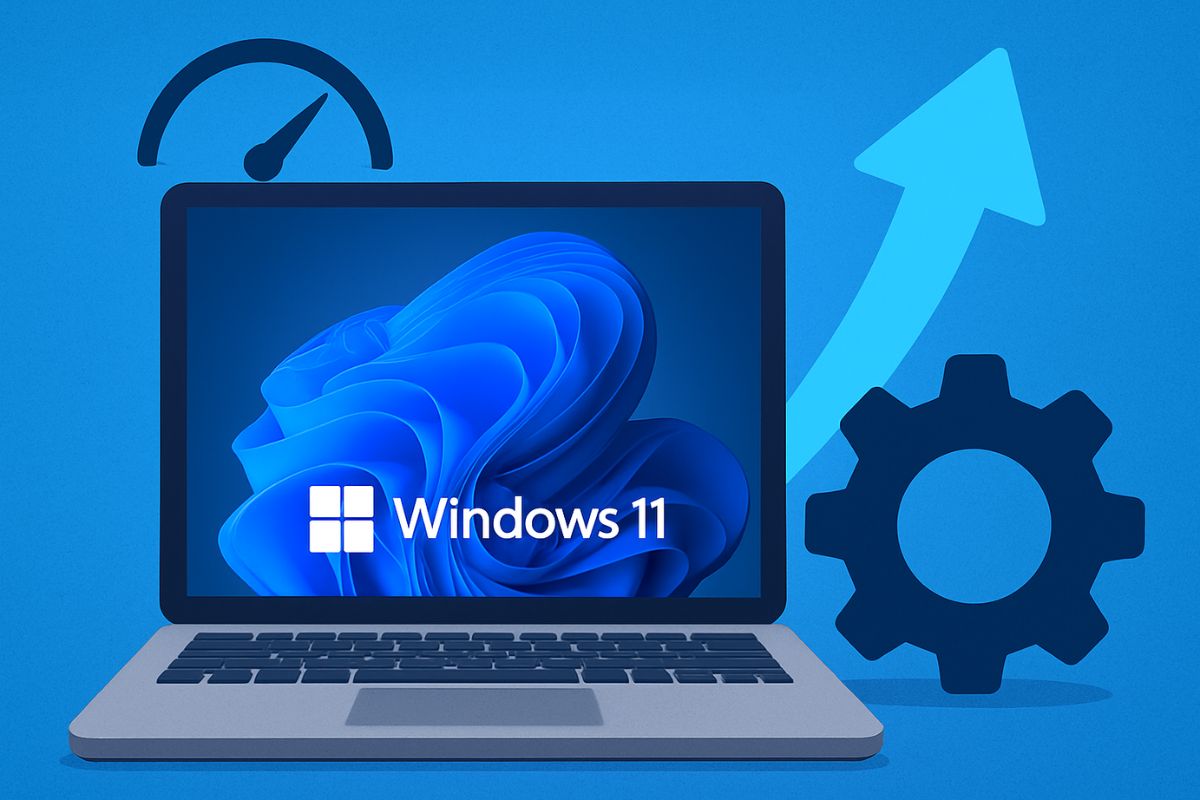
Windows 11 is Microsoft’s most advanced operating system yet, designed with a sleek interface, productivity features, and improved security. However, even with all its enhancements, many users experience slowdowns over time. A once fast and responsive computer can begin to lag, taking longer to boot, launch apps, or handle everyday tasks. This usually happens because of unnecessary startup programs, background processes, fragmented storage, outdated drivers, or simply a lack of regular maintenance.
The good news is that you don’t always need new hardware to make your PC run faster. With the right optimizations, you can dramatically improve speed, responsiveness, and overall performance. In this guide, we’ll walk you through step-by-step methods to optimize your Windows 11 PC—from cleaning up storage and adjusting settings to disabling unneeded apps and services. Whether you’re using a high-end machine or an older laptop, these tips will help you keep Windows 11 running smoothly.
Why Windows 11 PCs Slow Down

Even the most powerful Windows 11 PCs can start to feel sluggish over time. Understanding the common causes of slowdown is the first step in optimizing your system. Several factors contribute to decreased performance:
- Too Many Startup Programs
Many applications automatically launch when Windows starts. Over time, this pile-up can significantly increase boot time and consume valuable memory and CPU resources in the background. - Background Processes and Services
Windows 11 runs numerous background processes, such as syncing, updates, and system monitoring. Third-party applications also add their own processes. Too many simultaneous tasks can slow overall system responsiveness. - Fragmented or Full Storage Drives
Traditional hard drives (HDDs) can become fragmented, causing slower file access. Even SSDs can slow down when nearly full, affecting performance. - Outdated Drivers and System Updates
Drivers and Windows updates ensure compatibility and efficiency. Outdated drivers can lead to crashes, lags, and suboptimal hardware performance. - Bloatware and Unnecessary Apps
Pre-installed programs or rarely used applications occupy storage and memory, impacting speed. - Visual Effects and Animations
Windows 11 features advanced animations, transparency, and effects. While aesthetically pleasing, these can slow down systems with limited hardware resources. - Malware and Security Threats
Viruses, malware, or unwanted software can consume system resources, disrupt processes, and drastically reduce speed.
By identifying these factors, you can target the specific areas slowing down your PC and apply the right optimization techniques.
1. Disable Unnecessary Startup Programs
One of the most common reasons a Windows 11 PC feels slow is due to too many programs launching automatically at startup. Each program that starts with Windows consumes memory and CPU resources, which can increase boot time and reduce overall system responsiveness. By disabling unnecessary startup programs, you can significantly improve your PC’s speed.

How to Manage Startup Apps in Windows 11
Open Task Manager
- Press Ctrl + Shift + Esc to open Task Manager.
- Alternatively, right-click the Start button and select Task Manager.
Go to the Startup Tab
- Click on the Startup apps tab to see all programs that launch with Windows.
Check Startup Impact
- Each program has a Startup impact rating: High, Medium, Low, or Not measured. Programs marked High consume more resources during startup.
Disable Unnecessary Apps
- Right-click on apps you rarely use (like media players, messaging apps, or cloud storage clients) and select Disable.
- Leave essential programs like antivirus or system utilities enabled.

Restart Your PC
- After disabling unnecessary startup programs, restart your computer to notice improved boot times and faster performance.
2. Uninstall Bloatware and Unused Apps
Bloatware refers to pre-installed apps or programs that come with Windows 11 or your PC manufacturer. These apps often take up storage and consume system resources even if you rarely use them. Similarly, leftover software you no longer need can slow down performance.
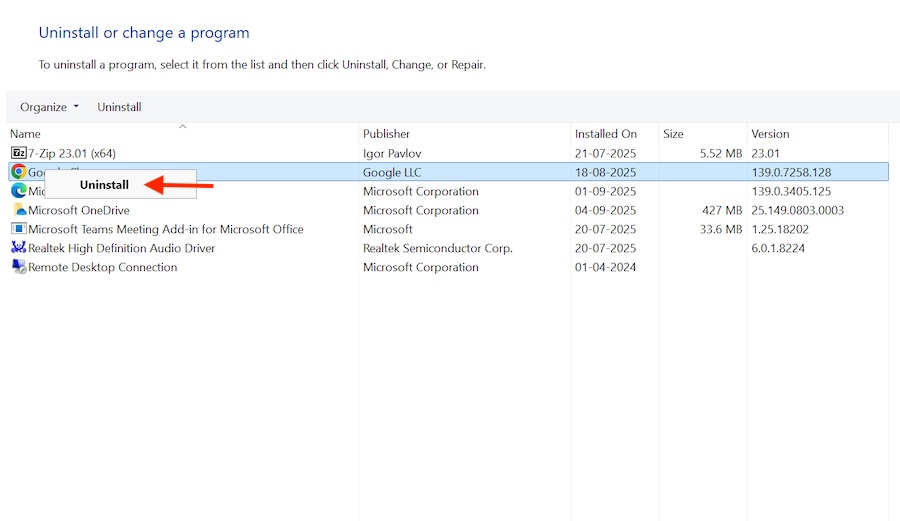
Steps to Remove Unwanted Programs:
- Press Win + I to open Settings.
- Go to Apps > Installed apps.
- Review the list of installed applications.
- Click … next to an app you don’t need and select Uninstall.
Pro Tips:
- Be cautious with apps that seem system-related. Research online if unsure.
- Removing unnecessary apps frees storage and reduces background processes, helping your PC run faster.
3. Optimize Background Processes
Background processes can quietly consume CPU and RAM, reducing system responsiveness. Many apps like email clients, cloud storage, or social media tools constantly sync in the background.
Steps to Limit Background Activity:
- Open Settings > Apps > Installed apps.
- Select the app, click … > Advanced options.
- Under Background app permissions, choose Never or Power optimized.
Pro Tips:
- Limit apps that aren’t critical to daily tasks.
- Keep essential apps like antivirus software running.
4. Adjust Windows 11 Power Settings
Windows 11 balances performance and energy efficiency by default. Switching to a high-performance mode can boost speed, especially on laptops and desktops used for demanding tasks.
Steps to Change Power Mode:
- Open Settings > System > Power & battery.
- Under Power mode, select Best performance.
Pro Tips:
- On laptops, high-performance mode can reduce battery life, so switch modes depending on usage.
- Performance gains are noticeable during multitasking, gaming, or video editing.
5. Clean Up Storage Space
Cluttered storage slows down your PC. Temporary files, old downloads, and system cache can consume gigabytes of space. Cleaning them improves performance and prevents Windows from slowing down.
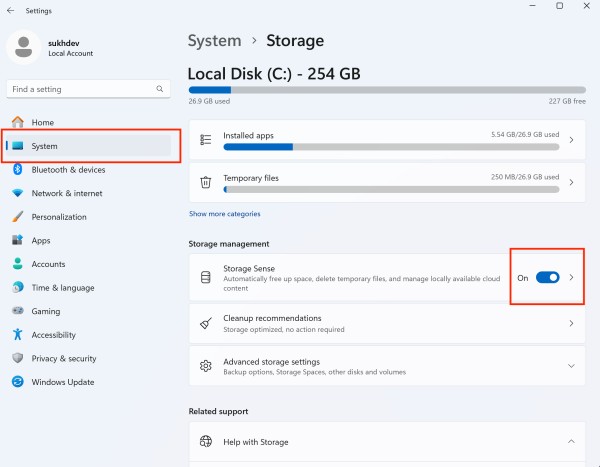
Use Storage Sense:
- Open Settings > System > Storage.
- Turn on Storage Sense to automatically delete temporary files and empty Recycle Bin.
Manual Disk Cleanup:
- Search Disk Cleanup in the Start menu.
- Select the drive to clean.
- Check items like Temporary files, Recycle Bin, and System cache, then click Delete.
Pro Tips:
- Schedule storage cleanups monthly.
- Freeing up space ensures faster file access and system responsiveness.
6. Update Windows and Drivers
Outdated Windows updates and drivers can cause slowdowns, crashes, and hardware compatibility issues. Keeping both up to date ensures smooth performance.

Steps to Update Windows:
- Open Settings > Windows Update > Check for updates.
Update Drivers:
- Right-click Start > Device Manager.
- Select a device (e.g., Display adapter) > Update driver.
Pro Tips:
- GPU driver updates (NVIDIA, AMD, Intel) can greatly improve gaming and video performance.
- Consider optional updates for stability improvements.
7. Disable Visual Effects
Windows 11 includes animations, transparency effects, and other visual features that make the interface look modern and smooth. While these are visually appealing, they can consume system resources, especially on PCs with limited hardware. Disabling unnecessary visual effects can noticeably improve performance.
Steps to Adjust Visual Effects:
- Press Win + R, type
sysdm.cpl, and press Enter. - Go to the Advanced tab and click Settings under Performance.
- Choose Adjust for best performance to disable all animations and effects, or manually deselect options like “Animate windows when minimizing and maximizing.”
- Click Apply, then OK.
Pro Tips:
- Keep “Smooth edges of screen fonts” enabled for readability.
- You can selectively enable effects you like while disabling the rest for a balance of aesthetics and speed.
8. Defragment or Optimize Drives
If you use a traditional hard disk drive (HDD), files can become fragmented over time, slowing down file access. Even solid-state drives (SSDs) benefit from periodic optimization to maintain peak performance.
Steps to Optimize Drives:
- Search Defragment and Optimize Drives in the Start menu.
- Select your drive and click Optimize.
- Schedule weekly optimization for HDDs; SSDs automatically use TRIM for efficiency.
Pro Tips:
- Never defragment an SSD manually—it’s unnecessary and may slightly reduce lifespan.
- Regular optimization ensures faster booting and file access.
9. Disable Unnecessary Startup Services
Besides apps, Windows 11 runs many services at startup. Some are essential, but others—like fax services or third-party software helpers—may not be needed and can slow your system.

Steps to Disable Startup Services:
- Press Win + R, type
msconfig, and press Enter. - Go to the Services tab.
- Check Hide all Microsoft services to avoid disabling critical system services.
- Uncheck non-essential third-party services.
- Click Apply, then OK, and restart your PC.
Pro Tips:
- Research any service before disabling it.
- Disabling unused services reduces memory usage and improves boot time.
10. Scan for Malware and Viruses
Malware, viruses, and unwanted software can consume CPU, memory, and disk resources, making your PC slow or unstable. Regular scans help maintain performance.

Steps to Scan Using Windows Security:
- Open Settings > Privacy & Security > Windows Security.
- Click Virus & Threat Protection > Quick scan.
- For a thorough check, run a Full scan occasionally.
Pro Tips:
- Consider a reliable third-party antivirus for additional protection.
- Avoid downloading files from untrusted sources to minimize malware risk.
11. Adjust Virtual Memory
Virtual memory, also called the paging file, acts as additional RAM by using disk space. If your system has limited RAM, increasing virtual memory can prevent slowdowns when running multiple apps.
Steps to Adjust Virtual Memory:
- Press Win + R, type
sysdm.cpl, and press Enter. - Go to Advanced > Performance > Settings > Advanced.
- Under Virtual memory, click Change.
- Uncheck Automatically manage paging file size.
- Select Custom size: set Initial size = 1.5× your RAM, Maximum size = 3× your RAM.
- Click Set, then OK, and restart your PC.
Pro Tips:
- Use an SSD for virtual memory to improve speed.
- Avoid setting extremely large values; it can waste disk space without meaningful gains.
12. Disable Unused Hardware Devices
Unused hardware like Bluetooth adapters, printers, webcams, or network adapters can consume system resources even when idle. Disabling them can free up memory and improve performance.
Steps to Disable Hardware Devices:
- Press Win + X and select Device Manager.
- Expand the category of the device you want to disable.
- Right-click the device and select Disable device.
Pro Tips:
- Only disable devices you rarely use.
- You can re-enable them anytime if needed.
13. Manage Browser Performance
Browsers are often major resource hogs due to multiple tabs, extensions, and background tasks. Optimizing browser usage can significantly improve overall system speed.
Tips to Optimize Browser Performance:
- Remove unnecessary extensions.
- Enable hardware acceleration in browser settings.
- Use “Sleeping Tabs” (in Edge) or similar features in other browsers to reduce memory usage.
- Close unused tabs regularly.
Pro Tips:
- Lightweight browsers like Microsoft Edge or Opera can consume less RAM than Chrome.
- Clear cache and cookies periodically to maintain speed.
14. Perform Regular Maintenance
Regular maintenance keeps your PC running smoothly and prevents performance degradation over time.
Key Maintenance Tasks:
- Clear temporary files and caches monthly.
- Run Windows Troubleshooters (Settings > System > Troubleshoot).
- Monitor disk health and optimize drives periodically.
- Backup important files and consider resetting Windows if the system becomes too slow.
Pro Tips:
- Scheduling routine maintenance can prevent small issues from becoming bigger problems.
- Automation tools like Storage Sense help maintain system health with minimal effort.
15. Advanced Optimization: Registry and Services
For experienced users, advanced tweaks in the Windows registry and services can boost performance further.
Advanced Tweaks:
- Disable unnecessary services like Remote Registry or Fax via
services.msc. - Adjust startup delays and system behavior in the registry.
Pro Tips:
- Always back up the registry before making changes.
- Incorrect changes can cause system instability, so proceed with caution.
16. Upgrade Hardware (If Needed)
Sometimes, software optimization alone isn’t enough. Hardware upgrades can give your PC a major performance boost.
Recommended Upgrades:
- Add more RAM – at least 8GB, ideally 16GB for smooth multitasking.
- Switch to an SSD – significantly faster than traditional HDDs.
- Upgrade GPU – essential for gaming, video editing, and graphics-intensive tasks.
Pro Tips:
- Check your PC’s compatibility before purchasing hardware upgrades.
- A combination of software optimization and hardware improvements ensures the best performance.
Conclusion
Optimizing your Windows 11 PC is essential to maintain speed, responsiveness, and overall efficiency. Over time, even the most powerful computers can slow down due to startup bloat, unnecessary background processes, fragmented storage, outdated drivers, and visual effects. By following a combination of software and hardware strategies, you can significantly enhance performance.
Disabling unnecessary startup programs, uninstalling unused apps, adjusting power settings, cleaning storage, updating drivers, and managing background processes all contribute to a smoother experience. Additionally, advanced steps like optimizing virtual memory, disabling unused services, and maintaining regular system maintenance can further improve speed.
For users with older hardware, upgrading components such as RAM, storage, or the GPU can make a substantial difference. Consistently applying these optimization techniques ensures that your Windows 11 PC runs efficiently, prolongs its lifespan, and delivers a faster, more productive computing experience.
![How to Optimize Your PC to Run Faster [Windows 11]](https://www.geeksdigit.com/wp-content/uploads/2025/07/brightness-adjustment-windows-11.jpg)
![How to Optimize Your PC to Run Faster [Windows 11]](https://www.geeksdigit.com/wp-content/uploads/2025/07/file-manager-windows-11.jpg)