Microsoft OneDrive comes pre-installed with Windows 11 and offers seamless cloud storage integration, enabling users to back up, sync, and access files across multiple devices. While this functionality is convenient for many, not every user finds it necessary or beneficial. For some, OneDrive’s background syncing can slow down performance, consume valuable bandwidth, or raise privacy concerns. Others may simply prefer alternative cloud storage platforms like Google Drive, Dropbox, or iCloud.
Additionally, those who rely on local file storage or work within a network-restricted environment might find OneDrive more of a nuisance than a help. Fortunately, Windows 11 gives users several ways to disable or completely remove OneDrive based on their preferences.

Whether you’re looking for a temporary pause, a permanent unlink from your Microsoft account, or a complete uninstallation, this guide walks you through every method step by step. From basic settings changes to using the Group Policy Editor or PowerShell commands, we cover all options to help you take full control of your system.
Why You Might Want to Disable OneDrive
Before we dive into the methods, here are a few common reasons why users choose to disable OneDrive:
- Privacy concerns: You may not want your files synced to the cloud.
- Low bandwidth: Constant syncing can consume internet data.
- Performance issues: OneDrive can use CPU and RAM resources in the background.
- Preference for other platforms: You might use Google Drive, Dropbox, or another service.
- Clutter management: Unwanted syncing can make file management more confusing.
Important Precautions Before Turning Off OneDrive
- Backup Unsynced Files: Ensure all files have been fully synced to the cloud or backed up manually, so nothing gets lost.
- Verify Online Storage: Log in to onedrive.live.com and confirm that critical files are available online before unlinking or uninstalling.
- Understand Sync Impact: Turning off or unlinking OneDrive stops file syncing between your PC and the cloud — new local changes won’t be backed up automatically.
- Check Shared Folders: Files shared with others may become inaccessible if removed or unsynced from OneDrive — communicate changes with collaborators.
- Pause Instead of Disable (Optional): If you’re unsure, use Pause Syncing to temporarily stop syncing without unlinking or uninstalling.
- Retain Access Credentials: Keep your Microsoft account login credentials handy — you’ll need them if you decide to reconnect OneDrive later.
- Admin Rights May Be Needed: Disabling OneDrive via Group Policy or Registry Editor may require administrative privileges.
- Clean Up Locally Stored Files Carefully: After unlinking, files remain on your PC — delete or move them cautiously to avoid accidental data loss.
- Consider Multi-User Impact: If multiple users share the device, turning off OneDrive may affect other user accounts connected to the same cloud storage.
Step 1: Click on the OneDrive Icon in the Taskbar
- Look at the bottom-right corner of your screen in the System Tray (also called Notification Area).
- Click the OneDrive icon (a cloud-shaped icon).
- If it’s not immediately visible, click the upward-facing arrow (^) to show hidden icons.

Step 2: Open OneDrive Settings
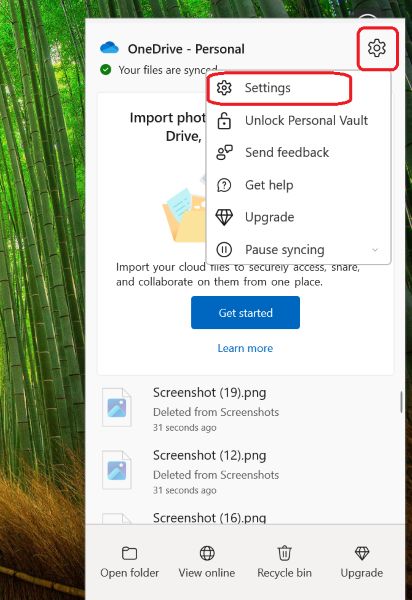
- In the OneDrive panel that opens, click the gear icon ⚙️ (top-right).
- From the drop-down, choose “Settings”.
Step 3: Go to the Account Tab
- In the Microsoft OneDrive settings window, click the “Account” tab at the top.
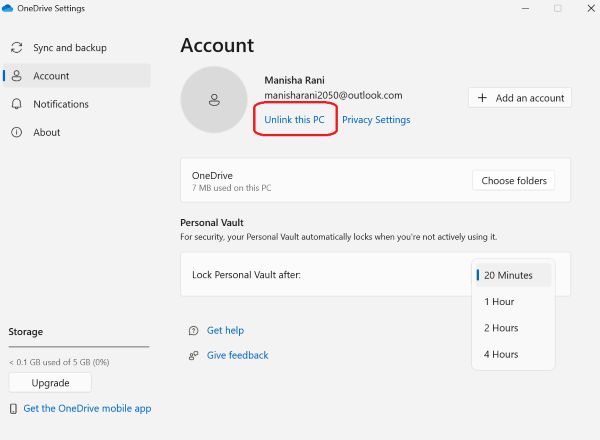
Step 4: Click Unlink this PC
- Under the Account tab, you’ll see your Microsoft account listed.
- Click the Unlink this PC button located below the account info.
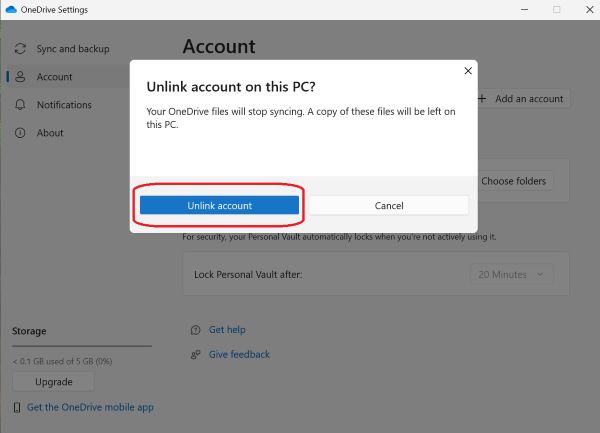
Step 5: Confirm the Action
- A confirmation prompt will appear saying: “Your OneDrive folder will stop syncing, but files already on this PC will remain.”
- Click the Unlink account button to confirm.
Step 6: Sign-in Screen Appears (You Can Close It)
After unlinking, the OneDrive sign-in window may appear asking you to sign in again. If you don’t want to use OneDrive:
- Simply close the sign-in window.
- OneDrive will no longer sync, and your PC is unlinked.
Optional: Prevent OneDrive from Starting Automatically
Even after unlinking, OneDrive may still start with Windows. You can disable that:
Step 1: Open OneDrive Settings Again
- Click the OneDrive icon → Gear icon → Settings.
Step 2: Under the “Settings” Tab
- Uncheck the box that says: Start OneDrive automatically when I sign in to Windows
- Click OK to save changes.
Now, OneDrive won’t run unless you start it manually.
Frequently Asked Questions (FAQs)
Will I lose my files if I unlink OneDrive?
No. Files already synced to your PC will stay there. They are not deleted.
Can I relink OneDrive later?
Yes. Just launch OneDrive and sign in with your Microsoft account.
Will this stop OneDrive from running?

Yes, unlinking stops syncing. To stop it from launching, disable auto-start from settings.
Do I need to uninstall OneDrive?
Not necessarily. Unlinking is usually enough. But you can uninstall it if you never plan to use it.
Bottom Line
While OneDrive is a convenient and powerful tool for many users, it’s not essential for everyone. Whether you’re concerned about privacy, saving bandwidth, or prefer other cloud storage solutions, turning off OneDrive in Windows 11 is a relatively straightforward process. From pausing syncing to fully uninstalling the app, you have multiple levels of control at your fingertips.
For casual users who just want to stop syncing for a while, pausing or unlinking may suffice. Power users and IT administrators, on the other hand, can use Group Policy or command-line tools for a more permanent solution. The flexibility Windows 11 offers in this regard ensures that you can tailor your system to fit your exact needs without unnecessary clutter or background processes.
Remember, turning off OneDrive does not compromise your system’s performance—it can actually enhance it for some users. So feel free to disable it without worry and take charge of your Windows experience.
Frequently Asked Questions (FAQs)
Will disabling OneDrive delete my files?
No. Disabling or uninstalling OneDrive won’t delete your local files. Any files already synced will still be available in your OneDrive cloud account via the web.
Can I reinstall OneDrive after removing it?
Yes. You can reinstall OneDrive anytime by downloading it from the Microsoft Store or official website.
What happens to files in the OneDrive folder after uninstalling?
Files stored in the local OneDrive folder remain on your PC, but they will no longer sync to the cloud. You can move or delete them like any regular files.
Is it safe to remove OneDrive from Windows 11?
Yes, it’s safe. OneDrive is not essential for Windows 11’s core functionality. Just ensure you back up any critical data before uninstalling.