Bluetooth technology plays a vital role in today’s wireless world, allowing devices to connect seamlessly without the need for physical cables. Whether you’re using wireless headphones, a Bluetooth mouse, or transferring files to your smartphone, enabling Bluetooth on your Windows 11 PC is a crucial step. Fortunately, Windows 11 offers several user-friendly methods to turn Bluetooth on, manage connections, and troubleshoot issues—all wrapped in a modern and intuitive interface. However, some users still encounter situations where Bluetooth is missing, disabled, or not functioning properly.
If you’re facing similar challenges or simply want to learn how to activate Bluetooth effectively, this comprehensive guide is here to help. Windows 11 has streamlined the process of managing Bluetooth devices, making it easier than ever to turn Bluetooth on and pair devices directly from the Settings menu.
Understanding Bluetooth in Windows 11

Before diving into the technical steps, it’s helpful to understand what Bluetooth is and how it works in Windows 11. Bluetooth is a wireless technology standard that enables short-range data exchange between devices. Windows 11 supports the latest Bluetooth standards, offering faster connection speeds, better range, and improved power efficiency compared to previous versions.
Most modern laptops come with built-in Bluetooth capabilities, while desktop computers may require a separate Bluetooth adapter if one isn’t already integrated into the motherboard. Windows 11 automatically installs the necessary drivers for most Bluetooth adapters, making the setup process remarkably straightforward.
Checking if Your Computer Has Bluetooth
Before attempting to turn on Bluetooth, you should verify that your computer actually has Bluetooth capability. Here’s how to check:
Open the Device Manager by right-clicking on the Start button and selecting “Device Manager” from the menu. Look for a category labeled “Bluetooth” in the list. If you see this category with devices listed underneath it, your computer has Bluetooth capability. If you don’t see this section, your computer may not have Bluetooth hardware installed, or the drivers may not be properly installed.
Alternatively, you can check in Settings by opening the Settings app and looking for Bluetooth options in the sidebar. If Bluetooth options are visible, your system supports it.
Below is a comprehensive, step-by-step guide to help you activate Bluetooth and connect your accessories with confidence.
Step 1: Open the Settings App
You can access the Settings app in several ways, but the quickest is using a keyboard shortcut:
- Press
Windows + Ion your keyboard.
This opens the Settings window instantly.

Alternatively:

- Click the Start Menu.
- Select the Settings gear icon from the pinned apps or search bar.
Step 2: Navigate to the Bluetooth & Devices Section
Once the Settings window is open:
- In the left-hand sidebar, click on Bluetooth & devices.
This is the central hub for managing Bluetooth, USB, audio, and other external connections.
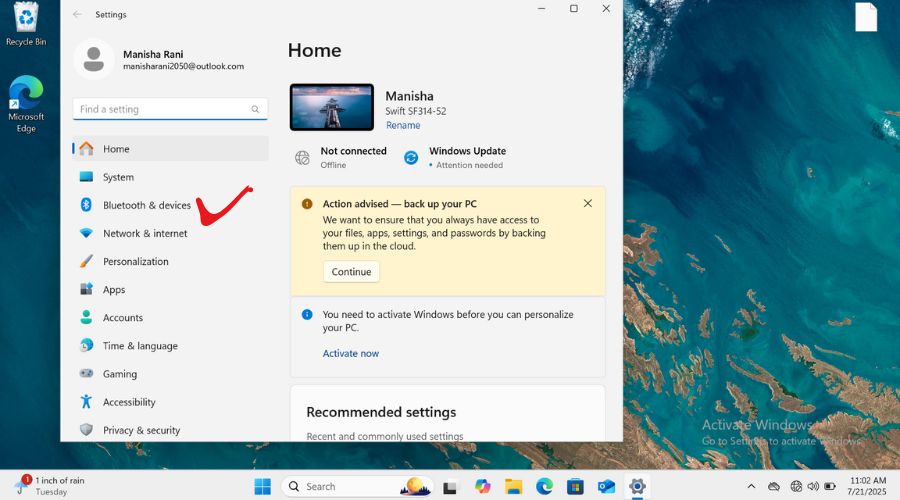
You will now see a new page dedicated to connected devices and wireless communication.
Step 3: Turn Bluetooth On
At the top of the Bluetooth & devices section, you’ll see a toggle switch labeled Bluetooth.
- Click the toggle to switch it to the On position.
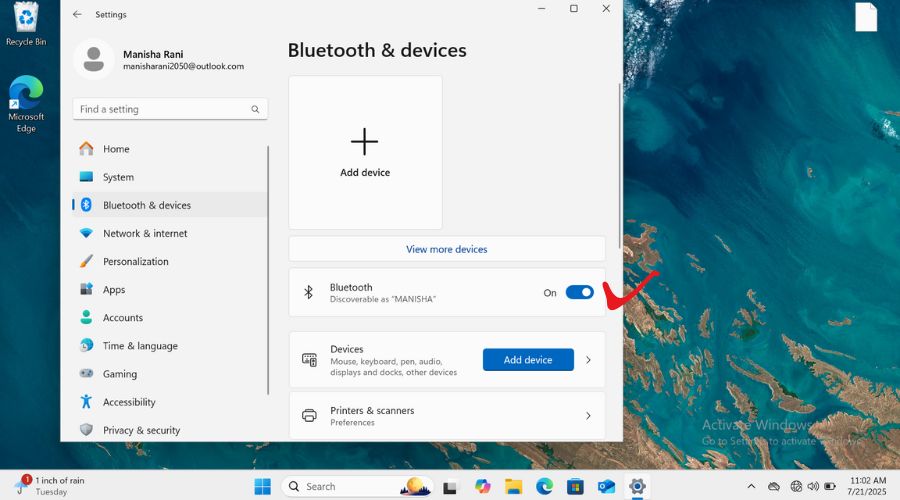
When Bluetooth is turned on:
- The toggle will turn blue.
- A short message like “Now discoverable as [Your PC Name]” may appear.
- Nearby Bluetooth devices (if any) will begin to populate automatically.
If the toggle is missing or grayed out, it likely means Bluetooth hardware is disabled or drivers are missing—refer to the troubleshooting section in the full guide.
Step 4: Add a New Bluetooth Device
Now that Bluetooth is active, it’s time to connect your Bluetooth device.
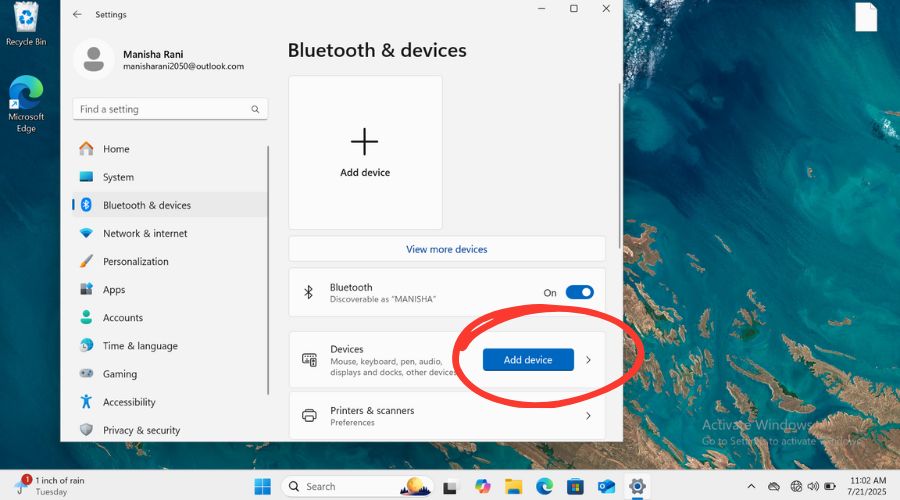
- Click the Add device button near the top-right of the page.
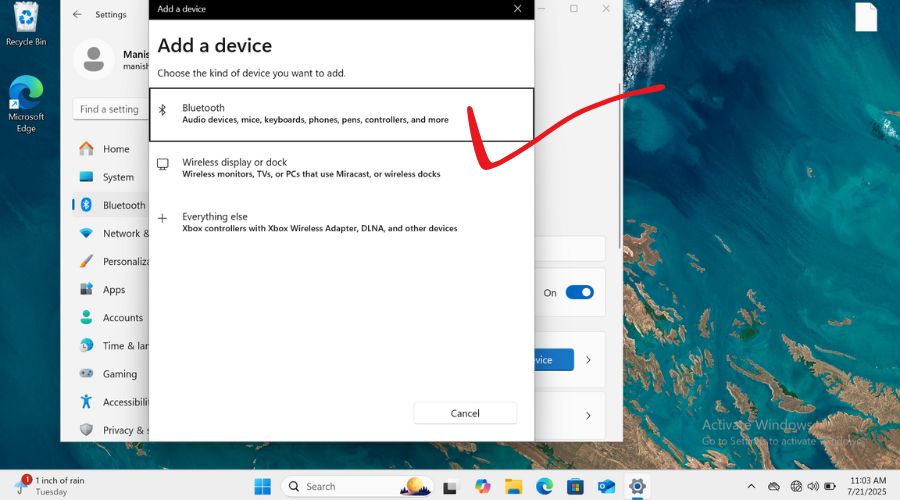
- A new window titled Add a device will pop up with three options:
- Bluetooth (for headphones, mice, keyboards, etc.)
- Wireless display or dock
- Everything else (like Xbox controllers, DLNA devices)
- Click “Bluetooth”, which is the first option.
Tip: Ensure the device you want to connect is in pairing mode. Most devices indicate pairing mode by blinking a light or playing a sound. Refer to your device’s manual for instructions.
Step 5: Select Your Device From the List
Windows 11 will begin scanning for available Bluetooth devices.
- Wait for your device’s name to appear in the list (e.g., ONS-03).
- Click on your device when it appears.
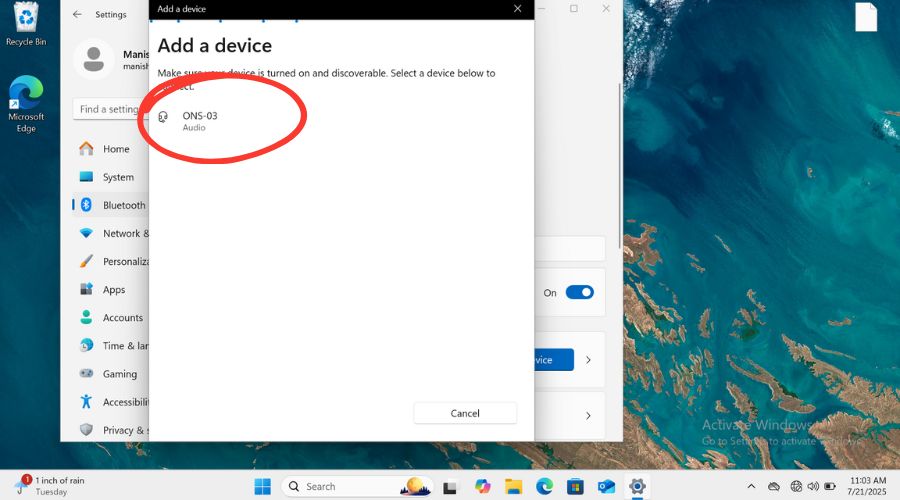
Once clicked, Windows will initiate the pairing process.
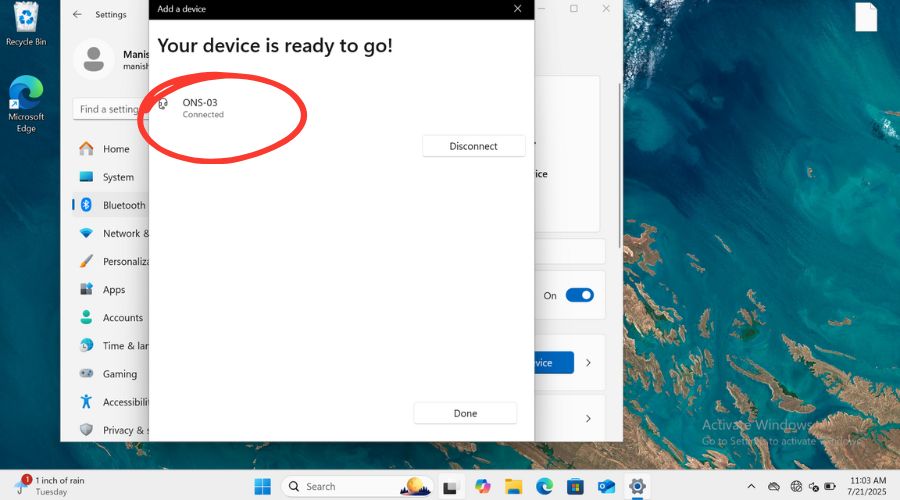
Step 6: Complete the Pairing Process
Depending on the type of device, the pairing process may differ slightly:
For Audio Devices (Headphones, Speakers):
- Windows will automatically pair and connect the device.
- You may hear a sound or see a visual confirmation on the device.
For Keyboards or Mice:
- Windows may ask you to confirm a PIN or enter a code on the device.
- Type the displayed PIN on your Bluetooth keyboard and press Enter.
- For mice, simply confirm the pairing.
For Phones or Other Smart Devices:
- A pop-up may appear asking you to confirm a matching PIN on both devices.
- Click Yes or Pair on both sides.
After the successful pairing:
- The device will now show up under the Devices list in the Bluetooth & devices section.
- You may also see the device status change to Connected or Paired.
Step 7: Test the Connection
To ensure the device works correctly:
- For audio devices: Play some music or audio.
- For keyboards/mice: Try typing or moving the mouse.
- For phones: Try sending or receiving files if supported.
Troubleshooting: Bluetooth Not Showing or Not Turning On
If Bluetooth options are missing or greyed out, try the following fixes:
1. Check for Windows Updates
- Go to Settings > Windows Update.
- Install any available updates.
2. Reinstall Bluetooth Driver
- Open Device Manager.
- Right-click the Bluetooth adapter and choose Uninstall device.
- Restart your PC. Windows should reinstall the driver automatically.
3. Enable in BIOS/UEFI
- Some systems allow enabling/disabling Bluetooth in the BIOS.
- Restart your PC, enter BIOS/UEFI (commonly
F2,Del, orEsc), and look for Bluetooth settings.
4. Run the Bluetooth Troubleshooter
- Go to Settings > System > Troubleshoot > Other troubleshooters.
- Find and run the Bluetooth troubleshooter.
5. Ensure Airplane Mode is Off
- Go to Settings > Network & internet > Airplane mode and toggle it Off.
Turning Bluetooth Off
To turn off Bluetooth, reverse any of the methods above. Either:
- Go to Settings > Bluetooth & devices and toggle off.
- Click the Bluetooth icon in Action Center to deactivate.
- Use the keyboard shortcut (Fn + Bluetooth key).
Turning off Bluetooth when not in use can save battery and reduce interference.
Tips for Better Bluetooth Performance
- Keep devices close (within 10 meters) for optimal connectivity.
- Avoid physical obstructions like walls or metal objects.
- Charge your Bluetooth device fully before pairing.
- Update your PC’s Bluetooth drivers regularly.
- Disable other wireless devices if you experience interference.
Frequently Asked Questions (FAQs)
Why can’t I find the Bluetooth option in Windows 11?
This typically means your PC doesn’t have Bluetooth hardware, or the driver is missing or disabled. Check Device Manager or install updated drivers from your PC manufacturer’s website.
How do I know if my PC supports Bluetooth?
Open Device Manager and look for the Bluetooth section. If you see a Bluetooth adapter listed, your PC supports it. You can also check your laptop or motherboard’s specifications online.
Can I use a USB Bluetooth adapter if my PC doesn’t have Bluetooth?
Yes, absolutely. USB Bluetooth dongles are affordable and easy to install. Simply plug one into a USB port, and Windows 11 should automatically recognize it and install necessary drivers.
Why is my Bluetooth device not connecting even when it’s paired?
Try removing the device from Bluetooth & devices, then re-pair it. Also, ensure the device is charged, within range, and not paired with another system. Restarting both the PC and the Bluetooth device can help resolve issues.
Final Thoughts
Bluetooth has become an indispensable feature in the modern computing experience, and Windows 11 makes managing Bluetooth devices intuitive and visually appealing. Whether you’re connecting a wireless headset, transferring files to your smartphone, or using a Bluetooth keyboard, enabling Bluetooth is the first step.
This guide has walked you through easiest possible method of turning on Bluetooth along with pairing and troubleshooting. For users with persistent issues, checking drivers, updating Windows, or using a USB Bluetooth adapter can be effective solutions. By following these detailed instructions, you’ll be able to harness the full potential of Bluetooth in Windows 11 with ease.