Microsoft Edge, the default web browser on Windows 11, is built on the Chromium engine and continues to receive regular updates to enhance performance, security, and functionality. Staying up to date ensures that you get the latest features, compatibility improvements, and important security patches. Whether you’re using Edge for casual browsing, work, or app development, an outdated version may limit your experience or expose you to risks.
Thankfully, updating Microsoft Edge in Windows 11 is straightforward. In most cases, it updates automatically via Windows Update or its built-in update system. However, there are times when manual intervention is necessary—especially if automatic updates are disabled or if you’re using an older build of Windows 11. This detailed guide explains various methods to update Microsoft Edge, troubleshoot issues, and ensure that your browser is running the latest version.

Let’s dive into the steps to check, update, and verify the latest version of Microsoft Edge in Windows 11.
Why You Should Keep Microsoft Edge Updated
Before we explore the update process, it’s important to understand why keeping Edge updated is essential:
- Security Enhancements: Microsoft regularly patches security vulnerabilities. Using an outdated version exposes your system to threats.
- Performance Improvements: Updates often bring faster browsing speeds, improved memory usage, and better tab management.
- Feature Additions: New tools such as Sidebar, Copilot integration, web capture upgrades, and improved PDF support are only available in the latest versions.
- Compatibility Fixes: Edge updates ensure web pages, extensions, and web apps continue to function correctly.
- Bug Fixes: Updates resolve known issues that might affect user experience or cause crashes.
How to Update Microsoft Edge from Within the Browser
Updating Microsoft Edge directly from within the browser is the most convenient and user-friendly method available in Windows 11. Microsoft has built an auto-update mechanism into Edge that typically runs in the background, but users can manually trigger updates anytime using the browser’s internal settings page.
This method requires no additional downloads or complex settings — just a few simple clicks.
Step 1: Launch Microsoft Edge
The first step is to open the Edge browser.
- Click on the Start menu and search for Microsoft Edge, or
- Click the Edge icon on the taskbar or desktop if it’s already pinned.
Once the browser is open, proceed to the next step.
Step 2: Open the Browser Menu
- In the top-right corner, locate the three horizontal dots (⋯) — this is the Edge menu.
- Click it to open a dropdown list of options.
This menu provides access to a wide range of Edge’s settings and tools, including the update checker.
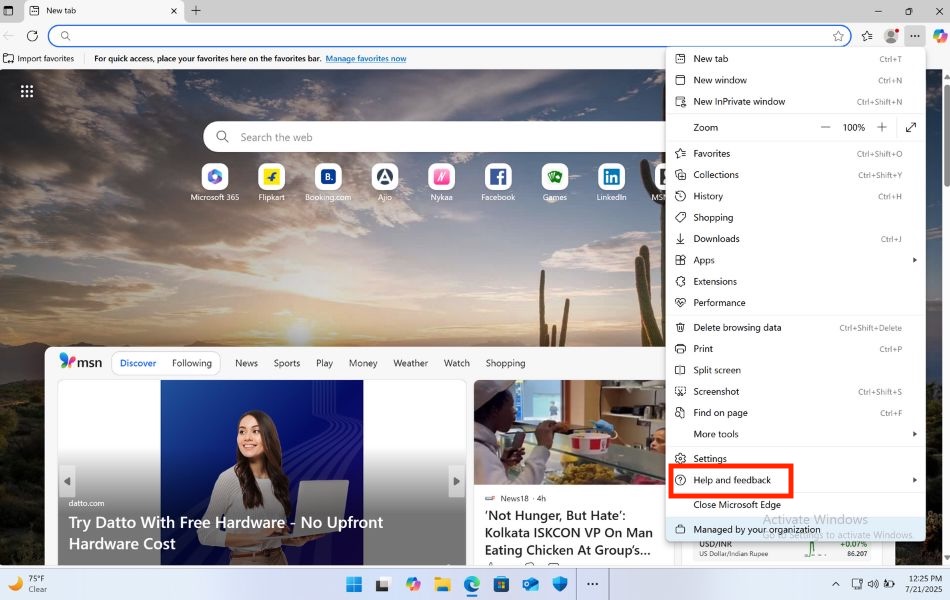
Step 3: Go to “Help and Feedback”

From the menu:
- Scroll down and hover over or click on Help and feedback.
- A small side menu will appear with more options.
Step 4: Click “About Microsoft Edge”
In the Help and feedback submenu:
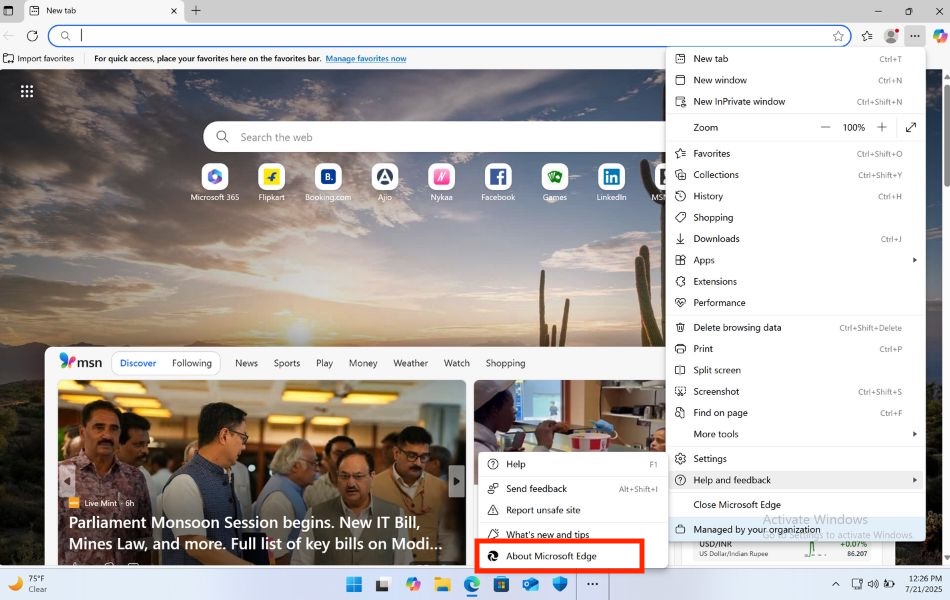
- Click on About Microsoft Edge.
This action opens a settings page with version details and triggers the browser to check for available updates.
Alternatively, you can skip steps 2–4 and go directly to the update page by entering the following into the address bar:
edge://settings/help
Then press Enter.
Step 5: Wait While Edge Checks for Updates
As soon as you land on the About Microsoft Edge page, the browser will automatically begin checking for updates.
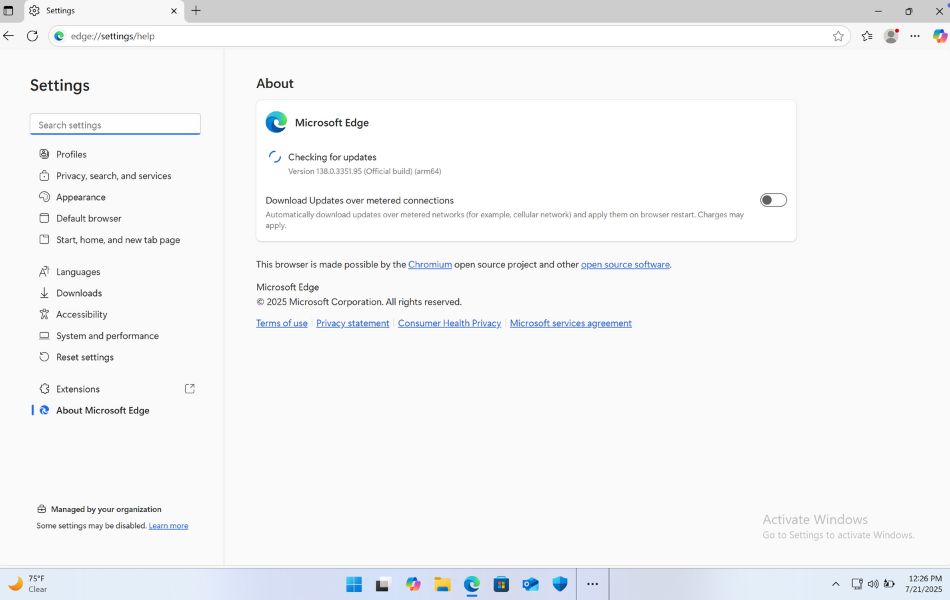
You will see a spinning circle and a message that says Checking for updates….
- If an update is available, Edge will download and install it automatically.
- If Edge is up to date, you’ll see the message:
Microsoft Edge is up to date.
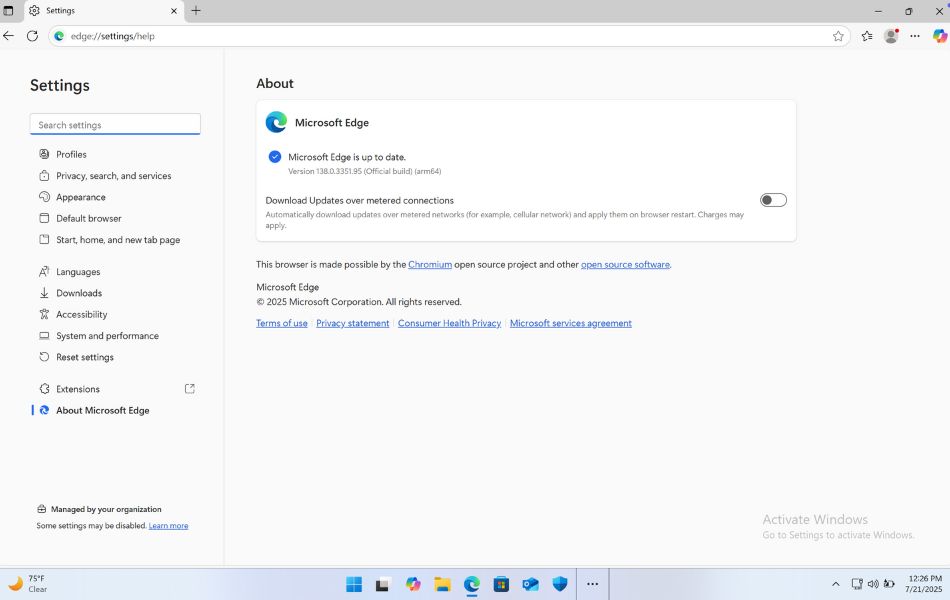
Step 6: Restart the Browser to Complete the Update
After the update has been downloaded and installed, a prompt will appear:
To finish updating, restart Microsoft Edge.
- Click the Restart button.
- The browser will close and reopen with the latest version installed.
Don’t worry — your open tabs will restore automatically unless you’ve disabled session restore in your settings.
Method 2: Update Edge via Windows Update
Edge is part of the Windows ecosystem, and major updates may also come through Windows Update.

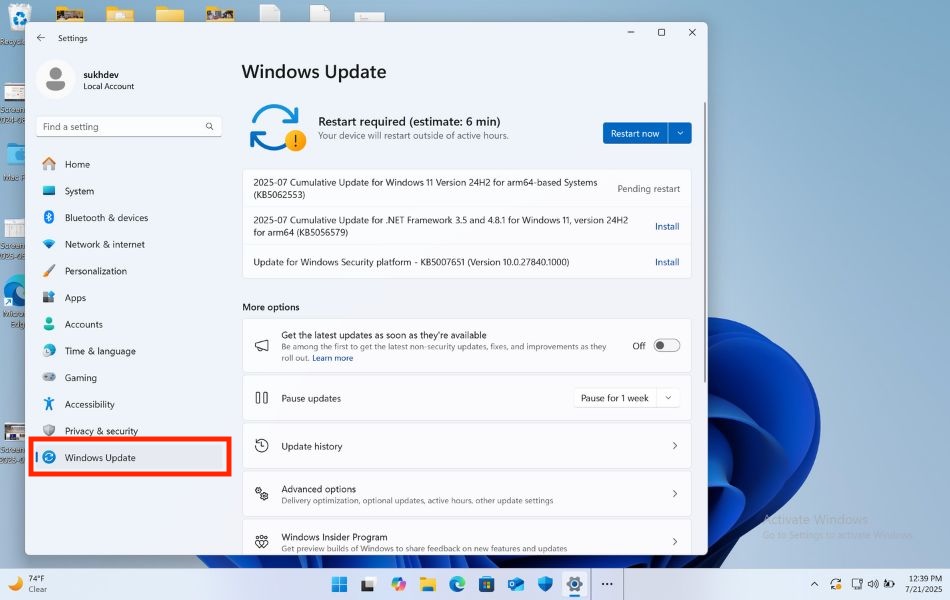
- Press Windows + I to open the Settings app.
- Click on Windows Update from the left panel.
- Click Check for updates.
- If Edge has a pending update, it will be downloaded and installed along with other updates.
- Restart your PC if required.
Method 3: Download and Install Microsoft Edge Manually
If you can’t update Edge using the browser or Windows Update, a manual install ensures you get the latest version.
- Go to the official Microsoft Edge download page.
- Click Download for Windows 11 or your appropriate version.
- Run the downloaded installer file.
- Follow the on-screen instructions to complete the installation.
How to Enable or Disable Auto-Update in Edge
By default, Edge updates automatically. If you want more control:
Check Auto-Update Status:
- Press Windows + R, type
services.msc, and press Enter. - Scroll to Microsoft Edge Update Service (edgeupdate and edgeupdatem).
- Ensure the Startup Type is set to Automatic.
Disable Auto-Update (Not Recommended):
Use Registry Editor:
- Press Windows + R, type
regedit, and press Enter. - Navigate to:
HKEY_LOCAL_MACHINE\SOFTWARE\Policies\Microsoft\EdgeUpdate
- Create a DWORD (32-bit) Value:
- Name:
AutoUpdateCheckPeriodMinutes - Value:
0(to disable)
- Name:
To re-enable, delete or change the value.
Bonus: How to Join the Edge Insider Program for Preview Builds
If you want to try newer Edge versions before the public release:
- Visit https://www.microsoftedgeinsider.com.
- Choose a channel:
- Canary: Updated daily (most experimental).
- Dev: Updated weekly (more stable).
- Beta: Updated every six weeks (stable but early).
- Click Download for your preferred channel.
- Install and explore early features.
Frequently Asked Questions (FAQs)
Can I update Edge without opening it?
Yes. Use Windows Update or manually install the latest version from the official Edge website.
Is updating Edge safe?
Absolutely. Updates are vetted by Microsoft and improve security and performance.
Does updating Edge affect my data or bookmarks?
No. Updating Edge retains your bookmarks, passwords, extensions, and settings.
Conclusion
Keeping Microsoft Edge updated is a vital step in maintaining a secure and efficient browsing experience in Windows 11. While the browser usually updates itself in the background, understanding how to manually check for updates or resolve potential issues ensures you’re never left behind. Whether you’re an everyday user, IT admin, or a tech enthusiast, the steps outlined above will help you stay on top of Edge updates with ease.
From built-in update options and Windows Update to advanced PowerShell methods, Microsoft offers various ways to ensure your browser stays current. As Edge continues to evolve with AI features, enhanced privacy controls, and improved compatibility, staying updated guarantees you make the most of its capabilities. If you haven’t already, take a moment to check your Edge version today and keep your digital life safe, fast, and future-ready.
![How to Update Microsoft Edge to Latest Version [Windows 11]](https://www.geeksdigit.com/wp-content/uploads/2025/11/turn-on-bluetooth-windows-11.jpg)
![How to Update Microsoft Edge to Latest Version [Windows 11]](https://www.geeksdigit.com/wp-content/uploads/2025/11/command-prompt-windows-11-thumb.jpg)