
 Geeksdigit Team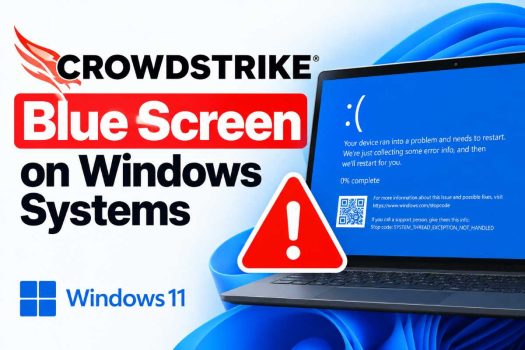
In July 2024, a faulty content update to CrowdStrike Falcon’s sensor caused Windows systems worldwide to crash into the Blue Screen of Death (BSOD) and enter repeated boot loops. The issue stemmed from a defective “Channel File” pushed to the Falcon kernel-mode driver, which caused a logic error when the operating system tried to load it. Because CrowdStrike Falcon runs at the kernel level for security monitoring, a crash there brings down the entire operating system rather than just the application.
Although the original incident was resolved by CrowdStrike shortly after it occurred, the same underlying failure pattern — a corrupted or incompatible Falcon sensor file causing BSOD loops — can recur after botched updates, corrupted files, or improper rollback procedures. This guide walks through diagnosing the issue and applying the fix across a range of real-world scenarios: single machines, fleets, encrypted drives, and cloud/virtual environments.
Step 1: Confirm You’re Dealing With This Issue
Before attempting a fix, confirm the symptoms match:
- The system boots, briefly shows the Windows logo, then crashes to a blue screen.
- The stop code often references a driver file, commonly
csagent.sys(CrowdStrike’s kernel driver). - The machine enters a repeated reboot loop, never reaching the desktop or login screen.
- Systems without CrowdStrike Falcon installed are unaffected.
- The issue typically appears shortly after a Falcon sensor update or channel file push.
If your symptoms differ substantially (different driver referenced, unrelated stop code, or the crash started before any CrowdStrike-related change), treat this as a separate BSOD issue and investigate the actual stop code and minidump instead of assuming this cause.
Step 2: The Core Fix — Manual Remediation via Safe Mode
This is the primary fix for an individual affected machine. It requires physical or remote console access to the machine (not just a remote desktop session, since the OS won’t fully boot).
For a standard machine (no BitLocker, or BitLocker key available)
- Force the machine into Windows Recovery Environment (WinRE). Power the machine off completely. Power it on, and as soon as it starts booting, hold the power button to force a hard shutdown. Repeat this 2–3 times. After the second or third failed boot, Windows will automatically boot into the Windows Recovery Environment (WinRE).
- Navigate to Safe Mode with Networking. From the WinRE menu, go to: Troubleshoot → Advanced options → Startup Settings → Restart. After the restart, a numbered menu appears. Press the number key corresponding to Safe Mode with Networking (usually option 5).
- Locate the CrowdStrike driver folder. Once logged in (as a local administrator), open File Explorer and navigate to:
C:\Windows\System32\drivers\CrowdStrike
- Delete the faulty Channel File. Look for files matching the pattern
C-00000291*.sys. Delete any file matching this pattern. (Note: file numbers can vary depending on the specific update; ifC-00000291*.sysisn’t present, look for the most recently modified.sysfile in that folder, sorted by date.) - Restart normally. Reboot the machine as usual (not into Safe Mode). It should now boot successfully, since the corrupted file that caused the crash has been removed. CrowdStrike’s cloud service will typically redeliver a corrected channel file automatically once the sensor is back online.
For machines with BitLocker enabled
If the drive is BitLocker-encrypted, you’ll be prompted for the BitLocker recovery key before you can access Safe Mode or the file system.
- Retrieve the 48-digit recovery key from:
- Azure AD / Microsoft Entra ID (under the device’s properties, if the org uses Entra-joined devices), or
- Active Directory (under the computer object’s BitLocker Recovery tab, if using an on-prem AD with BitLocker key escrow), or
- The user’s Microsoft account (personal devices, at account.microsoft.com/devices/recoverykey).
- Enter the key when prompted during WinRE boot.
- Proceed with the same Safe Mode steps above once unlocked.
If you cannot access the recovery key, do not attempt other fixes first — recovering a BitLocker key is a prerequisite, since the drive is unreadable without it regardless of what else you try.
Step 3: Handling Fleets and Remote Machines
Manually touching every machine doesn’t scale for organizations with hundreds or thousands of endpoints. Depending on your environment, a few approaches can reduce the manual burden:
Option A: Automated remediation via boot media (USB-based)
CrowdStrike released a Windows Recovery USB tool during the original 2024 incident that automates the Safe Mode boot, file deletion, and reboot process. IT teams can:
- Build a bootable USB using the tool (available through CrowdStrike’s support portal for customers, or via standard Windows PE creation tools if building a custom equivalent).
- Boot each affected machine from the USB.
- Let the script automatically detect and remove the offending channel file, then reboot.
This is significantly faster than manual navigation through WinRE menus, especially when technicians need to visit many desks or ship USB drives to remote offices.
Option B: Cloud provider recovery tools (Azure, AWS, GCP)
For virtual machines hosted in the cloud, physical access isn’t possible, but cloud providers offer serial console or recovery script options:
- Azure: Use the “Run Command” feature (if VM Agent is still responsive) or attach the OS disk to a repair VM, mount it, and delete the faulty driver file directly from the file system, then reattach the disk. Azure also published a “repair VM” script to automate this process for large fleets.
- AWS EC2: Detach the affected instance’s root EBS volume, attach it to a temporary rescue instance, mount it, remove the file, then reattach and restart the original instance.
- VMware/on-prem virtualization: Boot the VM into Safe Mode using the hypervisor’s console (which acts like physical console access), or mount the VMDK to a recovery VM to edit files offline.
Option C: Group Policy / RMM-triggered scripts
If a subset of machines are still reachable (i.e., they boot but crash after login rather than before), some remote monitoring and management (RMM) tools or Group Policy startup scripts can be used to delete the file automatically on next successful boot. This only works for machines that get far enough to execute a startup script before crashing — for machines stuck in a hard boot loop before login, this won’t help and console-level access is still required.
Step 4: Verifying the Fix
After remediation, confirm the system is stable:
- Reboot 2–3 times normally to ensure the crash doesn’t recur.
- Check the CrowdStrike Falcon sensor status:
sc query csagent
The service should show as RUNNING. 3. Confirm the sensor has checked in with the CrowdStrike cloud console (visible from the Falcon admin dashboard, under Host Management) — this confirms the corrected channel file has been re-delivered and the sensor is functioning normally. 4. Check Windows Event Viewer (eventvwr.msc) under Windows Logs → System for any recurring critical errors related to csagent.sys or kernel faults.
Step 5: Preventing Recurrence
While you can’t control CrowdStrike’s update pipeline directly, a few practices reduce your organization’s exposure to similar incidents in the future:
- Staggered deployment rings. If your CrowdStrike console tier supports it, configure sensor and content update policies to roll out to a small pilot group first, then expand after a delay, rather than pushing to all endpoints simultaneously.
- N-1 or N-2 sensor versioning. Some organizations choose to run one or two versions behind the latest sensor release for critical systems, trading a small security lag for stability, while still keeping the pilot ring on the latest version to catch issues.
- Maintain accessible BitLocker recovery keys. Ensure recovery keys are escrowed centrally (Entra ID, AD, or an MDM solution) so IT can retrieve them quickly during an incident rather than being blocked on a key search.
- Keep bootable recovery media ready. Have a WinPE/recovery USB (or its cloud-provider equivalent scripts) prepared and tested ahead of time, not improvised during an active outage.
- Document your recovery runbook. Write and store this kind of remediation procedure somewhere accessible outside of systems that might themselves be affected by an outage (e.g., a printed copy or an offline wiki), since during a widespread outage your usual internal documentation tools may also be inaccessible if they run on Windows.
Common Pitfalls
- Forgetting BitLocker keys before starting. Technicians sometimes get partway into remediation only to hit a locked drive with no key on hand. Retrieve the key first.
- Deleting the wrong file. Only delete files matching the corrupted channel file pattern in the CrowdStrike drivers folder — don’t delete
csagent.sysitself or other legitimate driver files, as this can create new problems. - Assuming a single reboot fixes it permanently. If the underlying content delivery issue hasn’t been resolved by CrowdStrike (in the original incident, this was addressed within hours), a fresh corrupted file could theoretically be redelivered. Confirm sensor status in the admin console, not just that the machine boots once.
- Overlooking systems that boot but crash later. Some machines may boot successfully into the desktop and only crash after the sensor loads fully. These may still need the same remediation even though the initial symptoms look slightly different from a hard boot loop.
When to Escalate to CrowdStrike Support
Contact CrowdStrike support directly if:
- The issue persists after removing the channel file and confirming sensor status.
- You’re seeing a different stop code or driver reference than
csagent.sys. - You manage a large fleet and need access to official automated remediation tooling beyond what’s covered here.
- You need guidance specific to your CrowdStrike console tier (Falcon Complete, Falcon Pro, etc.), since some managed service tiers include CrowdStrike-side remediation support during major incidents.
Summary
The CrowdStrike BSOD issue is caused by a corrupted kernel-level driver file, and the fix is straightforward once you have console access: boot into Safe Mode (or WinRE), delete the faulty channel file from C:\Windows\System32\drivers\CrowdStrike, and reboot.
The complexity comes from scale — encrypted drives, remote machines, and cloud VMs each require a slightly different path to get that console access in the first place. Having BitLocker keys, recovery media, and a documented runbook ready before an incident occurs turns what could be a multi-day fleet-wide outage into a same-day recovery.





