Geeksdigit Team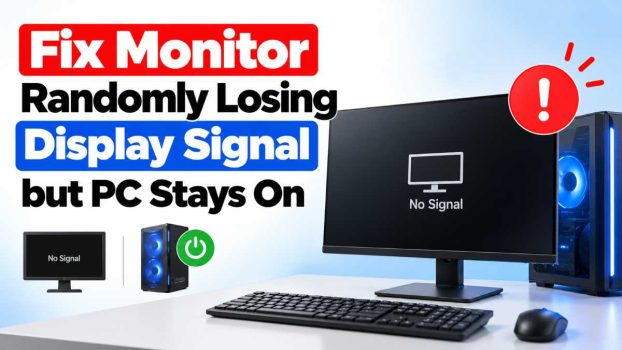
You’re in the middle of work, a game, or a movie when the screen suddenly goes black. The monitor shows “No Signal” or just turns off, but your PC is still running. The fans spin, the lights glow, and sometimes you can even hear sounds. After a few seconds, or after you wiggle a cable, the picture comes back as if nothing happened.
This is one of the most common PC problems, and it is rarely a sign that your computer is dying. In most cases the signal path between your graphics card and monitor is being interrupted by a loose cable, a driver hiccup, a power setting, or an unstable refresh rate. Because the PC itself keeps running, the problem is almost always in the display chain: the graphics card, the cable, the monitor, or the software that connects them.
This guide walks through the fixes in order, from the quickest and most likely to the more involved. Work through them one at a time and test after each, so you know which one solved it.
Methods to Fix a Monitor That Randomly Loses Signal
1. Check and Reseat Your Cables
Start with the simplest cause. A cable that is slightly loose or worn can drop the signal intermittently, especially if you bump your desk or the connector is under strain.
- Power off the PC and monitor, then unplug the video cable from both ends.
- Inspect the connector pins for bending, dirt, or discoloration. Bent pins on DVI or VGA cables are a classic cause.
- Plug the cable back in firmly. For screw-in connectors (VGA, DVI), tighten the thumbscrews.
- Check that the cable isn’t kinked, pinched behind the desk, or stretched tight.
- Don’t forget the monitor’s power cable as well. A loose power connection can make the monitor cut out while the PC runs normally.
If the problem happens when you move the cable, you’ve probably found the culprit. Replace it with a good-quality cable.
2. Try a Different Cable or Port
If reseating didn’t help, swap in a different cable. If you have a spare HDMI or DisplayPort cable, try it. Cheap or old cables are a frequent source of random signal loss, particularly at high resolutions and refresh rates like 1440p at 144 Hz or 4K at 60 Hz.
Also try a different port:
- On the monitor, switch from HDMI 1 to HDMI 2, or from HDMI to DisplayPort.
- On the graphics card, try another output.
Make sure the cable is rated for what you’re asking of it. An older HDMI 1.4 cable may struggle with 4K at 60 Hz, while a certified DisplayPort 1.4 or HDMI 2.1 cable handles higher bandwidth reliably. If a different connection type works perfectly, the original port or cable was the issue.
3. Plug Into the Graphics Card, Not the Motherboard
This mistake is more common than you’d think. If your PC has a dedicated graphics card, the monitor cable must be plugged into the card’s ports, not the motherboard’s video outputs. If you’re plugged into the motherboard, the signal may be unstable, or it may disappear whenever the system switches between integrated and dedicated graphics.
Look at the back of your PC. The graphics card ports are on a horizontal row of connectors lower on the case, while the motherboard ports sit higher, near the USB ports. Move the cable to the graphics card if needed.
4. Lower the Refresh Rate and Resolution
If the signal cuts out at high refresh rates, your cable or monitor may not be handling the bandwidth reliably. Lowering the refresh rate is a quick way to test this.
On Windows 10/11:
- Right-click the desktop and choose Display settings.
- Scroll down and select Advanced display.
- Under Choose a refresh rate, pick a lower value, such as 60 Hz.
- Click Keep changes.
If the blackouts stop, the problem is bandwidth-related. A better cable, a different port standard (for example DisplayPort instead of HDMI), or simply running at a lower refresh rate will keep things stable. Also check that your resolution matches the monitor’s native resolution.
5. Update or Clean-Install Your Graphics Drivers
Faulty, outdated, or corrupted graphics drivers are a leading cause of random display dropouts, particularly after a Windows update or game install.
Update the driver:
- Identify your GPU (NVIDIA, AMD, or Intel) through Device Manager or Task Manager.
- Download the latest driver directly from the manufacturer’s website.
- Run the installer and restart.
If updating doesn’t help, do a clean install:
- Download Display Driver Uninstaller (DDU), a free third-party tool.
- Boot into Safe Mode, run DDU, and remove the existing graphics driver.
- Restart and install a fresh copy of the latest driver.
If the problem began right after a driver update, try rolling back to the previous version through Device Manager → Display adapters → Properties → Driver → Roll Back Driver.
6. Disable Fast Startup and Review Power Settings
Windows power-saving features can interfere with the display signal, especially on desktops with certain monitors.
Turn off Fast Startup:
- Open Control Panel → Power Options → Choose what the power buttons do.
- Click Change settings that are currently unavailable.
- Uncheck Turn on fast startup and save.
Adjust display and sleep settings:
- Go to Settings → System → Power & battery (or Power & sleep).
- Set the screen and sleep timers to a longer period or to Never as a test.
Check PCI Express power management:
- Open Control Panel → Power Options → Change plan settings → Change advanced power settings.
- Expand PCI Express → Link State Power Management and set it to Off.
Also check your GPU control panel for any power management mode. In NVIDIA Control Panel, setting Power management mode to Prefer maximum performance can stop signal loss caused by power state changes.
7. Check the Monitor’s Own Settings
Monitors have their own features that can cause blackouts. Open the on-screen menu using the buttons on the monitor and look for:
- Auto source detection / input scanning: If it’s on, the monitor may keep searching for signals and switch away from the right one. Set the input manually.
- Eco mode, power saving, or deep sleep modes: Turn these off to test.
- DisplayPort version or HDMI mode: Some monitors let you choose DP 1.2 vs 1.4, or HDMI 1.4 vs 2.0. Choose the setting that matches your cable and GPU, or try the lower option for stability.
- Overdrive and adaptive sync (G-Sync/FreeSync): These can cause dropouts on some setups. Disable them temporarily to see if the problem disappears.
If your monitor offers a factory reset, use it. A corrupted setting can cause strange behavior.
8. Disable Adaptive Sync and Overclocks
Variable refresh rate technologies like G-Sync and FreeSync occasionally cause brief black screens, especially when a game’s frame rate swings wildly or when a cable is borderline. Turn them off in your GPU control panel and monitor menu to test.
If you’ve overclocked your GPU, CPU, or RAM, reset everything to default. An unstable overclock can crash the graphics driver and drop the signal while Windows keeps running. The same goes for XMP/EXPO memory profiles: temporarily disable them in the BIOS if you suspect instability.
9. Check for Overheating and Power Supply Problems
A graphics card under thermal stress or short of power can lose its output without shutting down the whole PC.
- Monitor temperatures with a tool like HWMonitor or MSI Afterburner. GPU temperatures consistently above 85–90°C under load suggest a cooling issue.
- Clean the dust from fans, heatsinks, and filters using compressed air.
- Make sure all PCIe power cables are firmly seated in the GPU, and that you haven’t used a single daisy-chained cable for a power-hungry card.
- Consider whether your power supply has enough wattage and is in good condition. An aging or underpowered PSU can cause the GPU to hiccup under load.
If blackouts happen mostly during games or heavy tasks, heat or power is a prime suspect.
10. Reseat the Graphics Card and Test Hardware
If nothing so far has helped, look at the hardware itself.
- Power off and unplug the PC.
- Remove the graphics card, clean the gold contacts gently with a dry cloth, and reinsert it firmly into the PCIe slot until it clicks.
- Reconnect all power cables.
Then isolate the faulty part:
- Test the monitor with another device, such as a laptop or console. If it still drops signal, the monitor or its cable is at fault.
- Test your PC with another monitor or a TV. If the new display stays stable, your original monitor is likely failing.
- Try integrated graphics by removing the dedicated card (if your CPU supports it) and plugging into the motherboard. If the signal stays stable, the graphics card may be defective.
11. Update BIOS, Chipset Drivers, and Windows
Compatibility bugs between the motherboard, GPU, and operating system can cause display issues. Keep these updated:
- Install the latest chipset drivers from your motherboard or CPU manufacturer.
- Check for a BIOS/UEFI update, but only if release notes mention stability or PCIe/display fixes, and follow instructions carefully.
- Run Windows Update to get the latest patches.
You can also disable Hardware-accelerated GPU scheduling (Settings → System → Display → Graphics → Default graphics settings) if the problem started after enabling it.
12. Look at Windows Event Viewer
If the issue keeps happening, Event Viewer can tell you what’s going on.
- Press Win + X and choose Event Viewer.
- Go to Windows Logs → System.
- Look for errors around the time of the blackout, especially from sources named Display, nvlddmkm, or amdkmdag.
A message like “Display driver stopped responding and has successfully recovered” confirms a driver or GPU timeout issue, pointing you toward driver, power, or overclock fixes. If you see no errors, the cable or monitor is more likely the cause.
Conclusion
A monitor that randomly loses signal while the PC keeps running is frustrating, but it’s usually fixable without buying new parts. The causes fall into a few categories: physical connections, bandwidth limits, software and driver conflicts, power management, and failing hardware.
Start with the free, fast checks: reseat the cables, confirm you’re plugged into the graphics card, and try a different cable or port. Then move to software fixes such as lowering the refresh rate, performing a clean driver install, and disabling power-saving features. If the problem persists, test the monitor and PC separately to find which one is at fault, and check temperatures and power delivery.
Change one thing at a time and give each fix enough time to prove itself, because intermittent problems can take hours or days to reappear. If you’ve worked through every step and a second monitor and cable still show the same problem on your PC, the graphics card or motherboard may need repair or replacement, and it’s worth contacting the manufacturer, especially if you’re still under warranty.
Frequently Asked Questions
1. Why does my monitor say “No Signal” even though my PC is running?
“No Signal” means the monitor isn’t receiving valid video data from the computer. Common reasons include a loose or faulty cable, the wrong input source selected on the monitor, the cable plugged into the motherboard instead of the graphics card, or a graphics driver that has crashed. Since the PC itself is still powered, the issue is almost always somewhere in the video connection path rather than the computer as a whole.
2. Can a bad graphics card cause my monitor to randomly go black?
Yes. A failing or overheating graphics card can lose its video output while the rest of the PC keeps running. Warning signs include artifacts (strange colors or lines), crashes during games, high temperatures, and blackouts that happen mainly under load. Test with another GPU or the integrated graphics to confirm. If the signal is stable with a different graphics source, your card is likely the problem.
3. Can a cheap HDMI or DisplayPort cable cause signal dropouts?
Absolutely. Low-quality or older cables may not reliably carry the bandwidth needed for high resolutions and refresh rates, leading to flickering, black screens, or sudden signal loss. Use a certified cable rated for your resolution and refresh rate, such as DisplayPort 1.4 or HDMI 2.0/2.1 for high-end monitors. Keep cable runs reasonably short, since very long cables increase the chance of signal degradation.
4. How do I know if the monitor or the PC is the problem?
Isolate them. Connect your monitor to a different device, such as a laptop or game console, and use it for a while. If it still loses signal, the monitor (or its cable or power supply) is probably faulty. Then connect your PC to a different monitor or TV. If that display also drops out, the issue is with your PC’s graphics card, drivers, or settings. If each works fine elsewhere, suspect the specific cable, port, or a compatibility issue between the two.