 Geeksdigit Team
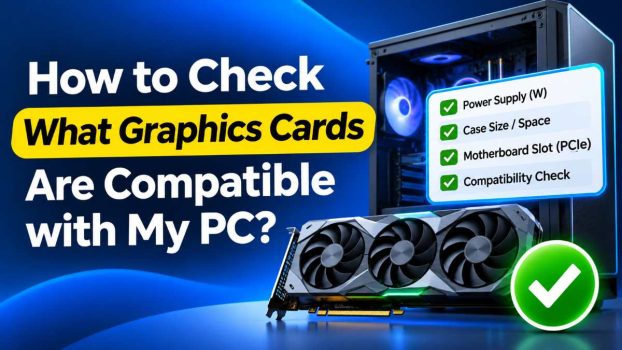
Upgrading your graphics card is one of the most effective ways to improve gaming, video editing, 3D rendering, and general system responsiveness. But buying a new GPU without checking compatibility can leave you with an expensive card that won’t fit in your case, won’t get enough power, or won’t perform the way you expected.
The good news is that GPU compatibility is more forgiving than it used to be. Almost every modern desktop graphics card uses the same PCI Express (PCIe) x16 slot, and the standard is backward and forward compatible. Even so, several other factors can make or break an upgrade: your power supply, your case dimensions, your processor, your motherboard’s BIOS, and even the ports on your monitor.
This guide walks through every check you should make before buying, with simple steps for finding the information on your own PC. By the end, you’ll know how to confirm that a graphics card will physically fit, receive enough power, and run properly with the rest of your system.
Method 1: Identify Your Current Hardware First
Before comparing any graphics cards, you need to know what’s already inside your computer. Gather these details:
- Your motherboard model
- Your CPU model
- Your power supply (PSU) wattage and model
- Your case model
- Your current graphics card (if any)
- Your monitor’s connection types
Using Windows built-in tools
System Information:
- Press Windows + R, type
msinfo32, and press Enter. - Look at the System Summary page. You’ll see your processor, BIOS version, and the BaseBoard Manufacturer and BaseBoard Product (your motherboard).
Task Manager:
- Press Ctrl + Shift + Esc.
- Open the Performance tab.
- Click GPU to see your current graphics card, its memory, and driver version. Click CPU to see your processor.
DirectX Diagnostic Tool:
- Press Windows + R, type
dxdiag, and press Enter. - Check the Display tab for your graphics card details and the System tab for your OS and memory.
Using free third-party tools
Utilities like CPU-Z, GPU-Z, and HWiNFO give much more detail than Windows does. CPU-Z’s Mainboard tab shows your motherboard model and chipset, plus the PCIe version and link width of your graphics slot. GPU-Z shows your current card’s bus interface (for example, “PCIe x16 4.0 @ x16 3.0”), which tells you what your slot is actually running at.
Once you have your motherboard and CPU model numbers, search the manufacturer’s website for the exact product page. The specifications there are the most reliable source for everything in the methods below.
Method 2: Check the PCIe Slot on Your Motherboard
The graphics card connects to your motherboard through a PCIe x16 slot, usually the longest slot on the board, located closest to the CPU. Nearly every modern GPU uses this slot.
Understand PCIe versions
PCIe comes in generations (3.0, 4.0, 5.0), and each generation doubles the bandwidth of the previous one. The important point is that the generations are backward compatible:
- A PCIe 4.0 card works in a PCIe 3.0 slot.
- A PCIe 3.0 card works in a PCIe 4.0 or 5.0 slot.
The card simply runs at the highest speed both devices support. For most mid-range and many high-end cards, the performance difference between PCIe 3.0 and 4.0 is small. However, budget cards that use fewer lanes (such as x8 cards) can lose noticeable performance in older PCIe 3.0 slots, especially when they run out of video memory. If you’re buying an entry-level card, check whether it’s an x8 design and whether your board supports a newer PCIe generation.
Check the slot’s physical and electrical size
A slot can be physically x16 but electrically wired for fewer lanes, such as x4 or x8. This is common on the second or third long slot of a motherboard. Make sure your graphics card goes into the primary x16 slot, which is wired for the full 16 lanes. Your motherboard manual will label which slot is which.
Watch out for very old systems
If your PC is more than ten to fifteen years old, confirm that it has a PCIe x16 slot at all. Very old machines used AGP or plain PCI slots, which aren’t compatible with modern cards. Likewise, some small-form-factor office PCs and laptops don’t have a standard full-size slot at all, or have only a low-profile one.
Method 3: Check Your Power Supply
The power supply is the most commonly overlooked compatibility point. A graphics card that fits and connects perfectly can still fail to run if your PSU can’t deliver enough power or doesn’t have the right connectors.
Wattage
Every graphics card manufacturer lists a recommended minimum PSU wattage on the product page. This figure accounts for the rest of a typical system, not just the card. As a rough guide:
- Entry-level cards often recommend around 450–550W.
- Mid-range cards typically recommend 550–750W.
- High-end cards commonly recommend 750–1000W or more.
Find your PSU’s wattage on the label on the unit itself (you’ll need to open the case) or on the manufacturer’s product page. If you’re close to the recommended number, upgrading the PSU is a wise investment, since a strained or low-quality power supply can cause crashes and shutdowns under load.
Connectors
Modern graphics cards draw power through dedicated connectors:
- No extra connector: Low-power cards run entirely from the PCIe slot (up to 75W).
- 6-pin and 8-pin PCIe connectors: Common on mid-range and many high-end cards.
- 12VHPWR / 12V-2×6 connector: A newer single connector used on many recent high-end cards, often supplied with an adapter that connects to multiple 8-pin cables.
Look at the card’s specifications to see which connectors it needs, then check your PSU for matching cables. If your PSU lacks the right connectors, an adapter may be an option, but only if your PSU has enough available capacity. Never use adapters that would overload a single cable. If in doubt, consult your PSU manufacturer. When using a 12VHPWR-type connector, make sure it is pushed in fully and avoid sharp bends right at the plug.
Method 4: Check Your Case Clearance
Modern graphics cards are large. Many mid-range and high-end models take up two to four expansion slots and can be well over 300mm long. Before buying, measure your available space.
What to check
- Length: Find your case’s maximum GPU length in its specifications, then compare it to the card’s length. Remember to account for front-mounted fans, radiators, or drive cages that may reduce the available room.
- Width (slot thickness): A 3-slot card needs three free expansion slot positions at the back of the case, and nothing blocking the space beside it.
- Height: Some very tall cards can interfere with the side panel, especially in compact cases.
- Cooler weight: Heavy cards can sag. Consider a support bracket if the card is large.
Always leave a little extra room, around 10–20mm, for airflow and cable bends. The power connectors on top or at the end of the card also need space for the cables to plug in.
If you’re using a small-form-factor case, check for any cards specifically listed as compatible by the case manufacturer, as space is far tighter.
Method 5: Check CPU Compatibility and Bottlenecking
A graphics card will physically work with almost any CPU, but a very old or weak processor can hold back a powerful GPU. This is called bottlenecking: the CPU can’t prepare frames fast enough for the GPU to use its full potential.
How to evaluate it
- Match tiers: Pair high-end GPUs with reasonably modern mid-range or better CPUs. A recent budget processor can drive a mid-range card well, but a decade-old quad-core will struggle with a current flagship.
- Consider your use: Gaming at 1080p with high refresh rates depends heavily on the CPU. Gaming at 4K depends mostly on the GPU, so a CPU bottleneck is less noticeable.
- Look at benchmarks: Search for reviews that test your CPU with the GPU you’re considering. Real-world results are more reliable than generic bottleneck calculators.
A mild bottleneck isn’t a compatibility failure; the card still works. But if you’re spending serious money, it’s worth knowing whether your CPU will let the card perform properly.
Method 6: Check BIOS, Operating System, and Driver Requirements
Software compatibility matters too.
Operating system
Make sure you’re on a supported, 64-bit version of Windows (or a supported Linux distribution). Modern graphics drivers are written for current operating systems, and very old versions may not receive support.
UEFI and Resizable BAR
Some newer cards and platforms benefit from features like Resizable BAR (called Smart Access Memory on some AMD systems), which can improve performance in certain games. Enabling it usually requires:
- A supported CPU and motherboard
- An up-to-date BIOS
- UEFI mode enabled, often with the Compatibility Support Module (CSM) turned off
Resizable BAR is typically optional, so its absence won’t stop a card from working, but it’s worth checking if you want maximum performance. Also check whether your BIOS is up to date, as manufacturers sometimes release updates that improve compatibility with newer graphics cards.
Drivers
Download the latest drivers directly from NVIDIA, AMD, or Intel after installing the card. When switching brands, use a driver cleanup tool such as Display Driver Uninstaller (DDU) to remove old drivers and prevent conflicts.
Method 7: Check Your Monitor and Display Connections
A graphics card is only useful if it can connect to your display. Check the ports on both the card and your monitor:
- HDMI: Common and widely supported. Different versions support different resolutions and refresh rates (for example, HDMI 2.1 for 4K at 120Hz).
- DisplayPort: Often preferred for high refresh rate gaming monitors.
- DVI and VGA: Older connectors that many new cards no longer include. If your monitor only has these, you may need an adapter.
Also consider whether you plan to run multiple monitors, and confirm the card supports the number of displays you want.
Method 8: Use Online Compatibility Tools
If you’d rather not check everything by hand, online tools can do much of the work:
- PCPartPicker: Lets you build a parts list and automatically warns you about physical clearance issues, connector problems, and wattage estimates.
- Manufacturer compatibility pages: Case, motherboard, and GPU makers often list tested or supported components.
- Retailer compatibility checkers: Some online stores offer tools that check a part against your existing hardware.
Treat these tools as a helpful first pass rather than the final word. Always confirm key measurements, such as card length and PSU connectors, against official specifications.
Conclusion
Checking whether a graphics card is compatible with your PC comes down to a handful of straightforward steps. Start by identifying your motherboard, CPU, power supply, and case. Confirm that you have a PCIe x16 slot, remembering that different PCIe generations work together. Make sure your PSU has enough wattage and the right connectors, measure your case for length and thickness, and consider whether your CPU is a good match for the card’s power. Finally, check your BIOS, operating system, and monitor ports so that nothing catches you by surprise after installation.
Spending a few minutes on these checks can save you from returns, extra costs, and frustration. If something looks borderline, such as a tight case fit or a PSU that barely meets the recommendation, it’s usually better to choose a smaller card or upgrade the supporting part. A well-matched system will always give you a smoother experience than a powerful card that’s struggling against its surroundings.
Frequently Asked Questions (FAQ)
1. Will any graphics card work in any PCIe x16 slot?
Physically and electrically, most modern cards will work in any PCIe x16 slot because the standard is backward and forward compatible. A PCIe 4.0 or 5.0 card runs in a PCIe 3.0 slot at reduced bandwidth. However, you still need to check power supply capacity, case clearance, and BIOS support. Also use the primary x16 slot, since secondary slots may have fewer electrical lanes.
2. How do I know if my power supply is strong enough for a new graphics card?
Check the recommended PSU wattage on the graphics card’s product page, then compare it with the wattage printed on your power supply’s label. Also confirm that your PSU has the necessary PCIe power connectors (6-pin, 8-pin, or the newer 12VHPWR/12V-2×6). If your PSU is old, low quality, or close to the minimum recommendation, upgrading to a reliable, higher-wattage unit is the safer choice.
3. Can a new graphics card be too powerful for my CPU?
Yes, in the sense that a weak or old CPU can bottleneck a powerful GPU, preventing it from reaching its full performance. The card will still function, but you may not see the gains you expected, especially at lower resolutions and high refresh rates. Checking benchmarks that pair your CPU with the card you want is the best way to judge this. At higher resolutions like 4K, the GPU does more of the work, so the CPU matters less.
4. Do I need to update my BIOS before installing a new graphics card?
Not always, but it can help. Most current graphics cards work with the BIOS your motherboard shipped with, yet newer cards or features like Resizable BAR may need a more recent version. Check your motherboard manufacturer’s support page for updates and release notes. Update only if there’s a relevant improvement, and follow the instructions carefully, since a failed BIOS update can cause serious problems.