 Geeksdigit Team
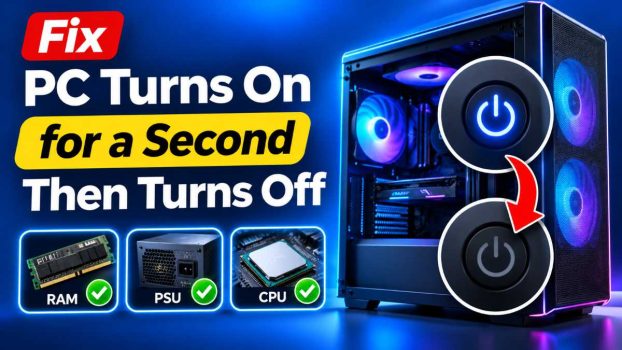
You press the power button, the fans spin up, the lights flicker on, and then, one or two seconds later, everything shuts down. There is no logo, no beep, and no picture on the screen. Sometimes the cycle repeats on its own, and sometimes the PC stays dead until you press the button again.
This is one of the most frustrating desktop problems because it gives you almost no clues. The good news is that it is rarely fatal. In most cases the cause is a loose connection, a faulty power supply, a stuck component, or a safety feature doing its job. The PC powers on, runs a very short self-check, finds something wrong, and cuts power to protect the hardware.
This guide walks you through the most common causes in a logical order, starting with the quickest and cheapest fixes. Work through the methods one at a time and test the PC after each one. You will need a screwdriver and, for a couple of steps, a flashlight and a can of compressed air.
Why a PC Shuts Off Right After Starting
When you press the power button, the power supply unit (PSU) sends power to the motherboard, which starts the CPU, memory, and other components. The motherboard monitors voltages and temperatures from the first moment. If anything is out of range, the system shuts down within seconds.
The most common triggers are:
- A failing or underpowered PSU
- A short circuit caused by a misplaced standoff or loose screw
- Poorly seated RAM, CPU, or graphics card
- Overheating protection tripping, or a missing CPU cooler connection
- A corrupted BIOS or a dead CMOS battery
- A faulty front-panel power button or case wiring
- A failing peripheral, such as a USB device or drive
Because these causes overlap, the methods below are ordered from least to most invasive.
Methods to Fix It
Method 1: Check the Power Source and Cables
It sounds obvious, but it solves more cases than you would expect.
- Make sure the power cable is firmly seated in both the wall outlet and the back of the PSU.
- Plug the PC directly into a wall outlet, bypassing any power strip, surge protector, or UPS. A faulty strip can deliver unstable power.
- Try a different outlet and, if you have one, a different power cable.
- Check that the switch on the back of the PSU is set to “I” (on) and that the voltage selector, if present, matches your region. In India, that means 230V.
If the PC still shuts off, move on.
Method 2: Disconnect All Non-Essential Hardware
A faulty peripheral or drive can pull the system into protection mode. Strip the machine down to the minimum it needs to start.
- Shut the PC down and unplug the power cable.
- Disconnect everything except the monitor, keyboard, and the power cable. That means USB devices, printers, external drives, and extra internal storage drives.
- If you have a dedicated graphics card and your CPU has integrated graphics, remove the card and plug the monitor into the motherboard’s video port.
- Remove any extra RAM sticks, leaving one.
- Power on and see whether the PC stays running.
If it does, plug components back in one at a time, restarting each time, until the problem returns. The last device you added is your culprit.
Method 3: Perform a Power Drain (Hard Reset)
Residual electricity and a stuck state in the motherboard can cause a boot loop. Draining the power resets this.
- Turn off the PC and unplug the power cable.
- Press and hold the power button for 30 seconds. This discharges the capacitors.
- Wait a minute, reconnect the power cable, and try to start the PC.
This costs nothing and fixes a surprising number of cases, especially after a power cut or a failed update.
Method 4: Reseat the RAM
Memory that is slightly loose or dusty at the contacts is a classic cause of instant shutdowns.
- Unplug the PC and open the side panel.
- Press down the clips on each side of the RAM slot and pull the sticks out.
- Wipe the gold contacts gently with a clean, dry cloth. Avoid touching them with your fingers.
- Reinsert each stick firmly until the clips click into place.
- Try booting with one stick at a time, and in different slots, to rule out a faulty module or slot.
If the PC runs with one stick but not another, you have found a bad RAM module.
Method 5: Check the CPU Cooler and Fan Connections
Modern motherboards will shut down within seconds if they detect no CPU fan or dangerously high temperatures.
- Make sure the CPU fan cable is plugged into the header labeled CPU_FAN on the motherboard.
- Check that the cooler is fitted tightly. A loose cooler can cause rapid temperature spikes.
- Look for a thick layer of dust on the heatsink and clean it with compressed air.
- If you recently moved the cooler or changed the CPU, replace the thermal paste. Old or missing paste can cause overheating within seconds.
- Confirm the fan is actually spinning when the PC powers on.
If you use a liquid cooler, make sure the pump cable is connected to the right header and that the pump is running.
Method 6: Inspect for Short Circuits
A short circuit is a common reason for a PC that turns on and immediately off, especially after a new build or a component change.
- Check that your motherboard is mounted on the correct standoffs and that there are no extra standoffs under areas where the board has no mounting hole. A stray standoff can touch the back of the board and short it.
- Make sure no loose screws or metal debris are lying inside the case. Tilting the case gently and listening for rattles can help.
- Check that no cables are pinched between the motherboard and the case.
- Remove the motherboard from the case and try booting it on top of its cardboard box with only the CPU, cooler, one RAM stick, and the PSU connected. This is called “breadboarding,” and it quickly shows whether the case is causing the short.
If the PC runs fine outside the case, a standoff or case problem is the cause.
Method 7: Check the Front-Panel Connectors and Power Button
A stuck or faulty power button can send repeated signals, making the PC shut off right after starting.
- Locate the thin front-panel connectors on the motherboard (labeled PWR_SW, RESET_SW, and so on).
- Unplug the case’s power switch connector.
- Using a screwdriver, briefly touch the two power switch pins on the motherboard together to start the PC.
If the PC now stays on, your case’s power button is stuck or faulty and needs replacing or cleaning. Check the motherboard manual for the exact pin location.
Method 8: Reset the BIOS/CMOS
A corrupted BIOS setting, especially after overclocking or a failed update, can cause an immediate shutdown.
- Unplug the PC.
- Find the round, silver CMOS battery on the motherboard (a CR2032).
- Remove it, wait five minutes, and put it back. Alternatively, use the “Clear CMOS” jumper described in your motherboard manual.
- Reconnect the power and try again.
If the battery is old (usually after 4 to 6 years), replace it. They are inexpensive and available at any electronics shop.
Method 9: Test the Power Supply
The PSU is the most frequent culprit behind this exact symptom. A failing unit may supply enough power to spin the fans briefly, then collapse under the load of the CPU and motherboard.
- Check that the 24-pin motherboard connector, the 4/8-pin CPU power connector, and any graphics card power cables are all fully seated.
- Listen and look for signs of failure, such as a burning smell, clicking noises, or a fan that does not spin.
- If you have a spare PSU, swap it in. This is the most reliable test.
- You can also use a PSU tester, which costs very little, to check the voltage rails.
Remember that a PSU’s wattage must match your system’s needs. A new graphics card paired with an underpowered PSU will often trigger shutdowns as soon as the system starts drawing power.
Do not open a PSU yourself. It holds dangerous charge even when unplugged.
Method 10: Reseat the CPU and Graphics Card
If everything above checks out, reseat the remaining major components.
- Graphics card: Remove it, clean the gold contacts, and reinsert it firmly into the PCIe slot. Reconnect its power cables.
- CPU: Only if you are comfortable, remove the cooler, lift the CPU, check for bent pins (on AMD or LGA sockets) or debris, and reseat it with fresh thermal paste.
Handle the CPU carefully. A single bent pin can prevent the system from starting.
Method 11: Look for a Faulty Motherboard or CPU
If none of the steps help, the problem may lie with the motherboard or CPU itself. Signs include swollen or leaking capacitors, burn marks, or the PC failing even with a known-good PSU, RAM, and minimal setup. At this point, taking the PC to a qualified technician, or using the warranty if it is still active, is the sensible choice.
Conclusion
A PC that turns on for a second and then shuts off looks alarming, but it is usually caused by something simple: a loose cable, a poorly seated memory stick, a cooler that is not connected properly, or a tired power supply. Start with the easy checks, such as the power source, a hard reset, and removing extra hardware. Then work your way toward reseating components, inspecting for shorts, and testing the PSU.
Change only one thing at a time and test after each change. That way you will know exactly what fixed the problem, and you will avoid creating new ones. If you have worked through every step and the PC still shuts down, the fault likely lies in the motherboard or CPU, and it is time to get professional help or claim your warranty.
Frequently Asked Questions
1. Why does my PC turn on and then off immediately without showing anything on the screen?
This usually means the motherboard detected a problem during the first moments of startup and shut the system down to protect it. Common causes include a failing power supply, a short circuit, a loose RAM module, or a disconnected CPU fan. Because the shutdown happens before the display initializes, you see nothing on the screen.
2. Can a bad power supply cause a PC to turn on for a second and then shut off?
Yes, it is one of the most common causes. A failing PSU may deliver enough power to start the fans and lights but cannot sustain the voltage once the components start drawing power. Testing with a known-good PSU or a PSU tester is the quickest way to confirm.
3. Could overheating be the reason my PC shuts down right after starting?
It can be. Modern motherboards shut the system down immediately if the CPU temperature reads too high or the CPU fan is not detected. Check that the cooler is mounted firmly, the fan cable is connected to the CPU_FAN header, the heatsink is free from dust, and the thermal paste is fresh.
4. Should I replace the CMOS battery if my PC keeps shutting off?
It is worth trying, especially if your computer is more than four or five years old, or if the date and time reset each time you start it. A dead CMOS battery can cause BIOS settings to reset or corrupt, leading to boot problems. The CR2032 battery is cheap and easy to swap, and clearing the CMOS at the same time can resolve configuration errors.