Working with compressed files is very common in Windows 11. Whether you’re downloading software, sending documents, or saving space on your PC, you’ve likely come across file types like .zip, .rar, or .7z. While Windows 11 has basic support for ZIP files, it doesn’t handle other popular formats very well. That’s why many users turn to 7-Zip, a free, lightweight, and open-source file archiver.
7-Zip supports many file types, offers excellent compression, and works fast—even on older PCs. It also lets you password-protect your archives and integrates right into your right-click menu for quick access. If you’re new to file compression or just looking for a better alternative to Windows’ built-in tools, 7-Zip is a great choice.
What is 7-Zip?

7-Zip is a free and open-source file archiving program that helps you compress and extract files. It’s a lightweight yet powerful tool used by millions of Windows users around the world. Created by Igor Pavlov, 7-Zip has been around since 1999 and is well-known for its high compression ratio, meaning it can make files smaller than many other archiving tools.
The program supports many different archive formats, including:
- .7z (its own highly efficient format)
- .zip
- .rar
- .tar
- .iso
- .gzip
- and more
With 7-Zip, you can:
- Extract files from a compressed folder
- Create new compressed archives
- Password-protect files using strong AES-256 encryption
- Split large archives into smaller parts
- Easily access options from the right-click (context) menu
Best of all, 7-Zip is completely free to use, even for business purposes, with no ads or bloatware.
7-Zip System Requirements for Windows 11
7-Zip is remarkably lightweight and will run smoothly on virtually any system capable of running Windows 11. The software requires minimal system resources, typically using less than 10 MB of disk space after installation. It supports both 32-bit and 64-bit versions of Windows, though for Windows 11 users, the 64-bit version is recommended since Windows 11 itself only runs on 64-bit processors.
The program operates efficiently even on systems with limited RAM, making it accessible to users with older hardware or budget computers. There are no special graphics requirements or dependencies on additional software frameworks, ensuring a straightforward installation process.
Downloading 7-Zip on Windows 11
Step 1: Visit the Official 7-Zip Website
- Open your preferred browser (Microsoft Edge, Chrome, Firefox, etc.).
- Go to the official 7-Zip website: https://www.7-zip.org
Tip: Only download software from the official website to avoid malware or fake versions.
Step 2: Choose the Correct Version

On the homepage, you’ll see download options listed based on your system architecture:
| Version | Description |
|---|---|
| 64-bit x64 | For most Windows 11 users |
| 32-bit x86 | For older machines |
| ARM64 | For devices with ARM processors |
Most Windows 11 users should download the 64-bit x64 version.
To confirm your system type:
- Right-click the Start menu and choose System.
- Under Device specifications, check System type.
Step 3: Download the Installer
Click on the download link next to the version you need (e.g., 7zSetup-x64.exe). Your browser will download the installer file, usually within seconds.
File size is small—typically under 2MB, so it won’t take long.
How to Install 7-Zip on Windows 11
Step 1: Run the Installer
- Locate the downloaded file in your Downloads folder.
- Double-click
7zSetup-x64.exeto start the installation process.
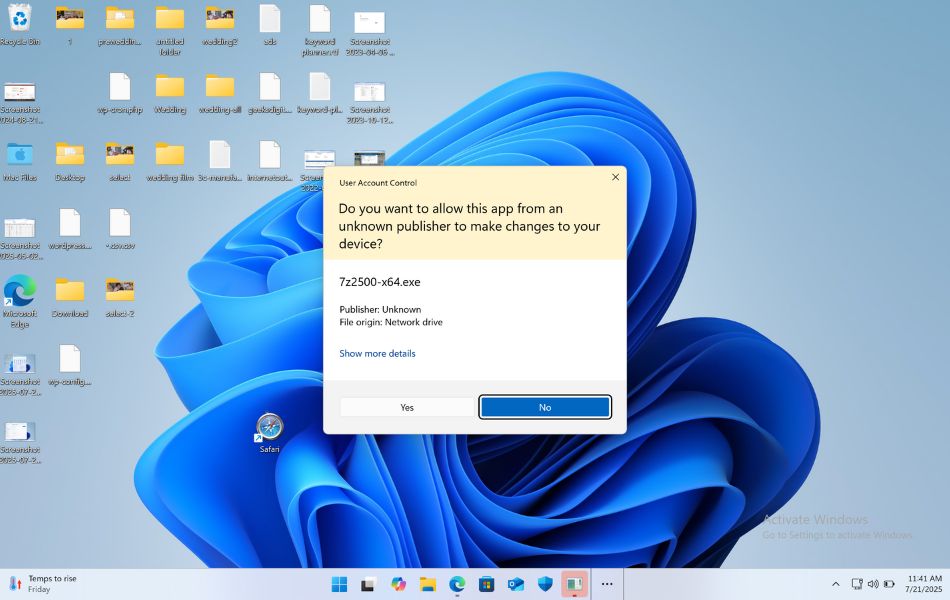
If prompted by Windows UAC (User Account Control), click Yes to allow installation.
Step 2: Choose Installation Directory
- The default directory is:
C:\Program Files\7-Zip - You can change it if needed, but keeping the default is usually best.
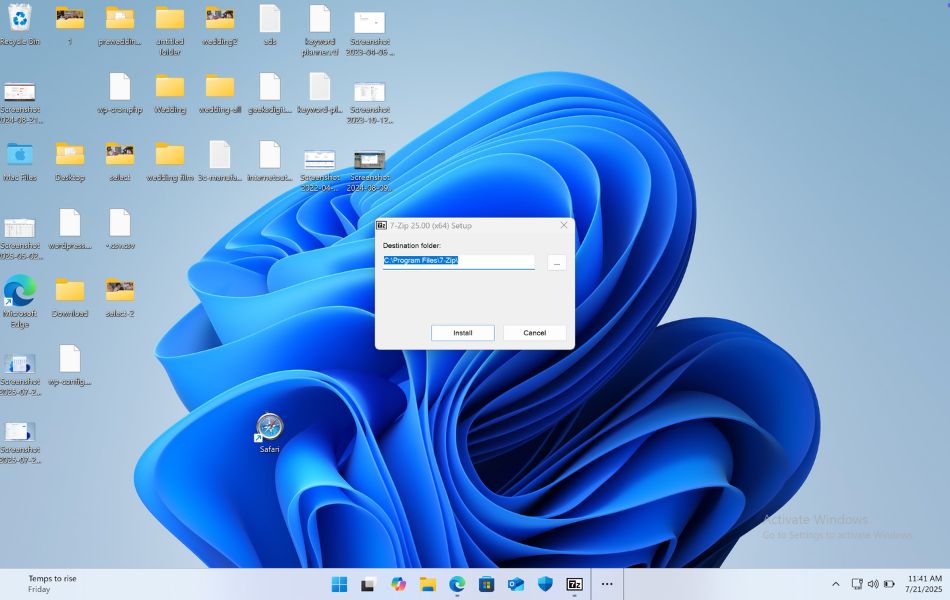
Click the Install button to proceed.
Step 3: Installation Process
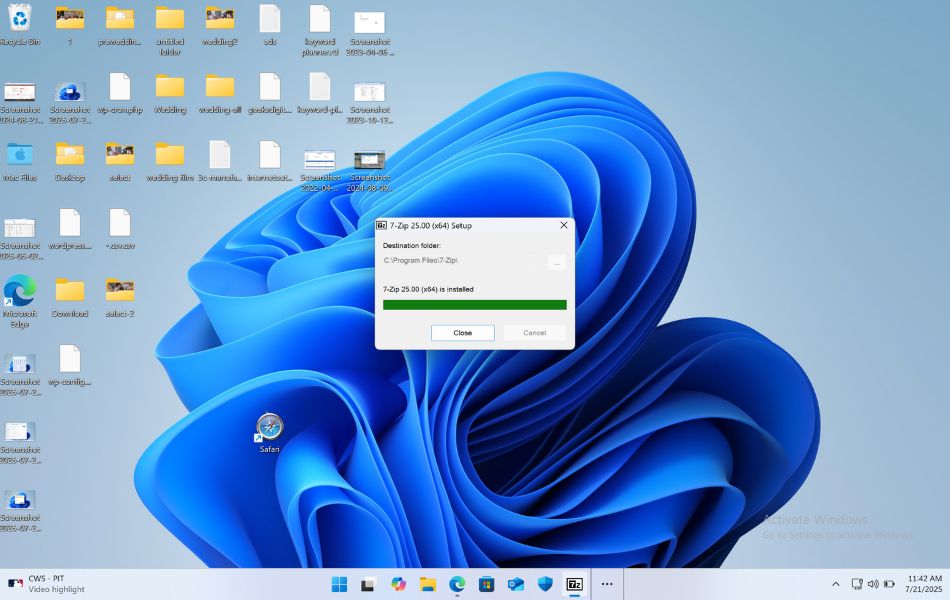
Installation takes only a few seconds. Once it’s complete, you’ll see a confirmation message.
Click Close to finish.
How to Use 7-Zip in Windows 11
After installation, you can use 7-Zip in two main ways:
1. Through the 7-Zip File Manager
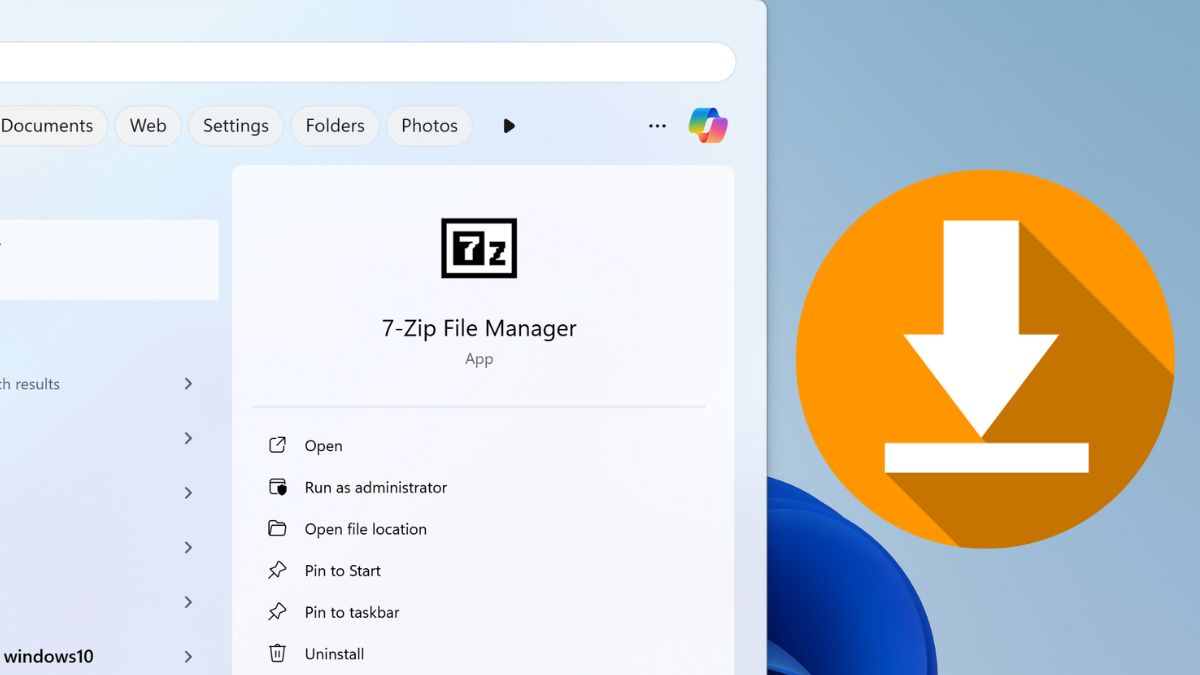
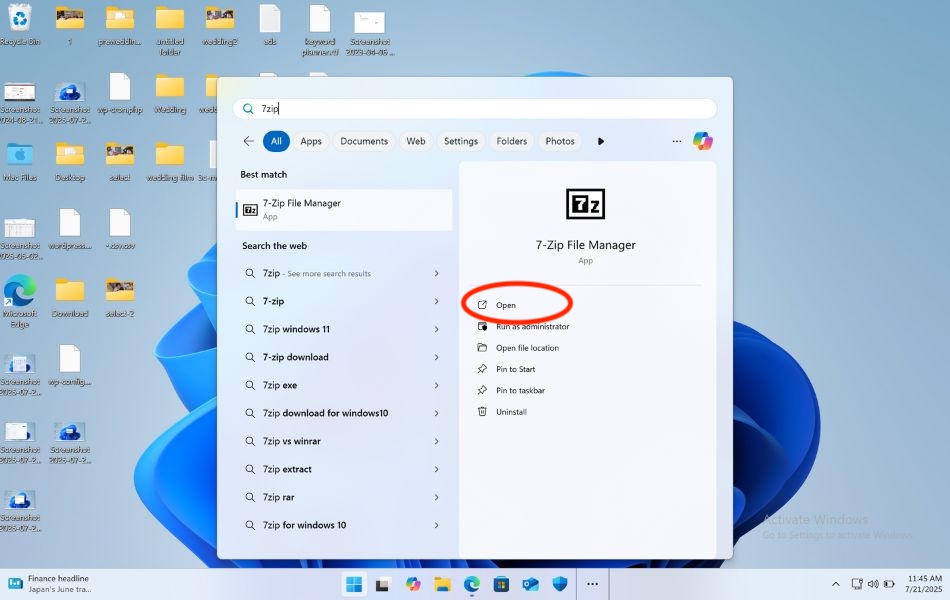
- Click Start and search for 7-Zip File Manager.
- Launch the application.
- Use the built-in file explorer to navigate, compress, or extract files.
2. Via Right-Click (Context Menu)
7-Zip integrates into the right-click menu. Here’s how you can use it:
- To compress files:
- Select one or multiple files.
- Right-click > Show more options > 7-Zip > Add to archive…
- Choose format, compression level, password (optional), then click OK.
- To extract files:
- Right-click the archive.
- Select 7-Zip > Extract Here or Extract to [FolderName].
Setting 7-Zip as Default Archive Manager
By default, Windows 11 may not open archives with 7-Zip. Here’s how to change that:
Step 1: Open 7-Zip File Manager
- Click Start > Type 7-Zip File Manager > Press Enter.
Step 2: Associate File Types
- In the menu bar, click Tools > Options.
- Under the System tab, click + or check all formats you want 7-Zip to open (like .zip, .rar, .7z, .iso, etc.).
- Click Apply, then OK.
Now, double-clicking a supported archive will automatically open in 7-Zip.
How to Update or Uninstall 7-Zip
Updating 7-Zip
7-Zip doesn’t have an auto-update feature. You’ll need to manually check the website.
- Go to https://www.7-zip.org.
- Compare the latest version number to your installed version.
- If newer, download and run the latest setup—it will overwrite the old version.
Uninstalling 7-Zip
- Click Start > Settings > Apps > Installed Apps.
- Search for 7-Zip.
- Click the three dots > Uninstall.
- Confirm when prompted.
Tips for Using 7-Zip Efficiently
- Split archives: Useful for uploading large files—set a split volume size.
- Encrypt your files: Add a password and check Encrypt file names for full protection.
- Use Ultra compression: Best for reducing file size, though it may take longer.
- Batch extraction: Select multiple archives and extract them at once.
- Drag and drop: You can drag files into and out of the 7-Zip window.
Troubleshooting Common Issues
While 7-Zip installation is usually smooth, occasional issues can arise. If you encounter problems with the context menu not appearing, try running the 7-Zip File Manager as administrator and re-associating the file types through the Tools > Options menu.
If Windows Defender or your antivirus software flags the installer, this is typically a false positive. The official 7-Zip installer is clean and safe, though you should always verify you downloaded from www.7-zip.org to be certain.
For issues with opening specific archive formats, ensure you have the latest version of 7-Zip installed, as support for newer archive variants is continuously added.
Frequently Asked Questions (FAQs)
Is 7-Zip safe to use on Windows 11?
Yes, 7-Zip is completely safe and free from malware. Always download it from the official website to avoid tampered versions.
Does 7-Zip support RAR files?
7-Zip can extract RAR files but cannot create them. For RAR creation, use WinRAR.
Can I use 7-Zip to encrypt files?
Yes, you can add a password and encrypt both file content and names using AES-256 encryption when creating a new archive.
Does 7-Zip work with cloud storage services like OneDrive or Google Drive?
Yes, you can compress files and upload them to cloud storage or extract files downloaded from these services.
Final Thoughts
7-Zip is a powerful tool that every Windows 11 user should consider installing. Its high compression efficiency, broad file format support, and user-friendly features make it a reliable solution for both everyday and advanced archiving needs. Whether you’re compressing documents, extracting RAR files, or securing backups with password protection, 7-Zip does it all efficiently—and for free.
The installation process is quick and straightforward, and its deep integration with the Windows environment allows easy access through right-click menus. Once set up properly, it can save time and storage space, especially if you’re dealing with large files or frequent downloads.
By following the steps in this guide, you’ll be fully equipped to download, install, and start using 7-Zip confidently on your Windows 11 system. As with any utility, keep your version updated and always download from trusted sources.