As digital communication becomes more integrated into our daily routines, having the flexibility to manage conversations across devices is essential. WhatsApp, known for its user-friendly mobile messaging platform, also offers a dedicated desktop application tailored for Windows users. This powerful tool extends WhatsApp’s capabilities beyond the smartphone, making it easier to stay in touch while working on your PC.
The WhatsApp Desktop app allows users to send and receive messages, media, documents, and even make calls—all from the convenience of a larger screen with a full keyboard. It’s ideal for professionals, students, and anyone who prefers multitasking on a computer without constantly switching back to their phone. With native notifications, improved speed, and seamless synchronization with your mobile device, WhatsApp Desktop delivers a streamlined messaging experience.

This complete guide will tell you to download, install, and set up WhatsApp Desktop on a Windows PC, plus discover helpful tips and solutions to common issues.
What is WhatsApp Desktop?
WhatsApp Desktop is an official application developed by WhatsApp that allows users to send and receive messages right from their PC. It is essentially a wrapper around the mobile app using WhatsApp Web technology but designed for better integration with your computer’s operating system.
There are two main ways to use WhatsApp on a computer:
- WhatsApp Web – A browser-based version requiring the mobile app to be connected.
- WhatsApp Desktop App – A downloadable application that offers better performance, keyboard shortcuts, and native notifications.
System Requirements for WhatsApp Desktop
Before installing WhatsApp Desktop, ensure your Windows PC meets the minimum system requirements:
Minimum Requirements:
- Operating System: Windows 10 (64-bit version) or newer. (As of 2025, WhatsApp has dropped support for Windows 8 and 32-bit systems.)
- Processor: 1.4 GHz or faster processor
- RAM: At least 2 GB of RAM
- Storage: At least 200 MB of free disk space
- Internet: Stable internet connection
- Mobile Device: A smartphone with WhatsApp installed and an active account
How to Download WhatsApp Desktop on Windows PC
There are two official ways to download WhatsApp Desktop:
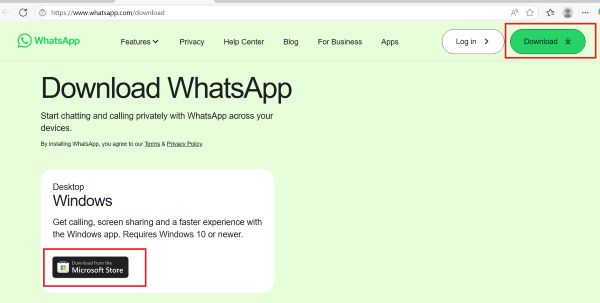
Option 1: Download from WhatsApp Website
- Open Your Browser
Launch your preferred browser (Edge, Chrome, Firefox). - Visit the Official WhatsApp Download Page
Go to https://www.whatsapp.com/download - You will see a green button labeled Download. Click it to start downloading the
.exeinstaller file. - Save the Installer File
Choose a folder to save the file or let your browser download it to the default “Downloads” folder.
Option 2: Download from Microsoft Store
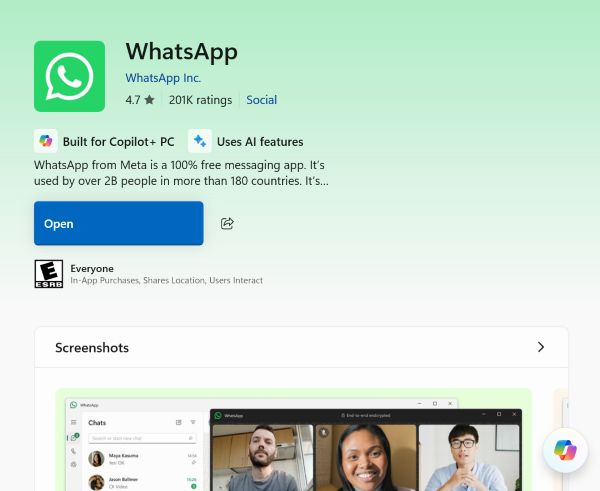
- Open Microsoft Store
Click the Microsoft Store icon in the Start menu or search for it. - Search for WhatsApp Desktop
In the search bar, type WhatsApp and press Enter. - Click on the Official WhatsApp App
Make sure it’s published by WhatsApp Inc. to avoid downloading a fake or unofficial version. - Click Install
The app will begin downloading and install automatically when finished.
How to Install WhatsApp Desktop on Windows
Installing WhatsApp Desktop is a quick and easy process. You can choose between two official methods: downloading the installer from WhatsApp’s website or using the Microsoft Store.
Step 1: Locate the Downloaded File
- Open your Downloads folder or wherever your browser saves downloaded files.
Step 2: Run the Installer
- Double-click the WhatsAppSetup.exe file.
- Windows may ask for permission; click “Yes” to allow the installation.
Step 3: Wait for Installation to Complete
- The installer will automatically extract and install WhatsApp.
- No manual steps are needed during this phase.
Step 4: WhatsApp Desktop Launches Automatically
- Once installed, WhatsApp Desktop will open, displaying a QR code for linking your phone.
Step 5: Create a Desktop Shortcut (Optional)
- A shortcut is usually created automatically, but you can right-click the app in the Start menu and choose “Pin to Taskbar” or “Create Shortcut” if needed.
How to Link WhatsApp Desktop with Your Mobile Phone
Once you have installed WhatsApp Desktop on your Windows PC, the next step is to link it with your mobile WhatsApp account. This process connects your phone to the desktop app using a secure QR code.
Step 1: Open WhatsApp Desktop on Your PC
- Launch the WhatsApp Desktop app from your Start Menu, desktop shortcut, or taskbar.
- You will see a screen with a QR code displayed in the center.
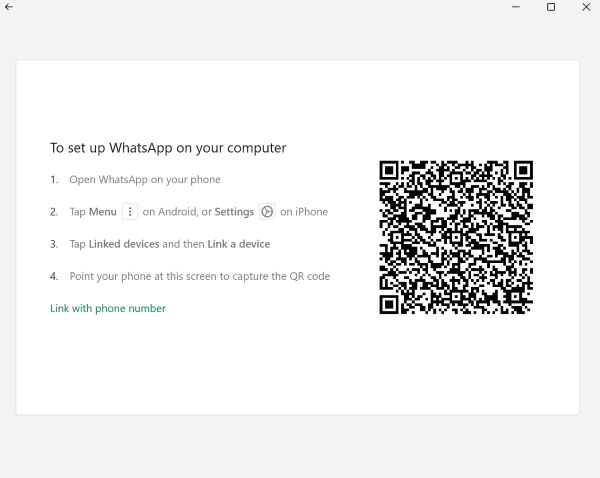
Step 2: Open WhatsApp on Your Mobile Device
On Android:
- Open the WhatsApp app.
- Tap the three-dot menu (top-right corner).
- Select Linked Devices.
- Tap Link a Device.
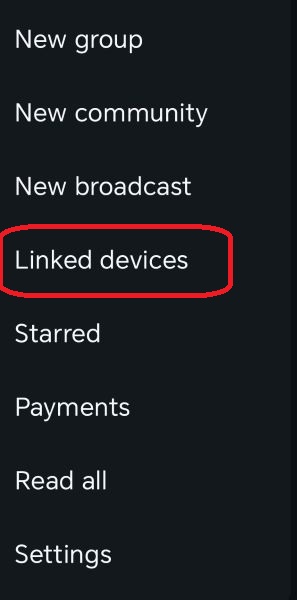
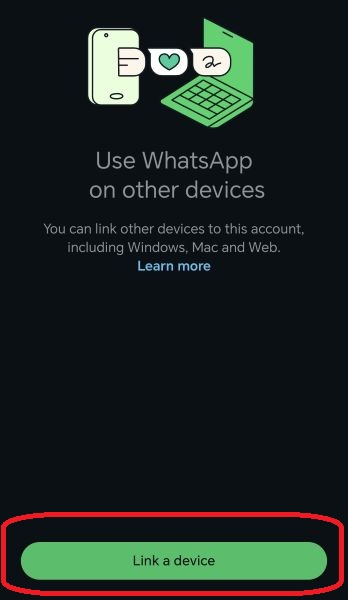
On iPhone (iOS):
- Open WhatsApp.
- Go to Settings (bottom-right corner).
- Tap Linked Devices.
- Tap Link a Device.

Note: You may need to authenticate using your phone’s biometric (fingerprint, face ID, or PIN) before proceeding.
Step 3: Scan the QR Code on Your PC Screen
- Use your phone’s camera (automatically activated by WhatsApp) to scan the QR code displayed on your PC.
- Align the QR code within the square on your phone screen.
Step 4: Wait for Syncing to Complete
- Once the QR code is scanned, your mobile device will automatically link with WhatsApp Desktop.
- Your recent chats will sync to the desktop app.
- This may take a few seconds depending on your internet connection.
You’re Now Linked!
You can now:
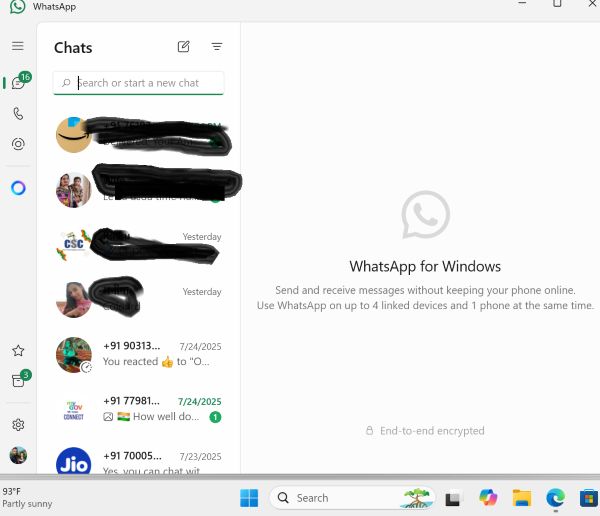
- Chat from your PC without picking up your phone
- Share media, documents, and voice messages
- Use keyboard shortcuts and receive desktop notifications
Multi-Device Mode: Do You Need Your Phone Online?
No! As of WhatsApp’s multi-device support, your phone does not need to stay online all the time. Once linked, WhatsApp Desktop will continue working even if your phone is offline or turned off (for up to 14 days of inactivity).
Tips for Using WhatsApp Desktop Effectively
1. Keyboard Shortcuts
- Ctrl + N – New chat
- Ctrl + Shift + ] – Next chat
- Ctrl + Shift + [ – Previous chat
- Ctrl + E – Archive chat
- Ctrl + Shift + M – Mute chat
- Ctrl + Backspace – Delete chat
2. Drag and Drop Files
Easily share documents and images by dragging them directly into the chat window.
3. Copy and Paste Images
You can paste screenshots (Ctrl + V) directly into chats.
Bottom Line
Installing and using WhatsApp Desktop on your Windows PC is a simple yet powerful way to enhance your messaging experience. With just a few quick steps—downloading the app, installing it, and linking it to your mobile device—you can enjoy all the features of WhatsApp on a larger screen with the convenience of a full keyboard and native desktop notifications.
Whether you’re managing work conversations, keeping in touch with friends and family, or sharing important files, WhatsApp Desktop makes multitasking easier and more efficient. The desktop version maintains full synchronization with your phone, ensuring your messages, media, and settings are always up to date.
Plus, with multi-device support, you can stay connected even when your phone is offline. If you spend a lot of time on your computer, WhatsApp Desktop is a smart, productivity-boosting tool worth adding to your daily workflow. Stay connected, stay productive—right from your PC.
Frequently Asked Questions (FAQs)
Can I use WhatsApp Desktop without a phone?
Yes, as of 2022, WhatsApp introduced multi-device support, allowing you to use WhatsApp on your PC without keeping your phone online. However, your phone must be used initially to link the device.
Is WhatsApp Desktop free?
Yes. WhatsApp Desktop is 100% free with no subscription fees.
Can I use the same WhatsApp account on both mobile and desktop?
Yes. You can link your desktop to your WhatsApp account and use both devices simultaneously.
Can I install WhatsApp Desktop on Windows 7?
No. WhatsApp officially dropped support for Windows 7 and Windows 8. You must upgrade to Windows 10 (64-bit) or later.