Keeping your Windows 11 system’s drivers up to date is crucial for optimal performance, security, and hardware compatibility. While Windows Update handles many driver updates automatically, dedicated driver updater tools can provide more comprehensive coverage and faster updates. This guide examines the top free driver updater tools available for Windows 11, analyzing their features, advantages, and limitations to help you make an informed choice.
Why use a driver updater (and when not to)
Before diving in, it’s important to understand what driver updaters do, their benefits, and their risks.

Drivers are small software components that let Windows communicate with your hardware (graphics cards, network adapters, sound cards, etc.). If drivers are missing, outdated, or incompatible, you can get issues like crashes, glitches, missing hardware functionality, reduced performance or stability issues.
Benefits of using a driver updater tool:
- Saves time compared to manually locating drivers from manufacturer websites.
- Can detect missing or mismatched drivers for hardware that Windows Update doesn’t cover or misses.
- Backup / restore / rollback features to recover if an update breaks something.
- Sometimes support bulk downloads, offline driver packs which help in situations without internet or on multiple PCs.
Risks & cautions:
- Some tools bundle unwanted software (PUA = Potentially Unwanted Applications), adware, toolbars.
- Some driver databases are not verified, leading to incorrect or even harmful driver installations.
- Free versions often have limitations (speed, number of drivers per day/month, no automation).
- Windows Update + manufacturer utilities are usually safer for critical drivers (GPU, chipset, etc.).
How to Choose a Free Driver Updater Tool for Windows 11
Assess Your Technical Expertise: Your technical comfort level should guide your choice. Beginners should opt for automated tools like DriverPack Solution or Driver Booster Free, which offer one-click updates and intuitive interfaces. Advanced users can handle more complex tools like Snappy Driver Installer, which provides granular control but requires deeper understanding of hardware components and driver compatibility.
Consider Your Hardware Configuration: Different tools excel with specific hardware types. NVIDIA users should prioritize GeForce Experience for optimal graphics performance and game-ready drivers. AMD hardware owners benefit most from AMD Software for manufacturer-optimized drivers. Users with mixed or uncommon hardware need comprehensive tools like Snappy Driver Installer with extensive offline driver databases.
Evaluate Safety and Reliability Features: Prioritize tools that create system restore points before installations and offer rollback capabilities. Windows Update and Device Manager provide the highest safety levels with Microsoft-certified drivers. Third-party tools should include backup features and authentic driver sources to prevent system instability from incompatible or corrupted drivers.
Determine Online vs Offline Requirements: Consider your internet connectivity needs. Cloud-based tools like Driver Booster require constant internet access but provide the latest drivers instantly. Offline solutions like Snappy Driver Installer work without connectivity but require large initial downloads. Choose based on your typical usage environment and available bandwidth.

Budget and Feature Requirements: Free versions often include limitations like slower downloads, advertisements, or restricted features. Evaluate whether free tools meet your needs or if premium versions provide essential features like scheduling, priority support, or advanced system optimization. Many users find free versions sufficient for basic driver maintenance.
System Performance Impact: Consider the tool’s resource usage during scans and updates. Lightweight solutions like Device Manager have minimal impact, while comprehensive suites like GeForce Experience consume more system resources. Choose based on your system’s performance capabilities and tolerance for background processes.
Prioritize Open-Source Options: Open-source tools like Snappy Driver Installer offer transparency and community support without commercial interests affecting functionality. These tools typically avoid advertisements, data collection, and bundled software. While they may have steeper learning curves, they provide honest, no-strings-attached driver updating without hidden agendas or profit motives driving design decisions.
System Performance Impact: Consider the tool’s resource usage during scans and updates. Lightweight solutions like Windows Update and Device Manager have minimal impact, while feature-rich free tools may consume more system resources during operation. Choose based on your system’s performance capabilities and tolerance for background processes affecting daily computer use.
Here is our list of best free driver updater tools for Windows 11:
1. Windows Update (Built-in Windows 11 Feature)
Windows Update is Microsoft’s native solution for keeping your system updated, including driver updates. This built-in feature automatically downloads and installs driver updates from Microsoft’s extensive database, ensuring compatibility and stability. Windows 11 has significantly improved its driver update capabilities compared to previous versions, offering better hardware detection and more frequent updates. The service runs in the background and can be configured to install updates automatically or notify you when updates are available.
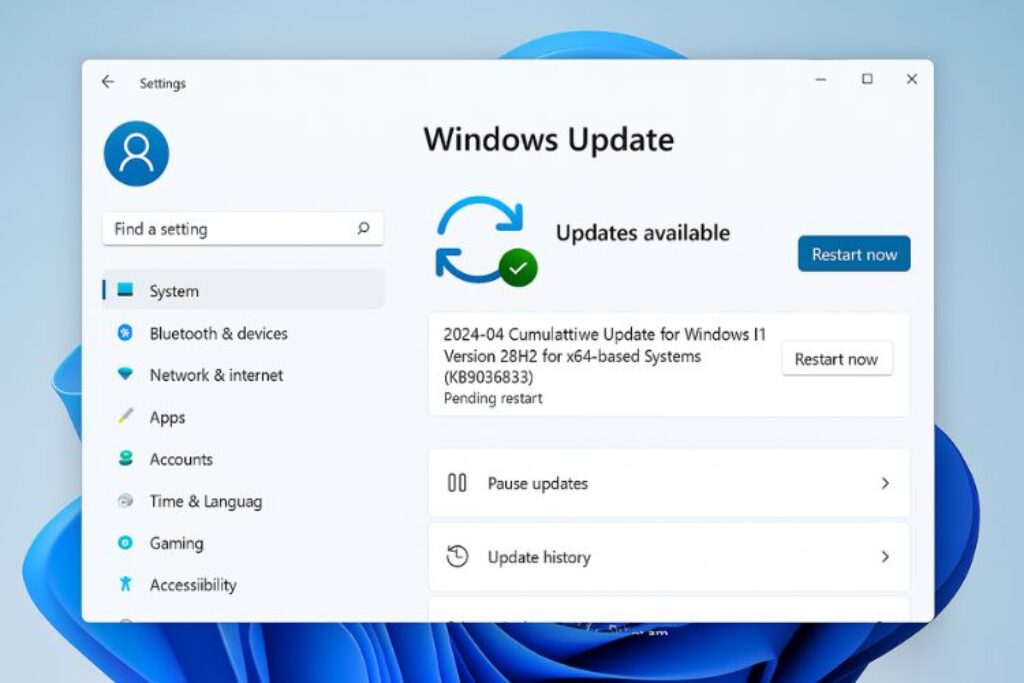
The integration with Windows 11 is seamless, requiring no additional software installation or configuration. Microsoft partners with hardware manufacturers to provide certified drivers through Windows Update, ensuring that the drivers you receive have been tested for compatibility and stability. The system also creates restore points before major driver installations, allowing you to roll back if issues arise. Windows Update covers a wide range of hardware components, from graphics cards and network adapters to audio devices and printers.
Pros:
- Completely free and pre-installed with Windows 11
- Automatic background operation with minimal user intervention required
- Microsoft-certified drivers ensure maximum compatibility and system stability
- Integrated system restore functionality provides safety net for problematic updates
- No risk of malware or unwanted software bundled with legitimate updates
- Covers essential system drivers and most common hardware components
- Regular security updates alongside driver updates for comprehensive system maintenance
Cons:
- Limited driver database compared to manufacturer websites and third-party tools
- Updates may lag behind latest manufacturer releases by weeks or months
- No advanced features like driver backup, scheduling, or detailed hardware information
- Cannot force updates for specific devices or exclude certain drivers from updates
- May not detect all hardware components, especially newer or specialized devices
- No option to install beta or pre-release drivers for cutting-edge hardware
- Limited control over update timing and installation preferences
Why Choose Windows Update: Windows Update should be your first line of defense for driver updates because it’s integrated, secure, and reliable. Choose this option if you prefer a hands-off approach to system maintenance and primarily use common hardware components. It’s ideal for users who value system stability over having the latest driver versions and don’t require advanced driver management features.
2. Device Manager (Windows 11 Built-in Tool)
Device Manager is Windows 11’s built-in hardware management utility that allows manual driver updates and troubleshooting. This tool provides direct access to all detected hardware components, enabling users to update, roll back, disable, or uninstall drivers for specific devices. Device Manager connects to Windows Update servers to search for driver updates, but it also allows installation of drivers from local files or manufacturer websites. The interface is straightforward, displaying hardware in categorized tree structure with clear status indicators for problematic devices.
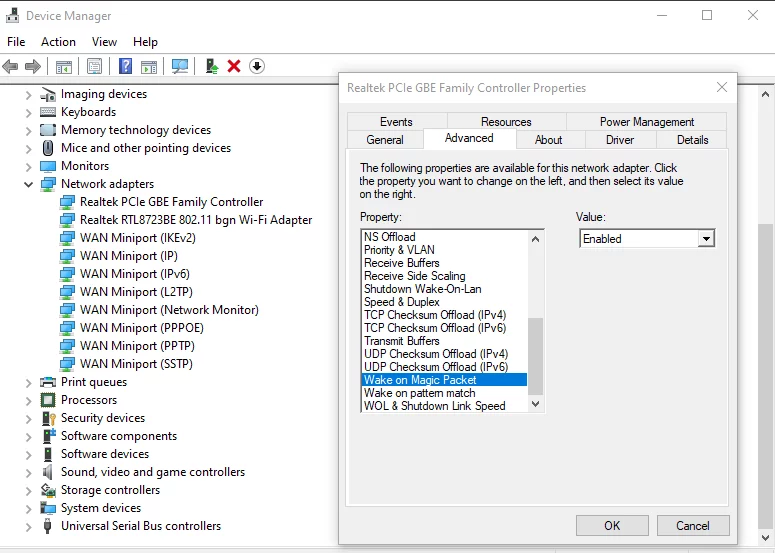
The tool offers granular control over individual device drivers, making it perfect for troubleshooting specific hardware issues or updating particular components. Device Manager can identify unknown devices and provide hardware IDs that help in finding appropriate drivers manually. It also displays driver version information, installation dates, and digital signatures, giving users complete transparency about their system’s driver status. The ability to roll back drivers to previous versions is particularly valuable when new drivers cause compatibility issues.
Pros:
- Completely free and integrated into Windows 11 without additional downloads
- Provides detailed information about all system hardware and driver versions
- Allows selective driver updates for specific devices rather than system-wide scans
- Includes rollback functionality to revert problematic driver updates easily
- Can disable or uninstall drivers for troubleshooting purposes without system restart
- Supports manual driver installation from local files and manufacturer packages
- Real-time hardware status monitoring with clear problem indicators
Cons:
- Requires manual intervention and technical knowledge for effective use
- No automatic scanning or update notifications for outdated drivers
- Limited to Microsoft’s driver database through Windows Update integration
- Cannot batch update multiple drivers simultaneously for efficiency
- No backup functionality to save current drivers before updates
- Time-consuming process when managing multiple devices across the system
- May not detect all hardware or provide optimal driver recommendations
Why Choose Device Manager: Device Manager is ideal for users who prefer manual control over their driver updates and have sufficient technical knowledge to identify and resolve hardware issues. Choose this tool when you need to troubleshoot specific device problems, want to update only certain drivers, or need to roll back problematic updates. It’s perfect for power users who understand hardware management and prefer precise control over automated solutions.
3. Snappy Driver Installer (SDI)
Snappy Driver Installer stands out as one of the most comprehensive free driver update solutions available for Windows 11. This open-source tool features an extensive offline driver database, making it invaluable for systems without reliable internet connections or when dealing with rare hardware components. SDI downloads massive driver packs that contain thousands of drivers for various hardware manufacturers, ensuring broad compatibility across different system configurations. The tool’s interface may appear complex initially, but it provides unprecedented control over driver selection and installation processes.
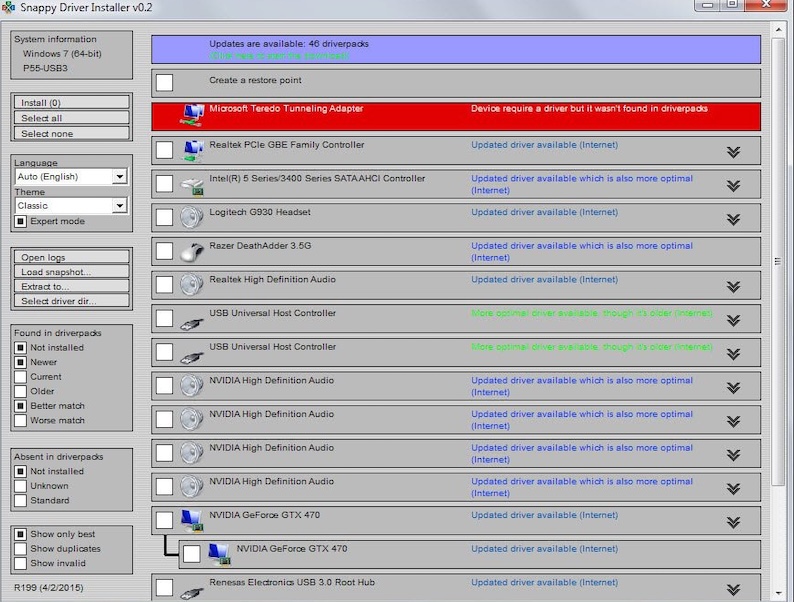
The offline capability sets SDI apart from most competitors, as it can function completely without an internet connection once the driver packs are downloaded. This feature makes it indispensable for technicians working on multiple systems or in environments with limited connectivity. SDI’s driver database is regularly updated and includes drivers for both current and legacy hardware, making it excellent for maintaining older systems alongside modern Windows 11 installations. The tool also provides detailed driver information, including version numbers, release dates, and compatibility ratings.
Pros:
- Completely free and open-source with no hidden costs or premium features
- Massive offline driver database covering thousands of hardware components and manufacturers
- Functions without internet connection after initial driver pack downloads
- Extremely comprehensive coverage including rare and legacy hardware support
- No unwanted software bundling or advertising throughout the application
- Portable version available requiring no installation on the target system
- Regular database updates ensure current driver availability for new hardware
Cons:
- Complex interface overwhelming for novice users without technical background
- Large download sizes for complete driver packs consuming significant storage space
- Steep learning curve requiring time investment to master all features effectively
- Manual driver selection process can be time-consuming for multiple devices
- Lacks automated scheduling and background update monitoring capabilities
- No integrated backup functionality for existing drivers before replacement
- Potential for selecting incorrect drivers without proper hardware knowledge
Why Choose Snappy Driver Installer: SDI is perfect for IT professionals, technicians, or advanced users who need comprehensive driver coverage and offline capability. Choose this tool if you work with multiple systems, deal with rare hardware, or need to maintain systems without reliable internet access. It’s ideal when you require complete control over driver selection and don’t mind investing time to learn its advanced features.
4. DriverPack Solution
DriverPack Solution offers a user-friendly approach to driver management with both online and offline installation options. This free tool automatically detects outdated or missing drivers and provides one-click installation for multiple updates simultaneously. The software features a clean, intuitive interface that makes it accessible to users of all technical levels while maintaining powerful functionality under the hood. DriverPack Solution maintains an extensive online database that’s regularly updated with the latest drivers from major hardware manufacturers.
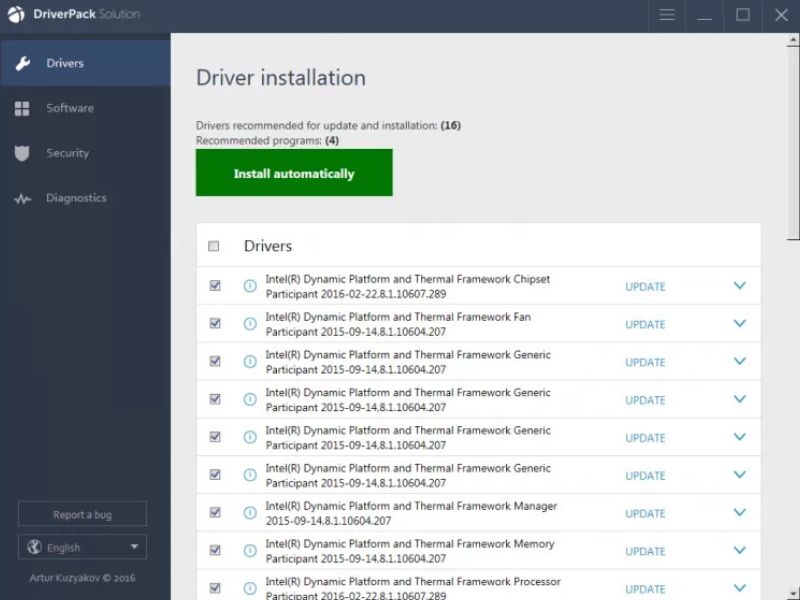
The tool’s automatic hardware detection is particularly impressive, identifying even obscure or uncommon devices that other tools might miss. DriverPack Solution can create comprehensive system reports detailing all hardware components and their current driver status, making it valuable for system documentation and troubleshooting. The software also offers offline installation packages, though these are considerably smaller and more manageable than SDI’s massive driver packs while still covering the most common hardware configurations.
Pros:
- Free version provides essential driver update functionality without cost barriers
- User-friendly interface accessible to both beginners and experienced users
- Automatic hardware detection covers wide range of devices and manufacturers
- One-click mass driver installation saves significant time for multiple updates
- Regular online database updates ensure access to latest manufacturer drivers
- Offline installation packages available for systems with limited connectivity
- Comprehensive system reporting provides detailed hardware and driver information
Cons:
- Free version includes promotional software offers that require careful attention during installation
- Online dependency for full functionality limits usefulness in offline scenarios
- May install generic rather than manufacturer-optimized drivers in some cases
- Limited control over individual driver selection compared to advanced tools
- Occasional false positives identifying current drivers as outdated requiring verification
- No integrated driver backup functionality before performing updates
- Advertisement-supported model can be intrusive during normal operation
Why Choose DriverPack Solution: DriverPack Solution is ideal for home users who want comprehensive driver updates without technical complexity. Choose this tool if you prefer automated driver management with minimal user intervention and don’t mind occasional promotional offers. It’s perfect for maintaining family computers or small office systems where ease of use is more important than advanced features.
5. Driver Booster (IObit) – Free Version
Driver Booster’s free version provides solid driver update capabilities with a polished, professional interface that’s both attractive and functional. This tool excels at identifying outdated drivers through comprehensive system scans and offers detailed information about each driver including version numbers, release dates, and manufacturer details. The free version includes automatic driver downloads and installations, though it lacks some premium features like scheduled scans and priority customer support. Driver Booster maintains partnerships with hardware manufacturers to ensure authentic driver sources.
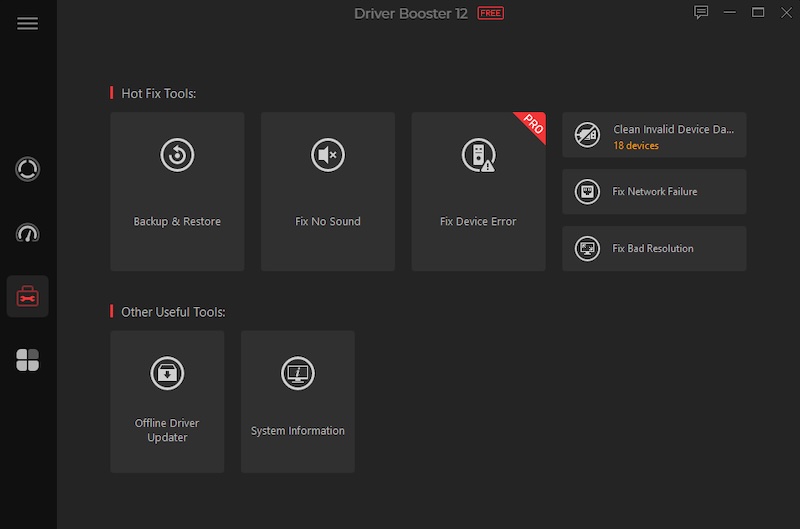
The software’s database coverage is impressive, supporting over 6 million drivers and game components, making it particularly valuable for gaming enthusiasts who need optimized performance drivers. Driver Booster can create restore points before driver installations and includes a rollback feature for problematic updates. The tool also offers additional system optimization features in its free version, including registry cleaning and system file repair, providing value beyond basic driver management.
Pros:
- Professional interface design makes driver management intuitive and visually appealing
- Extensive database supporting millions of drivers and gaming components
- Automatic restore point creation provides safety net for driver installations
- Additional system optimization tools included in free version add extra value
- Regular database updates ensure access to latest manufacturer driver releases
- One-click driver installation process simplifies maintenance for non-technical users
- Gaming optimization features benefit users seeking maximum performance
Cons:
- Free version limitations include slower download speeds and no scheduling options
- Occasional promotion of premium version can interrupt workflow with upgrade notifications
- Some advanced features require premium subscription for full functionality access
- May suggest driver updates that don’t provide significant benefits over current versions
- Limited control over driver selection process compared to more advanced tools
- No offline functionality requires constant internet connection for operation
- Resource usage higher than some lightweight alternatives during system scans
Why Choose Driver Booster Free: Driver Booster Free is excellent for gamers and users who want professional-grade driver management with an attractive interface. Choose this tool if you value ease of use, comprehensive driver coverage, and don’t mind occasional upgrade prompts. It’s ideal for users who want reliable driver updates without complex configuration or technical knowledge requirements.
6. AMD Software (For AMD Hardware)
AMD Software represents the manufacturer’s official driver and software suite specifically designed for AMD graphics cards, processors, and chipsets. This comprehensive package includes not only the latest drivers but also advanced configuration tools, performance monitoring utilities, and gaming optimization features. The software automatically detects AMD hardware and provides tailored recommendations for optimal system configuration. AMD Software ensures that users receive authentic, manufacturer-tested drivers that maximize hardware performance and compatibility.
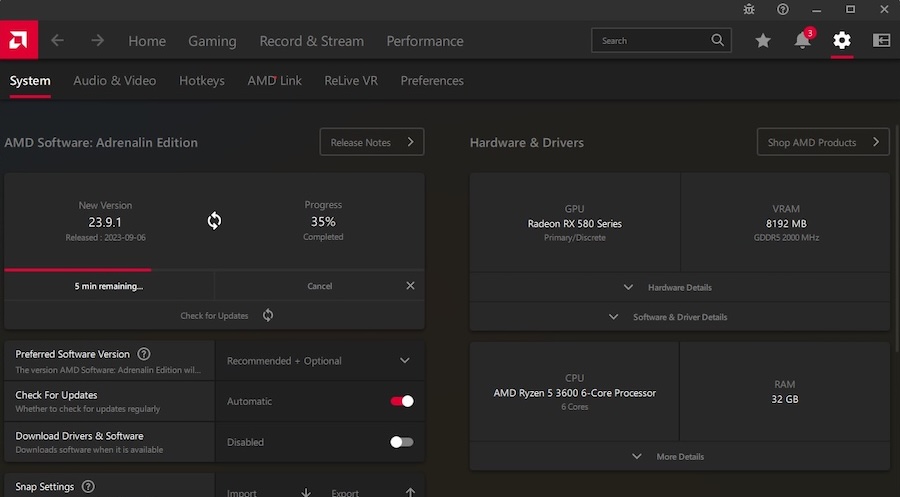
The suite includes Radeon Settings for graphics configuration, allowing users to fine-tune display options, gaming performance profiles, and video quality settings. AMD Software also provides automatic driver notifications and can download updates in the background, ensuring systems stay current without user intervention. The software includes additional features like screen recording, streaming capabilities, and system performance monitoring that extend its value beyond basic driver management.
Pros:
- Official manufacturer software ensures authentic, optimized drivers for AMD hardware
- Comprehensive hardware configuration tools maximize performance and compatibility
- Automatic update notifications and background downloads maintain current drivers
- Additional gaming and multimedia features provide value beyond basic driver management
- Regular release schedule ensures timely access to performance improvements and bug fixes
- Integration with AMD’s online services provides personalized recommendations and support
- No cost barriers or premium versions – all features available to all users
Cons:
- Limited to AMD hardware exclusively, requiring additional tools for other components
- Larger installation footprint compared to simple driver-only packages
- May include features unnecessary for users seeking only basic driver functionality
- Occasional software bugs in beta releases can affect system stability
- Resource usage higher than minimal driver installations during background operation
- Complex interface may overwhelm users needing only basic driver updates
- Automatic installation of additional software components user may not require
Why Choose AMD Software: AMD Software is essential for users with AMD graphics cards, processors, or chipsets who want manufacturer-optimized performance and features. Choose this tool if you have AMD hardware and want to maximize its potential through official drivers and configuration tools. It’s perfect for gamers, content creators, or enthusiasts who want comprehensive AMD hardware management in a single package.
7. GeForce Experience (For NVIDIA Hardware)
GeForce Experience serves as NVIDIA’s official software suite for managing GeForce graphics cards, providing automatic driver updates, game optimization, and additional gaming features. This comprehensive tool automatically detects your NVIDIA graphics hardware and delivers manufacturer-tested drivers that ensure optimal performance and compatibility. GeForce Experience maintains a constantly updated database of game profiles that automatically configure graphics settings for optimal performance in popular games. The software also includes features like screenshot capture, video recording, and game streaming capabilities.
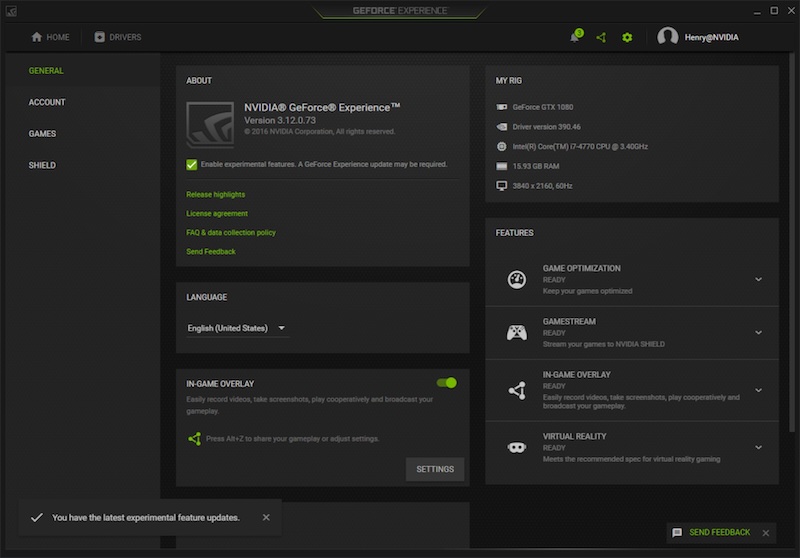
The automatic driver update system checks for new releases in the background and can install updates with minimal user intervention, ensuring your system always has the latest performance improvements and bug fixes. GeForce Experience also provides access to NVIDIA’s Game Ready drivers, which are specifically optimized for new game releases and provide day-one compatibility and performance enhancements. The software includes telemetry features that help NVIDIA improve driver quality and game optimization recommendations.
Pros:
- Official NVIDIA software ensures authentic, manufacturer-optimized drivers for GeForce hardware
- Automatic game optimization provides optimal settings recommendations for popular titles
- Game Ready drivers offer day-one compatibility and performance for new game releases
- Additional gaming features like recording, streaming, and screenshot capture add significant value
- Background driver checking and installation maintains current drivers without user intervention
- Integration with NVIDIA’s cloud services provides personalized gaming recommendations
- Regular driver releases ensure timely access to performance improvements and new features
Cons:
- Requires NVIDIA account creation and login for full functionality access
- Limited to NVIDIA GeForce hardware, requiring additional tools for other system components
- Larger software footprint compared to minimal driver installation packages
- Telemetry data collection raises privacy concerns for some users
- May install additional software components users don’t require or want
- Occasional issues with automatic optimization recommendations for specific system configurations
- Resource usage during background operation affects system performance on lower-end hardware
Why Choose GeForce Experience: GeForce Experience is essential for NVIDIA GeForce graphics card owners who want manufacturer-optimized drivers and gaming features. Choose this tool if you have NVIDIA hardware and want automatic game optimization, driver updates, and additional gaming capabilities. It’s perfect for PC gamers who want hassle-free driver management combined with performance optimization and gaming enhancement features.
Best Practice for Using Driver Updater Tools Safely
To reduce risk and ensure stability, here are guidelines:
- Create a System Restore Point before making driver changes. If something goes wrong, you can revert.
- Back up current drivers (many tools support this). Especially for key components like chipset, display graphics, network adapter.
- Update one driver at a time, especially if it’s critical; test system stability after updating.
- Prefer drivers from manufacturer / WHQL signed whenever possible.
- Avoid “one-click everything” blindly, especially for obscure or old hardware.
- Use reputable sources for the updater tool itself (official website, verified download sites) to avoid bundled malware.
- Keep Windows Update enabled, and check manufacturer utilities (for example, NVIDIA/AMD graphics update tools, Intel driver tools) — many critical drivers are reliably provided there.
The Verdict
Selecting the right driver updater tool depends on your specific needs, technical expertise, and hardware configuration. For most Windows 11 users, starting with Windows Update and Device Manager provides a solid foundation for driver maintenance without additional software installation. These built-in tools handle essential drivers reliably and safely, making them suitable for basic system maintenance needs.
For users requiring more comprehensive coverage or advanced features, third-party tools offer significant advantages. Snappy Driver Installer excels for IT professionals and advanced users who need offline capability and comprehensive driver coverage. DriverPack Solution provides an excellent balance of ease of use and functionality for home users. Driver Booster offers professional-grade features with gaming optimizations, while AMD Software and GeForce Experience are essential for users with respective hardware brands.
The key to successful driver management lies in understanding your needs and choosing tools that match your technical comfort level and system requirements. Regular driver updates improve system performance, security, and stability, making the investment in appropriate tools worthwhile for maintaining optimal Windows 11 performance.