Managing files efficiently is essential for getting the most out of your Windows 11 experience. While the built-in File Explorer does a decent job for basic tasks like copying, moving, or deleting files, it often falls short when users need advanced features such as dual-pane views, tabbed browsing, or batch renaming tools. This is where third-party file managers come into play.
These free tools not only enhance your productivity but also bring a range of smart features that simplify complex file operations. Whether you’re a student organizing documents, a developer working with large directories, or a content creator juggling media files, there’s a file manager tailored to your needs.
Things to Consider Before Choosing a File Manager for Windows 11
- Download from official sources: Always get the installer directly from the developer’s official website or verified download portals to avoid malware or bundled software.
- Windows 11 compatibility: Ensure the file manager supports Windows 11 features such as the modern context menu, dark mode, OneDrive integration, and high-DPI display scaling.
- User interface and ease of use: Choose a layout that suits your comfort level. A dual-pane interface, tabbed browsing, and customizable shortcuts can boost productivity.
- Feature balance: Avoid overly complicated tools if you only need basic file management. Likewise, pick advanced tools with scripting, file sync, or batch rename features if you’re a power user.
- Free vs. paid features: Some free file managers restrict features like FTP support, cloud connectivity, or advanced search to premium versions—check before installing.
- Portable versions: If you frequently switch between computers, look for a portable edition that runs without installation and can be carried on a USB drive.
- Integration with cloud services: Check how well the tool works with services like OneDrive, Google Drive, or Dropbox if cloud access is part of your workflow.
- Performance and stability: Make sure it’s lightweight and optimized for handling large file operations smoothly.
- Updates and community support: Choose actively maintained software with regular updates, bug fixes, and a helpful user community.

This guide will examine the best free file manager software for Windows 11, showcasing options that offer modern interfaces, lightning-fast search, and tools that go far beyond the standard File Explorer. Let’s dive into the top contenders and find your ideal solution.
1. FreeCommander
FreeCommander is a powerful and versatile file manager that’s been a favorite among Windows power users for years. Designed as a free alternative to the built-in File Explorer, it delivers a wide range of advanced file management tools without overwhelming your system’s resources. Its classic dual-pane interface allows users to view and work with two directories simultaneously, making it much easier to copy, move, or compare files. FreeCommander also supports tabbed browsing, file previews, and features like batch renaming, file synchronization, and FTP access, which are often missing from Windows’ native tools.
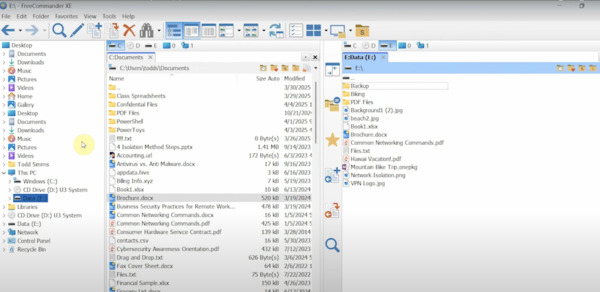
Despite its slightly dated user interface, FreeCommander’s functionality is its biggest strength. It’s available in both installer and portable versions, giving users the flexibility to carry it on a USB drive and use it on multiple PCs without installation. For anyone dealing with large volumes of data or needing a robust organization system, FreeCommander offers a reliable and highly customizable solution.
Key Features of FreeCommander:
- Dual-pane layout with tab support
- Built-in file viewer for text, images, and more
- ZIP/Archive handling without external tools
- Batch rename and file splitting tools
- FTP/SFTP access and directory comparison
- Portable version available
2. FileVoyager
FileVoyager is a free and feature-packed dual-pane file manager designed for users who want advanced tools combined with a familiar layout. Built with functionality and flexibility in mind, FileVoyager supports both Orthodox and Explorer-style layouts, making it a great fit for users migrating from traditional file explorers as well as experienced power users. Its dual-pane interface allows side-by-side folder navigation, which is ideal for performing drag-and-drop operations, comparing files, or organizing large data sets efficiently.
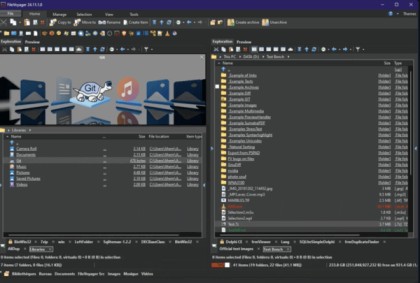
It comes with various useful features such as comprehensive file preview support. It can render text, images, audio, video, and even binary files within the application itself. The software also includes built-in support for archive formats (ZIP, 7-Zip, TAR, etc.), FTP and FTPS file transfer, and customizable keyboard shortcuts. It has tools for file comparison, duplication detection, batch renaming, and hash generation—all accessible from a customizable interface.
FileVoyager may not be as polished visually as modern UWP-based file managers, but it more than makes up for it with its sheer versatility. It’s ideal for users who need a multi-tool file manager without paying for premium software.
Key Features of FileVoyager:
- Dual-pane interface with tabbed browsing
- Built-in file preview for multimedia and binary formats
- Archive support: ZIP, 7z, TAR, etc.
- FTP and FTPS client integration
- File hashing, comparison, and duplication tools
- Portable version available
3. Multi Commander
Multi Commander is a free, advanced file manager designed for power users who need more than just basic file operations. It offers a highly customizable dual-pane interface that supports multi-tabbed browsing and a range of tools to manage files faster and more efficiently than Windows File Explorer. Whether you’re navigating complex directory structures or performing batch operations, Multi Commander is built to save time and improve productivity.
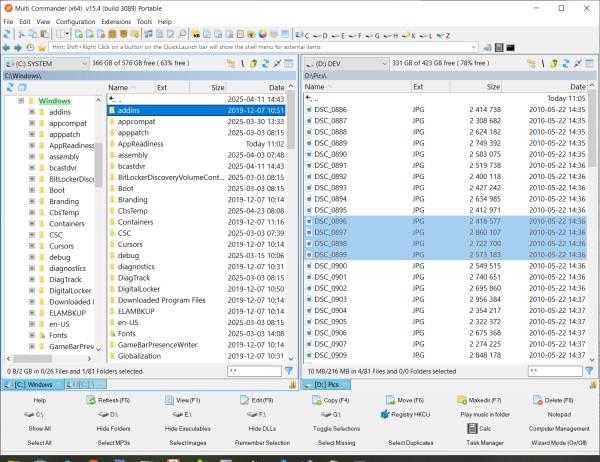

It includes features like plugin system and command-line support, which lets users extend its functionality and automate repetitive tasks. It also includes a powerful file viewer, archive handling, registry browsing, FTP access, and even script support using MultiScript—its own scripting language. Users can customize nearly every part of the interface, assign hotkeys, and build custom buttons and actions. Though its UI may feel overwhelming for beginners, it’s ideal for IT professionals, developers, and tech-savvy users. Multi Commander supports both installable and portable versions, making it convenient to carry on a USB drive for on-the-go usage.
Key Features of Multi Commander:
- Dual-pane interface with tab support
- Support for ZIP, 7-Zip, TAR, and other archives
- FTP and network drive support
- MultiScript for automation and custom commands
- Plugin system and customizable layouts
- Built-in file viewer, checksum tools, and compare utility
4. Double Commander
Double Commander is a powerful, free, and open-source file manager inspired by the classic Total Commander. Designed for advanced users, it features a robust dual-pane interface, tabbed navigation, and extensive customization options, making it a go-to choice for developers, sysadmins, and power users. Available for Windows, Linux, and macOS, Double Commander is also cross-platform, allowing a consistent experience across different operating systems.
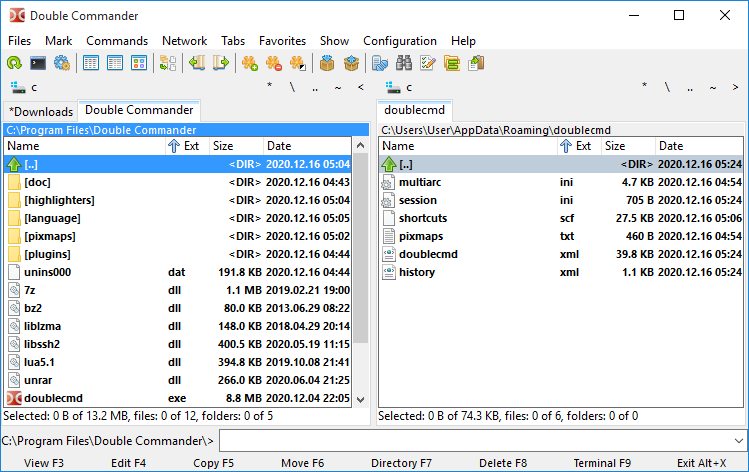
One of its most notable strengths is its built-in support for multiple archive types (ZIP, TAR, 7z, etc.), which can be browsed and extracted just like regular folders. It also includes a built-in text editor with syntax highlighting, a multi-rename tool, and a file comparison tool. Another highlight is its command-line integration and ability to execute custom scripts, allowing users to automate complex file tasks easily. The interface may seem dated at first glance, but it’s clean, functional, and extremely responsive even with large directories.
Double Commander is portable and doesn’t require installation, which makes it a convenient option for users working across multiple systems. Though it may not appeal to users who prefer modern aesthetics or touch-friendly apps, its practical power and flexibility make it one of the best free file managers on the market today.
Key Features of Double Commander:
- Dual-pane layout with tabbed browsing
- Supports numerous archive formats
- Internal text editor with syntax highlighting
- File compare, sync, and multi-rename tools
- Cross-platform (Windows, Linux, macOS)
- Portable version available
5. Q-Dir (The Quad Explorer)
Q-Dir, short for Quad Explorer, is a unique and lightweight file manager for Windows 11 that stands out by offering a four-pane interface. Unlike traditional dual-pane managers, Q-Dir allows users to view and manage up to four directories at once—perfect for heavy multitasking, advanced file organization, or comparing multiple folders simultaneously. It’s a time-saver for users dealing with complex directory structures or needing to transfer files across multiple locations.
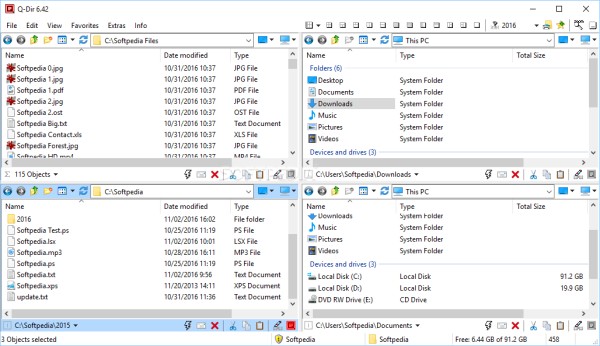
The interface is fully customizable. Users can resize or rearrange panes, use color filters to highlight specific file types, and open tabs within each pane for even more flexibility. Despite its multi-pane design, Q-Dir remains surprisingly lightweight and portable, making it suitable even for systems with limited resources. It supports drag-and-drop operations, context menus, and file previews, along with basic integration with cloud and network drives.
While Q-Dir’s functionality is impressive, the interface can initially feel cluttered or overwhelming, especially for new users. It’s clearly geared more toward productivity than aesthetics, but once mastered, it becomes a very efficient file management tool. Available as both an installable and portable version, Q-Dir is a great choice for users who want maximum visibility and control over their files.
Key Features Q-Dir:
- Four-pane layout (configurable to dual or single)
- Tab support in each pane
- Portable and lightweight
- Color filters and quick file previews
- Full drag-and-drop and context menu support
6. One Commander
One Commander is a beautifully designed and modern file manager created specifically for Windows 10 and 11 users who value both aesthetics and functionality. Unlike many traditional file managers that prioritize function over form, One Commander provides a sleek, Fluent Design-inspired interface, blending native Windows visuals with powerful file management tools. It supports both dual-pane and column view modes, allowing users to easily navigate deep folder structures or work with multiple directories side by side.
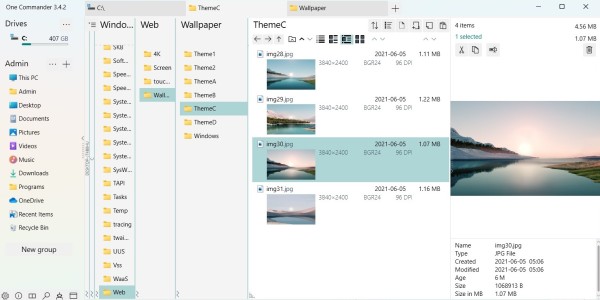
One of One Commander’s standout features is its built-in file preview, which allows users to quickly glance at images, documents, and videos without opening external applications. It also includes tagging, note-taking, and breadcrumb navigation—features often found in digital asset managers. Additionally, One Commander is portable and supports advanced keyboard navigation, making it a great choice for power users who appreciate speed and efficiency.
While One Commander offers a rich free version, some advanced features are reserved for its Pro edition. Nonetheless, the free tier is more than capable for most users. The biggest drawback may be its learning curve, as the interface is quite different from traditional file explorers, and it can take time to get used to its unique layout and workflow.
Key Features of One Commander:
- Fluent Design UI with dark and light modes
- Dual-pane and column navigation styles
- Tabbed browsing with workspace support
- Built-in file preview for multimedia and text
- Tags, notes, and metadata support
- Portable version available
7. Explorer++
Explorer++ is a lightweight and open-source file manager for Windows users who want a faster, tabbed alternative to the native File Explorer. With its minimalist and familiar interface, Explorer++ doesn’t try to reinvent the wheel—instead, it enhances what users already know by adding tabbed browsing, bookmark support, and advanced file operations without unnecessary bloat. It’s perfect for users who prefer simplicity, speed, and portability.
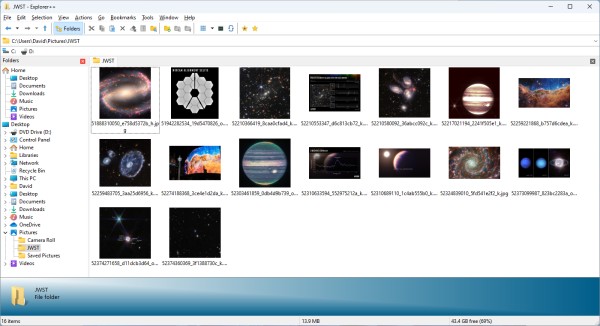
One of the most praised features is its multi-tab support, which allows users to open multiple folders in one window and easily switch between them. It also supports keyboard shortcuts, customizable toolbar buttons, and drag-and-drop functionality, making file organization more intuitive. While it may lack some advanced features found in other managers like scripting or built-in FTP, Explorer++ shines in delivering a fast, stable, and portable experience with a minimal learning curve.
The software runs as a portable application, meaning it doesn’t require installation and can be launched directly from a USB stick—ideal for users on the go. However, development has been slow in recent years, and some users may find the lack of visual polish or cloud integration limiting compared to newer, more modern file managers.
Key Features Explorer++:
- Tabbed browsing for multiple folder views
- Bookmark support for quick access
- Lightweight and portable (no install required)
- Simple, familiar interface
- 64-bit and 32-bit versions available
8. WizFile
WizFile isn’t a traditional file manager like others on this list—but it deserves a solid mention because of its blazing-fast file search capabilities. Designed specifically to help users locate files instantly, WizFile indexes your entire NTFS drives in real time and delivers lightning-quick results as you type. If you frequently lose track of files scattered across folders or need to search through large volumes of data, WizFile can dramatically speed up your workflow.
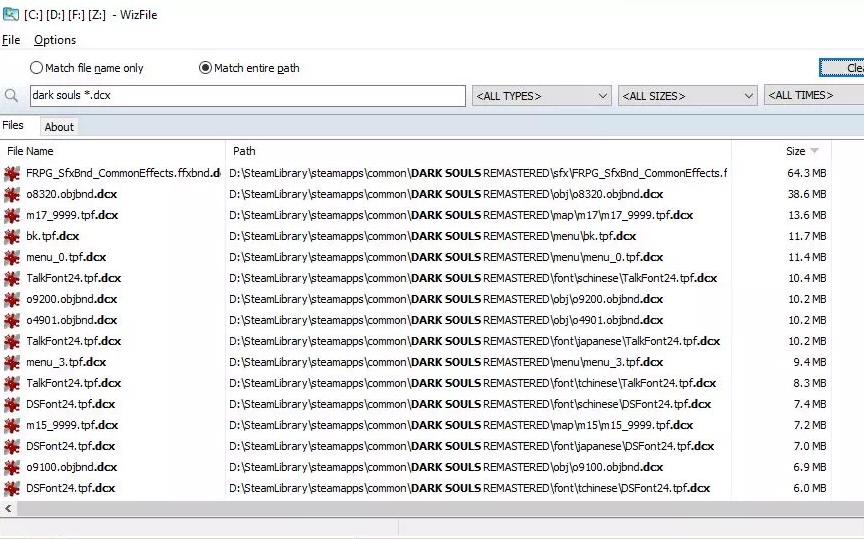
One of its best features is live search, which updates results with every keystroke. Unlike Windows Search, WizFile doesn’t rely on background indexing or long delays. It uses the Master File Table (MFT) to scan and retrieve filenames almost instantly, even on drives with millions of files. It also supports wildcards, Boolean operators, and file size filters for precision searches. Though WizFile doesn’t replace your default file manager or offer advanced tools like file moving, previewing, or tabbed browsing, it integrates well with File Explorer and complements your file management toolkit.
Key Features of WizFile:
- Instant file search using MFT (no indexing required)
- Real-time results as you type
- Filter by file name, type, size, or date
- Supports wildcards and Boolean operators
- Minimalist, portable, and lightweight
Bottom Line
Choosing the right file manager for Windows 11 depends on your workflow, technical experience, and the features you value most. If you prefer a modern, visually polished experience, One Commander and Files App are great choices. Power users needing extensive functionality, scripting, and dual-pane setups will appreciate the depth of FreeCommander, Double Commander, or Multi Commander.
For multimedia users, Konvertor offers impressive format support and conversion tools, while Q-Dir provides a unique multi-pane layout for managing multiple directories at once. Simpler tools like Explorer++ and WizFile cater to those who want speed and minimalism. All of these options are free and offer something beyond what the default File Explorer provides. Try a few and see which interface and feature set match your needs—upgrading your file manager can significantly boost your productivity and file-handling efficiency in Windows 11.