Geeksdigit Team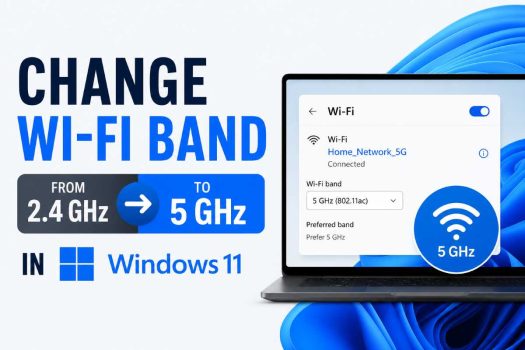
Modern dual-band wireless adapters support both the 2.4GHz and 5GHz Wi-Fi bands. While the 2.4GHz band offers better range, the 5GHz band provides significantly faster speeds, lower latency, and less interference from neighboring devices. For activities such as online gaming, 4K streaming, large file transfers, and video conferencing, connecting to the 5GHz network generally delivers better performance.
Normally, Windows automatically selects the Wi-Fi band based on signal strength and network conditions. However, your computer may continue connecting to the slower 2.4GHz band even when a stronger 5GHz network is available. This can happen because of wireless adapter settings, outdated drivers, router configuration, power-saving features, or identical network names (SSIDs) for both bands.

Fortunately, Windows 11 and Windows 10 provide several ways to prioritize or force your wireless adapter to use the 5GHz band whenever possible. This guide explains the most effective methods.
Method 1: Set the Preferred Band in Device Manager
Most dual-band wireless adapters allow you to prioritize the 5GHz band through the adapter properties.
Steps
- Right-click the Start button.
- Select Device Manager.
- Expand Network adapters.
- Double-click your wireless adapter.
- Open the Advanced tab.
- Locate one of the following settings (the exact name varies by manufacturer):
- Preferred Band
- Band Preference
- Wireless Mode
- Roaming Band
- Set the value to:
- Prefer 5GHz
- Prefer 5G Band
- 5GHz First
- Click OK.
- Restart your computer.
After restarting, Windows should prioritize the 5GHz network whenever it’s available.
Method 2: Connect Directly to the 5GHz Network
Many routers broadcast separate network names for the 2.4GHz and 5GHz bands.
Steps
- Click the Wi-Fi icon on the taskbar.
- View available wireless networks.
- Select the network that represents the 5GHz band.
- Enter the Wi-Fi password.
- Enable Connect automatically.
- Click Connect.
If your router uses separate names such as:
- HomeWiFi
- HomeWiFi-5G
choose the 5G network.
Method 3: Forget the 2.4GHz Network
If Windows continually reconnects to the 2.4GHz network, removing its saved profile may encourage it to use the 5GHz connection.
Steps
- Open Settings.
- Navigate to Network & internet > Wi-Fi.
- Select Manage known networks.
- Click the 2.4GHz network.
- Select Forget.
- Connect to the 5GHz network.
Windows will now reconnect only to the remaining saved network.
Method 4: Update the Wireless Adapter Driver
Older drivers may not properly support modern dual-band routers.
Steps
- Open Device Manager.
- Expand Network adapters.
- Right-click the wireless adapter.
- Select Update driver.
- Choose Search automatically for drivers.
- Install available updates.
- Restart Windows.
You can also install the latest driver directly from your adapter manufacturer’s website.
Method 5: Change Wireless Mode
Some adapters allow selecting the wireless standard used for connections.
Steps
- Open Device Manager.
- Open your wireless adapter properties.
- Select the Advanced tab.
- Locate Wireless Mode or 802.11 Mode.
- Select a mode supporting 5GHz, such as:
- 802.11ac
- 802.11ax
- 802.11a/n/ac
- Click OK.
Avoid selecting modes that only support 2.4GHz.
Method 6: Disable Power Saving for the Wireless Adapter
Power-saving features may cause Windows to favor lower-power connections.
Steps
- Open Device Manager.
- Double-click your Wi-Fi adapter.
- Open the Power Management tab.
- Clear:
Allow the computer to turn off this device to save power
- Click OK.
This helps maintain a stable wireless connection.
Method 7: Select the High Performance Power Plan
Power-saving plans can reduce wireless adapter performance.
Steps
- Open Control Panel.
- Navigate to Hardware and Sound > Power Options.
- Select:
- High performance, or
- Best performance (if available).
- Close Control Panel.
Laptop users may notice slightly higher battery consumption.
Method 8: Verify That Your Router Supports 5GHz
Some older wireless routers only support 2.4GHz.
To verify:
- Log into the router’s management page.
- Confirm that the 5GHz wireless band is enabled.
- Ensure the router is broadcasting the 5GHz SSID.
- Save any changes.
If 5GHz is disabled, Windows will never detect it.
Method 9: Separate the 2.4GHz and 5GHz SSIDs
Many routers use the same network name for both wireless bands through a feature known as band steering.
Assigning different SSIDs makes it easier to connect specifically to the 5GHz network.
Example:
- HomeWiFi
- HomeWiFi-5G
Once separated, connect only to the 5GHz network.
Method 10: Check Whether Your Adapter Supports 5GHz
Not every wireless adapter supports dual-band Wi-Fi.
Steps
- Open Command Prompt.
- Run:
netsh wlan show drivers- Locate Radio types supported.
If you see standards such as:
- 802.11a
- 802.11ac
- 802.11ax
your adapter supports 5GHz.
If only 802.11b, 802.11g, or 802.11n (2.4GHz only) are listed, your hardware may not support the 5GHz band.
Method 11: Restart the Wireless Adapter
Refreshing the adapter can help Windows reconnect using the preferred band.
Steps
- Open Network Connections.
- Right-click the Wi-Fi adapter.
- Select Disable.
- Wait a few seconds.
- Right-click it again.
- Select Enable.
Reconnect to your Wi-Fi network afterward.
Method 12: Run the Network Adapter Troubleshooter
Windows includes a built-in troubleshooter that can identify common wireless adapter problems.
Steps
- Open Settings.
- Navigate to System > Troubleshoot.
- Select Other troubleshooters.
- Find Network and Internet.
- Click Run.
- Follow the recommended fixes.
Restart your computer if prompted.
Method 13: Reset Network Settings
If Windows continues choosing the wrong band, resetting the network configuration may help.
Steps
- Open Settings.
- Go to Network & internet > Advanced network settings.
- Click Network reset.
- Select Reset now.
- Restart your computer.
- Reconnect to your Wi-Fi network.
You’ll need to re-enter your Wi-Fi password after the reset.
Method 14: Move Closer to the Router
The 5GHz band has a shorter range than 2.4GHz. If you’re far from the router or separated by several walls, Windows may automatically connect to the stronger 2.4GHz signal.
Move your computer closer to the router and check whether the 5GHz network becomes available.
Method 15: Restart the Router
Temporary router issues can prevent the 5GHz radio from broadcasting correctly.
Power off the router for about 30 seconds, turn it back on, wait for the Wi-Fi networks to reappear, and reconnect your computer.
Conclusion
Forcing your wireless adapter to use the 5GHz band in Windows 11 or Windows 10 can improve download speeds, reduce latency, and provide a more reliable wireless experience, particularly for gaming, streaming, and large file transfers. In most cases, setting the preferred band in Device Manager, connecting directly to the 5GHz SSID, updating the wireless driver, and ensuring your router is broadcasting the 5GHz network are enough to resolve the issue.
If your computer still connects only to the 2.4GHz band, verify that both your wireless adapter and router support 5GHz, check your router’s wireless settings, and reset the network configuration if necessary. Once configured correctly, Windows should automatically prioritize the faster 5GHz connection whenever it’s within range.
Frequently Asked Questions
Why does my computer keep connecting to 2.4GHz instead of 5GHz?
Windows may choose the 2.4GHz band because it has a stronger signal, your adapter is configured to prefer it, the router is using band steering, or the 5GHz signal is too weak at your current location.
How can I tell if my wireless adapter supports 5GHz?
Open Command Prompt and run netsh wlan show drivers. If the supported radio types include 802.11a, 802.11ac, or 802.11ax, your adapter supports the 5GHz band.
Is 5GHz always better than 2.4GHz?
Not always. The 5GHz band provides higher speeds and lower interference but has a shorter range. The 2.4GHz band offers better coverage through walls and over longer distances.
Can I force every Wi-Fi connection to use 5GHz?
You can configure your wireless adapter to prefer the 5GHz band, but Windows can only connect to it when the router is broadcasting a compatible 5GHz network and the signal is strong enough.