
 Sukhdev Kamboj
The System Configuration utility, better known as MSConfig, has been a part of Windows for decades, and it still ships with Windows 11 despite the operating system’s heavy shift toward the modern Settings app. One of its most useful — and most overlooked — features lives inside the Boot tab, under a button called Advanced options. This small dialog gives you direct control over how your PC boots and how many of your system’s hardware resources are used during startup.
From here, you can limit the number of processor cores used at boot, cap the amount of RAM Windows recognizes during startup, enable kernel debugging for troubleshooting, and adjust several other low-level settings that are normally hidden from everyday users. These options are especially valuable for diagnosing hardware issues, testing whether a problem is related to memory or CPU cores, or preparing a machine for advanced debugging work.
Unlike many legacy tools that Microsoft has quietly removed, MSConfig remains fully functional in Windows 11. However, because the operating system offers several different paths to launch built-in utilities, many users aren’t sure exactly how to reach it. This guide walks through four reliable methods for opening MSConfig and accessing the Boot Advanced Options in Windows 11, followed by a look at what each setting actually does, and a FAQ section addressing common questions.
Whether you’re a system administrator troubleshooting a fleet of machines, a developer who needs kernel debugging enabled, or simply a curious power user, this article will get you there quickly and safely.
What Are Boot Advanced Options in MSConfig?
Before diving into the methods, it helps to understand what you’re actually looking at once you get there. Opening MSConfig and clicking the Boot tab reveals boot entries for the operating systems installed on your PC (usually just one, for most users). Selecting an entry and clicking Advanced options opens a secondary dialog with the following settings:
- Number of processors — Limits how many CPU cores are used during the boot process. Useful for testing multi-core-related boot problems.
- Maximum memory — Caps the amount of RAM (in MB) that Windows will use, which can help identify memory-related startup issues.
- PCI Lock — Prevents Windows from dynamically assigning IRQs and memory resources to PCI devices during boot, locking them to their BIOS-assigned configuration.
- Debug — Enables kernel debugging, allowing a debugger connected via serial, USB, 1394, network, or local settings to communicate with the Windows kernel.
- Global debug settings — Lets you choose the debug port, baud rate, channel, or other connection parameters when Debug is enabled.
These are advanced, low-level settings, and Windows warns you accordingly when you open the dialog. Most users will never need to touch them, but they are invaluable in specific diagnostic and development scenarios.
Method 1: Open MSConfig Using the Run Dialog
The fastest and most direct way to reach MSConfig is through the classic Run dialog, a feature that has survived largely unchanged since early versions of Windows.
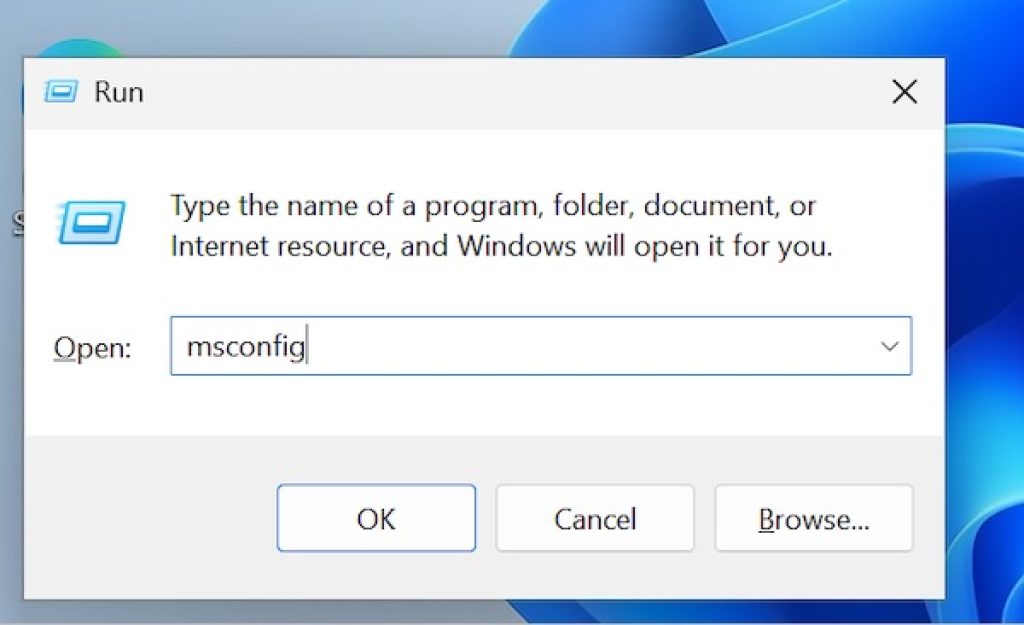
Press Windows key + R on your keyboard to open the Run box.
Type msconfig and press Enter (or click OK).
The System Configuration window will open. Click the Boot tab at the top.
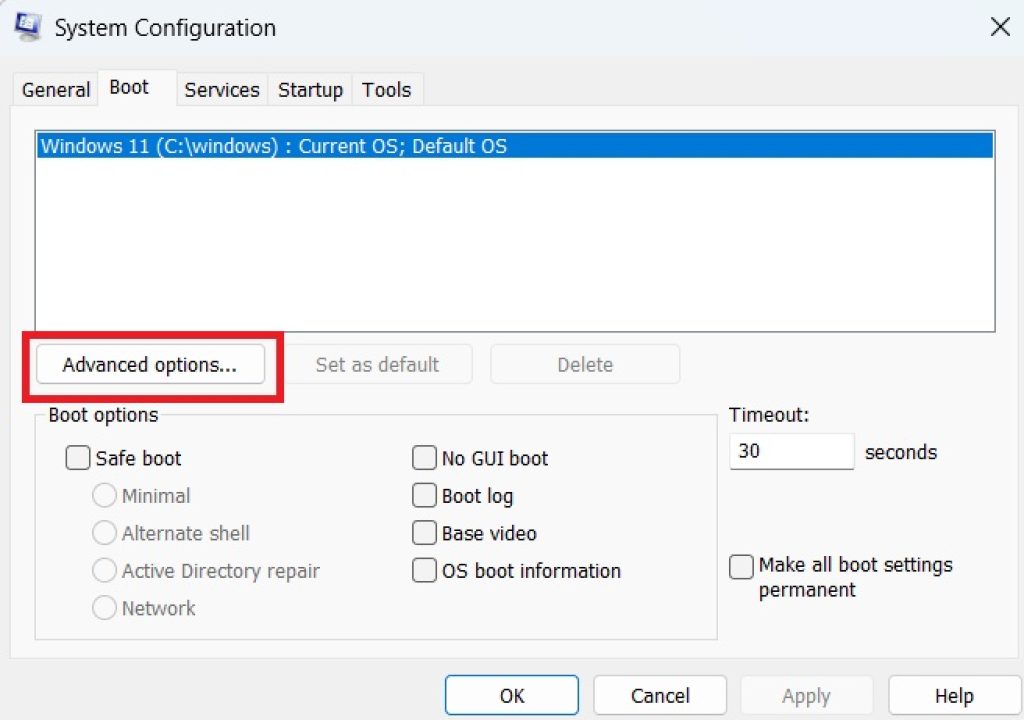
Select the operating system entry listed (typically “Windows 11”) and click the Advanced options button in the lower-left area of the tab.
The Boot Advanced Options dialog will appear, where you can enable or configure the settings described above.
This method is ideal for anyone comfortable with keyboard shortcuts, since it requires no navigation through menus and works identically whether you’re on a desktop, laptop, or virtual machine running Windows 11.
Method 2: Open MSConfig Using Windows Search
If you prefer using the taskbar search rather than keyboard shortcuts, Windows Search provides a quick alternative that also has the benefit of visually confirming you’re opening the correct tool before you click anything.
- Click the Search icon on the taskbar (or press the Windows key and start typing).
- Type System Configuration or simply msconfig.
- Click on the System Configuration result that appears under Best match (it will show the Control Panel icon).
- Once the window opens, go to the Boot tab.
- Select your Windows entry and click Advanced options to open the dialog.
This method is particularly helpful for users who are unfamiliar with the msconfig.exe command and want visual confirmation that they’re launching a legitimate system tool rather than a third-party application with a similar name.
Method 3: Open MSConfig Using Command Prompt or PowerShell
For IT professionals, system administrators, or anyone who prefers working from a terminal, MSConfig can be launched directly from Command Prompt or PowerShell. This method is also useful when scripting setup routines or documenting repeatable troubleshooting steps for a team.
- Open Command Prompt or PowerShell. You can do this by searching for either in the Start menu, or by pressing Windows key + X and selecting Terminal (which defaults to PowerShell on most Windows 11 installations).
- Type the following command and press Enter:
msconfig
- The System Configuration utility will launch just as it would from the Run dialog.
- Navigate to the Boot tab, select the OS entry, and click Advanced options.
Because msconfig.exe is a recognized system executable, it does not require elevated (administrator) privileges just to open, though certain changes you make inside it — particularly boot-related settings — may prompt a User Account Control (UAC) confirmation before they take effect.
Method 4: Open MSConfig Through File Explorer
A fourth option, less common but occasionally useful, is launching MSConfig directly from its file location using File Explorer. This can be handy if Run or Search are behaving unexpectedly, or if you’re navigating a system remotely through a file-sharing tool.
- Open File Explorer (Windows key + E).
- In the address bar at the top, type the following path and press Enter:
C:\Windows\System32\msconfig.exe
- Windows may show a UAC prompt; click Yes to allow the utility to run.
- Once System Configuration opens, click the Boot tab.
- Select the operating system entry and click Advanced options to access the settings.
This method confirms exactly where the executable lives on disk, which can be reassuring for users concerned about running an imposter application, and it’s a good fallback if the Run dialog or search index isn’t functioning correctly for any reason.
Using the Boot Advanced Options Safely
Once you’ve reached the Advanced Boot Options dialog through any of the four methods above, keep a few best practices in mind:
- Change one setting at a time. If you’re troubleshooting a boot issue, adjusting multiple settings simultaneously makes it difficult to identify which change actually fixed (or caused) a problem.
- Document your starting configuration. Before making changes, note which boxes are checked and what values are set, so you can revert easily.
- Restart is required. None of these settings take effect until you restart the computer, and MSConfig will prompt you to do so after clicking Apply and OK.
- Undo changes when done. If you enabled options like “Number of processors” or “Maximum memory” for a specific diagnostic test, remember to uncheck them afterward; leaving them enabled can unintentionally throttle your system’s performance long-term.
Conclusion
MSConfig’s Boot Advanced Options remain a quietly powerful part of Windows 11, offering hands-on control over processor usage, memory limits, PCI resource locking, and kernel debugging — all from a single, unassuming dialog box. While most everyday users will never need to open it, the tool is essential for troubleshooting hardware-related boot problems, testing system stability, and preparing a machine for kernel-level debugging work.
As shown above, there are at least four dependable ways to reach MSConfig in Windows 11: the Run dialog, Windows Search, Command Prompt or PowerShell, and directly through File Explorer. Each method leads to the same destination, so the “best” one really just comes down to personal workflow and what’s fastest for the situation you’re in. Whichever path you choose, always approach the Advanced options dialog with a bit of caution, changing settings deliberately and reverting them once your diagnostic work is complete.
Frequently Asked Questions
1. Is MSConfig still available in Windows 11? Yes. Despite Microsoft’s push toward the modern Settings app, msconfig.exe remains fully functional in Windows 11 and can be launched using any of the methods described in this guide.
2. Do I need administrator rights to open MSConfig? Opening the System Configuration window itself typically doesn’t require administrator rights, but applying certain changes — especially boot-related ones — may trigger a User Account Control prompt requesting elevated permissions before the changes are saved.
3. What happens if I check “Number of processors” and set it too low? Windows will boot using only the specified number of CPU cores, which can noticeably slow down startup and overall performance. This setting is meant for temporary diagnostic use, not permanent configuration, so it’s best to uncheck it once your testing is finished.
4. Can Boot Advanced Options damage my computer? No, these settings don’t cause physical hardware damage. However, misconfiguring options like Maximum Memory or PCI Lock can cause boot failures or system instability until the setting is corrected, so it’s wise to change only one option at a time and know how to revert it.





