Geeksdigit Team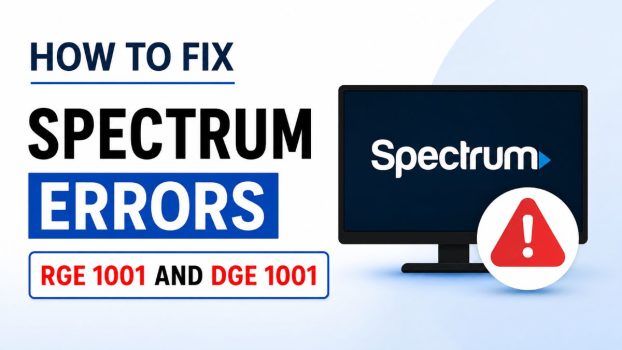
Spectrum TV is one of the most popular streaming services for Spectrum cable subscribers. It allows users to watch live TV channels, on-demand content, and recorded programs through smartphones, tablets, smart TVs, Roku devices, Apple TV, and web browsers. However, many users occasionally encounter Spectrum error codes such as RGE-1001 and DGE-1001, which prevent the app from streaming content properly.
These errors are generally associated with network communication issues, account authentication problems, server connectivity failures, app corruption, or temporary outages on Spectrum’s side. According to Spectrum’s support documentation, RGE-1001 typically indicates that the service is unavailable or that the app cannot properly connect to Spectrum services. Troubleshooting usually involves checking the internet connection, restarting devices, reinstalling the app, or contacting Spectrum support if the issue persists.
The good news is that in most cases, both errors can be resolved without advanced technical knowledge. This guide explains the causes of Spectrum RGE-1001 and DGE-1001 errors and provides detailed step-by-step solutions to get your streaming service working again.
What Are Spectrum Errors RGE-1001 And DGE-1001?
RGE-1001 and DGE-1001 are Spectrum TV application errors that occur when the app fails to communicate properly with Spectrum servers. These errors commonly appear on:
- Roku devices
- Smart TVs
- Android phones and tablets
- iPhones and iPads
- Apple TV
- Fire TV devices
- Web browsers
When these errors occur, users may see messages such as:
- Service unavailable
- Something went wrong
- Unable to connect
- Try again later
- Network communication failure
Spectrum’s troubleshooting information identifies RGE-1001 as a service availability or connectivity problem. Community reports also indicate that DGE-1001 is frequently linked to app authentication and network communication failures.
What Causes Spectrum RGE-1001 And DGE-1001 Errors?
Several factors can trigger these errors.
Weak Internet Connection
A poor or unstable internet connection is one of the most common causes. If the Spectrum app cannot maintain communication with the streaming servers, it may generate RGE-1001 or DGE-1001.
Temporary Spectrum Service Outage
Sometimes the issue originates from Spectrum’s servers rather than your device. When service outages occur, the application may be unable to authenticate or retrieve content.
Corrupted Application Data
Cached files and corrupted settings inside the Spectrum app can interfere with server communication and trigger authentication errors. Reinstalling the application often resolves this problem.
Router Problems
Network equipment issues such as overloaded routers, outdated firmware, or corrupted DNS cache can interrupt communications between the Spectrum app and its servers.
Account Authentication Issues
Occasionally the Spectrum account itself may become improperly synchronized with Spectrum systems. Several troubleshooting resources note that Spectrum support may need to refresh or reset the account to restore functionality.
VPN Or Proxy Connections
Using a VPN or proxy service may interfere with Spectrum’s location verification and authentication process, leading to DGE-1001 errors. Community discussions frequently mention VPN-related conflicts.
Outdated App Version
Older versions of the Spectrum TV app may contain bugs or compatibility issues that prevent successful server communication. Updating the app can often solve the problem.
Solution 1: Check Spectrum Service Status
Before making changes to your device, verify whether Spectrum is experiencing a service outage.
Steps
- Open a web browser.
- Visit the Spectrum support page.
- Sign in to your Spectrum account.
- Check for reported outages.
- Review outage notifications in your area.
You can also search online outage tracking websites to determine whether other customers are experiencing similar problems.
If an outage is reported, waiting for Spectrum to restore service is often the only solution.
Solution 2: Restart Your Internet Equipment
Temporary router or modem glitches frequently cause Spectrum connection errors.
Steps
- Turn off the modem.
- Turn off the router.
- Unplug both devices.
- Wait 60 seconds.
- Plug in the modem.
- Wait until all status lights stabilize.
- Turn on the router.
- Reconnect your device to Wi-Fi.
- Launch the Spectrum app again.
Power cycling clears temporary network issues and refreshes communication with Spectrum servers.
Solution 3: Restart The Streaming Device
A simple device restart can eliminate temporary software conflicts.
Roku
- Press Home.
- Navigate to Settings.
- Select System.
- Choose Power.
- Click Restart.
Android
- Hold the power button.
- Select Restart.
- Wait for reboot completion.
iPhone
- Power off the device.
- Wait 30 seconds.
- Turn it back on.
Apple TV
- Open Settings.
- Select System.
- Choose Restart.
After restarting, open the Spectrum TV app and test streaming again.
Solution 4: Verify Internet Connectivity
Ensure your connection is functioning properly.
Test Your Connection
- Open a browser.
- Visit several websites.
- Stream a YouTube video.
- Run an internet speed test.
For HD streaming, a stable broadband connection is recommended. If websites load slowly or videos buffer continuously, fix the internet issue first before troubleshooting Spectrum.
Network instability is a major contributor to RGE-1001 and DGE-1001 errors.
Solution 5: Sign Out And Sign Back In
Authentication failures sometimes disappear after reauthentication.
Steps
- Open Spectrum TV.
- Go to Settings.
- Select Sign Out.
- Close the app completely.
- Reopen the app.
- Enter your Spectrum credentials.
- Sign in again.
This refreshes account tokens and may restore access immediately.
Solution 6: Update The Spectrum TV App
Running an outdated version can cause compatibility problems.
On Android
- Open Google Play Store.
- Search for Spectrum TV.
- Tap Update if available.
On iPhone
- Open App Store.
- Search for Spectrum TV.
- Install available updates.
On Roku
- Highlight Spectrum TV.
- Press the Star (*) button.
- Select Check For Updates.
On Apple TV
- Open App Store.
- Search Spectrum TV.
- Update the application.
Many users have resolved RGE-1001 errors after updating the app.
Solution 7: Clear App Cache
Corrupted cached files may interfere with streaming.
Android Devices
- Open Settings.
- Select Apps.
- Choose Spectrum TV.
- Tap Storage.
- Select Clear Cache.
- Restart the app.
Smart TVs
Many smart TVs provide an application management section where cache can be cleared.
After clearing cache files, test the application again.
Solution 8: Reinstall The Spectrum TV App
Reinstalling is one of the most effective fixes for both error codes because it removes corrupted files and restores default settings.
On Android
- Open Settings.
- Select Apps.
- Choose Spectrum TV.
- Tap Uninstall.
- Restart the device.
- Open Google Play Store.
- Reinstall Spectrum TV.
On iPhone
- Press and hold the app icon.
- Select Remove App.
- Confirm deletion.
- Restart the phone.
- Download the app again.
On Roku
- Highlight Spectrum TV.
- Press Star (*).
- Select Remove Channel.
- Restart Roku.
- Reinstall Spectrum TV.
Many Roku users report success after removing and reinstalling the application.
Solution 9: Disable VPN Services
VPN applications can block location verification or interfere with Spectrum authentication.
Steps
- Disconnect your VPN.
- Disable proxy services.
- Restart the Spectrum app.
- Attempt to stream again.
Users experiencing DGE-1001 on mobile devices have frequently resolved the issue after disabling VPN connections.
Solution 10: Forget And Reconnect To Wi-Fi
Refreshing wireless settings can eliminate networking glitches.
Android
- Open Wi-Fi Settings.
- Select your network.
- Tap Forget Network.
- Reconnect using the password.
iPhone
- Open Settings.
- Select Wi-Fi.
- Tap the information icon.
- Choose Forget This Network.
- Reconnect.
Community reports suggest reconnecting Wi-Fi can resolve persistent DGE-1001 issues.
Solution 11: Use A Different Network
Testing another connection helps determine whether your home network is causing the issue.
Try
- Mobile hotspot
- Another Wi-Fi network
- Ethernet connection
If the app works on another network, your original internet connection likely requires troubleshooting.
Solution 12: Check Router Firmware Updates
Outdated firmware can create connectivity issues.
Steps
- Log into the router administration page.
- Locate Firmware Update.
- Install available updates.
- Reboot the router.
Updated firmware often improves streaming reliability and network stability.
Solution 13: Reset Network Settings
Network configuration corruption can affect streaming applications.
Android
- Open Settings.
- Select System.
- Tap Reset Options.
- Choose Reset Wi-Fi And Mobile Settings.
iPhone
- Open Settings.
- Select General.
- Tap Transfer Or Reset iPhone.
- Choose Reset.
- Select Reset Network Settings.
Reconnect to Wi-Fi afterward and test Spectrum TV.
Solution 14: Use Ethernet Instead Of Wi-Fi
Wireless interference sometimes causes unstable communication with Spectrum servers.
Steps
- Connect the streaming device directly to the router using Ethernet.
- Disable Wi-Fi if possible.
- Restart the Spectrum app.
A wired connection typically provides better stability and lower latency.
Solution 15: Restart Roku Properly
Many RGE-1001 reports originate from Roku devices.
Complete Roku Restart Procedure
- Unplug Roku power.
- Wait 60 seconds.
- Disconnect router power.
- Wait another 60 seconds.
- Reconnect router.
- Wait until internet returns.
- Reconnect Roku.
- Open Spectrum TV.
This process refreshes both the streaming device and network connection.
Solution 16: Reset The Spectrum TV App Credentials
Authentication tokens occasionally become corrupted.
Steps
- Sign out of all Spectrum devices.
- Change your Spectrum password.
- Sign in again.
- Launch streaming content.
This forces Spectrum servers to generate new authentication credentials.
Solution 17: Check Device Compatibility
Older streaming devices may experience compatibility problems.
Verify that:
- Device software is current.
- Operating system is supported.
- Spectrum TV app version is current.
- Device storage is sufficient.
Updating the device operating system can resolve many streaming-related issues.
Solution 18: Contact Spectrum Support
If none of the previous methods work, contact Spectrum support.
Provide:
- Error code displayed
- Device model
- App version
- Internet provider
- Troubleshooting steps already attempted
Some users have reported success after Spectrum representatives refreshed or reset account information.
How To Prevent Spectrum RGE-1001 And DGE-1001 Errors
You can reduce the likelihood of future errors by following these practices:
- Keep the Spectrum app updated.
- Restart networking equipment monthly.
- Install router firmware updates regularly.
- Avoid unstable Wi-Fi signals.
- Disable unnecessary VPN services while streaming.
- Maintain a strong internet connection.
- Use Ethernet whenever possible.
- Keep device operating systems updated.
- Clear application cache periodically.
- Monitor Spectrum outage notifications.
Frequently Asked Questions
What does Spectrum error RGE-1001 mean?
RGE-1001 generally indicates that the Spectrum TV app cannot communicate properly with Spectrum services due to connectivity, authentication, or server-related issues.
What causes Spectrum error DGE-1001?
DGE-1001 is commonly associated with network communication failures, authentication problems, VPN interference, corrupted app data, or temporary service outages.
Does reinstalling the Spectrum app fix RGE-1001?
Yes. Reinstalling the app is one of the most commonly recommended fixes because it removes corrupted files and restores default application settings.
Can a router cause Spectrum RGE-1001?
Yes. Router issues, unstable Wi-Fi, DNS cache corruption, and intermittent internet connectivity can all trigger Spectrum communication errors.
Final Thoughts
Spectrum errors RGE-1001 and DGE-1001 can be frustrating because they interrupt live TV streaming and on-demand viewing. Fortunately, these errors are usually related to connectivity, authentication, app corruption, or temporary service disruptions rather than permanent hardware failures. In most situations, restarting networking equipment, verifying internet connectivity, updating the Spectrum TV application, clearing cached data, disabling VPN services, and reinstalling the app will restore normal operation.
If the problem persists after trying all troubleshooting methods, contacting Spectrum support is recommended because the issue may require account-level intervention or may be related to a service outage on Spectrum’s end. By keeping your devices updated and maintaining a stable network connection, you can significantly reduce the chances of encountering RGE-1001 and DGE-1001 errors in the future.