Your computer’s performance, security, and longevity depend heavily on the software you choose to install. While the internet offers countless free programs promising to enhance your PC experience, many do more harm than good. Some slow down your system, others compromise your privacy, and a few can even expose you to serious security risks.
This guide explores twelve types of programs you should avoid installing on your PC, along with better alternatives that actually deliver on their promises.
1. Browser Toolbars and Extensions from Unknown Sources

Browser toolbars were once everywhere, promising enhanced search capabilities, weather updates, or quick access to social media. Today, they’re largely recognized as bloatware that clutters your browser, tracks your activity, and slows down your browsing experience.
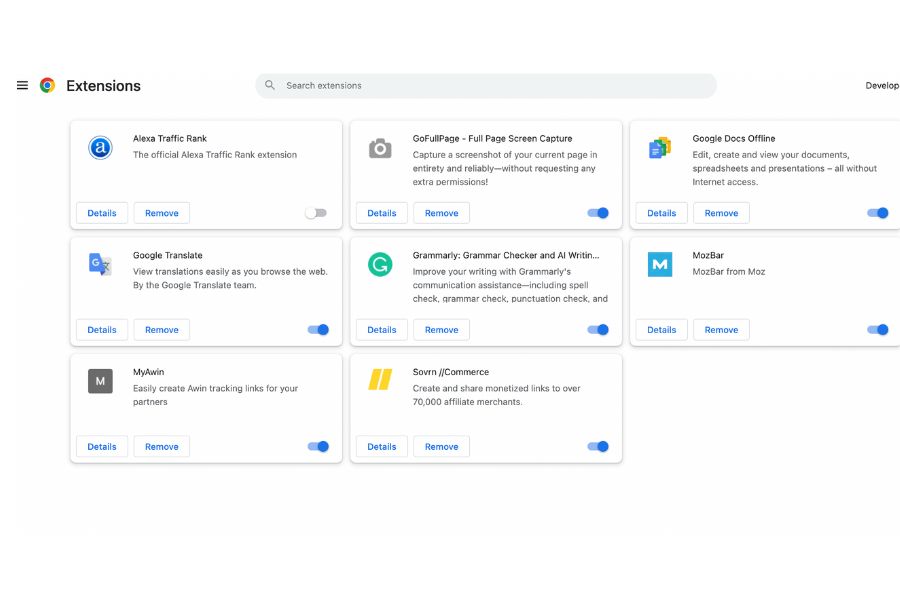
These toolbars often come bundled with other software installations, sneaking onto your system when you hastily click through installation wizards without reading the fine print. Once installed, they modify your browser settings, change your default search engine, and redirect your searches through their own servers to collect data about your browsing habits.
The problems extend beyond mere annoyance. Many toolbars inject advertisements into websites you visit, track every search query you make, and sell this information to third parties. Some even create security vulnerabilities that malicious actors can exploit.
Better Alternative: Stick with reputable browser extensions from official stores like the Chrome Web Store, Firefox Add-ons, or Microsoft Edge Add-ons. Research extensions before installing them, checking reviews and developer reputation. Keep your extension list minimal—every extension is a potential security risk and performance drain.
2. Registry Cleaners and System Optimizers
Registry cleaners promise to speed up your PC by removing unnecessary entries from the Windows Registry, but they’re solving a problem that largely doesn’t exist. Modern Windows versions manage the registry efficiently, and the performance gains from cleaning it are negligible at best.
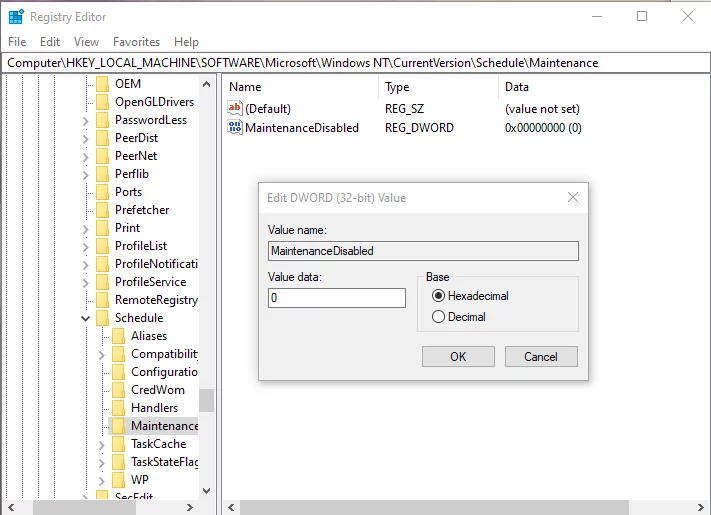
The real danger lies in what these programs might delete. The registry is a critical database that Windows uses to store configuration settings. Removing the wrong entries can cause programs to malfunction, features to stop working, or in worst cases, prevent Windows from booting entirely.
Many registry cleaners also employ scare tactics, displaying alarming messages about “critical errors” and “thousands of issues” to convince you to purchase the full version. These diagnoses are often exaggerated or completely fabricated.

Better Alternative: Windows includes built-in maintenance tools that are more than sufficient. Use Disk Cleanup to remove temporary files, uninstall programs through the Settings app, and run the built-in troubleshooters when issues arise. For more advanced cleanup, use the Storage Sense feature in Windows 10 and 11.
3. Download Managers from Questionable Sources
While legitimate download managers can be useful for large files or unreliable connections, many free download managers available online are vehicles for adware and potentially unwanted programs (PUPs). These programs often bundle additional software, modify browser settings, and inject advertisements into your system.
Some download managers also claim to dramatically accelerate your download speeds through mysterious optimization techniques. The reality is that your download speed is primarily limited by your internet connection and the server you’re downloading from—no software can magically bypass these limitations.
Better Alternative: For most users, the built-in download managers in modern browsers like Chrome, Firefox, and Edge are perfectly adequate. If you need advanced features like pause and resume for interrupted downloads, consider reputable options like Free Download Manager or Internet Download Manager, but always download from the official website and decline any bundled offers during installation.
4. Disk Defragmentation Tools for SSDs
Defragmentation was essential in the era of mechanical hard drives, reorganizing fragmented data to improve access times. However, running defragmentation tools on solid-state drives (SSDs) is not only unnecessary but potentially harmful.
SSDs work fundamentally differently from traditional hard drives. They don’t suffer from fragmentation issues the way HDDs do, and the defragmentation process involves excessive write operations that can reduce the lifespan of an SSD. Each SSD has a limited number of write cycles before cells begin to fail.
Some older defragmentation utilities don’t recognize SSDs and may attempt to defragment them anyway, while others try to justify their existence by offering features that Windows already handles automatically.
Better Alternative: Windows 10 and 11 automatically optimize drives based on their type—defragmenting HDDs and running TRIM on SSDs. You can view the optimization schedule in Settings > System > Storage > Optimize Drives. Let Windows handle this automatically, and avoid third-party defragmentation tools entirely if you’re using an SSD.
5. Bloatware and Manufacturer Preinstalled Software
When you purchase a new PC, it often comes loaded with software from the manufacturer and third parties. This bloatware includes trial versions of antivirus programs, media players, photo editors, and various utilities you’ll likely never use.
This preinstalled software serves multiple purposes for manufacturers: they receive payment from software vendors for including trial versions, the programs collect user data for marketing purposes, and they create the illusion of added value to justify the PC’s price point.
The problem is that bloatware consumes system resources, creates unnecessary background processes, displays annoying notifications, and can even pose security risks if not regularly updated. Some bloatware is notoriously difficult to remove, reinstalling itself after Windows updates or hiding components throughout the system.
Better Alternative: When setting up a new PC, take time to uninstall unnecessary preinstalled software through Settings > Apps > Installed apps. For particularly stubborn bloatware, tools like PC Decrapifier or Should I Remove It? can help identify and remove unwanted programs. Better yet, consider performing a clean Windows installation to start with a completely bloat-free system.
6. Free VPNs with Unclear Privacy Policies
Virtual Private Networks (VPNs) can enhance online privacy and security, but free VPN services often defeat the purpose. Operating a VPN network requires significant infrastructure investment, so if a VPN is free, you need to question how they’re funding their operation.

Many free VPNs make money by logging your browsing activity and selling this data to advertisers and data brokers—the very thing you’re trying to avoid by using a VPN. Others inject advertisements into your browsing sessions, install tracking cookies, or even contain malware.
Some free VPNs impose severe bandwidth limitations, making them impractical for regular use. Others route your traffic through other users’ connections (turning you into an exit node), potentially making you liable for others’ activities.
Better Alternative: Invest in a reputable paid VPN service with a clear no-logs policy and independent audits. Services like ProtonVPN offer a legitimate free tier with limited servers but no data logging or bandwidth selling. Remember that trustworthy VPN services cost money to operate—extremely generous free offerings should raise red flags.
7. Cracked or Pirated Software
The temptation to download expensive software for free is understandable, but pirated programs come with substantial risks that far outweigh any cost savings. Cracked software often contains malware, including trojans, keyloggers, ransomware, and cryptocurrency miners that can compromise your entire system.
Even if the cracked software appears to work fine initially, it lacks access to official updates, leaving you vulnerable to security exploits. You can’t receive customer support, and the software may stop working after Windows updates. Many cracked programs phone home to check licensing, creating unexpected privacy concerns.
Beyond the technical risks, using pirated software is illegal and unethical, depriving developers of income they need to continue improving their products and creating new ones.
Better Alternative: Explore free and open-source alternatives that match your needs. For office work, LibreOffice rivals Microsoft Office. GIMP and Paint.NET provide powerful image editing capabilities. DaVinci Resolve offers professional video editing for free. Many commercial software packages also offer free trials, student discounts, or affordable subscription plans that make legitimate use more accessible.
8. Aggressive Antivirus Programs with System Optimizer Components
While antivirus protection is important, certain security programs do more harm than good. Some antivirus suites consume excessive system resources, constantly interrupt your work with notifications, and include dubious “optimization” features that claim to speed up your PC but actually slow it down.
These programs often employ aggressive scare tactics, displaying alarming warnings about minor issues to frighten users into purchasing premium versions or additional services. They may also be difficult to completely uninstall, leaving behind services and files that continue affecting system performance.
Some antivirus programs inject themselves into every system process, causing conflicts with other software and creating stability issues. Others include browser extensions that track your activity under the guise of protection.
Better Alternative: Windows Defender (now called Microsoft Defender Antivirus) provides excellent protection for most users and is built into Windows 10 and 11. It’s lightweight, receives regular updates, and doesn’t nag you with upsells. For additional protection, combine it with Malwarebytes Free for periodic scans, and practice safe browsing habits like avoiding suspicious downloads and keeping your software updated.
9. Driver Update Utilities
Programs that scan your system and claim to find dozens of outdated drivers are usually scams. These utilities exaggerate the number of problematic drivers, suggest that updating every driver will dramatically improve performance, and then demand payment to install the updates.
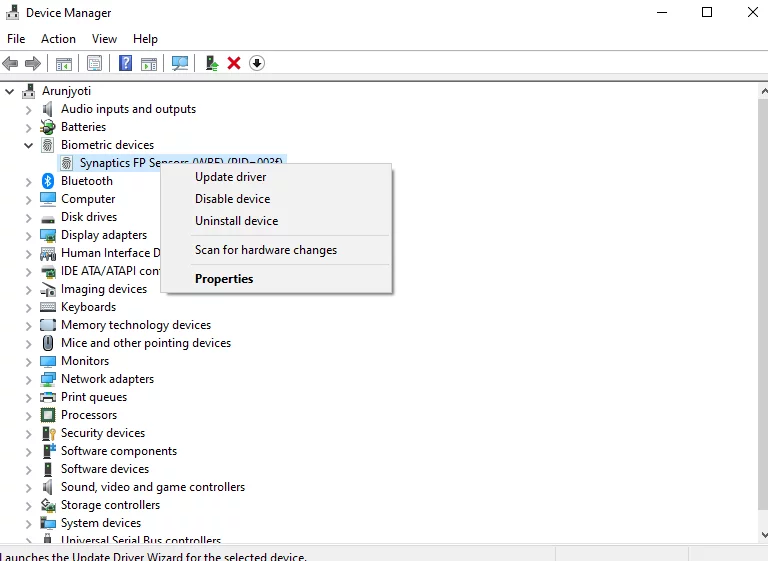
The reality is that Windows Update handles most driver updates automatically, and unnecessarily updating drivers can actually introduce problems. If a device is working properly, there’s often no reason to update its driver. The adage “if it ain’t broke, don’t fix it” applies perfectly to drivers.
Some driver update utilities install incorrect drivers, leading to hardware malfunctions, system instability, or even rendering devices unusable. Others bundle the driver installations with adware or modify system settings.
Better Alternative: Let Windows Update handle routine driver updates. If you need to manually update a specific driver, download it directly from the hardware manufacturer’s website. For graphics cards, use official utilities from NVIDIA (GeForce Experience) or AMD (Radeon Software). Device Manager can help you check driver versions and manually update when necessary.
10. Obsolete Media Players Bundled with Codec Packs
Years ago, installing third-party media players and codec packs was necessary to play various video and audio formats. Today, this software is largely obsolete and can introduce security vulnerabilities, install unwanted toolbars, or bundle adware.
Many codec packs include outdated components that conflict with modern applications or contain security vulnerabilities that have long been patched in newer software. Some installers are loaded with bundled offers and PUPs that can be difficult to decline without careful attention during installation.
Better Alternative: Modern media players like VLC Media Player or Windows’ built-in Movies & TV app handle virtually every media format without additional codec packs. VLC is free, open-source, lightweight, and can play almost any video or audio file you encounter. For those who need advanced features, MPC-HC (Media Player Classic Home Cinema) is another excellent free option.
11. Torrent Clients with Built-in Monetization
While torrenting itself is a legitimate technology used for distributing large files efficiently, many popular torrent clients have become vehicles for advertisements, cryptocurrency miners, and bundled software. These programs prioritize profit over user experience and security.
Some torrent clients display intrusive advertisements directly in the interface, while others include cryptocurrency miners that use your computer’s resources to generate money for the developers without your explicit consent. Many bundle additional software during installation that’s difficult to decline.
Certain torrent clients also have questionable security practices, failing to receive regular updates or including components that create vulnerabilities in your system.
Better Alternative: If you use torrents for legitimate purposes like downloading Linux distributions or open-source software, choose clean, open-source torrent clients. qBittorrent is an excellent free option that’s regularly updated, contains no ads or bundled software, and offers all the features most users need. Transmission is another lightweight alternative for those who prefer simplicity.
12. PC Cleaner and Repair Utilities
Programs that promise to “clean,” “repair,” or “optimize” your PC with a single click are almost universally scams. These utilities use deceptive scanning methods that inevitably find hundreds or thousands of “critical issues” requiring immediate attention—issues that often don’t exist or have no meaningful impact on performance.
After scaring you with alarming statistics about your system’s health, these programs demand payment to fix the problems they’ve “discovered.” Even if you pay, the fixes are either superficial, unnecessary, or actually harmful. Some programs continue running in the background, consuming resources and displaying persistent notifications to encourage additional purchases.
The most harmful variants of these utilities actually create problems to justify their existence. They might disable services, hide files, or modify settings, then claim credit for “fixing” these issues when you run their repair tool.
Better Alternative: Windows includes everything you need to maintain system health. Use Disk Cleanup to remove temporary files, the Storage Sense feature to automatically free up space, built-in troubleshooters for specific problems, and Windows Security for malware protection. For more thorough cleanup, CCleaner remains reasonable if you download it from the official source and decline offers during installation, though even this is largely unnecessary with modern Windows versions.
Conclusion
Protecting your PC from problematic software requires skepticism and awareness. Before installing any program, research it thoroughly—read reviews from reputable sources, check the developer’s reputation, and look for red flags like bundled software, aggressive marketing, or promises that sound too good to be true.
Remember that Windows has evolved significantly over the years. Many utilities that were once necessary are now obsolete because Windows handles those functions natively. Modern versions of Windows 10 and 11 include robust maintenance, security, and optimization tools that make most third-party utilities redundant.
When you do need to install software, download only from official sources, read installation prompts carefully to decline bundled offers, and maintain a minimal software footprint. A lean system with fewer programs runs faster, encounters fewer conflicts, and presents a smaller attack surface for security threats.
Your PC’s health depends more on careful software selection and good digital habits than on optimization utilities. By avoiding the programs listed above and making informed choices about what you install, you’ll maintain a faster, more secure, and more reliable computer for years to come.