Artificial Intelligence (AI) has revolutionized the way we create and design content. Canva, one of the most popular design tools, has integrated AI features to make design easier, faster, and more creative for everyone — whether you’re a beginner, marketer, student, or business owner. With Canva’s built-in AI tools, you can now create professional-level graphics, write compelling text, edit images, and even generate ideas — all in seconds.
This guide will explore how to use AI in Canva, covering every major AI-powered feature such as Magic Write, Magic Edit, Magic Expand, Text to Image, and more. You’ll also learn how these features can help you create stunning content without needing any design experience.
What Is AI in Canva?

AI in Canva refers to a set of smart design tools powered by artificial intelligence and machine learning. These tools help automate repetitive tasks, improve creativity, and speed up your design process. For example:
- You can use Magic Write to instantly generate text for your designs or social posts.
- Use Text to Image to turn a written prompt into a beautiful AI-generated photo.
- With Magic Edit, you can replace or remove objects in a photo easily.
- And Magic Design automatically creates professional templates based on your content.
Essentially, Canva’s AI features allow anyone to design like a pro — even without technical skills.
Why Use AI in Canva?
Before diving into the tools, let’s understand why AI in Canva matters:
- Saves Time: You can generate text, images, and designs within seconds — no need to start from scratch.
- Boosts Creativity: AI tools help you explore new design ideas and layouts that you might not think of yourself.
- Improves Productivity: Marketers, freelancers, and students can work faster with AI-generated drafts and visuals.
- Easy to Use: Canva’s interface is simple and doesn’t require any prior design or coding knowledge.
- Cost-Effective: Many AI tools in Canva are available for free, while premium features are included in the Canva Pro plan.
Getting Started with Canva’s AI Features
Setting Up Your Canva Account
Before diving into AI features, ensure you have a Canva account. While many AI tools are available in the free version, Canva Pro subscribers get access to premium AI features and higher usage limits. Sign up at canva.com and familiarize yourself with the interface before exploring AI capabilities.
Understanding Canva’s AI Ecosystem
Canva’s AI tools are integrated throughout the platform, appearing in different sections depending on your needs. The main AI features include Magic Design, Magic Write, Background Remover, Magic Eraser, Beat Sync, and the AI Image Generator. Each tool serves specific purposes and can be combined for more sophisticated designs.
Magic Design: Your AI Design Assistant
Step 1: Accessing Magic Design
Magic Design is Canva’s flagship AI feature that creates complete designs based on your input. To access it:
Open Canva and click Create a design
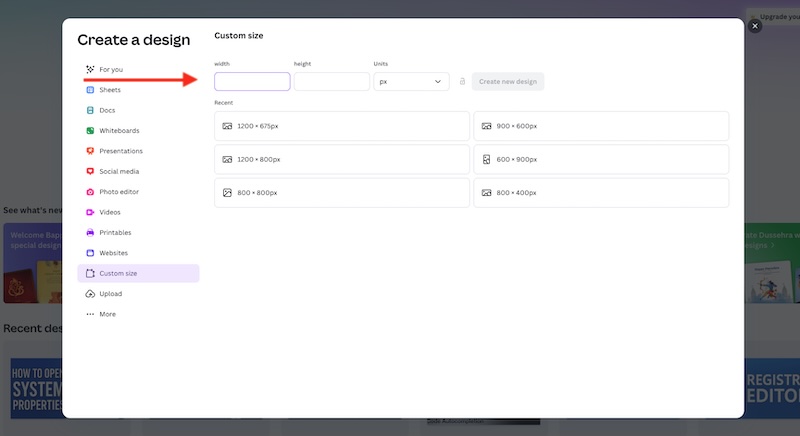

Select your desired format (Instagram post, presentation, flyer, etc.)
Look for the Magic Design option in the left sidebar
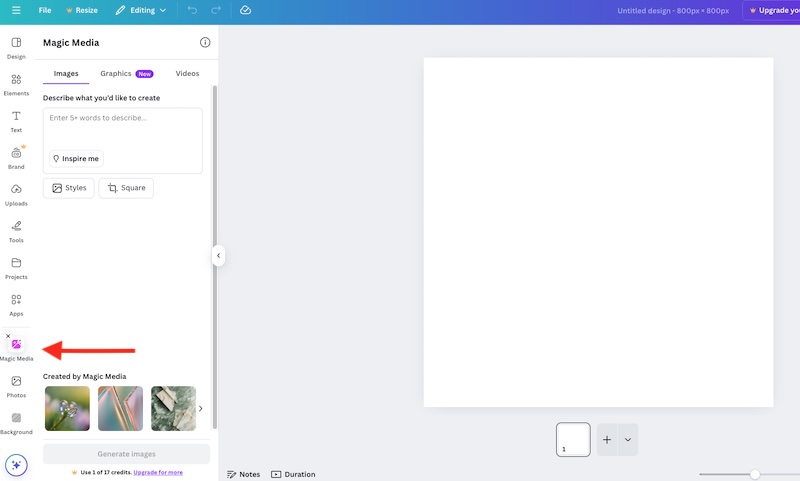
Click on Magic Design to begin
Step 2: Providing Input for Magic Design
Magic Design works best when you provide clear, specific prompts. You can input text describing what you want, upload reference images, or combine both approaches. For example:
- Text prompt: “Modern minimalist Instagram post for a coffee shop grand opening with warm colors”
- Image upload: Upload a photo of your product or reference design
- Combined approach: Upload your logo and describe your vision
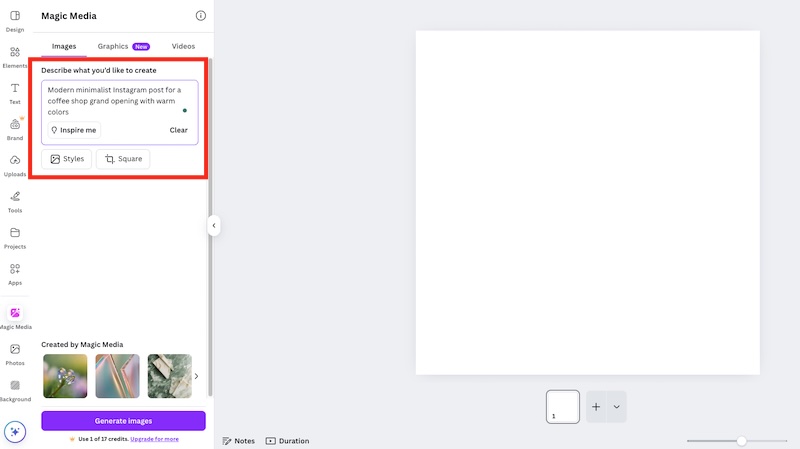
Step 3: Reviewing and Customizing Generated Designs
Once Magic Design processes your input, it will generate multiple design options. Review each option carefully:
- Scroll through all generated designs
- Click on designs you like to see larger previews
- Select your favorite as a starting point
- Use the customization tools to adjust colors, fonts, and layout elements

Step 4: Refining Your Magic Design
After selecting a base design, you can refine it further:
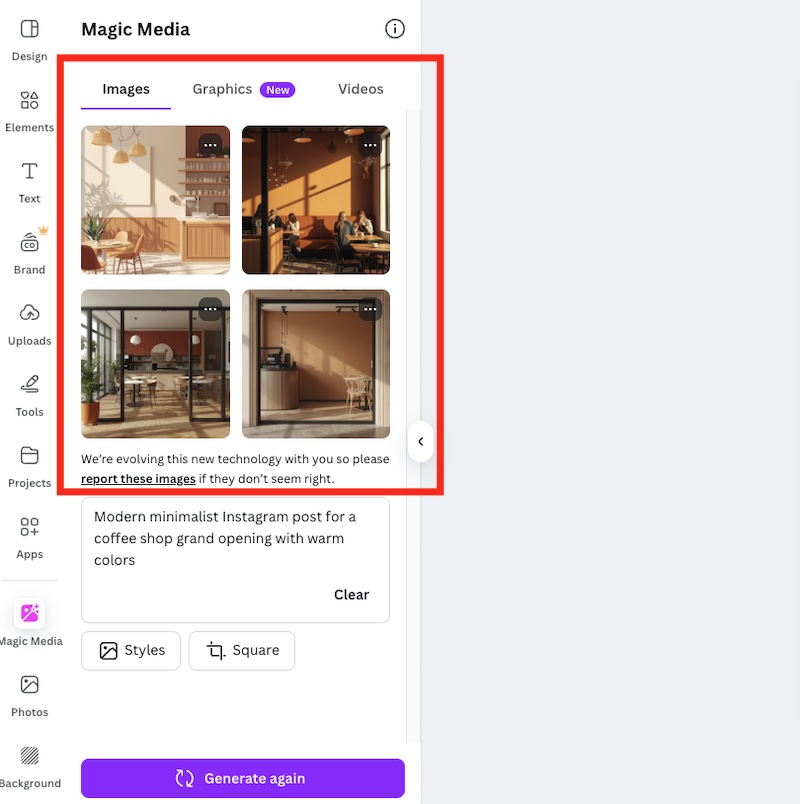
- Replace placeholder text with your actual content
- Swap out images using Canva’s media library
- Adjust color schemes using the color palette tool
- Modify fonts and text formatting
- Resize elements by dragging corner handles

Magic Write: AI-Powered Content Creation
Step 1: Accessing Magic Write
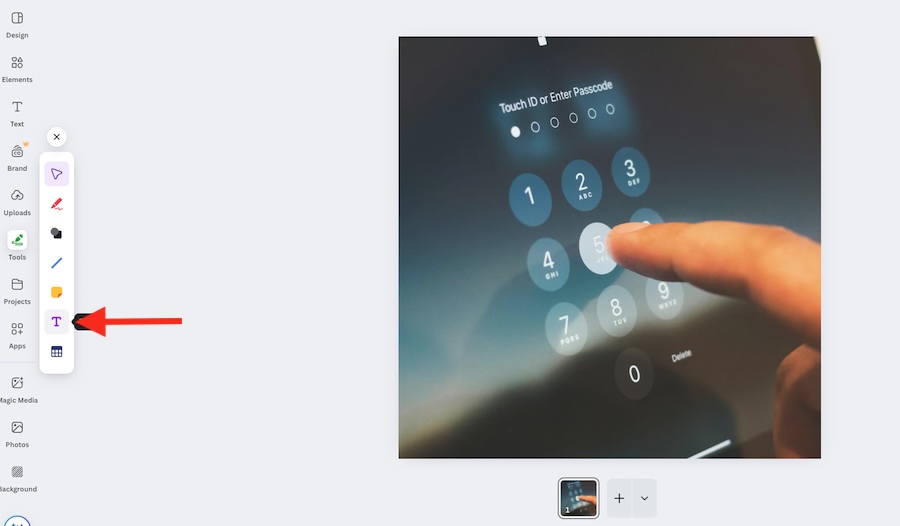
Magic Write helps generate text content for your designs. To use it:
- Create or open a design
- Click on any text element or add a new text box
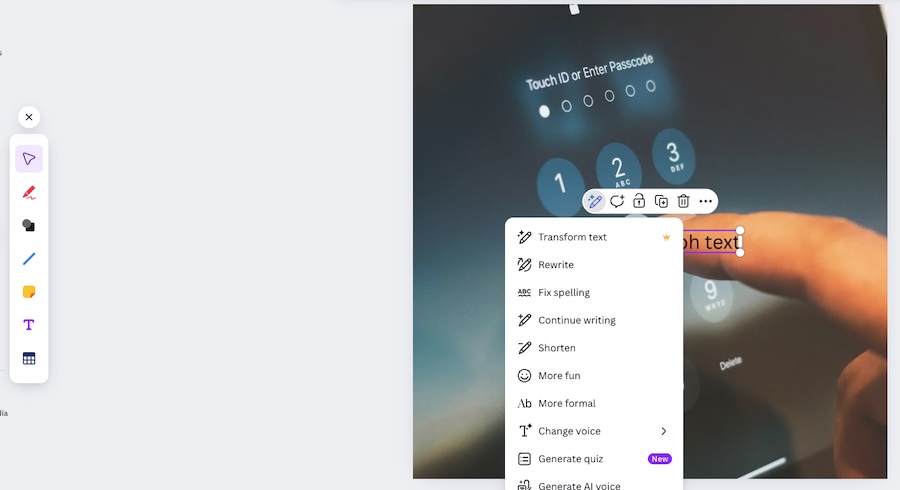
- Look for the Magic Write icon (usually a sparkle or wand symbol)
- Click to open the Magic Write panel
Step 2: Crafting Effective Prompts
The quality of Magic Write output depends heavily on your prompts. Follow these guidelines:
- Be specific about tone and style
- Include context about your audience
- Specify the type of content (headline, caption, description)
- Mention any key points you want included
Example prompts:
- “Write a catchy Instagram caption for a fitness studio’s new yoga class launch”
- “Create a professional LinkedIn post announcing a company milestone”
- “Generate bullet points for a presentation slide about sustainable business practices”
Step 3: Reviewing and Editing Generated Text
Magic Write typically generates multiple options:
- Review all generated text variations
- Select the option that best fits your needs
- Copy and paste the text into your design
- Edit and customize as needed to match your brand voice
- Adjust formatting, font size, and styling within Canva
Background Remover and Magic Eraser
Step 1: Using Background Remover
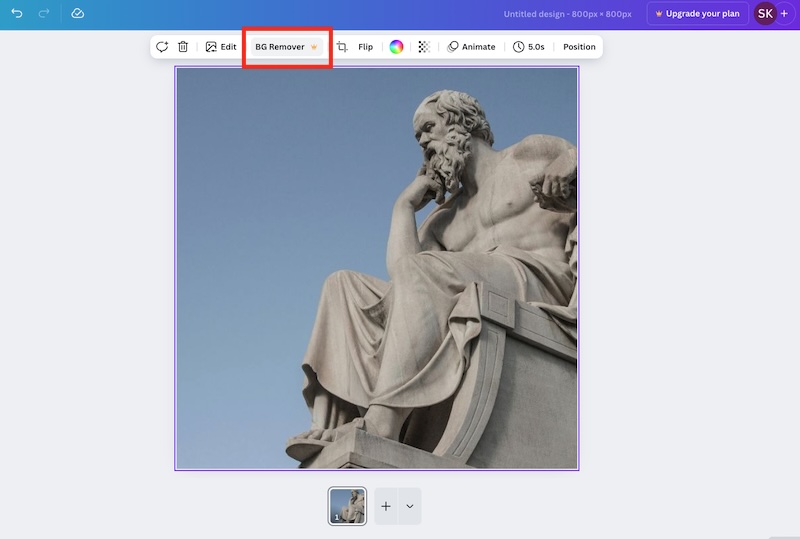
The Background Remover tool uses AI to automatically detect and remove backgrounds from images:
- Upload or select an image in your design
- Click on the image to select it
- Look for the “Background Remover” option in the toolbar
- Click to automatically remove the background
- Fine-tune the results if necessary using manual selection tools
Step 2: Implementing Magic Eraser
Magic Eraser allows you to remove unwanted objects from images:
- Select an image in your design
- Click on “Edit image” in the toolbar
- Choose “Magic Eraser” from the editing options
- Brush over the objects you want to remove
- Let the AI process and fill in the background seamlessly
- Repeat for multiple objects if needed
AI Image Generator
Step 1: Accessing the AI Image Generator
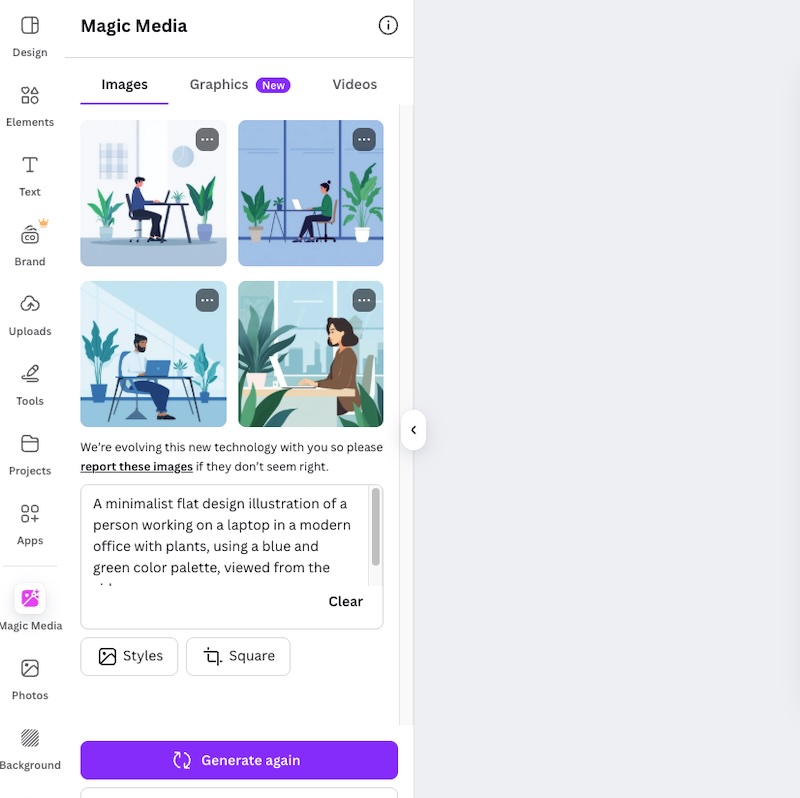
Canva’s AI Image Generator creates custom images from text descriptions:
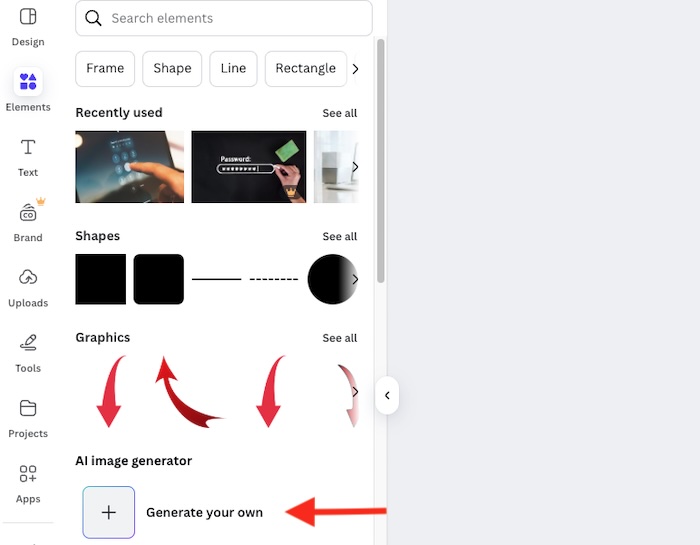
- In your design, click on “Elements” in the left sidebar
- Search for “AI Image Generator” or look for it in the apps section
- Click to open the generator interface
Step 2: Creating Effective Image Prompts
Successful AI image generation requires detailed, descriptive prompts:
- Include specific details about style (realistic, cartoon, watercolor, etc.)
- Describe composition and perspective
- Mention colors, lighting, and mood
- Specify any objects, people, or scenes you want included
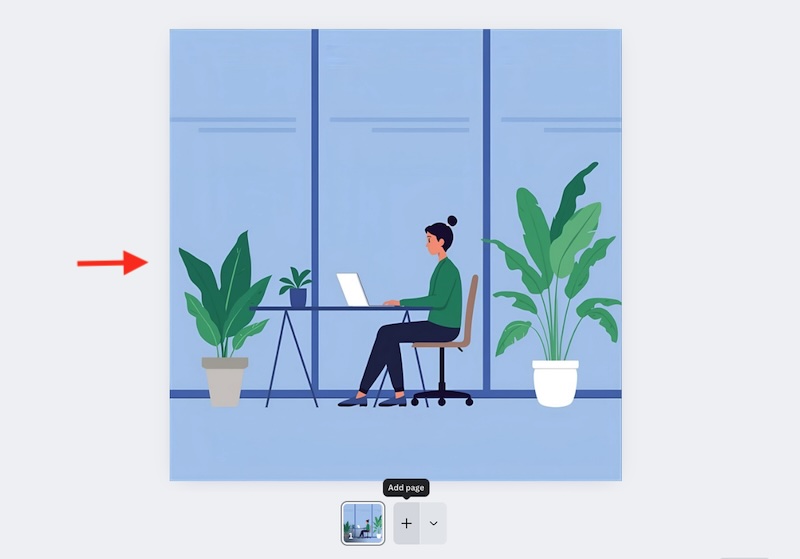
Example: “A minimalist flat design illustration of a person working on a laptop in a modern office with plants, using a blue and green color palette, viewed from the side”
Step 3: Generating and Selecting Images
After entering your prompt:
- Click “Generate” and wait for the AI to create multiple options
- Review all generated images
- Click on your preferred image to add it to your design
- Use Canva’s editing tools to adjust size, position, and effects
Tips for Getting the Best Results from AI in Canva
- Be Specific in Prompts: The more details you provide, the better the output (e.g., “a cartoon-style cat drinking coffee” is better than “a cat”).
- Use Keywords Wisely: When generating text or images, include style-related words like vintage, modern, or minimalist.
- Edit Manually After AI Generation: AI gives you a base, but human creativity perfects it.
- Combine Multiple AI Tools: For example, use Magic Write for text, Text to Image for visuals, and Magic Animate to bring it to life.
- Experiment Often: The more you use Canva AI, the better you’ll understand what prompts work best.
Advantages of Using AI in Canva
- No Learning Curve: Anyone can use it easily.
- Consistency: Keeps brand colors and fonts consistent.
- Creativity Boost: Generates unique designs and concepts.
- Time Efficiency: Cuts down manual editing.
- Professional Quality: Produces studio-level results in minutes.
Limitations of Canva’s AI Tools
While Canva’s AI is powerful, it has some limitations:
- Some features are exclusive to Canva Pro.
- Text-to-image may not always create perfect results.
- Limited control over fine details.
- AI-generated text may need human proofreading.
However, these limitations are minor compared to the overall benefits.
Canva Magic Studio: The Future of AI Design
Canva’s latest Magic Studio brings all AI tools under one umbrella. It includes:
- Magic Media (for image and video generation)
- Magic Switch (to resize and reformat designs instantly)
- Magic Grab (to move objects in photos)
- Magic Morph (to apply text effects instantly)
These new AI tools make Canva a one-stop design platform — blending creativity with automation.
Canva Free vs Canva Pro AI Features
| Feature | Free Plan | Canva Pro |
|---|---|---|
| Magic Write | Limited uses | Unlimited |
| Text to Image | Limited | Unlimited |
| Magic Edit | Available | Unlimited |
| Background Remover | No | Yes |
| Magic Expand | No | Yes |
| Magic Presentation | Yes | Yes |
| Translate | Limited | Unlimited |
If you create content frequently, Canva Pro is worth the investment for its full access and advanced features.
Future of AI in Canva
AI design tools in Canva are evolving fast. In the near future, we can expect:
- Smarter image recognition for photo editing.
- Voice-based design creation.
- Better contextual understanding in Magic Write.
- Advanced animation and video AI tools.
Canva continues to lead in making professional design accessible to everyone.
Frequently Asked Questions (FAQ)
Is Canva AI free to use?
Yes, some AI tools like Magic Write and Text to Image are available in Canva’s free plan, but with limited usage. Unlimited access requires a Canva Pro subscription.
Can Canva AI create videos?
Yes, Canva’s Magic Animate and Magic Media tools can help you generate short videos and animated content automatically.
How accurate is Canva’s Magic Write?
Magic Write produces high-quality text, but it’s best to review and edit outputs to ensure they match your tone and intent.
Does Canva AI work on mobile?
Absolutely. All AI features in Canva are accessible on both desktop and mobile apps, making it easy to design on the go.
Conclusion
Canva’s AI tools represent a significant advancement in accessible design technology. By mastering Magic Design, Magic Write, Background Remover, Magic Eraser, AI Image Generator, and Beat Sync, you can create professional-quality designs efficiently and effectively. The key to success lies in understanding how to craft effective prompts, combine different AI tools strategically, and maintain quality control throughout your design process.
Remember that AI tools are meant to enhance your creativity, not replace it. Use these features as a starting point and foundation, then apply your own creative vision to create truly unique and compelling designs. With practice and experimentation, you’ll discover new ways to leverage Canva’s AI capabilities to streamline your design workflow and achieve better results in less time.
Whether you’re creating social media content, business presentations, marketing materials, or personal projects, Canva’s AI tools can help you work more efficiently while maintaining professional standards. Start with simple projects to build your confidence, then gradually incorporate more advanced AI features as you become comfortable with the platform’s capabilities.
![How to Use AI in Canva? [Detailed Guide]](https://www.geeksdigit.com/wp-content/uploads/2025/10/avoid-programs-windows-11.jpg)
![How to Use AI in Canva? [Detailed Guide]](https://www.geeksdigit.com/wp-content/uploads/2025/07/brightness-adjustment-windows-11.jpg)