Event Viewer is one of the most powerful built-in tools in Windows 11, designed to help users and IT professionals monitor, troubleshoot, and analyze the system’s behavior. Every action performed on a Windows computer—whether by a user, application, or system process—generates an event. These events are recorded in detailed logs that can provide insight into application crashes, hardware failures, security breaches, or even the reasons behind system slowdowns.
Despite its utility, Event Viewer is often overlooked or misunderstood due to its technical appearance. However, with a little guidance, anyone can learn to use it effectively. Whether you’re trying to investigate an error message, monitor login attempts, or check why your computer rebooted unexpectedly, Event Viewer can be your go-to tool. This guide will walk you through how to access and interpret the logs, customize views, and use Event Viewer to proactively maintain and troubleshoot your Windows 11 system.
What is Event Viewer?

Event Viewer is a built-in Windows application that provides access to logs detailing system, security, and application events on your computer. Every time something significant happens on your system—whether it’s a program installation, a system crash, a failed login attempt, or a hardware malfunction—Windows records this information as an event. These events contain valuable diagnostic information including timestamps, error codes, descriptions, and sometimes even solutions to problems.
The tool has been part of Windows operating systems for decades, but it continues to evolve with each new version. In Windows 11, Event Viewer maintains its familiar interface while integrating seamlessly with the modern operating system’s architecture. It serves as a comprehensive audit trail and diagnostic resource that can help you understand what’s happening under the hood of your computer.
Why Use Event Viewer?
You might want to use Event Viewer for several reasons:
- Troubleshooting: Identify why an application crashed or why the system rebooted unexpectedly.
- Security Monitoring: Track failed login attempts or changes to system settings.
- System Performance: Spot trends like repeated warnings or slow services.
- Audit and Compliance: Monitor system activities for audit trails.
- Application Debugging: Developers can find logs related to their applications’ behavior.
How to Access Event Viewer in Windows 11
There are several ways to launch Event Viewer in Windows 11:
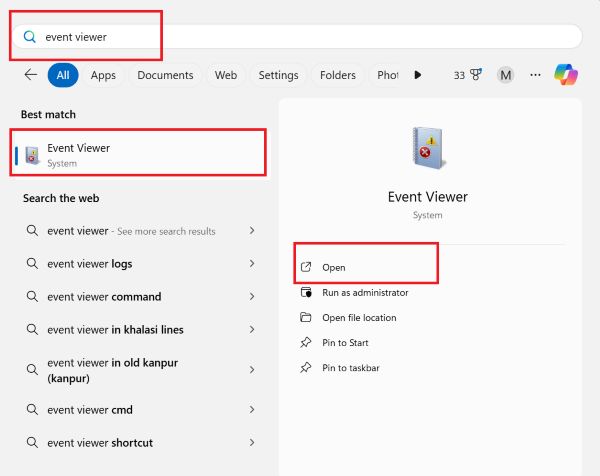
Method 1: From the Start Menu
- Click the Start button or press the Windows key.
- Type Event Viewer in the search bar.
- Click on the Event Viewer app from the results.
Method 2: Using the Run Dialog
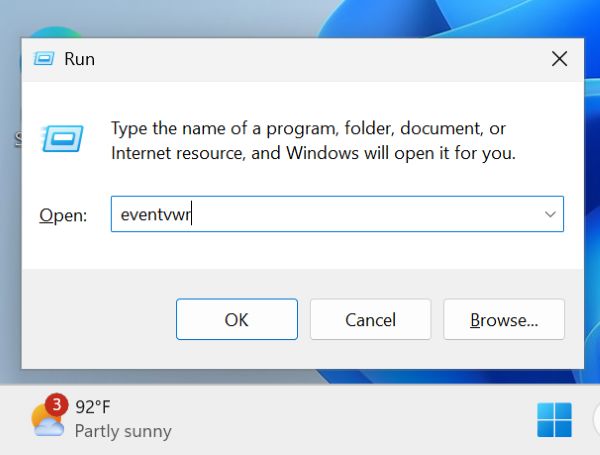
- Press Win + R to open the Run dialog box.
- Type
eventvwrand hit Enter.
Method 3: From Control Panel
Open Control Panel.
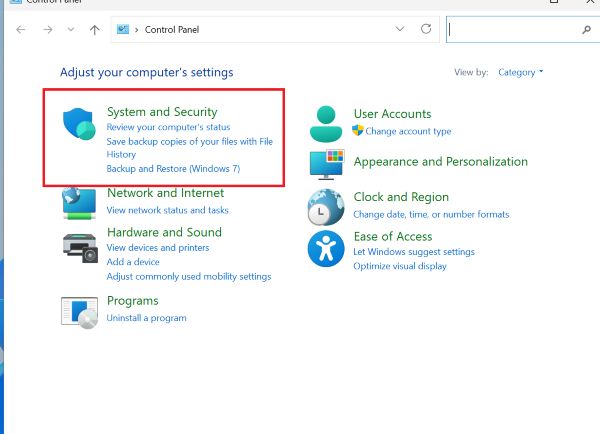
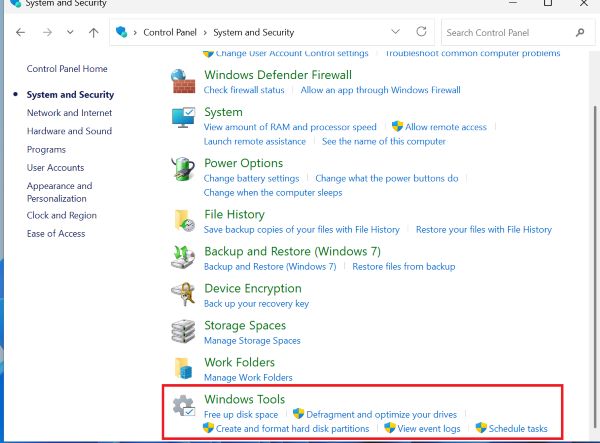
Navigate to System and Security > Windows Tools.
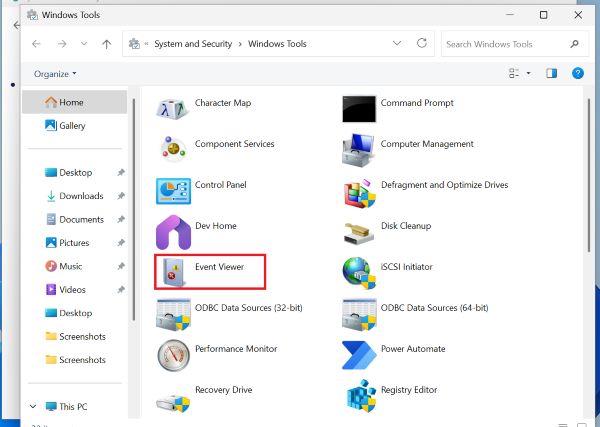
Click on Event Viewer.

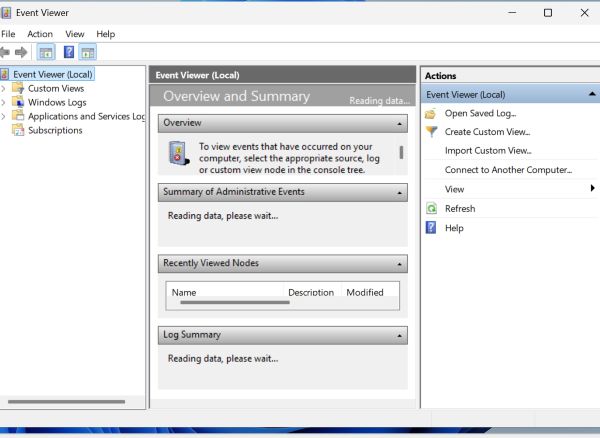
Once opened, you’ll see a hierarchical tree on the left, a list of logs in the center, and details about selected events on the bottom pane.
Understanding the Event Viewer Interface
When you first open Event Viewer, you’re greeted with a three-pane interface that may seem overwhelming at first glance. The left pane contains a tree structure of log categories, the middle pane displays events or summary information, and the right pane offers actions related to your current selection.
The main window displays an Overview and Summary section by default, providing a quick snapshot of recent events organized by type. This dashboard view shows you at a glance how many errors, warnings, and informational events have occurred recently across all logs.
The navigation pane on the left is organized into several main categories. Custom Views appear at the top, allowing you to create filtered views of events that matter most to you. Below that, you’ll find Windows Logs, which contain the most commonly accessed event categories. Applications and Services Logs provide more detailed, component-specific information.
Navigation Pane (Left)
This pane displays the categories of logs, such as:
- Custom Views
- Windows Logs (Application, Security, Setup, System, Forwarded Events)
- Applications and Services Logs
Summary Pane (Center)
The main area shows:
- A list of events from the selected log
- Columns like Level, Date and Time, Source, Event ID, and Task Category
Details Pane (Bottom)
When you click an event, its detailed information appears below, including:
- General tab: Plain-language description of the event
- Details tab: XML-formatted technical data
Types of Logs in Event Viewer
Each log type serves a different purpose:
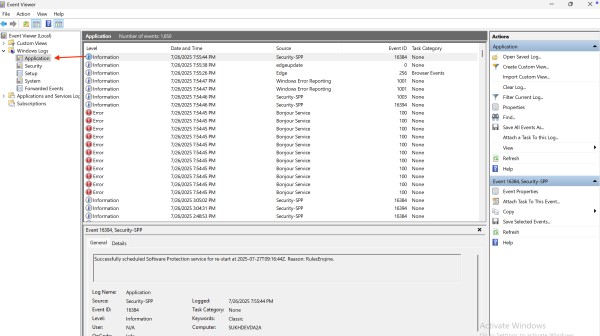
1. Application Log
This log records events related to applications and programs running on your system. When a program crashes, fails to start, or encounters an error, details are typically recorded here. Developers also use this log to record information about their applications’ behavior.
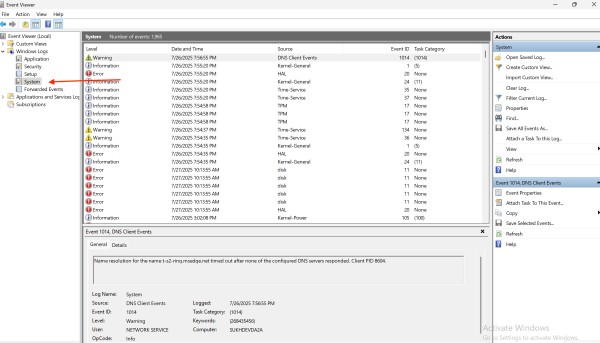
2. System Log
This log contains events generated by Windows system components. Driver failures, service startup problems, hardware conflicts, and other system-level issues are recorded here. When your computer crashes or experiences blue screen errors, the System log often contains crucial diagnostic information.
3. Security Log
The Security log tracks authentication events and security-related activities. This includes successful and failed login attempts, changes to security policies, file access auditing, and other security-relevant events. By default, only administrators can view this log, as it contains sensitive information about system access.
4. Setup Log
Events related to application installation and Windows updates appear in this log. When you install new software or Windows updates fail, this is often the first place to look for clues about what went wrong.
5. Forwarded Events
This log is primarily used in enterprise environments where events from multiple computers are collected centrally. Most home users will find this log empty unless they’ve specifically configured event forwarding.
Using Event Viewer for Troubleshooting
Event Viewer can help identify why certain problems occur. Here’s how:
Step 1: Open the Appropriate Log
For example:
- If your PC is crashing, open the System log.
- If a program isn’t working, open the Application log.
Step 2: Sort or Filter Events
Sort by Date and Time or Level to quickly identify recent and critical issues.
Step 3: Identify Event IDs
Each event has a unique Event ID. For example:
- Event ID 1000: Application error
- Event ID 41: System rebooted without clean shutdown
You can search these IDs online for more context.
Step 4: Read the Details
Click the event, and under the General tab, read what happened. The Details tab gives additional data in XML format.
Filtering and Custom Views
With numerous events logged daily, finding specific entries can be difficult. Use these techniques:
Filtering Events
Right-click a log (e.g., System) and choose Filter Current Log.
Choose parameters like:
- Event level (Critical, Error, Warning, Information)
- Event IDs
- Time range
- Keywords or sources
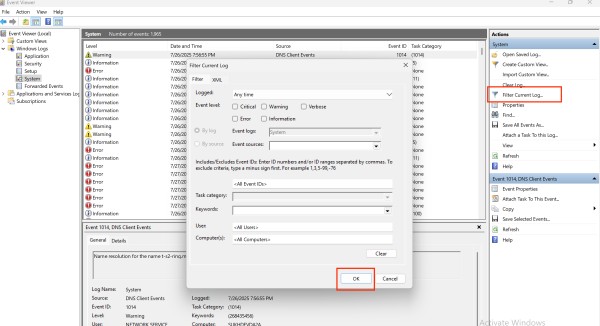
This helps narrow down to only relevant events.
Creating Custom Views
- In the left pane, right-click Custom Views and choose Create Custom View.
- Choose filtering parameters and click OK.
- Name your custom view and click Save.
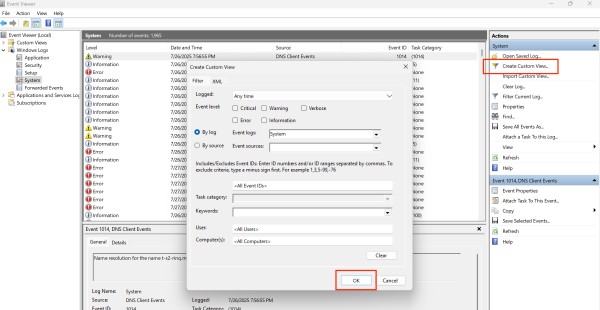
This saves time for recurring diagnostics.
Saving and Exporting Logs
You can export event logs to share with others or keep for documentation.
To Save a Log:
- Right-click a log (e.g., Application).
- Choose Save All Events As….
- Choose a format:
.evtx: Native format for Windows Event Viewer.txtor.csv: For easy reading or spreadsheet use
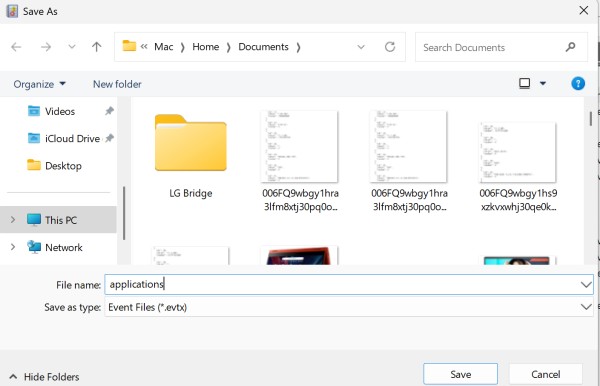
To Export an Individual Event:
- Right-click an event and choose Save Selected Events.
- Save it as a
.evtxor.xmlfile.
This is useful for sending specific events to IT support or colleagues.
Setting Up Custom Event Triggers
You can create tasks that run when specific events occur using Event Viewer and Task Scheduler.
How to Create an Event Trigger:
Find the event you want to trigger an action for.
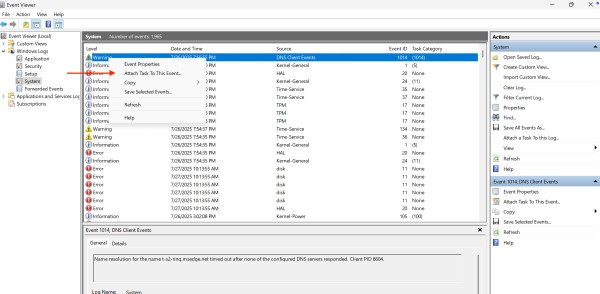
Right-click it and choose Attach Task To This Event.
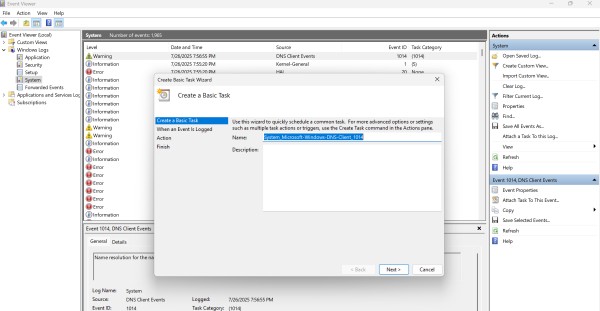
Follow the wizard to:
- Name your task
- Choose when it triggers
- Select the action (e.g., send email, run script)
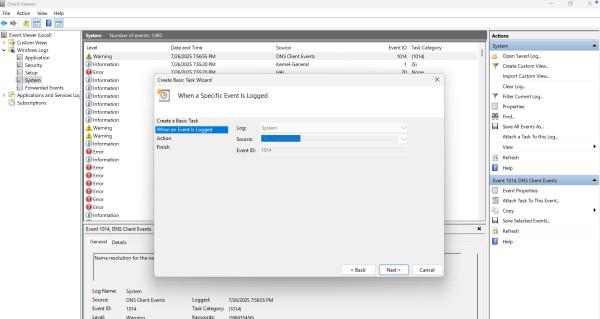
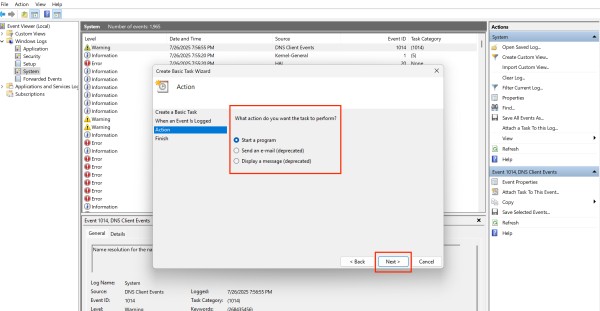
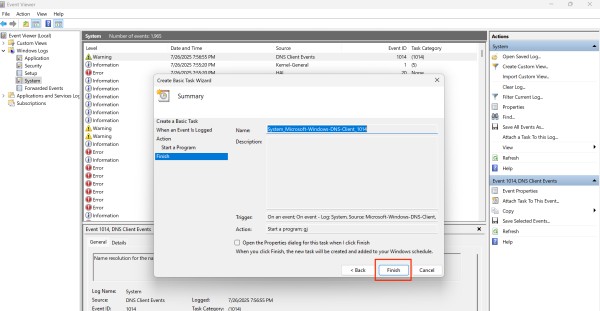
This is great for automation, like getting notified when a disk error occurs.
Understanding Event Types and Severity Levels
Events in Windows 11 are categorized by severity, helping you prioritize which issues need immediate attention.
- Error: events indicate significant problems that may result in loss of functionality or data. These are marked with a red circle containing a white X. Application crashes, service failures, and driver problems typically generate error events.
- Warning: events represent issues that aren’t immediately critical but could lead to future problems. These appear with a yellow triangle containing an exclamation point. A warning might indicate that disk space is running low or that a backup didn’t complete successfully.
- Information: events are routine occurrences that don’t indicate problems. These events, marked with a blue circle containing an “i,” confirm that operations completed successfully. Examples include successful service startups, application installations, or system updates.
- Critical: events represent severe problems that require immediate attention, such as system crashes or data loss. These are marked with a red circle and white X similar to errors but are considered more severe.
- Verbose: events provide detailed tracking information for advanced troubleshooting. These are typically disabled by default because they can generate enormous log files but can be enabled when diagnosing complex issues.
Common Scenarios for Using Event Viewer
Here are some practical cases:
Case 1: Investigating a System Crash
- Open System log.
- Look for Event ID 41 (unexpected shutdown) or 6008 (system reboot).
- Analyze events before the crash for clues.
Case 2: Troubleshooting a Slow Boot
- Check Event ID 100 (Boot Performance Monitoring).
- Analyze delays caused by startup applications or drivers.
Case 3: Monitoring Security Breaches
- Open Security log.
- Look for multiple failed login attempts (Event ID 4625).
- Successful logins are ID 4624.
Case 4: Diagnosing Application Errors
- Open Application log.
- Look for errors from the application name under the Source column.
- Cross-check with the time you experienced the issue.
Advanced Features and Configurations
Event Viewer includes several advanced capabilities for power users and administrators.
Event Subscriptions allow you to collect events from remote computers on your network, centralizing monitoring for multiple systems. This requires proper configuration of Windows Remote Management and appropriate permissions.
Task Attachment lets you configure specific tasks to run automatically when particular events occur. For example, you could create a task that sends you an email when a critical error occurs, or runs a script to attempt automatic remediation of specific problems.
Log Properties can be accessed by right-clicking any log and selecting Properties. Here you can adjust maximum log size, configure what happens when logs reach capacity (overwrite old events or archive), and clear logs when necessary. Be cautious when changing these settings, as insufficient log space can result in lost diagnostic information.
Best Practices and Tips
Regular monitoring of the Event Viewer helps you catch problems before they become critical. Create a custom view for Critical and Error events and check it weekly. This proactive approach often reveals issues you weren’t aware of.
When troubleshooting, always note the Event ID number. Searching online for “Windows Event ID” followed by the number and a brief description often leads to specific solutions or explanations.
Don’t ignore warnings indefinitely. While they’re not immediately critical, recurring warnings often indicate problems that will eventually require attention.
Clear logs periodically, but only after ensuring you don’t need the historical data. Right-click a log, select “Clear Log,” and choose whether to save the log before clearing it.
Conclusion
Event Viewer is an indispensable tool for maintaining and troubleshooting Windows 11 systems. While it may seem daunting initially, understanding its structure and basic functionality empowers you to diagnose problems efficiently, monitor system health proactively, and maintain detailed records of system activity.
Whether you’re resolving a one-time error or tracking down an intermittent issue that’s plagued your system for months, Event Viewer provides the detailed diagnostic information you need. By incorporating regular Event Viewer checks into your computer maintenance routine and learning to interpret the events you encounter, you’ll develop a deeper understanding of your system and become more self-sufficient in resolving technical issues.
The investment in learning this tool pays dividends in reduced downtime, faster problem resolution, and greater confidence in managing your Windows 11 computer.