Geeksdigit Team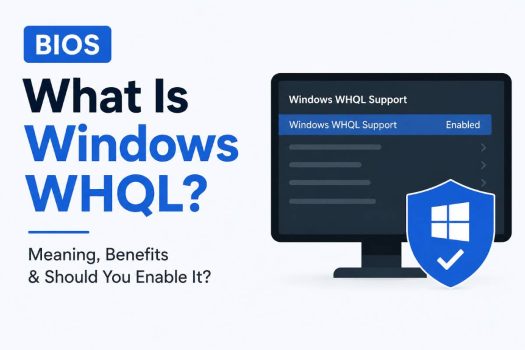
If you have explored your motherboard BIOS or UEFI settings, you may have noticed an option called Windows WHQL Support, Windows 10 WHQL Support, Windows 11 WHQL Support, or simply WHQL Support. This setting can be confusing because it sounds like a Windows feature, a driver option, or even a hardware certification. In reality, it is primarily a BIOS/UEFI compatibility setting that affects how your motherboard configures certain firmware and boot features for Windows.
WHQL stands for Windows Hardware Quality Labs. Microsoft uses WHQL certification to verify that hardware drivers meet specific compatibility and reliability requirements for Windows. However, the WHQL option found in a motherboard BIOS does not mean that your motherboard is continuously checking every driver installed in Windows. Instead, enabling it generally tells the motherboard firmware to use a Windows-compatible configuration and, depending on the manufacturer, may enable or enforce features such as UEFI boot mode, Secure Boot, and other modern Windows requirements.
This guide explains what Windows WHQL means in BIOS, what happens when you enable it, whether you should turn it on, and how it relates to Windows 10, Windows 11, Secure Boot, UEFI, TPM, and drivers.
What Does WHQL Mean?
WHQL stands for Windows Hardware Quality Labs. It is associated with Microsoft’s hardware and driver certification process.
Hardware manufacturers and driver developers can submit drivers to Microsoft for testing and certification. A driver that passes Microsoft’s requirements can receive WHQL certification. This helps Windows identify drivers that have been tested for compatibility with supported Windows versions.
For example, a graphics card manufacturer may provide a Windows driver that has undergone Microsoft’s certification process. A WHQL-certified driver is generally considered more trustworthy from a Windows compatibility perspective than an untested driver.
However, there is an important distinction between WHQL-certified drivers and the Windows WHQL Support option in BIOS.
The BIOS option does not simply scan your computer and verify whether every installed driver has WHQL certification. Instead, motherboard manufacturers use the WHQL setting as a way of configuring the firmware for a Windows-oriented boot environment.
The exact behavior varies between motherboard manufacturers and BIOS versions. ASUS, MSI, Gigabyte, ASRock, and other manufacturers may implement the setting slightly differently.
What Is Windows WHQL Support in BIOS?
Windows WHQL Support in BIOS is a motherboard firmware setting designed to configure the system for modern Windows compatibility.
When enabled, it commonly causes the motherboard to use a configuration based around UEFI rather than older legacy BIOS compatibility.
Depending on the motherboard, enabling Windows WHQL Support can:
- Enable UEFI boot behavior.
- Disable or restrict Compatibility Support Module (CSM).
- Enable Secure Boot or make Secure Boot available.
- Change boot-related options.
- Improve compatibility with modern Windows installation requirements.
- Prevent legacy boot configurations that are not suitable for newer Windows installations.
The exact behavior depends on the motherboard.
This is why you should not assume that enabling WHQL will produce exactly the same result on every computer.
On one motherboard, enabling the option may automatically enable Secure Boot. On another, it may simply disable CSM and allow Secure Boot to be configured separately.
Why Is Windows WHQL Support Available in BIOS?
Modern versions of Windows increasingly rely on UEFI firmware features.
Older computers commonly used a traditional BIOS or legacy boot configuration. Modern Windows installations, particularly Windows 11, are designed around technologies such as:
- UEFI
- Secure Boot
- TPM 2.0
- GPT partitioning
- Modern firmware security features
Because of this, motherboard manufacturers provide BIOS options that make it easier to configure a system for modern Windows.
Windows WHQL Support is one such option.
Instead of manually changing several firmware settings, enabling the WHQL option can automatically move the motherboard toward a configuration that is more appropriate for a modern Windows installation.
This can be especially useful after building a new PC or preparing an existing computer for Windows 11.
What Happens When You Enable Windows WHQL Support?
The most noticeable change is usually related to boot mode.
Many motherboards use WHQL support as a trigger for disabling legacy compatibility features such as CSM.
CSM stands for Compatibility Support Module. It allows modern UEFI firmware to provide compatibility with older operating systems and legacy boot devices.
When WHQL Support is enabled, the motherboard may disable CSM.
This means the system will prefer or require UEFI-compatible boot devices.
If Windows is already installed using UEFI and a GPT partition, this normally works without a problem.
However, if Windows was installed using Legacy BIOS mode with an MBR partition, changing the boot configuration can cause Windows to stop booting.
This is one of the most important things to understand before changing the setting.
WHQL Support and UEFI
UEFI is the modern replacement for traditional BIOS firmware.
Although people commonly continue to call the motherboard firmware “BIOS,” modern computers generally use UEFI firmware.
UEFI provides several advantages, including:
- Faster and more flexible booting.
- Support for GPT disks.
- Secure Boot.
- Better support for modern hardware.
- Improved firmware-level security.
- Support for larger storage devices and modern operating systems.
Windows 10 and Windows 11 can operate with UEFI, and Windows 11 officially requires UEFI firmware with Secure Boot capability.
When you enable Windows WHQL Support, many motherboards configure themselves toward a UEFI-only or UEFI-preferred environment.
This is why the setting is closely associated with Windows 10 and Windows 11.
WHQL Support and CSM
CSM is one of the most important settings related to Windows WHQL.
If CSM is enabled, the motherboard may allow both legacy and UEFI boot methods.
For example, you could potentially boot an older operating system or a legacy-formatted installation using BIOS compatibility mode.
When Windows WHQL Support is enabled, the motherboard may automatically disable CSM.
A typical relationship looks like this:
Windows WHQL Support enabled → CSM disabled or restricted → UEFI boot preferred/required → Secure Boot becomes available or enabled
The exact sequence depends on the motherboard.
If you enable WHQL Support and suddenly notice that the CSM option has disappeared, this is usually normal behavior rather than a BIOS problem.
The motherboard may simply be enforcing a modern UEFI configuration.
Windows WHQL and Secure Boot
Secure Boot is another feature commonly associated with Windows WHQL Support.
Secure Boot is a UEFI security feature that helps ensure that the software loaded during the boot process has been properly signed and trusted.
It helps protect the boot process from certain types of unauthorized or malicious software.
Windows 11 requires a system with UEFI firmware capable of Secure Boot. Secure Boot itself also needs to be configured appropriately for the system to satisfy the requirement.
On some motherboards, enabling Windows WHQL Support automatically enables Secure Boot.
On others, it simply makes Secure Boot available.
Therefore, if your motherboard has separate options for WHQL Support and Secure Boot, do not assume that enabling one necessarily means the other is enabled.
You can check the actual Secure Boot state from Windows.
Press Windows + R, type:
msinfo32
and press Enter.
In System Information, look for:
BIOS Mode
and
Secure Boot State
For a typical modern Windows 11 installation, BIOS Mode should show UEFI, while Secure Boot State should normally show On if Secure Boot is enabled.
Is Windows WHQL Required for Windows 11?
No, the BIOS setting itself is not a universal requirement called “WHQL Support.”
Windows 11 requires certain hardware and firmware capabilities, including compatible UEFI firmware, Secure Boot capability, and TPM 2.0 support. Microsoft does not require every motherboard to have a BIOS option literally named “Windows WHQL Support.”
The option is simply one way motherboard manufacturers help users configure their systems.
Therefore, if your motherboard does not have a Windows WHQL Support option, that does not automatically mean that the motherboard cannot run Windows 11.
You can configure the necessary UEFI, Secure Boot, and TPM-related settings independently if the motherboard supports them.
Should You Enable Windows WHQL Support?
For most modern PCs running Windows 10 or Windows 11, enabling Windows WHQL Support is generally appropriate, provided your Windows installation already uses UEFI.
It is particularly useful when:
- You are installing Windows 11.
- You want to use Secure Boot.
- You have a modern UEFI-based Windows installation.
- You are building a new PC.
- You want to disable legacy boot compatibility.
- You are troubleshooting Secure Boot configuration.
- Your motherboard recommends enabling WHQL support for Windows.
However, you should be careful if your current Windows installation uses Legacy BIOS mode.
Before changing the setting, check your current configuration.
Press Windows + R, type:
msinfo32
and press Enter.
Find BIOS Mode.
If it says:
UEFI — your installation is already using UEFI.
If it says:
Legacy — changing BIOS settings that disable legacy boot support may prevent Windows from starting.
This check is especially important on older computers.
How to Check Whether Windows Uses UEFI or Legacy BIOS
You do not need to enter the BIOS to check this.
Follow these steps:
- Press Windows + R.
- Type
msinfo32. - Press Enter.
- Wait for System Information to open.
- Find BIOS Mode.
- Check whether it says UEFI or Legacy.
If it says UEFI, your Windows installation is already using the modern firmware mode.
You can also check your partition style through Disk Management or other Windows tools. A UEFI Windows installation normally uses a GPT system disk.
The important point is that changing BIOS boot settings without checking the current configuration can create an unnecessary boot problem.
What If Windows Stops Booting After Enabling WHQL?
If Windows was installed in Legacy mode and you enable WHQL Support, the motherboard may stop looking for legacy boot devices.
As a result, Windows may fail to start.
You might see messages such as:
- No boot device found.
- Operating system not found.
- Reboot and select proper boot device.
- Windows Boot Manager missing.
- A BIOS screen instead of Windows.
This does not necessarily mean that your Windows installation has been deleted.
The problem can simply be a mismatch between the firmware boot mode and the way Windows was installed.
If this happens immediately after changing WHQL, return to the BIOS and restore the previous boot configuration.
Do not randomly change multiple BIOS settings at the same time. Changing several settings makes it much harder to determine what caused the problem.
Frequently Asked Questions
Is Windows WHQL Support the same as Secure Boot?
No. They are different settings, although they are often connected. Enabling WHQL Support can enable or make Secure Boot available on some motherboards, while on others you must configure Secure Boot separately.
Should I turn on WHQL Support for Windows 11?
For a modern PC running Windows 11, enabling it is generally appropriate if your motherboard recommends it and your Windows installation is already using UEFI. Check your BIOS Mode before making the change.
Will enabling WHQL Support delete Windows?
No. The setting itself does not delete Windows or your personal files. However, if changing it switches the computer from a legacy boot configuration to UEFI-only and your existing Windows installation depends on Legacy/CSM, Windows may temporarily fail to boot.
Does WHQL Support increase gaming performance?
No. It is primarily a firmware compatibility and boot configuration option. It does not directly increase CPU performance, GPU performance, FPS, or SSD speed.
Conclusion
Windows WHQL Support in BIOS can look complicated, but its purpose is relatively straightforward. WHQL stands for Windows Hardware Quality Labs, and the BIOS option is primarily intended to configure your motherboard for a modern Windows environment.
On many systems, enabling the option changes the boot configuration toward UEFI, disables CSM, and makes or enables features such as Secure Boot. This makes it particularly relevant to modern Windows 10 and Windows 11 installations.
The safest approach is simple: check your current BIOS Mode in msinfo32, understand whether your system uses UEFI or Legacy booting, and then change WHQL Support only when you actually need the modern Windows configuration. For most current Windows 11 systems, UEFI, GPT, TPM 2.0, and Secure Boot are more important concepts to understand than the WHQL label itself.