Olivia Harper
Apps & Features is one of the most important sections in Windows 11 because it allows you to view all installed apps, uninstall programs, manage optional features, and fix app-related problems. Whenever you want to remove unwanted software, reset an app that is not working correctly, or check how much storage an app is using, this is the place you need to open.
In Windows 11, Microsoft has slightly changed the layout compared to Windows 10, but the Apps settings are still very easy to access. In this guide, you will learn multiple ways to open Apps & Features in Windows 11 using quick shortcuts, Settings methods, and alternate tools. Each method is beginner-friendly, and you can use whichever is easiest for you.
What Is Apps & Features in Windows 11?
Apps & Features is a settings page where Windows lists all installed applications on your computer. This includes Microsoft Store apps, built-in Windows apps, and normal desktop programs. It also shows how much space an app is using, and it gives you options like uninstall, repair, reset, or move (for some apps).
This page is useful when you want to clean your PC, free storage space, remove bloatware, fix broken apps, or simply check what software is installed.
In Windows 11, “Apps & Features” is now mainly called “Installed apps,” but it works in the same way.
Method 1: Access Apps & Features from Windows 11 Settings (Fastest Way)
The most direct way to open Apps & Features is through the Settings app. This method works on every Windows 11 system.
Steps:
Press Windows + I to open Settings
Click Apps from the left sidebar
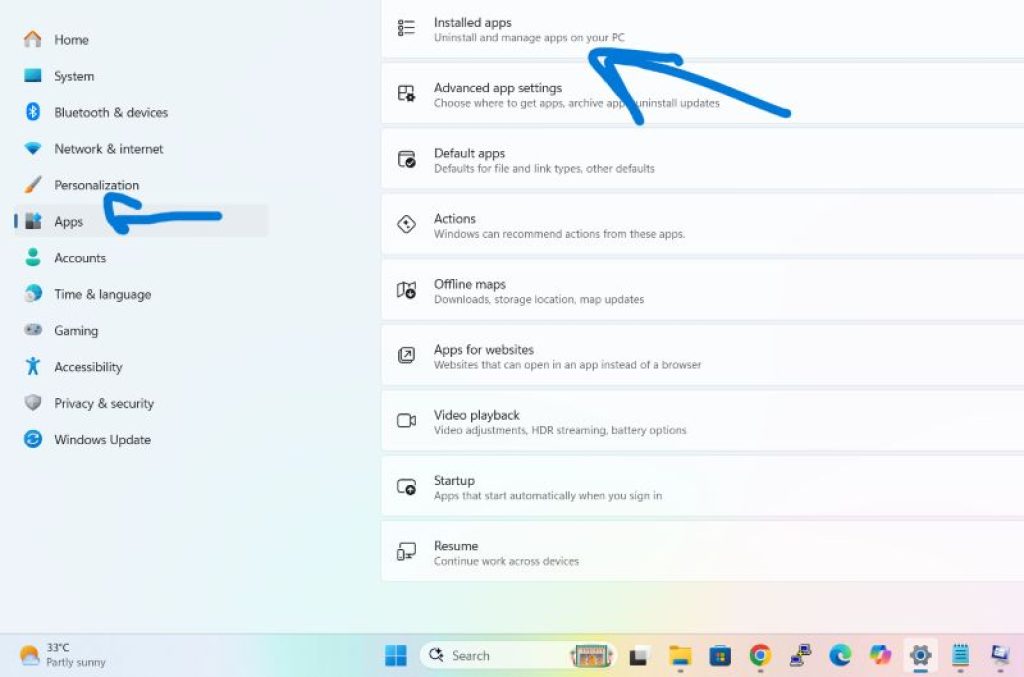
Click Installed apps
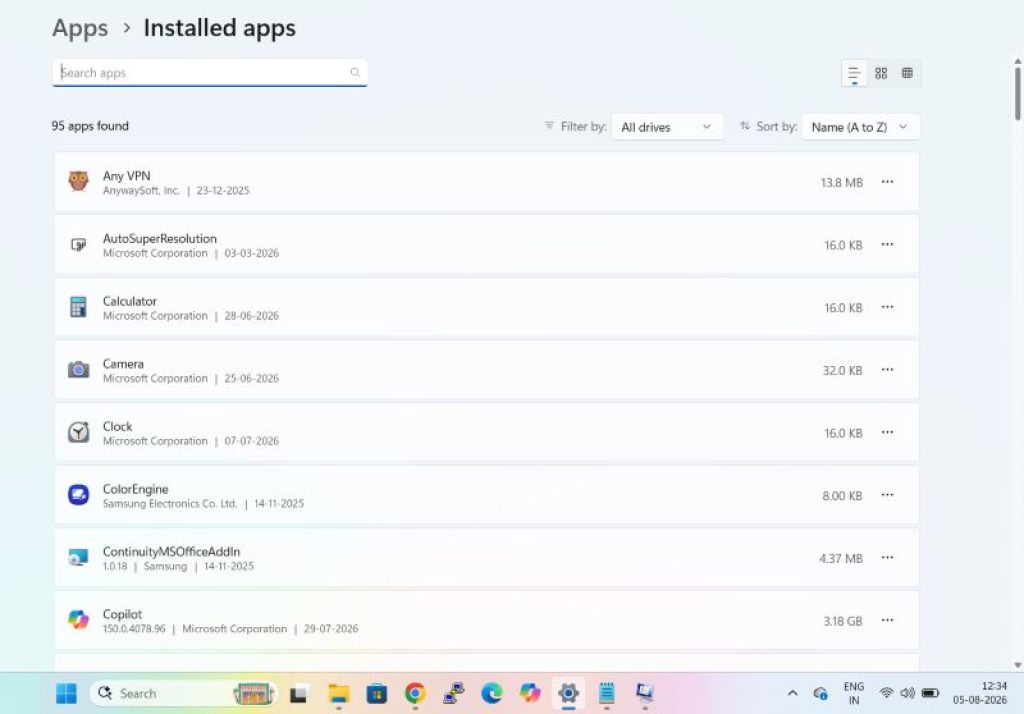
You will now see the full list of apps installed on your PC. From here, you can uninstall apps, search for an app, sort apps by size, and manage app settings.
Method 2: Open Apps & Features Using the Start Menu
The Start menu is another quick way to access Apps settings. This is useful if you prefer clicking instead of shortcuts.
Steps:
- Click the Start button
- Select Settings
- Click Apps
- Click Installed apps
This brings you to the same Apps & Features section where you can manage installed programs.
Method 3: Access Apps & Features Using Windows Search
Windows Search is one of the easiest ways to open settings pages quickly without searching through menus.
Steps:
- Press Windows + S
- Type Installed apps or Apps & features
- Click Installed apps from the results
This is a very fast method, especially if you open Apps settings frequently.
Method 4: Open Apps & Features Using Run Command (Shortcut Method)
If you want to open Apps & Features even faster, you can use the Run box. This method is great for users who like shortcut commands.
Steps:
- Press Windows + R
- Type ms-settings:appsfeatures
- Press Enter
This will open the Installed apps page directly inside Windows Settings.
Method 5: Access Apps & Features from Quick Link Menu (Windows + X)
Windows 11 includes a hidden power user menu that opens when you right-click the Start button. This menu includes quick access to important tools.
Steps:
- Press Windows + X
- Click Installed apps
On many Windows 11 versions, “Apps & Features” or “Installed apps” is shown directly in this menu, making it one of the fastest access methods.
Method 6: Open Apps & Features from Control Panel (Classic Method)
Even though Windows 11 uses Settings for modern app management, Control Panel is still available and useful for uninstalling older desktop software.
Steps:
- Press Windows + R
- Type control
- Press Enter
- Click Programs
- Click Programs and Features
This section allows you to uninstall classic Windows programs and desktop apps. It does not show most Microsoft Store apps, so keep that in mind.
Control Panel is useful when you want to uninstall older software like printers, drivers, toolbars, or classic programs that don’t appear correctly in the modern Installed apps list.
Method 7: Access Apps & Features Using the Settings Link from an App Shortcut
Windows 11 also lets you access app settings directly from the Start menu or desktop shortcuts. This can save time when you want to uninstall a specific app quickly.
Steps:
- Click Start
- Find the app you want to remove
- Right-click the app
- Click Uninstall
When you click Uninstall, Windows may take you directly to Installed apps, or uninstall the app immediately depending on the type of program.
This method is very useful when removing recently installed apps.
How to Uninstall Apps from Apps & Features
Once you open Installed apps, you can remove unnecessary apps easily. This is one of the most common reasons people open Apps & Features.
Steps:
- Open Settings > Apps > Installed apps
- Find the app you want to remove
- Click the three dots next to the app name
- Click Uninstall
- Confirm Uninstall again
Windows will then remove the app from your system.
If the app does not uninstall properly, you can try restarting your PC and uninstalling again.
How to Repair or Reset Apps from Apps & Features
Some apps may stop working, crash, freeze, or fail to open. Instead of uninstalling and reinstalling, Windows 11 allows you to repair or reset many apps, especially Microsoft Store apps.
Steps:
- Open Settings > Apps > Installed apps
- Click the three dots next to the app
- Click Advanced options
- Scroll down to Repair or Reset
- Click Repair first
- If Repair doesn’t work, click Reset
Repair fixes the app without deleting its data. Reset clears app data and returns it to default settings. After resetting, you may need to sign in again inside the app.
How to Sort Apps by Size or Date (Very Helpful)
If your system storage is low, sorting apps by size helps you find large programs quickly.
Steps:
- Open Installed apps
- Click the Sort by option
- Choose Size
- You can also sort by Name or Install date
This makes it easier to locate heavy apps like games, editing tools, and large browsers.
How to Manage Optional Features from the Apps Section
Windows 11 also provides Optional features that allow you to add or remove extra Windows components like handwriting support, media features, and other system tools.
Steps:
- Press Windows + I
- Go to Apps
- Click Optional features
From here you can:
- Add an optional feature
- Remove installed optional Windows features
- View installed features
This is useful if you need features like wireless display support, older Windows tools, or media-related components.
What to Do If Apps & Features Does Not Open
Sometimes Settings can crash or refuse to open. If Apps & Features isn’t opening, you can still access app management through other methods.
The best first step is to restart your PC and try again. If it still does not work, use the Control Panel uninstall method, because it works even when Settings has issues.
You can also try opening the Installed apps page using the Run command again:
- Press Windows + R
- Type ms-settings:appsfeatures
- Press Enter
If Settings still does not open, it could be due to corrupted system files, and you may need to run basic Windows repair commands, but in most cases restarting fixes it.
Why You Should Use Apps & Features Regularly
Many users never check their installed apps list, which can lead to unnecessary software staying on the computer for months. Some apps run in the background and slow down startup speed. Others take storage space and are never used. By checking Apps & Features regularly, you can clean your PC, remove unused apps, and improve overall performance.
It is also helpful for parents or shared computers because you can quickly see what apps are installed and uninstall unwanted ones.
Final Thoughts
Accessing Apps & Features in Windows 11 is easy once you know where it is located. The fastest method is using Settings with Windows + I and opening Installed apps. If you prefer quick commands, you can use Windows + R and run ms-settings:appsfeatures to open it directly. You can also access it using Windows Search, the Start menu, or the Windows + X menu.
Apps & Features is a powerful section because it lets you uninstall apps, manage storage, repair broken apps, and view installed software in one place. Whether you want to remove unwanted programs or fix apps that are not working correctly, this menu is one of the most useful parts of Windows 11.