Geeksdigit Team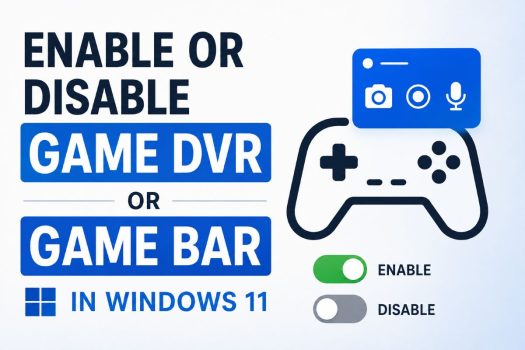
Xbox Game Bar and Game DVR are built-in Windows features designed to enhance the gaming experience by providing quick access to gameplay recording, screenshots, performance monitoring, audio controls, and Xbox social features. With just a keyboard shortcut, you can capture gameplay, record videos, monitor system performance, or chat with friends without leaving your game. While these tools are useful for many gamers and content creators, some users choose to disable them to reduce background activity, eliminate unwanted notifications, or potentially improve performance in certain games.
Although Game DVR and Xbox Game Bar work together, they serve different purposes. Xbox Game Bar provides the overlay interface, while Game DVR handles background recording and game capture. Windows 11 makes it easy to enable or disable these features through the Settings app, but there are also several advanced methods using the Registry Editor, Local Group Policy Editor, PowerShell, and Command Prompt.

This guide explains the best ways to enable or disable Game DVR and Xbox Game Bar in Windows 11. Follow the methods below to configure these features according to your preferences.
What Are Game DVR and Xbox Game Bar?
Xbox Game Bar is an overlay built into Windows 11 that provides quick access to gaming tools. It includes widgets for capturing gameplay, monitoring CPU and GPU usage, controlling audio devices, checking system performance, managing connected devices, and interacting with Xbox friends.
Game DVR is the recording component that allows Windows to capture gameplay videos and screenshots. It also supports background recording, enabling you to save recent gameplay moments even if you didn’t manually start recording.
Some users disable these features because they don’t use game recording or wish to minimize background processes. Others enable them specifically for creating tutorials, recording gameplay, or capturing screenshots.
Method 1: Enable or Disable Xbox Game Bar Using Settings
The easiest way to manage Xbox Game Bar is through the Windows Settings app.
Press Windows + I to open Settings.
Select Gaming from the left pane.
Click Xbox Game Bar.
You’ll see an option similar to:
Allow your controller to open Xbox Game Bar
Depending on your Windows 11 version, you may also find an option to enable or disable Xbox Game Bar directly.
To disable the feature, turn the toggle Off.
To enable it again, turn the toggle On.
Once enabled, you can open Xbox Game Bar at any time by pressing:
Windows + GIf the overlay doesn’t appear after enabling it, restart your computer and try the shortcut again.
This method is recommended for most users because it’s simple and doesn’t require modifying advanced Windows settings.
Method 2: Turn Game DVR On or Off from Captures Settings
Game DVR controls gameplay recording and screenshots independently of the Game Bar interface.
Open Settings.
Navigate to:
Gaming > Captures
Here you’ll find several recording options, including:
- Record what happened
- Record audio when recording a game
- Capture mouse cursor
- Maximum recording length
- Video quality
- Frame rate
To disable Game DVR completely, turn off:
Record what happened
This disables background recording while allowing you to continue using other Game Bar features if desired.
To enable Game DVR again, simply turn the option back on.
If you’re experiencing reduced gaming performance or unnecessary disk usage, disabling background recording is often sufficient without completely disabling Xbox Game Bar.
Method 3: Enable or Disable Game DVR Using Registry Editor
Advanced users can also control Game DVR through the Windows Registry.
Warning: Incorrect registry modifications can affect Windows functionality. Consider creating a restore point before making changes.
Press Windows + R, type:
regeditPress Enter.
Navigate to:
HKEY_CURRENT_USER\System\GameConfigStoreLocate the value:
GameDVR_EnabledDouble-click it.
To disable Game DVR, set the value to:
0To enable it, set the value to:
1Click OK.
Next, browse to:
HKEY_CURRENT_USER\SOFTWARE\Microsoft\Windows\CurrentVersion\GameDVRLocate:
AppCaptureEnabledSet the value to:
0to disable Game DVR or:
1to enable it.
Close Registry Editor and restart your computer for the changes to take effect.
Method 4: Enable or Disable Xbox Game Bar Using Local Group Policy Editor
Windows 11 Pro, Enterprise, and Education editions include the Local Group Policy Editor, which allows administrators to control Game Bar features across the system.
Press Windows + R.
Type:
gpedit.mscPress Enter.
Navigate to:
Computer Configuration > Administrative Templates > Windows Components > Windows Game Recording and Broadcasting
Locate the policy:
Enables or disables Windows Game Recording and Broadcasting
Double-click the policy.
Choose one of the following:
- Enabled
- Disabled
- Not Configured
Selecting Disabled prevents Windows Game Recording and Broadcasting from operating.
Click Apply, then OK.
Restart the computer to apply the new policy.
This method is particularly useful in business or educational environments where administrators need to manage gaming features across multiple devices.
Method 5: Enable or Disable Xbox Game Bar Using PowerShell
PowerShell provides a convenient way to manage Windows apps, including Xbox Game Bar. While it doesn’t offer a direct command to toggle Game DVR, you can use it to remove or restore the Xbox Game Bar application.
Right-click the Start button and select:
Windows Terminal (Admin)
or
PowerShell (Admin)
To remove Xbox Game Bar for the current user, run:
Get-AppxPackage Microsoft.XboxGamingOverlay | Remove-AppxPackageWindows uninstalls the Xbox Game Bar application.
After the removal, the Windows + G shortcut no longer opens the Game Bar overlay.
If you later decide to use Game Bar again, you can reinstall it from the Microsoft Store or by using the App Installer if available.
This method is useful for users who never use Game Bar and want to remove it from their Windows installation.
Method 6: Enable or Disable Xbox Game Bar Using Command Prompt
Although Command Prompt doesn’t include dedicated Game Bar commands, it can be used alongside Registry modifications to enable or disable Game DVR.
Open Command Prompt as Administrator.
To disable Game DVR, run:
reg add "HKCU\System\GameConfigStore" /v GameDVR_Enabled /t REG_DWORD /d 0 /fThen run:
reg add "HKCU\Software\Microsoft\Windows\CurrentVersion\GameDVR" /v AppCaptureEnabled /t REG_DWORD /d 0 /fTo enable Game DVR again, replace the value 0 with 1 in both commands.
Restart your computer after running the commands.
This approach is especially useful for scripting or automating configuration changes across multiple systems.
Method 7: Repair or Reset Xbox Game Bar
If Xbox Game Bar isn’t opening, crashes frequently, or recording features stop working, repairing or resetting the application may resolve the problem.
Open Settings.
Navigate to:
Apps > Installed apps
Locate:
Xbox Game Bar
Click the three-dot menu beside it.
Choose:
Advanced options
Scroll down to find:
- Repair
- Reset
Select Repair first.
Windows attempts to fix the application without deleting its data.
If the issue persists, select Reset.
Resetting restores the application to its default configuration and removes any corrupted settings that may be preventing it from functioning correctly.
After the process finishes, restart your computer and test the Windows + G shortcut again.
Method 8: Reinstall Xbox Game Bar
If repairing or resetting doesn’t help, reinstalling Xbox Game Bar can often resolve persistent issues.
Open the Microsoft Store.
Search for:
Xbox Game Bar
If the application has been removed, select:
Install
or
Get
Wait for the installation to complete.
Restart your computer.
After restarting, press:
Windows + Gto verify that Xbox Game Bar opens correctly.
Reinstalling ensures that the latest version of the application is installed with all required components.
Method 9: Verify That Game DVR and Game Bar Are Working
After enabling Game Bar or Game DVR, it’s a good idea to confirm that everything is functioning properly.
Press:
Windows + GThe Xbox Game Bar overlay should appear.
Open the Capture widget.
Click the Record button or press:
Windows + Alt + Rto begin recording.
Record a few seconds of activity.
Stop the recording using the same shortcut.
Open File Explorer and navigate to:
C:\Users\<YourUserName>\Videos\CapturesReplace <YourUserName> with your Windows account name.
Verify that the recorded video appears in the Captures folder and plays correctly.
If screenshots are enabled, you can also press:
Windows + Alt + PrtScnto capture a screenshot and confirm that it is saved successfully.
Method 10: Restore Default Game Bar Settings
If you’ve experimented with various settings and want to return Xbox Game Bar to its original configuration, Windows makes it easy to restore the defaults.
Open:
Settings > Apps > Installed apps
Locate:
Xbox Game Bar
Open:
Advanced options
Select:
Reset
Confirm the reset when prompted.
Windows restores the application to its default state, including its settings and configuration.
After resetting, revisit:
Settings > Gaming
Review the Xbox Game Bar and Captures sections to ensure your preferred options are enabled or disabled as needed.
Restart your computer one final time to ensure all changes take effect.
Should You Disable Game DVR?
Whether you should disable Game DVR depends on how you use your computer.
If you frequently record gameplay, capture screenshots, or use Xbox social features, keeping Game DVR and Xbox Game Bar enabled makes sense.
However, if you never use these features, disabling background recording can reduce unnecessary disk activity and free a small amount of system resources.
On modern gaming PCs, the performance difference is generally minimal because Windows 11 has optimized Game Bar significantly compared to earlier versions. Even so, competitive gamers sometimes prefer disabling background recording to eliminate any possibility of additional resource usage during gameplay.
For most users, disabling only Record what happened while leaving Xbox Game Bar enabled provides a good balance between functionality and performance.
Conclusion
Xbox Game Bar and Game DVR are useful built-in features that allow Windows 11 users to record gameplay, capture screenshots, monitor system performance, and access gaming tools without installing third-party software. While these features are enabled by default on many systems, Windows provides several ways to enable or disable them depending on your needs. The Settings app offers the simplest method, while advanced users can use the Registry Editor, Local Group Policy Editor, PowerShell, or Command Prompt for greater control.
If Game Bar stops working correctly, repairing, resetting, or reinstalling the application usually resolves most issues. Whether you choose to keep Game DVR enabled for gameplay recording or disable it to minimize background activity, Windows 11 gives you complete control over how these gaming features operate. By following the methods in this guide, you can configure Xbox Game Bar and Game DVR to match your preferred gaming and recording experience.
Frequently Asked Questions
1. Does disabling Xbox Game Bar improve gaming performance?
On most modern systems, the improvement is minimal. However, disabling background recording (Game DVR) may reduce resource usage slightly, especially during demanding games.
2. Can I disable Game DVR without removing Xbox Game Bar?
Yes. Turning off Record what happened in Settings > Gaming > Captures disables background recording while allowing you to continue using other Xbox Game Bar features.
3. How do I open Xbox Game Bar?
Press Windows + G. If the shortcut doesn’t work, verify that Xbox Game Bar is enabled in Settings > Gaming > Xbox Game Bar.
4. Where are Game DVR recordings saved?
By default, gameplay recordings and screenshots are stored in:
C:\Users\<YourUserName>\Videos\CapturesYou can access this folder through File Explorer to view or manage your recorded clips.