
 Geeksdigit Team
Group Policy is one of the most powerful administration tools built into Windows, letting IT administrators (and even individual power users) control everything from password rules and desktop wallpapers to which apps can run and how updates are installed. On a single machine, these settings can come from several different places at once: local Group Policy set directly on the PC, domain-based Group Policy pushed down from Active Directory, and in some environments, Group Policy-like settings delivered through Microsoft Intune or another MDM solution.
Because policies can be layered — and because a policy applied at the domain level can override one set locally — it’s easy to lose track of exactly what’s actually in effect on a given machine. Maybe a setting you configured isn’t taking hold, or a computer is behaving differently than expected, and you need to figure out why. In situations like these, being able to see precisely which policies are applied, where they came from, and whether they succeeded is essential for troubleshooting.
This guide walks through the most reliable ways to view the Group Policy settings applied to a Windows 11 device, from quick built-in tools to more detailed reporting options, and closes with answers to some of the most common questions people run into along the way.
Methods to View Applied Group Policy
Method 1: Use the Resultant Set of Policy (RSoP) Tool
The Resultant Set of Policy tool, commonly called RSoP, is a built-in Microsoft Management Console (MMC) snap-in that shows exactly which policies are currently applied to the computer and the signed-in user, combining settings from all sources into a single view.
Steps:
Press Windows + R to open the Run dialog.
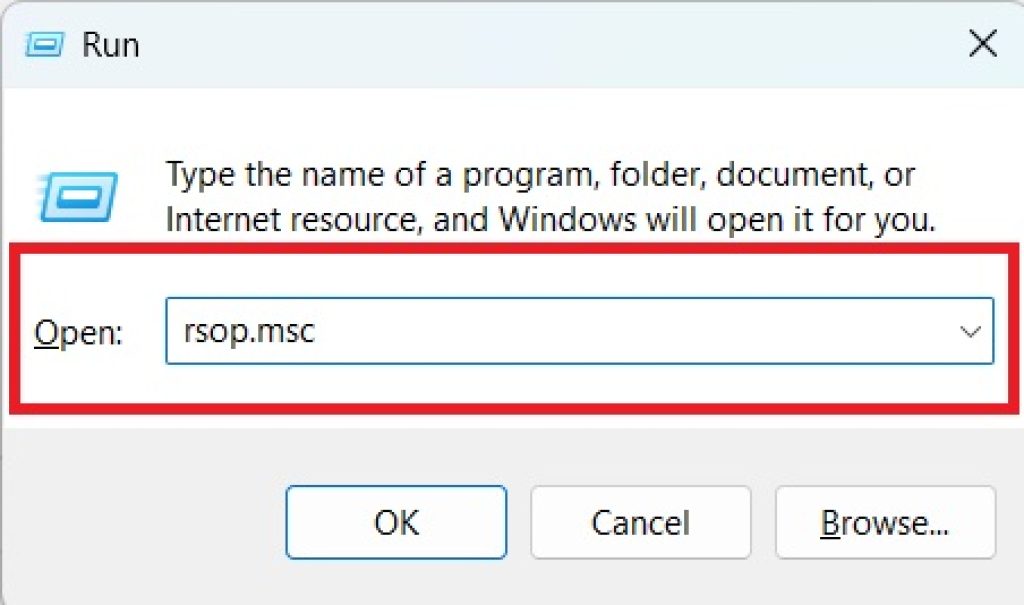
Type rsop.msc and press Enter.
Windows will take a few moments to gather and calculate the applied policies. A window styled like the Group Policy Editor will open once it’s done.
Browse through the Computer Configuration and User Configuration sections in the left pane, just as you would in the standard Group Policy Editor.
Any policy that has been configured and applied will be listed under its relevant category, along with its current state.
RSoP is fast and doesn’t require any command-line knowledge, which makes it a great first stop for casual troubleshooting. However, it has one significant limitation: it only works on Windows 11 Pro, Enterprise, and Education editions, since these are the editions that include the Group Policy Management tools. Windows 11 Home does not support RSoP or the Local Group Policy Editor at all.
Keep in mind that RSoP shows a snapshot generated at the time you open it — it does not update live, so if you change a policy afterward, you’ll need to close and reopen the tool to see the new result.
Method 2: Generate a GPResult Report from Command Prompt or PowerShell
The gpresult command-line utility offers more detail than RSoP and is especially useful because it works well for scripting, remote diagnostics, and generating shareable reports.
Steps:
- Open Command Prompt or PowerShell. For the most complete results, run it as Administrator (right-click the Start button and choose Terminal (Admin) or Windows PowerShell (Admin)).
- For a quick summary of applied Group Policy Objects (GPOs), type:
gpresult /r
This displays a readable summary showing the user and computer details, which GPOs were applied, and which were filtered out (and why). 3. For a much more detailed breakdown of every individual setting that was applied, generate an HTML report instead:
gpresult /h C:\GPReport.html
- Navigate to
C:\GPReport.htmlin File Explorer and double-click it to open the report in your default web browser. This report is organized, expandable, and includes information such as the exact GPO each setting came from, when it was last applied, and any policies that failed to apply.
The HTML report is particularly valuable for troubleshooting because it separates the Computer Configuration Summary and User Configuration Summary, shows security group memberships that affected policy filtering, and flags any GPOs that were denied due to permissions or WMI filtering.
Method 3: Use the Group Policy Editor to Check Local Policy Directly
If you specifically want to see (or edit) the local Group Policy configured directly on the machine — separate from anything pushed down by a domain or MDM — the Local Group Policy Editor is the tool to use.
Steps:
- Press
Windows + R, typegpedit.msc, and press Enter. - This opens the Local Group Policy Editor, again split into Computer Configuration and User Configuration.
- Navigate through the folder structure (Administrative Templates, Windows Settings, Security Settings, etc.) to locate specific policies.
- Any policy that has been explicitly set will show as Enabled or Disabled rather than Not Configured.
This method only shows locally configured policy, not the final resultant policy after domain GPOs are layered on top, so it’s most useful when you specifically want to audit or modify local settings rather than see the complete applied picture. Like RSoP, gpedit.msc is unavailable on Windows 11 Home.
Method 4: Check the Event Viewer for Group Policy Processing Logs
When a policy doesn’t seem to be applying correctly, checking the Group Policy operational log in Event Viewer can reveal errors or warnings that the other tools won’t show, such as network problems, permission issues, or a GPO that failed to process entirely.
Steps:
- Press
Windows + R, typeeventvwr.msc, and press Enter. - In the left pane, expand Applications and Services Logs > Microsoft > Windows > GroupPolicy > Operational.
- Look through the list of events. Informational events (typically labeled with green icons) confirm successful policy processing cycles, while warnings and errors point to specific problems, often referencing an event ID you can look up for more context.
- Double-click any event to see full details, including timestamps and the specific GPO or component involved.
This method is more advanced and doesn’t give you a friendly list of “applied settings,” but it’s often the fastest way to diagnose why a policy isn’t applying rather than just confirming whether it applied.
Conclusion
Windows 11 gives you several complementary ways to see which Group Policy settings are actually in effect on a machine, and each tool serves a slightly different purpose. RSoP is the quickest way to browse applied settings in a familiar interface. The gpresult command, especially with the /h HTML report option, gives the most thorough and shareable breakdown, making it the go-to choice for serious troubleshooting or documentation. The Local Group Policy Editor is best when you need to isolate and review just the locally configured policies. And Event Viewer’s Group Policy operational log is the place to look when something isn’t applying as expected and you need to understand why.
For most everyday checks, starting with gpresult /r for a fast summary and moving to gpresult /h when you need more depth will cover the vast majority of situations. Reserve RSoP for quick visual browsing and Event Viewer for deeper diagnostic work. Remember that all of these tools (aside from Event Viewer, which is available on Home) require Windows 11 Pro, Enterprise, or Education, since Windows 11 Home does not include Group Policy management components.
Frequently Asked Questions
1. Why don’t I have access to gpedit.msc or rsop.msc on my Windows 11 PC?
These tools are only included in Windows 11 Pro, Enterprise, and Education editions. Windows 11 Home does not ship with the Group Policy Management Console components, so both commands will return an error saying the file cannot be found. If you’re on Home edition and need similar functionality, you’ll generally need to rely on the Registry Editor or third-party tools, or upgrade to Pro edition.
2. What’s the difference between Local Group Policy and the “resultant” policy shown by RSoP or gpresult?
Local Group Policy refers only to settings configured directly on that individual machine through gpedit.msc. The resultant policy, shown by RSoP or gpresult, reflects the final combination of local policy plus any Group Policy Objects applied through Active Directory (at the site, domain, and organizational unit levels), after accounting for inheritance, blocking, enforcement, and security filtering. On a domain-joined computer, the resultant policy is usually what actually governs behavior, since domain-level GPOs typically take precedence over local settings.
3. How can I tell if a specific policy failed to apply rather than simply not being configured?
The HTML report generated by gpresult /h is the best tool for this. It clearly separates GPOs that were applied from those that were denied, and explains the reason for any denial (such as security filtering, WMI filtering, or a disabled link). For deeper diagnostic detail, especially around processing errors unrelated to filtering, check the Group Policy operational log in Event Viewer, which records warnings and errors during each policy refresh cycle.
4. How do I force Windows 11 to reapply Group Policy immediately instead of waiting for the next refresh cycle?
Open Command Prompt or PowerShell as Administrator and run:
gpupdate /forceThis reprocesses all applicable Group Policy settings immediately rather than waiting for the normal background refresh interval (which is roughly every 90 minutes on domain-joined machines, with a random offset). After running it, you can immediately follow up with gpresult /r or gpresult /h to confirm which policies took effect.





