
 Sukhdev Kamboj
If you’ve recently updated to Windows 11, reinstalled your operating system, or rolled back a driver update, you may have noticed that your laptop or all-in-one PC’s touch screen has suddenly stopped responding. When you open Device Manager to investigate, you might find the “HID-compliant touch screen” entry missing altogether, greyed out, or flagged with a yellow warning triangle. This is a surprisingly common issue on Windows 11, and it affects a wide range of devices, from budget 2-in-1 laptops to premium touchscreen ultrabooks.
The “HID-compliant touch screen” driver is a generic Human Interface Device (HID) driver that Windows uses to communicate with your touch panel. Unlike graphics or audio drivers, which are often unique to a specific chipset or vendor, the HID touch screen driver is largely standardized, which is part of why its disappearance is so puzzling to most users. One moment your screen responds to taps and swipes, and the next, nothing happens, and the driver entry seems to have vanished from Device Manager entirely.
This problem can stem from several different causes: a corrupted driver package, a buggy Windows update, disabled hardware in BIOS/UEFI, outdated chipset drivers, or even a physical connection issue inside the device. The good news is that in the vast majority of cases, this is a software-level problem, not a hardware failure, and it can be resolved without professional repair or a trip to the service center.
In this guide, we’ll walk through the most effective, tested methods for restoring your HID-compliant touch screen driver on Windows 11. We’ll start with the simplest fixes and move toward more advanced troubleshooting steps, so you can resolve the issue at whichever level matches your comfort with your PC’s settings. By the end, your touch screen should be back to working exactly as it did before.
Methods to Fix Missing HID-Compliant Touch Screen Driver on Windows 11
Method 1: Restart Your PC and Check Device Manager
It sounds almost too simple, but a significant number of “missing driver” reports resolve themselves after a proper restart. Windows sometimes fails to fully load or initialize a HID device driver right after an update or a wake-from-sleep cycle, and a fresh boot clears the miscommunication between the operating system and the touch controller.
Here’s how to check things properly:
Save your work and restart your computer completely (not just sleep or hibernate — a full shutdown and cold boot works best if the issue persists after a normal restart).
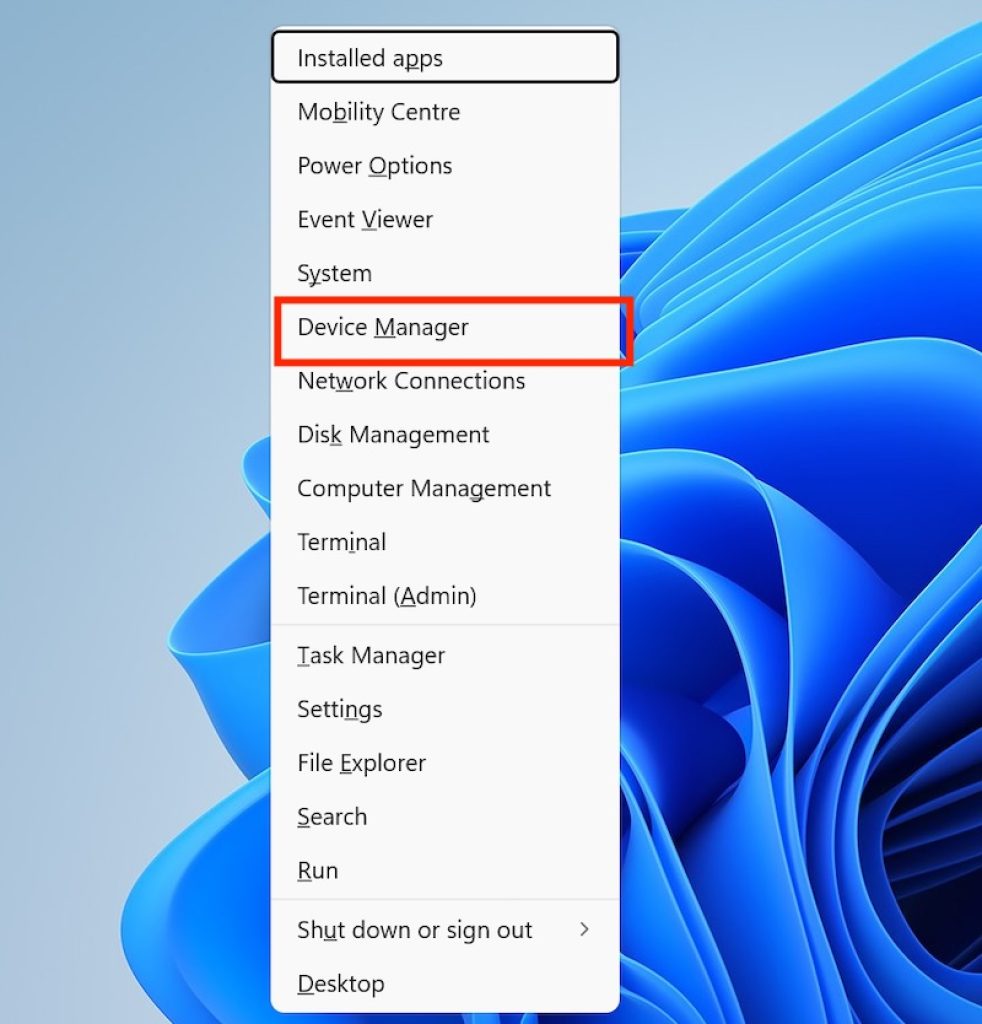
Once Windows has loaded, press Windows + X and select Device Manager.
Expand the Human Interface Devices category by clicking the arrow next to it.
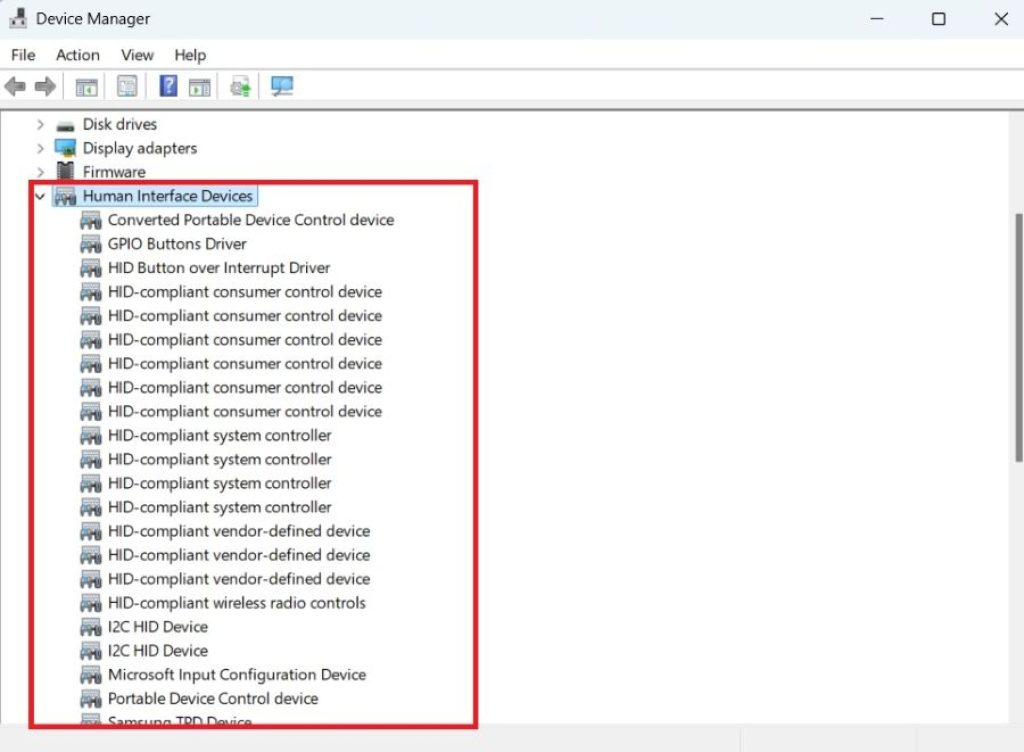
Look for an entry labeled HID-compliant touch screen.
If you see the entry with no warning icon, your touch screen should already be functioning again. If it’s missing entirely, or shows a yellow exclamation mark, proceed to the next methods. It’s also worth expanding other categories like Mice and other pointing devices or checking under System devices, since Windows occasionally miscategorizes touch hardware after a driver conflict.
Method 2: Use Device Manager’s Built-In Troubleshooter and Scan for Hardware Changes
Windows has a built-in mechanism to detect hardware that isn’t properly bound to a driver. This is often the fastest fix when the touch panel is physically fine but Windows simply hasn’t reloaded the correct driver.
- Open Device Manager (Windows + X, then select it from the menu).
- Click on your PC’s name at the very top of the device tree.
- Go to the Action menu and select Scan for hardware changes.
- Windows will search for any unrecognized hardware and attempt to automatically reinstall matching drivers.
If this doesn’t bring back the HID-compliant touch screen entry, try running the Hardware and Devices troubleshooter:
- Open Settings and go to System > Troubleshoot > Other troubleshooters.
- Look for options related to hardware; if it isn’t listed, you can run it via Command Prompt.
- Open Command Prompt as Administrator and type:
msdt.exe -id DeviceDiagnostic
- Follow the on-screen prompts. Windows will scan connected hardware and attempt to fix any detected issues automatically.
Method 3: Update, Roll Back, or Reinstall the Touch Screen Driver
If a recent driver update caused the issue, rolling it back can restore functionality immediately. Conversely, if the driver is outdated or corrupted, updating or completely reinstalling it can fix the conflict.
To update the driver:
- Open Device Manager and expand Human Interface Devices.
- Right-click HID-compliant touch screen (if visible) and select Update driver.
- Choose Search automatically for drivers and let Windows check online for the latest version.
To roll back a recent driver update:
- Right-click the touch screen entry and select Properties.
- Go to the Driver tab.
- If the Roll Back Driver button is active (not greyed out), click it and follow the prompts.
- Restart your PC afterward.
To completely reinstall the driver:
- Right-click the HID-compliant touch screen entry and select Uninstall device.
- Check the box for Attempt to remove the driver for this device if prompted, then confirm.
- Restart your computer. Windows will automatically detect the touch hardware and reinstall a fresh driver during boot.
If the entry isn’t showing at all in Device Manager, you can still trigger a fresh scan by restarting after checking “Show hidden devices” under the View menu, which sometimes reveals a greyed-out phantom entry you can uninstall and let Windows rebuild.
Method 4: Check BIOS/UEFI Settings and Update Chipset Drivers
Sometimes the touch panel is disabled at the firmware level, particularly after a BIOS update, a factory reset, or changes made by a previous user or technician.
- Restart your PC and enter BIOS/UEFI setup (commonly by pressing F2, F10, Del, or Esc during boot — check your manufacturer’s documentation for the exact key).
- Look through the Advanced, Peripherals, or Onboard Devices tabs for an option related to the touch panel or touchscreen. Names vary by manufacturer, so look for anything mentioning “touch” or “digitizer.”
- If you find such an option and it’s disabled, enable it, save changes, and exit (usually F10).
Beyond BIOS settings, outdated or missing chipset drivers can prevent Windows from correctly recognizing HID devices connected internally via I2C or USB buses. Visit your laptop manufacturer’s official support page (Dell, HP, Lenovo, ASUS, Acer, etc.), search by your exact model number, and download the latest chipset and I2C HID driver packages. Installing these often resolves touch screen recognition issues that generic Windows Update drivers can’t fix, since manufacturer-specific packages include the correct digitizer firmware bindings.
After installing chipset drivers, restart your PC and recheck Device Manager for the HID-compliant touch screen entry.
Conclusion
A missing HID-compliant touch screen driver on Windows 11 is frustrating, but it’s rarely a sign of permanent hardware failure. In most cases, it comes down to a driver that failed to load properly after an update, a setting disabled in BIOS, or an outdated chipset driver that hasn’t been refreshed to match your current Windows build. Working through the methods above in order, starting with a simple restart and device scan, then moving to driver rollback or reinstallation, and finally checking BIOS and chipset settings, resolves the issue for the overwhelming majority of affected users.
If you’ve gone through all four methods and your touch screen still isn’t detected, it’s worth considering whether the issue is genuinely hardware-related, such as a loose internal cable or a failing digitizer, especially if the device has been dropped or exposed to liquid recently. In that case, a visit to a certified repair technician or your manufacturer’s support line is the safest next step. But for the vast majority of Windows 11 users facing this exact error, a combination of driver reinstalltion, chipset updates, and a BIOS check should have your touch screen tapping and swiping normally again in no time.
Frequently Asked Questions
1. Why did my HID-compliant touch screen driver disappear after a Windows 11 update?
Windows updates occasionally replace or reset driver bindings for HID devices, especially if the update includes changes to the Human Interface Device stack itself. This can cause the driver to become unbound from the touch controller temporarily, making it appear “missing” in Device Manager even though the underlying hardware is fine. Reinstalling the driver or rolling back the update usually restores it.
2. Is it safe to uninstall the HID-compliant touch screen driver and let Windows reinstall it?
Yes, this is one of the safest and most common troubleshooting steps. Uninstalling the driver through Device Manager doesn’t remove any hardware capability permanently; it simply clears the current driver binding so Windows can detect the touch panel fresh and reinstall an appropriate driver automatically on the next restart.
3. My touch screen worked before a Windows 11 upgrade but not after. What should I do first?
Start with Method 3 (rolling back or reinstalling the driver) since this is the most common cause after a major OS upgrade. If that doesn’t help, check BIOS settings next, since some upgrades reset firmware configurations to default values, which can disable touch functionality if it was previously enabled through a custom setting.
4. Can outdated chipset drivers really affect the touch screen even if graphics and other drivers work fine?
Yes. Touch panels are often connected internally through I2C HID or USB HID interfaces that rely on chipset-level drivers to communicate properly with Windows. Even if your graphics, audio, and network drivers are current, an outdated chipset driver package can specifically break the communication pathway the touch digitizer needs, which is why manufacturer-specific chipset updates are an important troubleshooting step separate from generic Windows Update drivers.





